Unpaid Orders
An unpaid order is a drop-off ticket the customer hasn't fully settled yet. Most clear themselves the normal way: the customer comes back, pays at the counter, and the ticket drops off the list. This guide is for the times that don't go that smoothly. It covers how to spot an unpaid order, the places you can settle one, and the dashboard's Mark as Paid button for orders that were paid off the counter. About 3 minutes.
Settling an unpaid order happens in two places, and each has its own permission.
At the counter, charging an unpaid ticket uses the Use POS register permission (pos:register). The default Owner, Admin, Manager, and Cashier roles all hold it, because collecting payment is part of the everyday counter flow.
From the dashboard, the Mark as Paid button needs the Sign in to dashboard permission (dashboard:view). The default Owner, Admin, and Manager roles hold it. Cashier does not, cashiers settle orders at the POS instead.
To change any of this, edit the role in Roles & Permissions.
Before you start
This guide assumes the order already exists. Orders are created at the POS register during checkout, see Register. An order becomes unpaid when it's saved without full payment, either with Save Order (no money down) or Pay Partial (a deposit). See Open Tickets and Partial Payments for how each one is made.
A few things worth knowing up front:
- Unpaid means no payment at all. Partial means a deposit is on file and a balance is still owed.
- The fastest way to settle most orders is still the POS, the customer is usually standing at the counter when they pay.
- The dashboard's Mark as Paid is the exception path, for orders a customer paid you another way (a bank transfer, a GCash send) where there's no cash changing hands at the register.
1. Spot an unpaid order
Two payment states show up across the app, and they look the same wherever they appear.
| State | Badge | Order Board dot | Meaning |
|---|---|---|---|
| Unpaid | Red Unpaid badge | Red dot | No payment taken yet |
| Partial | Amber Partial badge | Amber dot | A deposit is on file, a balance is owed |
On the dashboard, open Sales -> Orders and set the payment filter to Unpaid (or Partial) to list just those. Each row carries its payment badge in the Payment column.
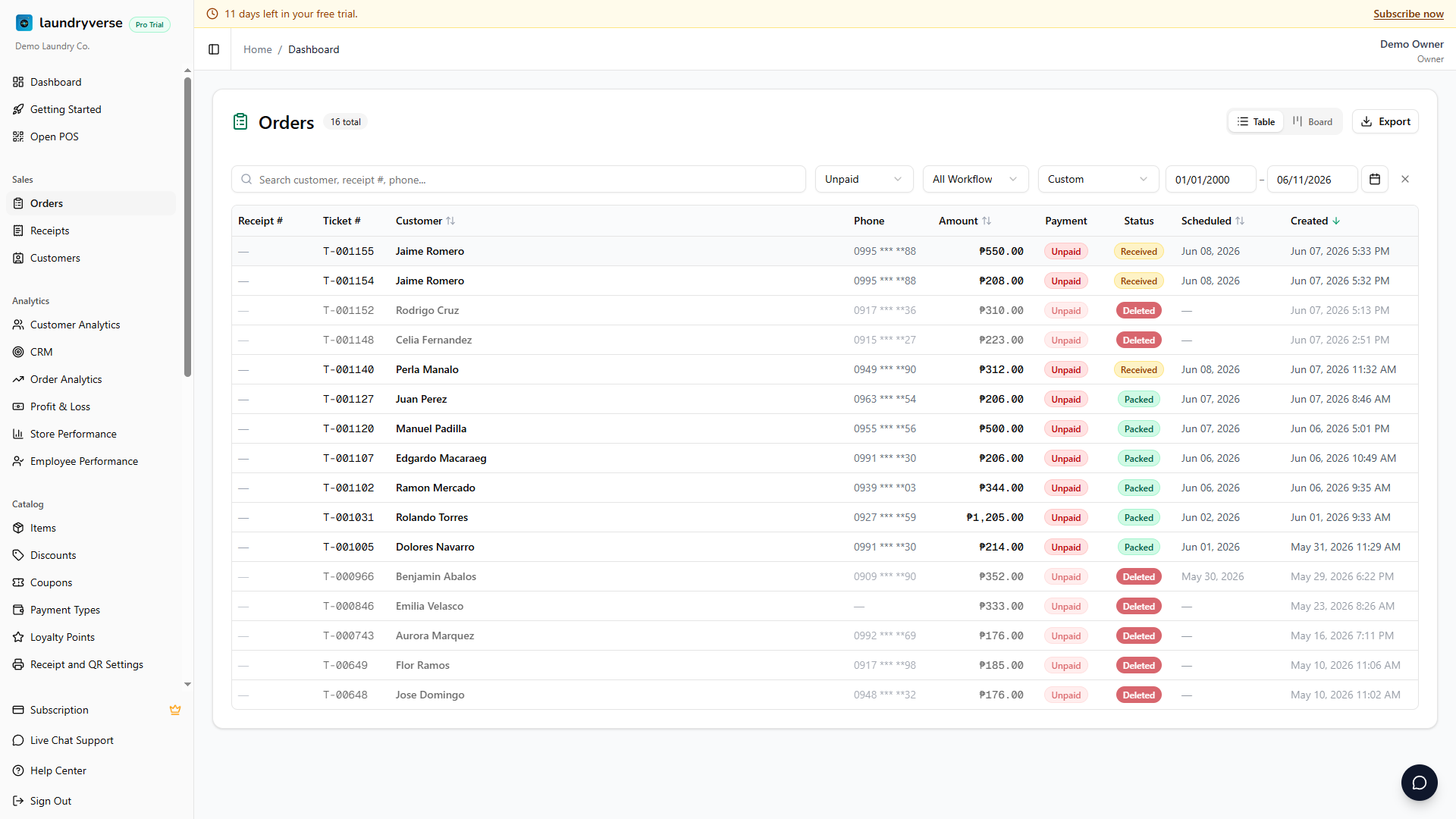
At the counter, the same orders sit in the Open Tickets list and carry the matching dot and badge on the Order Board. See Open Tickets for the board view.
2. Pick how to settle it
There are two routes, and the right one depends on how the customer is paying.
| The customer is paying... | Settle it here | Guide |
|---|---|---|
| At the counter, any method (cash, GCash, split) | The POS register | Section 3 below |
| Already paid you off the counter (bank transfer, GCash) | Mark as Paid on the dashboard | Section 4 below |
The counter route handles every payment method and is the everyday path. Mark as Paid is a back-office shortcut for non-cash payments that already happened somewhere else, so the sale gets a receipt and shows up in your reports without a trip to the register.
3. Settle at the counter (POS)
When the customer is at the counter paying, settle the order at the POS. There are three ways in, and they all open the same checkout:
| Entry point | How |
|---|---|
| Open Tickets list | Tap Open Tickets in the register's top bar, then tap the ticket. The register reloads with its items in the cart. |
| POS Order Detail | Open the order from the Order Board, then tap the green Charge button. |
| Order Board card | Tap the card to open its detail page, then Charge. |
Once the order is loaded, tap Charge and finish the payment. For a partially paid order, the checkout already knows about the deposit, so it asks only for the remaining balance.
For the full counter walkthrough, see:
- Open Tickets: find an unpaid ticket and charge it.
- Partial Payments: collect the balance on a deposit order.
- Processing Payments: the checkout itself, step by step.
4. Settle from the dashboard with Mark as Paid
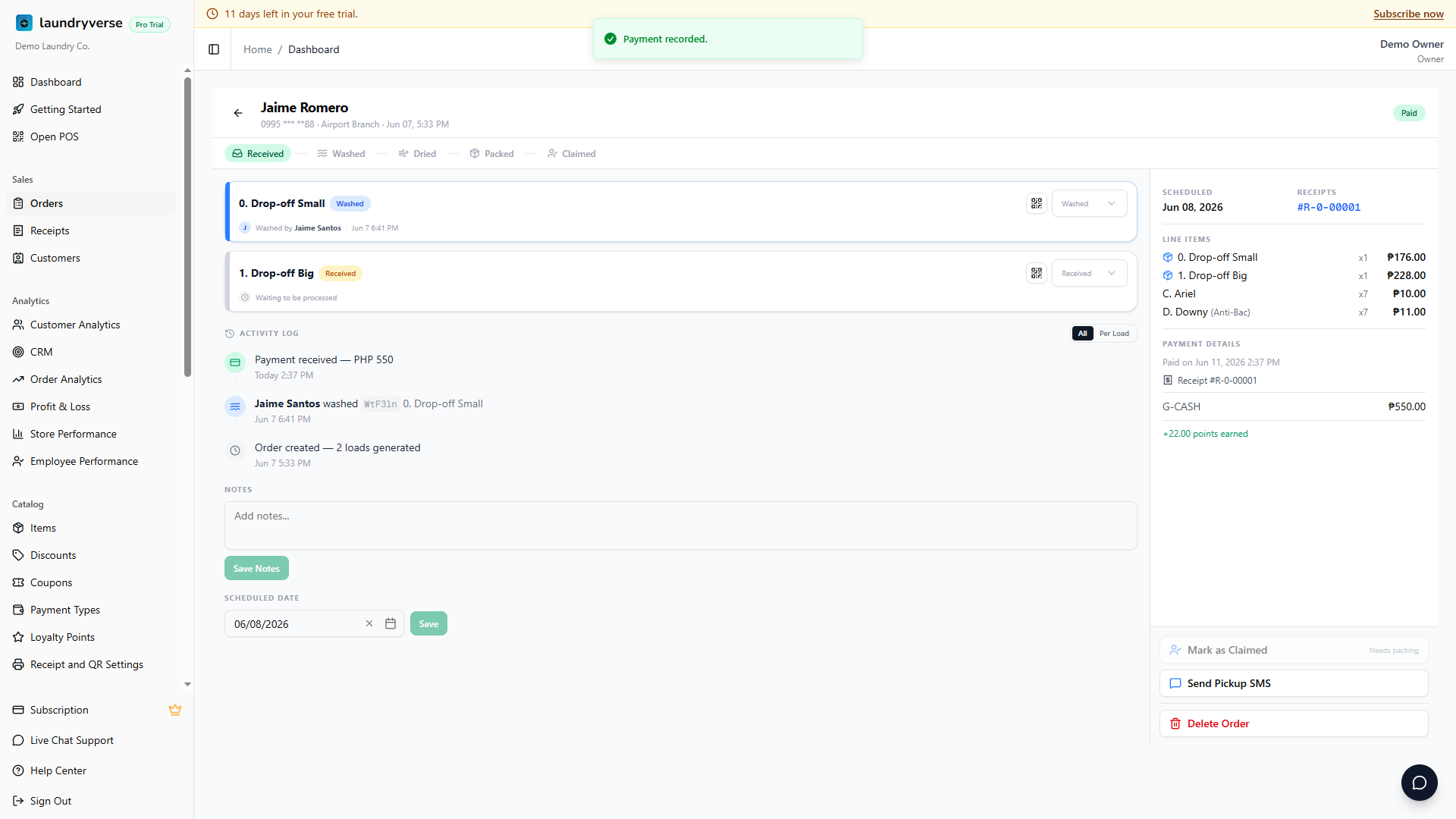
Use Mark as Paid when the customer already paid you a non-cash way and you just need the order to reflect it. It records the payment, writes a receipt so the sale lands in your reports, and credits any loyalty points exactly as a counter sale would.
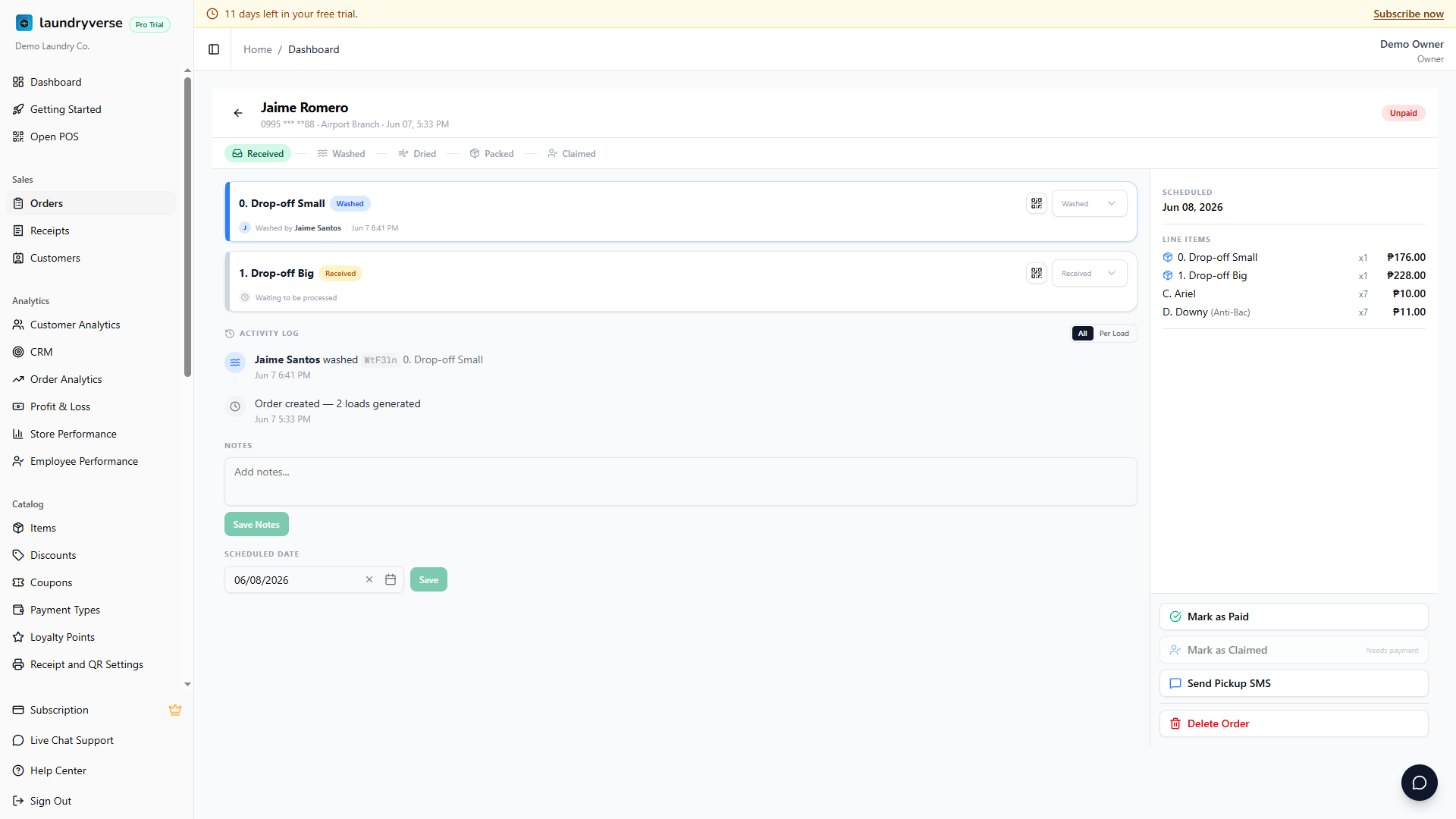
- Open Sales -> Orders, find the unpaid order, and click it to open the detail page.
- In the actions panel, click Mark as Paid.
- Pick the payment method the customer used. The list shows your non-cash methods only, GCash, Bank Transfer, and any others you've set up. Manage them in Payment Types.
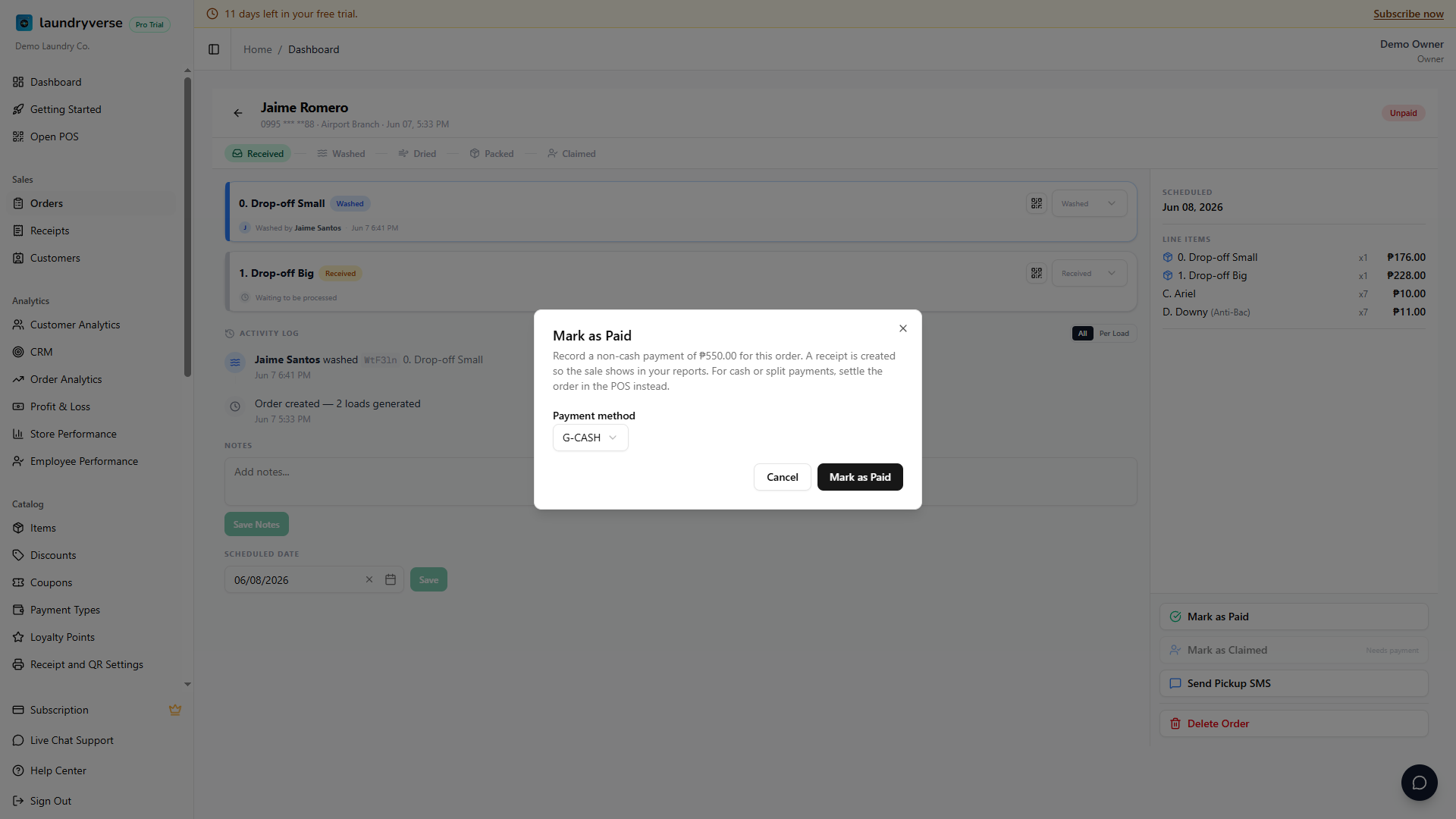
- Click Mark as Paid to confirm. The order flips to Paid, a receipt number appears, and the payment shows in the order's receipt list.
What Mark as Paid records
- A receipt for the full order total, numbered in the same series as your POS sales, so the order shows up in Receipts and your reports.
- Loyalty points, credited to the attached customer just like a counter sale. If the order carries a phone number but no linked customer, the matching customer is found by that phone number so the points and CRM credit land correctly.
- For a retail-only order with no laundry to process, the ticket is archived once paid so it leaves your boards. A drop-off order stays live so its loads still move through wash, dry, and fold.
Common issues
"Mark as Paid says the order already has a payment"
That order is partially paid, the deposit it carries is a real payment with its own receipt and drawer entry. The dashboard can't settle the balance cleanly on top of that, so finish it at the POS instead: load the ticket from Open Tickets and charge the remaining balance. See Partial Payments.
"I don't see a payment method to pick"
The dialog lists non-cash methods only, and you have none set up yet. Add one under Payment Types, or settle the order at the POS where Cash is always available.
"The customer paid cash, can I use Mark as Paid?"
No. Cash settles at the POS so it lands in the open shift's drawer and the cash count stays right. Mark as Paid is for non-cash payments that happened off the counter.
"The order disappeared after I marked it paid"
It was a retail-only ticket with no loads to process, so it's archived once paid and drops off the boards. It isn't gone, find it in Orders by clearing the filters, or in Receipts by its new receipt number.
"An order shows Unpaid but the customer already paid at the counter"
The charge may have been rung up as a separate walk-in sale instead of against this ticket, which leaves the original ticket unpaid. Check Receipts for a matching sale. If the money is already in, use Mark as Paid (non-cash) or settle and refund to reconcile, and consider deleting the duplicate ticket with a reason.
What's next?
- Open Tickets: find and charge unpaid tickets at the counter.
- Partial Payments: take a deposit and collect the balance later.
- Orders: the dashboard view of every order, with filters and the detail page.
- Receipts: every sale, including the ones Mark as Paid creates.
Stuck? Email [email protected]. The founder reads every message.