Receipts
Receipts is the dashboard's view of every payment your shop has ever taken. One filterable archive for finding any sale by receipt number, ticket, customer, payment type, or date, a detail dialog that surfaces line items, payments, change, points, the cashier, and any linked order, plus the controls owners actually need: cancel a mistaken sale, backfill orders from receipts that pre-date your order tracking, and export the whole filtered slice as CSV for accounting or tax. The cashier-side payment flow lives at the POS Payments screen, this page is where owners reconcile and review afterwards. About 3 to 4 minutes.
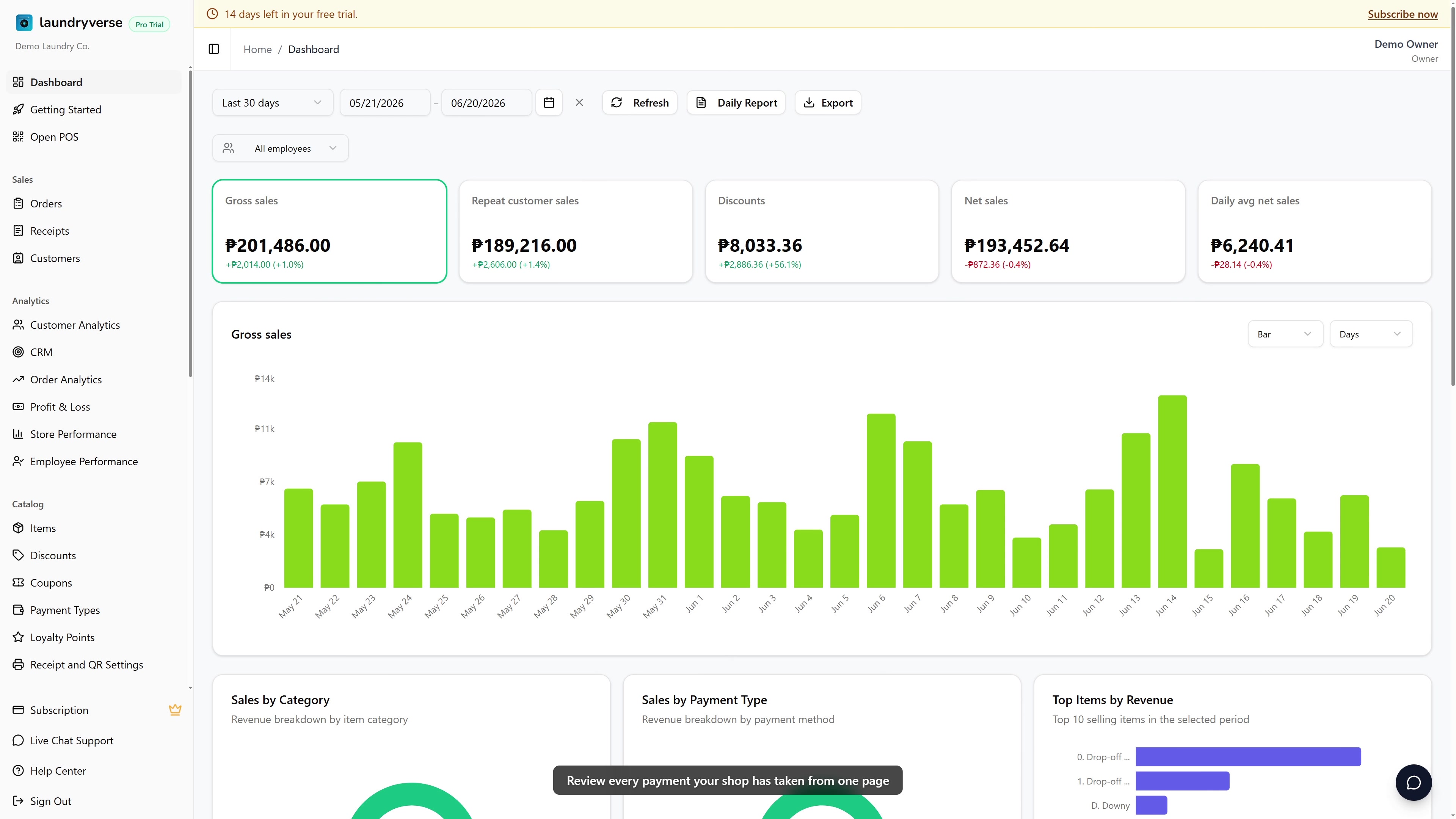
Opening the Receipts page requires the Sign in to dashboard permission (dashboard:view). Anyone who can sign into the dashboard can read the list, open a receipt, and view full detail. Cancelling a receipt and backfilling orders from receipts both require the View receipts permission (dashboard:receipts:view), enforced on every save. CSV export is available on every plan; on the Starter plan it covers the last 30 days of receipts, and the Business plan and above export the full history. The default Owner, Admin, and Manager roles all hold dashboard:receipts:view, so anyone in those roles can cancel and backfill. The default Cashier role does not hold any dashboard permission, cashiers work receipts from the POS Receipts list using the separate receipts:view permission. To let another role manage receipts from the dashboard, grant View receipts in Roles & Permissions.
Before you start
This page is the dashboard side of the receipt lifecycle. Receipts are created at the POS register the moment a payment is recorded, see POS Payments. By the time a row appears here, the cash is in the drawer, the GCash transfer has landed, or the bank deposit has been captured. The dashboard's job is reconciliation, lookup, and the occasional manual correction.
A few things worth knowing up front:
- The table shows every receipt your shop has taken, sales, refunds, deposits, and cancelled rows alike. Cancellation never deletes a receipt, it stays in the list with a red Cancelled badge for the audit trail.
- A receipt is the money side of a transaction. An order is the laundry job side, see Orders. A drop-off creates both, a walk-in self-service sale creates a receipt only, a deposit for a drop-off creates a separate deposit receipt linked to the same order.
- CSV export works on every plan. On Starter it covers the last 30 days of receipts, floored by receipt date; Business and above export the full history. See Subscription & Billing.
- Cancellation is not deletion. The receipt is marked Cancelled, but it stays in the table, on the audit trail, and in Activity Log. Cancellation also reverses several side effects in one shot, see section 5.
- Cancellation is not a refund. A cancel undoes the sale (inventory back, points back, order back to unpaid). A refund records that money was returned to the customer through the POS. For a same-day "wrong items rang up" mistake, cancel. For "customer returned the laundry next week," refund.
1. Open the Receipts page
From the dashboard, navigate to Sales -> Receipts in the sidebar.
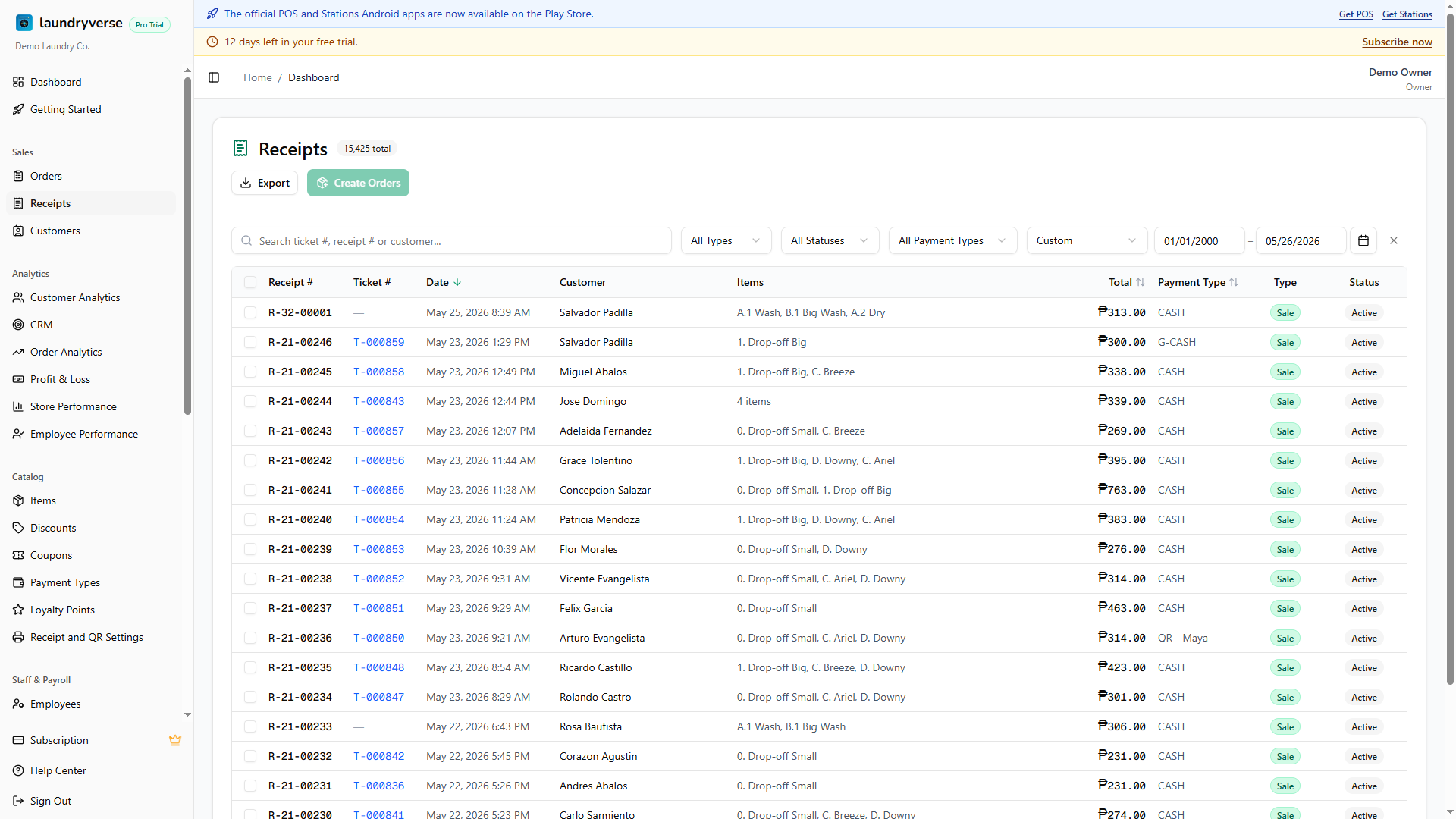
The page is a single card with a header (Receipts icon, a count badge of total receipts on the current filter, an Export menu, and a Create Orders button), a filter toolbar across the top with search and four dropdowns, the table in the middle, and pagination at the bottom. Every filter is reflected in the URL as a query string, so a filtered view is shareable, paste the URL into chat and a teammate lands on the same slice.
2. Read the table
Each row is one receipt. Ten columns.
| Column | What it shows |
|---|---|
| Receipt # | The receipt number printed at the register. Always populated. |
| Ticket # | The shop-local ticket counter the bag label uses. Em-dash if the receipt isn't tied to a drop-off (walk-in self-service sales have no ticket). Tickets that link back to an order render as a blue link, click to jump to the Order detail. |
| Date | When the sale was rung up at the POS, includes the time. Sorts the table by default, newest first. Click the column header to sort ascending or descending. |
| Customer | The display name attached to the receipt. Walk-in if no customer was attached at the register. |
| Items | First three item names, or N items for longer receipts. Hover for the full list. |
| Total | Receipt total in pesos, right-aligned mono, sortable. The format is P1,234.56. |
| Payment Type | One or more payment methods used (Cash, GCash, Bank Transfer, and any custom types you've added). Sortable by the first payment type's name. |
| Type | Badge showing Sale (green) or Refund (amber). Deposit receipts also exist but are surfaced in the detail dialog rather than as a list filter. |
| Status | Badge showing Active (gray) or Cancelled (red). Cancelled rows render with a faint red tint so the eye picks them out. |
| Store | Switches via the global Store filter in the top bar, not a per-column sort. Affects every dashboard page. |
The count badge in the page header reflects whatever filter is active, so you can see at a glance how many rows match before you scroll. Pagination at the bottom moves twenty rows at a time.
3. Search and filter
The search box matches receipt number, ticket number, or customer name with a case-insensitive substring match. Type a few characters and the table debounces for six tenths of a second before re-querying, no Enter key required. The search term is pushed to the URL as ?q=....
The toolbar has four more controls:
| Control | What it does |
|---|---|
| All Types | Filter to Sale or Refund. Default is All Types. |
| All Statuses | Filter to Active or Cancelled. Default shows both, the cancelled rows tinted in red. |
| All Payment Types | Filter to one specific payment method (Cash, GCash, Bank Transfer, custom). Useful for reconciling a single tender against a bank statement. |
| Date Range | A from-and-to calendar picker, scoped by receipt date. |
The active filter pills sit in the URL, so the back and forward buttons jump between filter states. The table refresh runs through a transition, you'll see a faint loading overlay during the round-trip. Filter changes also clear any pending selection (the checkboxes for Create Orders), so a filter swap can't accidentally backfill the wrong receipts.
4. Open a receipt's detail dialog
Click any row to open the receipt detail dialog. The dialog is the same component the POS shows when a cashier taps a receipt from the POS list, so the layout matches the printed receipt your customer takes home.
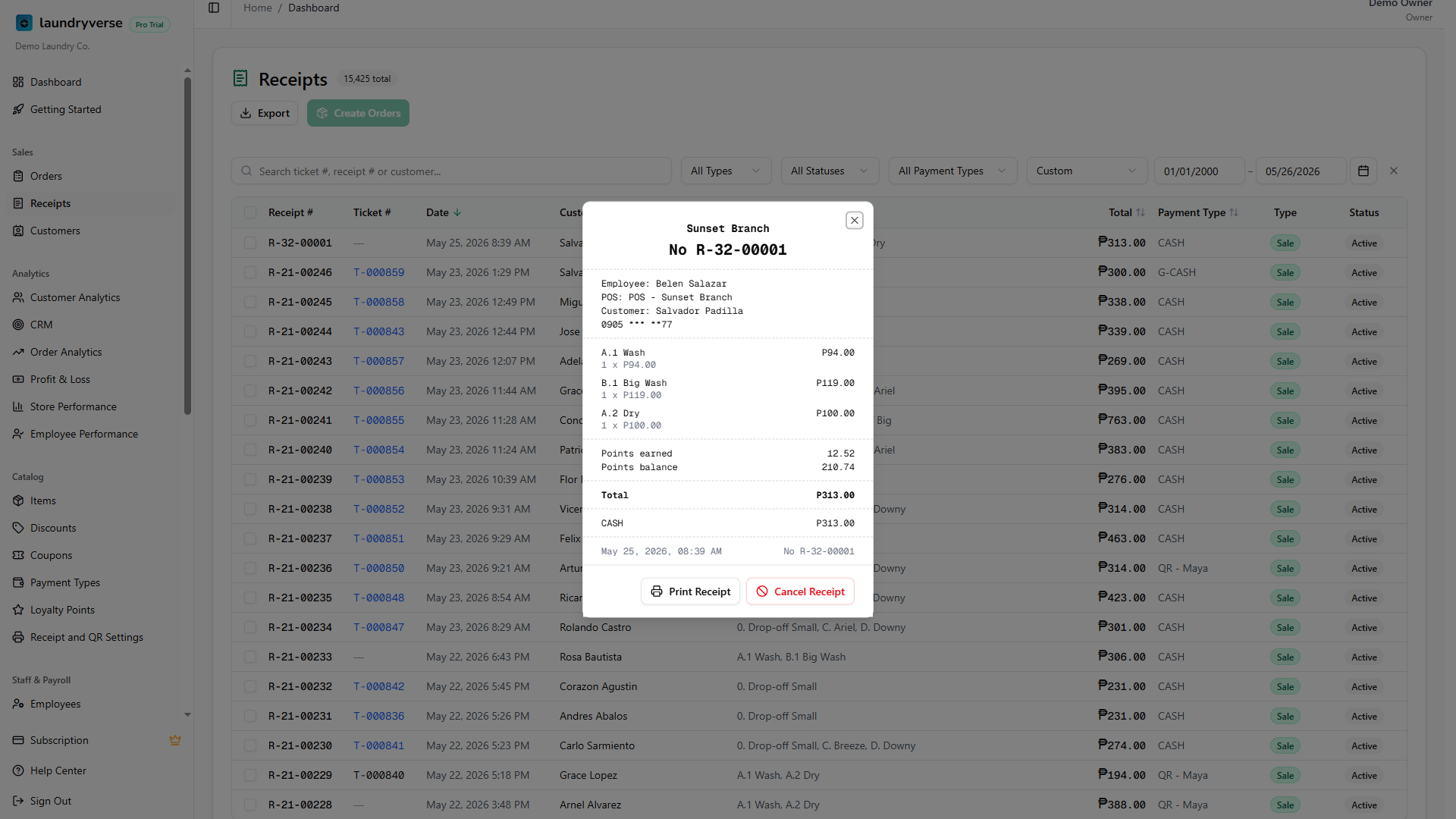
Top to bottom:
| Section | What it shows |
|---|---|
| Status badges | Refund, Deposit, or Cancelled appear at the top of the dialog when applicable. A plain sale has no badge. |
| Store and ticket number | The store that recorded the receipt, the ticket number on the bag (if any), and the receipt number underneath. |
| Employee and POS | The cashier who rang the sale and the device name. |
| Customer | The customer's name and phone, if one was attached. Walk-ins show no customer block. |
| Line items | Every item on the receipt with quantity, unit price, and line total. Variants (Comforter Wash 10 kg, Comforter Wash 15 kg) render with the variant name in parentheses. |
| Discounts | Any discount, coupon, or loyalty redemption with the peso amount removed. |
| Points | Points earned on this sale and the customer's running balance, when a customer was attached. Hidden for walk-ins. |
| Total | The grand total in mono, bold. |
| Payments | Every payment method used with the amount, plus a Change row when cash was tendered over the total. |
| Linked order | When this receipt came from a drop-off, a blue Order link jumps to the order's detail page. |
| Print Receipt | Reprint the receipt to the paired thermal printer using your saved Receipt Settings. Useful when the original print misfed or the customer asks for another copy. |
| Cancel Receipt | Red button at the bottom, see Cancelling a Receipt below. Hidden if the receipt is already cancelled. |
5. Cancelling a receipt
Cancel a receipt when a sale was rung up by mistake, wrong customer, wrong items, voided immediately, or a same-day correction. Open the detail dialog and tap Cancel Receipt, then confirm in the alert.
What happens, in one shot:
| Effect | |
|---|---|
| Receipt | Marked Cancelled with a red badge, stays in the list for audit, never deleted. |
| Inventory | Stock-tracked items have their deducted quantity added back to the store's inStock count. Items not flagged for stock tracking are unaffected. |
| Loyalty | Points earned on the sale are subtracted from the customer's balance; points redeemed are credited back. Customer visit count and lifetime spend are also rolled back. |
| Linked order (Sale receipt) | The order's payment link is cleared, payments are emptied, and the order recalculates paidAmount from any remaining non-cancelled deposit receipts. With deposits left, the order returns to Partially Paid; with no deposits left, it goes back to Unpaid. Retail-only tickets that were auto-archived on payment are un-archived. |
| Linked order (Deposit receipt) | The order's paidAmount decreases by the deposit total, the deposit is pulled from depositReceiptNumbers, and if the order has no payments left it reverts to Unpaid. The order itself is never cancelled when a deposit is cancelled. |
| Sales totals | Cancelled receipts are excluded from Sales Today, Performance, and reports going forward. Already-printed shift reports do not retroactively change. |
Cancellation is not undoable. There is no Uncancel button, no Restore. If you need the transaction back, ring it up again at the POS register, or use a refund receipt from the POS for the cash side and re-create the order from the receipt (section 6) for the laundry side.
Cancel a receipt the same day, before the till is reconciled and the bank deposit is made. Once the cash has been counted out and removed from the drawer, cancelling distorts your shift report, the deposit slip, and any reconciliation already done downstream. For older mistakes, use a refund receipt at the POS register or post an expense adjustment instead. Both leave the original receipt intact and create a paper trail.
Cancellation also runs an attempt to reverse inventory and loyalty side effects in the same transaction. If the inventory or points reversal fails (a deleted item, a deleted customer), the receipt itself still gets cancelled and you'll see a yellow toast asking you to verify stock and points manually for that one.
6. Create Orders from Receipts
For early adopters: if you took drop-offs as plain receipts before LaundryVerse's order tracking was switched on, for instance during the first week of using the POS, or after a Loyverse import where some pre-import receipts never had matching orders, you can backfill orders directly from those receipts.
The Create Orders button in the page header is always visible but stays disabled until you tick at least one row, that's expected.
- Tick the checkbox at the left of each receipt that should become a drop-off order. The header checkbox selects every row on the current page at once.
- The button label updates to Create Orders (N), where N is the selection count.
- Click it and confirm in the dialog. Orders are created as Paid, the receipt date becomes the order's
paidAt, the customer (or "Walk-in Customer") is attached, and the new order appears on the Order Board. - Receipts that already have a linked order are silently skipped, you'll see
M skipped (already had orders)in the result.
Only line items tagged as drop-off in the catalog become order items, that's the same drop-off-indicator service tag used by the POS to decide what creates an order, see Items. Self-service walk-in items (Regular Wash, Regular Dry) stay on the receipt only and don't roll into the backfilled order. The cap is 50 receipts per batch, anything larger comes back as an error and you can run the next 50.
7. Export to CSV
Click Export in the page header and choose CSV to download the current filtered view as a CSV file.
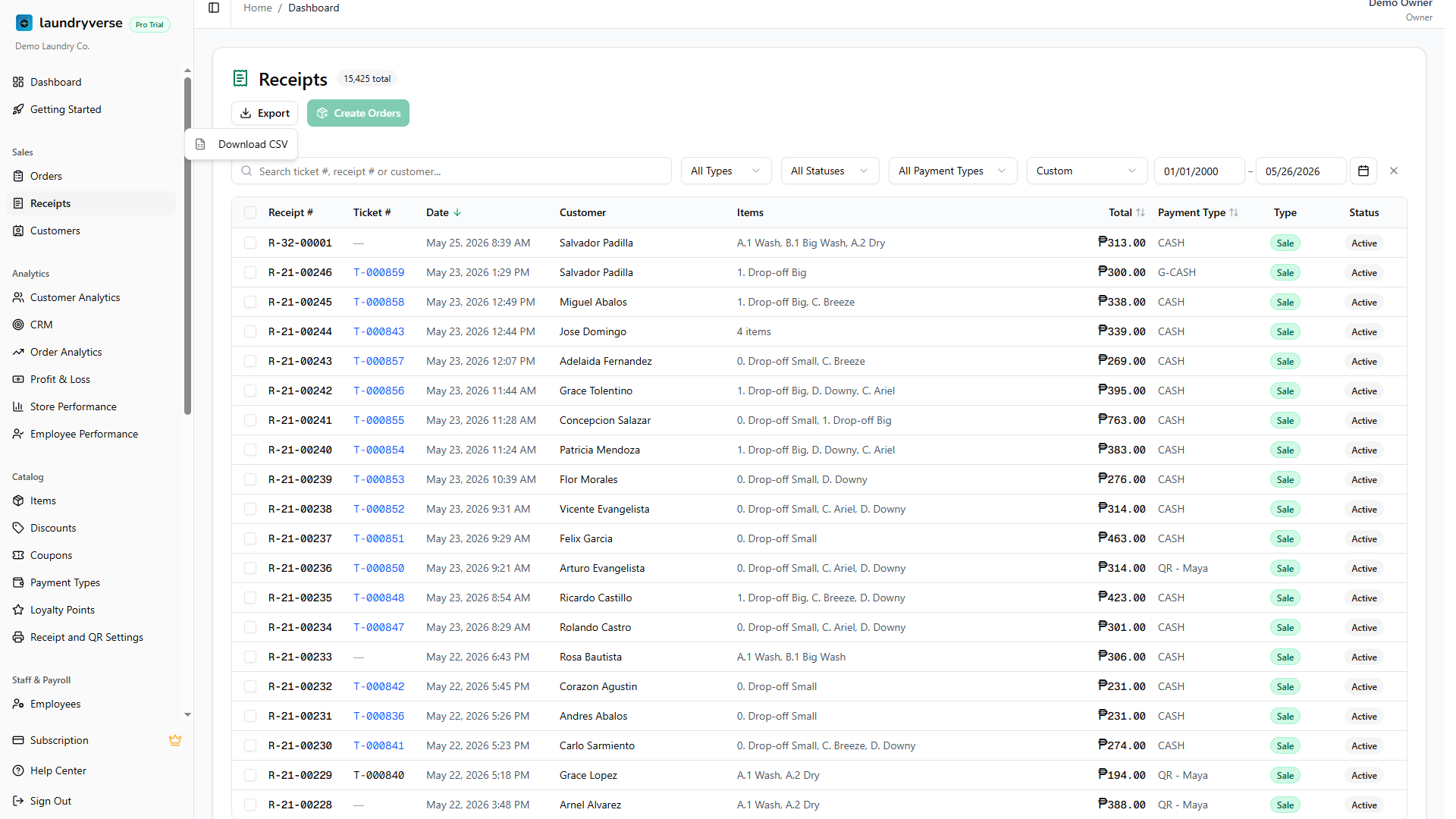
The export honors every filter (search, type, status, payment type, date range, and the global store selector) so the file you download matches the table you can see on screen. The export is capped at 10,000 rows per download, narrower date ranges or a tighter filter pull a smaller, more accountant-friendly file.
CSV columns: Ticket #, Receipt #, Date, Customer, Items, Total, Type, Payment Type, Status, Store.
CSV export works on every plan. On the Starter plan the file covers the last 30 days of receipts, by receipt date, even when your date filter reaches further back. Business and above export the full history you've filtered to. Upgrade from Subscription & Billing for full-history exports.
Common issues
"I can't find a receipt I rang up an hour ago"
Three usual causes. First, your date range filter is set narrower than you think, clear it or widen to Today and try again. Second, you're on a multi-store tenant and the dashboard header's store selector is scoped to a different branch, switch it to All Stores. Third, the receipt was cancelled and your All Statuses filter is set to Active only, switch the dropdown to All Statuses or to Cancelled.
"Cancelled this receipt, where did the money go on the report?"
Cancelling a receipt is not a refund, and it doesn't produce a cash-out from the drawer. The receipt is excluded from sales totals going forward, but the physical money is still in the till. Use Pay Out at the POS to record the cash leaving the drawer, or post an expense to reconcile it. The cancellation is the audit trail for why the money came out, the pay-out is the trail for that it came out.
"Cancelling a deposit didn't unpaid the order"
That's by design. A deposit cancel only reverses the deposit, the order keeps any other deposits and stays Partially Paid. The order only flips back to Unpaid when every payment against it has been cancelled (deposits and the final SALE receipt), because that's the only state where the customer truly owes the full amount again. To fully reset an order to Unpaid, cancel each deposit receipt and the SALE receipt one by one.
"Export downloads an empty CSV"
Two causes. First, your current filter has zero matches, scroll the table or clear filters and try again. Second, you're on the Starter plan and every matching receipt falls outside the last 30 days. Starter exports are floored to that window by receipt date, so a filter set entirely to older dates comes back empty. Widen the range to include recent receipts, or upgrade from Subscription & Billing for full-history exports.
"Create Orders is greyed out"
You haven't ticked any receipts yet, the button enables when at least one row is selected. Tick the checkbox on a row (or the header checkbox to select the whole page) and the label updates to Create Orders (N). If the button stays disabled with rows selected, refresh the page, an expired session may be silently blocking the action.
"The receipt has no linked order even though it was a drop-off"
That happens when the receipt was created before order tracking caught up: early adopters, Loyverse-imported history, or a POS that skipped writing the order link. Tick the receipt and use Create Orders (section 6) to backfill the order. Only line items tagged as drop-off in Items will roll over, and the order will land as Paid.
What's next?
- Orders: the laundry-job side of the same drop-off, where workflow status, loads, and pickup scheduling live. When a receipt has a linked order, the blue ticket link in the Receipt # column jumps you there.
- POS Payments: the cashier-side payment flow that creates receipts in the first place. If the receipt page is your "after the fact" reconciliation surface, that page is the "while it's happening" surface.
- Reports & Analytics: the Sales tab aggregates non-cancelled receipts into daily totals, payment-type breakdowns, and best-seller charts. Cancelled receipts roll out of those numbers automatically.
- Receipt Settings: customize the printed receipt's footer note and what shows on reprints.
- Subscription & Billing: upgrade to Business or higher for full-history and report exports.
- Activity Log: if a receipt was cancelled by someone else and you want to know who, the activity log records every cancellation with the actor's name and timestamp.
Stuck? Email [email protected]. The founder reads every message.