Holidays
Keep a calendar of the days your staff are owed holiday premium pay under Philippine labor law. The holiday calendar feeds straight into Payroll, so the correct multiplier is applied automatically when you run a payroll for any month that contains a public holiday. About 2 minutes.
Adding, editing, deleting, and pre-populating holidays requires the Manage payroll permission (payroll:manage). Owners, Admins, and Managers have it by default. Grant it to other roles in Dashboard → Roles & Permissions. Without this permission, the Holidays sidebar entry stays hidden and a direct visit is blocked at the server.
Holidays and Payroll are available on Business and above.
Before you start
The holiday calendar exists for one reason: payroll. Each holiday you add tells Payroll to apply the right premium multiplier to staff who worked or were scheduled that day. Holidays do not change your store hours, your POS, or any sale prices. They only affect how wages are computed.
Set the calendar up before you generate payroll for any month that has a public holiday. If a holiday is missing when you run that payroll, staff get paid as if it were an ordinary day, and you would have to correct it after the fact.
Use PH Holidays to drop in all the official national holidays for the year in one click, then add only the local fiestas or city charter days that apply to your branch. That covers most shops with the least clicking.
1. Why you need this
Under PH labor law, you owe staff different rates on holidays:
| Type | Pay rule (typical) |
|---|---|
| Regular Holiday | 200% of daily rate if worked, 100% if not worked |
| Special Non-Working Holiday | 130% of daily rate if worked, no pay if not worked |
| Ordinary day | 100% (regular wage) |
Without a holiday calendar, payroll cannot apply the multiplier, so your staff get paid as if every day were ordinary.
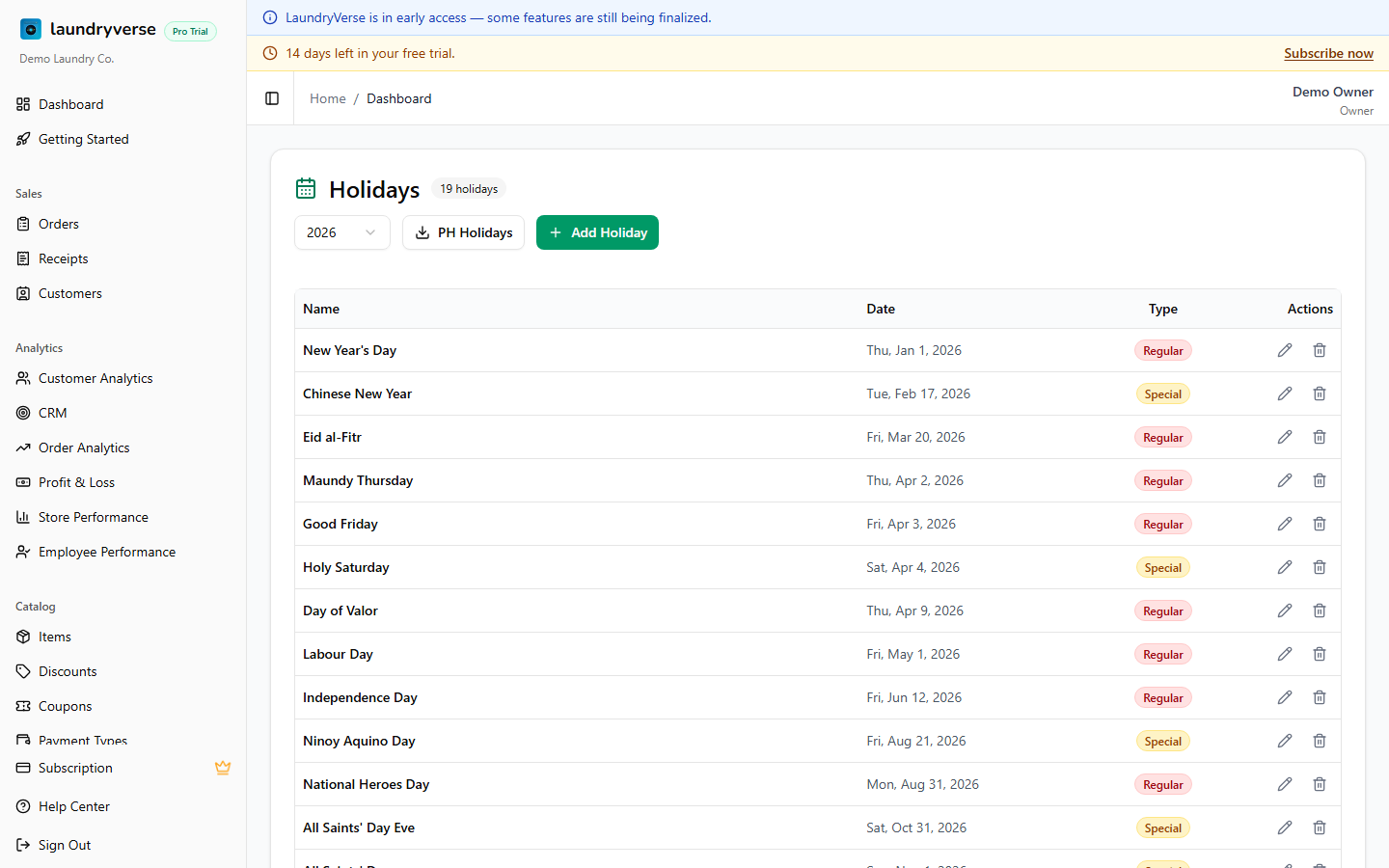
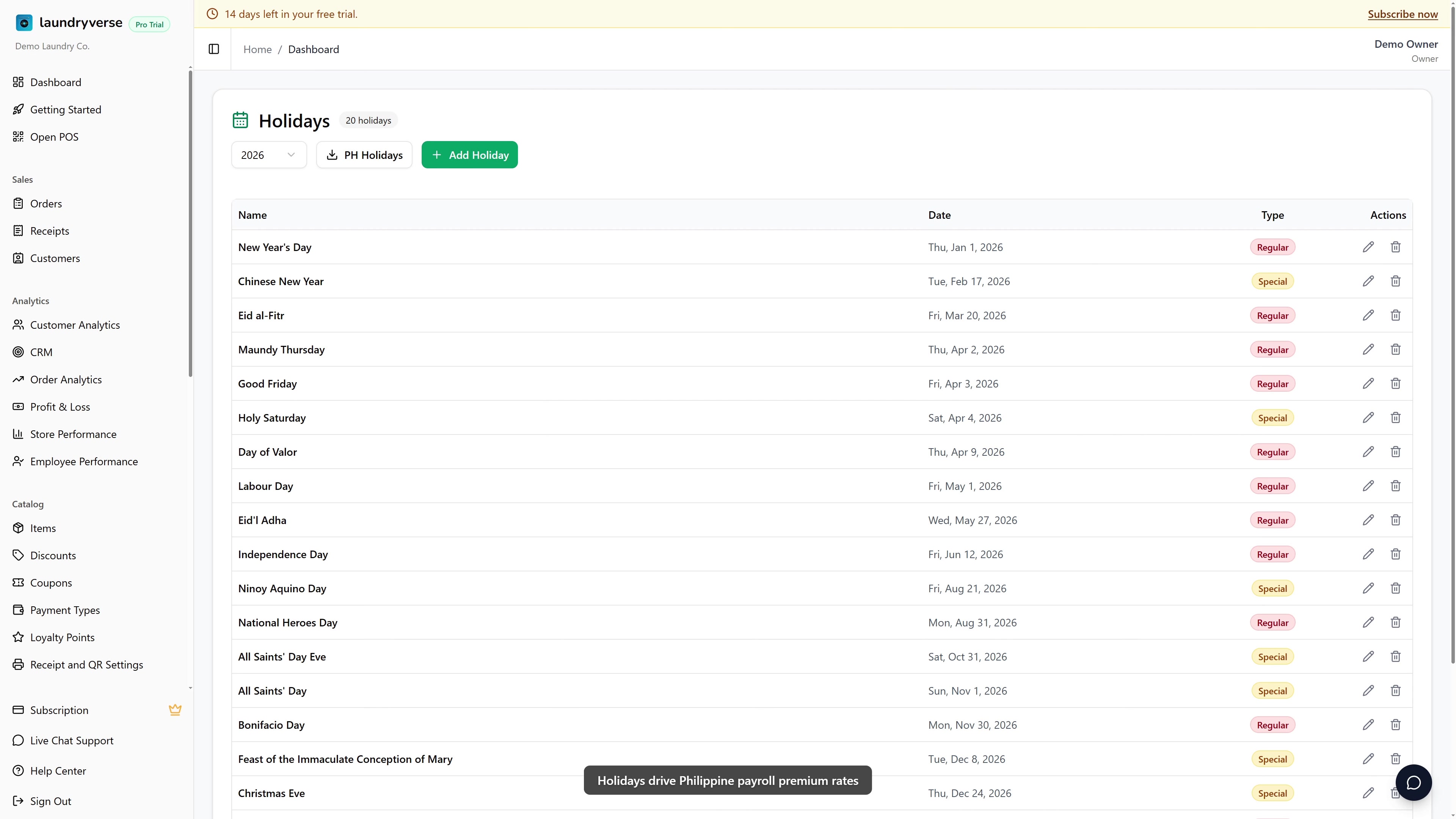
The table lists every holiday for the selected year. Each row shows the name, the date, a colored type badge, and pencil and trash actions on the right. The count badge next to the title shows how many holidays are in the calendar for that year.
2. Quick-start: PH Holidays
The fastest way to populate the calendar is the PH Holidays button in the top-right.
- Pick the Year from the selector next to it.
- Click PH Holidays.
- The official Philippine holidays for that year are inserted, both Regular and Special, with the correct dates.
Re-running the populate is safe. It skips any date that is already in your calendar, so you never get duplicates. If a year is only partly set up, populate fills in the ones that are missing. When the table is empty for a year, you can also start the populate from the Pre-populate Philippine holidays link inside the empty table.
3. Adding a custom holiday
For local holidays (city or town fiestas, barangay events a labor inspector might enforce), click Add Holiday in the top-right.
| Field | Description |
|---|---|
| Name | What appears on the payroll line, for example Christmas Day or Iloilo City Charter Day. |
| Date | The calendar date. Pick it from the date picker. |
| Type | Regular Holiday (200% premium) or Special Non-Working Holiday (130% if worked). |
Click Create and the holiday appears in the table for that year right away. Both Name and Date are required before the button enables.
4. Year selector
The year selector at the top filters the table to a single year. The default is the current calendar year. The options span from last year through two years ahead (current year minus 1 up to current year plus 2), which is useful when you are setting up next year's calendar in advance or referencing last year's setup.
5. Editing and deleting
In the actions column on the right of each row:
- Edit (pencil): opens the form pre-filled with the current name, date, and type. Change any of them and click Update.
- Delete (trash): removes the holiday after a confirmation prompt. Holidays already used in a payroll you have generated keep their effect on that payroll's calculations. Only future payroll runs are affected.
6. Type difference at a glance
| Type | Badge color | Pay rule (PH) |
|---|---|---|
| Regular | Red | 200% if worked, 100% if not |
| Special Non-Working | Amber | 130% if worked, 0% if not |
Common issues
"There's no Holidays entry in my sidebar"
The Holidays page lives under Staff & Payroll and is part of the Payroll feature, which is on the Business plan and above. If your plan is lower, or your role does not have the Manage payroll permission, the entry stays hidden. Check your plan, then ask an Owner or Admin to grant your role Manage payroll in Dashboard → Roles & Permissions.
"PH Holidays didn't add anything"
If the official holidays for that year are already in your calendar, the populate finds nothing new to insert and reports that they all already exist. That is expected. Switch the year selector to a year you have not set up yet and run it again.
"A holiday I added isn't on the payroll"
Payroll reads the holiday calendar at the moment you generate the run. If you added the holiday after generating that payroll, the run will not pick it up. Add the holiday first, then regenerate the payroll for that period.
"I deleted a holiday but an old payroll still shows it"
That is the intended behavior. Deleting a holiday only affects future payroll runs. Any payroll you already generated keeps the calculation it had at the time, so your past records stay accurate.
"Staff got paid as an ordinary day on a holiday"
The holiday was missing from the calendar when that payroll was generated. Add the holiday with the correct type, then regenerate the payroll for that period so the premium multiplier is applied.
"The Create button stays disabled"
The form needs both a Name and a Date before it will save. Fill in both fields and the button enables.
What's next?
- Payroll & Compliance: holidays feed automatically into payroll calculations.
- Scheduling & Shifts: schedule staff on and off holidays.
- Cash Advance: other payroll deductions to track.
Stuck? Email [email protected]. The founder reads every message.