Task Reminders
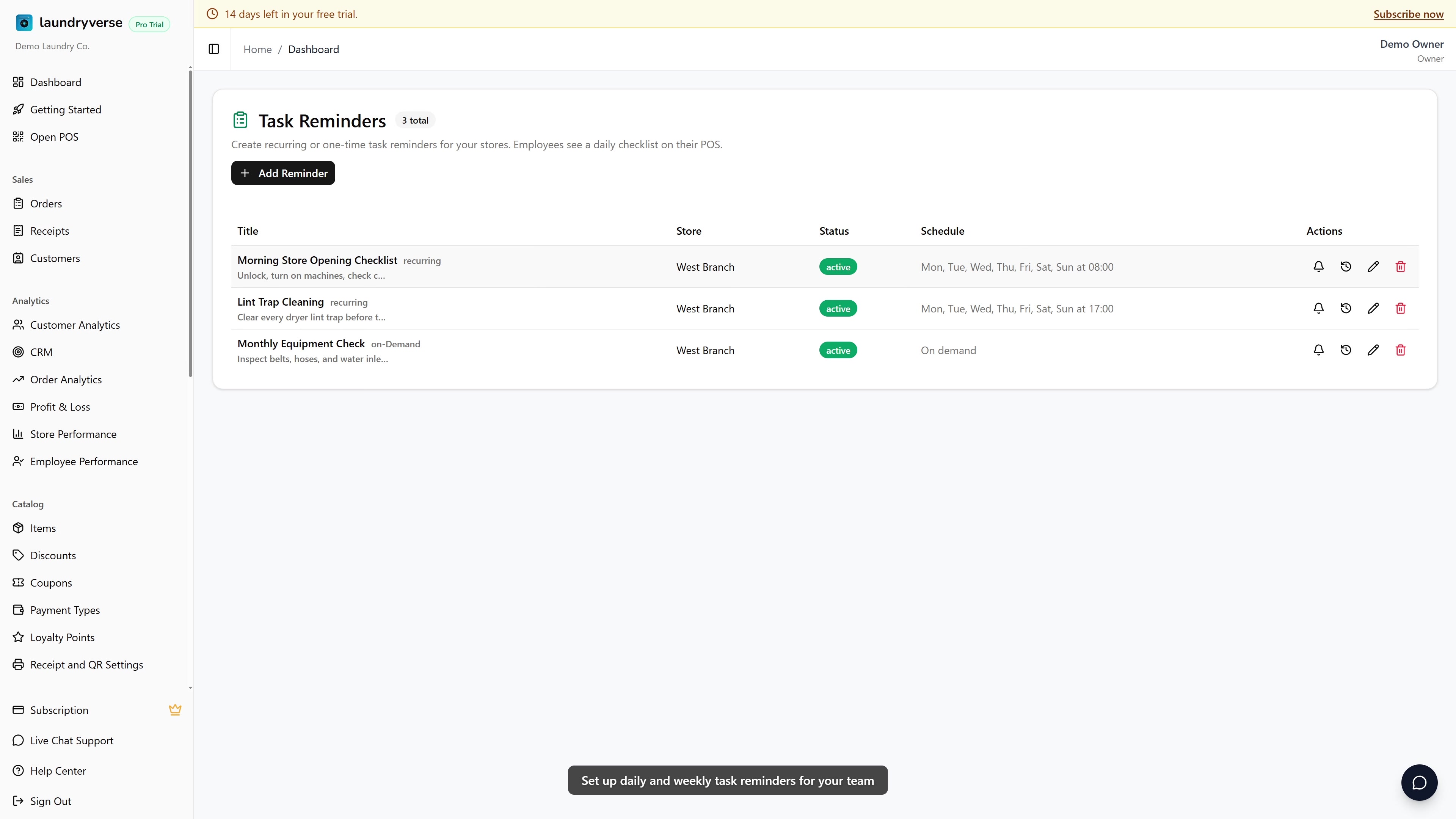
Daily, weekly, or one-time task lists for your employees — opening checklists, lint-trap cleaning, monthly equipment checks. Tasks show up on the POS as a checklist; admins see who completed what and when. Navigate to Operations > Reminders in the dashboard.
1. Why Use Reminders
Stuff your employees were supposed to do "every morning" gets dropped the moment one person calls in sick. Reminders make sure:
- The opening cashier sees the morning checklist on the POS
- Cleaning rotations happen even when the senior staff isn't around
- You can audit later — "did anyone actually do the weekly deep clean last month?"
- Every store's reminders are independent — branches don't bleed into each other
The POS shows a Reminders entry in its menu and a daily progress bar (3/5 done) so employees know what's pending.
2. Adding a Reminder
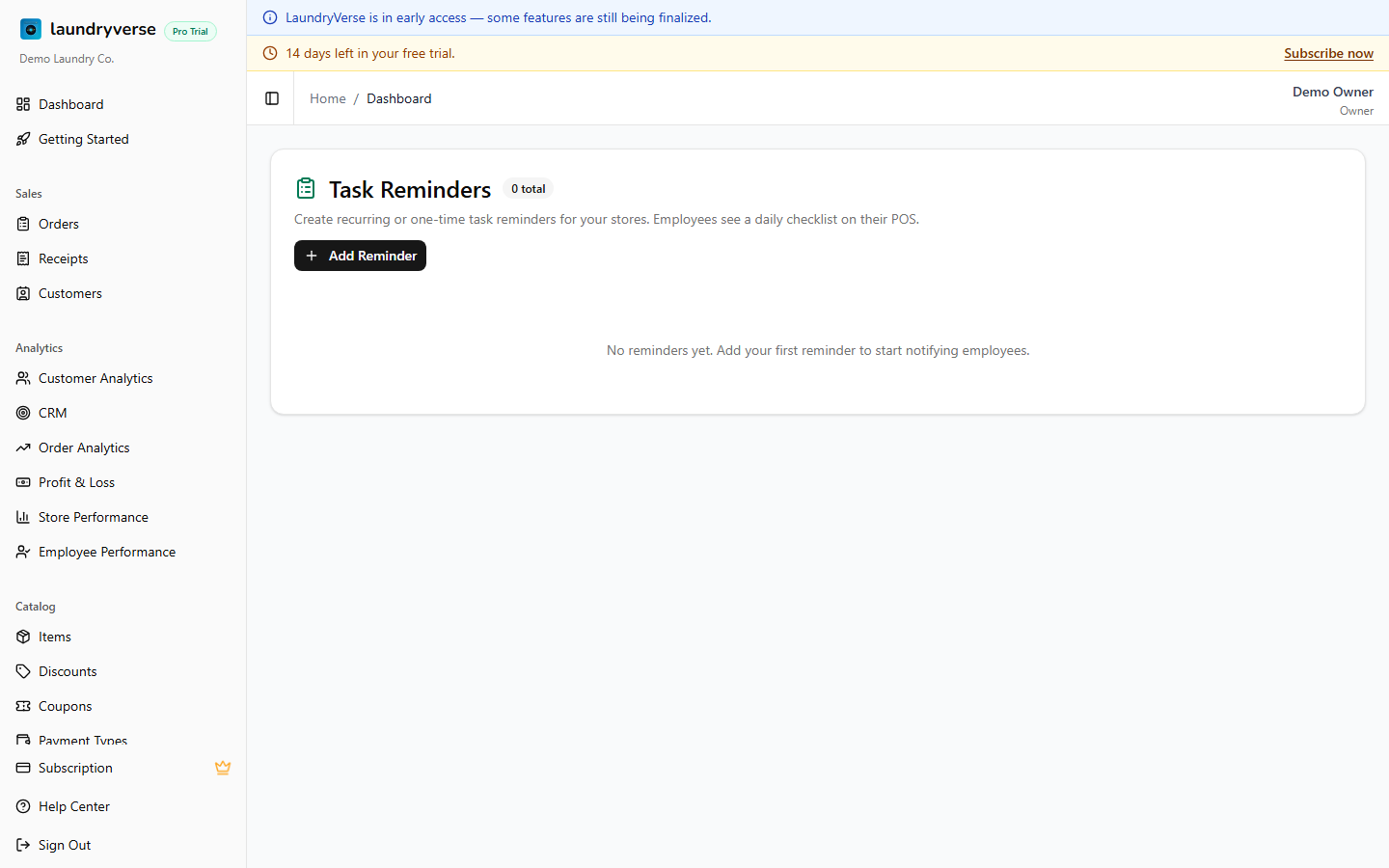
Tap Add Reminder to open the form.
Quick Templates
Optional. Picking a template just pre-fills the Title — you can edit everything afterwards. Built-in templates:
| Template | Typical schedule |
|---|---|
| Morning Store Opening Checklist | Recurring, daily, 6:00 AM |
| Evening Store Closing Checklist | Recurring, daily, 9:00 PM |
| Inlet Cleaning | Recurring, weekly |
| Tub Clean | Recurring, weekly |
| Filter Clean | Recurring, daily |
| Lint Trap | Recurring, daily |
| Weekly Deep Clean | Recurring, weekly |
| Monthly Equipment Check | Recurring, monthly (use Mon of week 1) |
Required Fields
| Field | Description |
|---|---|
| Title | What employees see — Morning Opening Checklist, Lint Trap |
| Store | Each reminder belongs to one store. For multi-branch shops, set the same checklist up per store |
| Schedule Type | Recurring (every Mon/Wed/Fri…), One-time (one specific date), or On demand (only fires when you press the bell button manually) |
Scheduling
| Schedule Type | Extra fields |
|---|---|
| Recurring | Days — pick any combination of Mon–Sun. Notification Time (optional) — what hour the reminder fires; leave blank to send at 6 AM with the daily job |
| One-time | Scheduled Date — the single calendar date it fires. Notification Time — same as recurring |
| On demand | None — fires only when you tap the bell icon on the row |
Description (optional)
A short note shown under the title on the POS — "Check fabric softener level, restock plastic bags, sweep entrance". Keeps the title clean and gives detail when needed.
Status
| Status | Effect |
|---|---|
| Active | Reminder fires per the schedule and shows on the POS |
| Paused | No new POS notifications. Existing pending tasks still show until completed or cleared. Past completion logs are preserved |
3. The Employee Side (POS)
Cashiers tap the menu (☰) at the POS top-bar and pick Reminders. The screen shows:
- A daily progress bar (3/5 done)
- Pending tasks at the top (numbered, blue)
- Completed tasks below (struck through, with the completer's name and time)
- A confetti screen when everything's done
To complete a task, tap Mark as Done. To leave a note (e.g. "filter looked clogged, replaced") tap Notes first, type, then tap Mark as Done. Notes stick on the completed row and show up in the admin History dialog.
4. Sending a Reminder Now
For On demand reminders (or to trigger an active reminder off-cycle), tap the bell icon on the row. A push goes out immediately to everyone clocked in at that store; the task appears on their POS in seconds.
Useful for one-off ops like "hose down the parking lot" — set it to On demand, then ring the bell when you need it.
5. History Log
Click the clock icon on any reminder row to see its history:
| Column | What it shows |
|---|---|
| Date / Time | When the task was marked complete |
| Employee | Who completed it |
| Notes | Any text the employee added |
Filter the log by date range to audit. The log is preserved even if you delete the reminder — useful for compliance and dispute resolution.
6. Editing & Deleting
- Edit — pencil icon. Change anything; updates apply from the next firing
- Delete — trash icon. Removes the reminder from the schedule. Past completion logs are preserved (you can still pull them via the History dialog on a copy of the reminder, but the row itself is gone — keep deletion for genuine retirement, not pauses)
What's Next?
- Stores — Set up a store before adding reminders against it
- Roles & Permissions — Reminders are visible to any clocked-in employee at the store; no extra permission needed
- Activity Log — Cross-reference admin actions on reminder settings (who paused which reminder, when)