Scheduling & Shifts
Plan employee shifts with a drag-and-drop calendar, and track clock-in and clock-out records with timecards. Navigate to People > Shifts or People > Timecards in the dashboard. About 3 minutes.
Building and editing the shift schedule (templates, drag-and-drop, bulk assign, removing shifts, and shift review) requires the Manage shifts permission (shifts:manage). Adding, editing, or deleting timecard records requires the Manage payroll permission (payroll:manage). Owner, Admin, and Manager roles have both by default. Cashiers have neither, so they can still clock in and out at the counter but cannot change the schedule or the recorded times. Grant either permission to other roles in Dashboard → Roles & Permissions.
Before you start
Scheduling needs a few things in place first:
- Employees must exist. You schedule shifts and read timecards against employee records, so add your staff in People → Employees before you open the calendar. See Employees.
- The shift scheduler is on Business plans and above. Timecards are available on every plan, so even shops below Business can read clock records and add manual entries.
- Employees should be assigned to a store. A manual timecard entry needs the employee's store, and shifts snapshot the employee's primary store. Assign stores in People → Employees.
You don't have to create timecards by hand. Every time an employee clocks in at a Station device or on the POS, a timecard record is written automatically. The manual entry form is only for corrections and forgotten clock-ins.
1. Shift Calendar
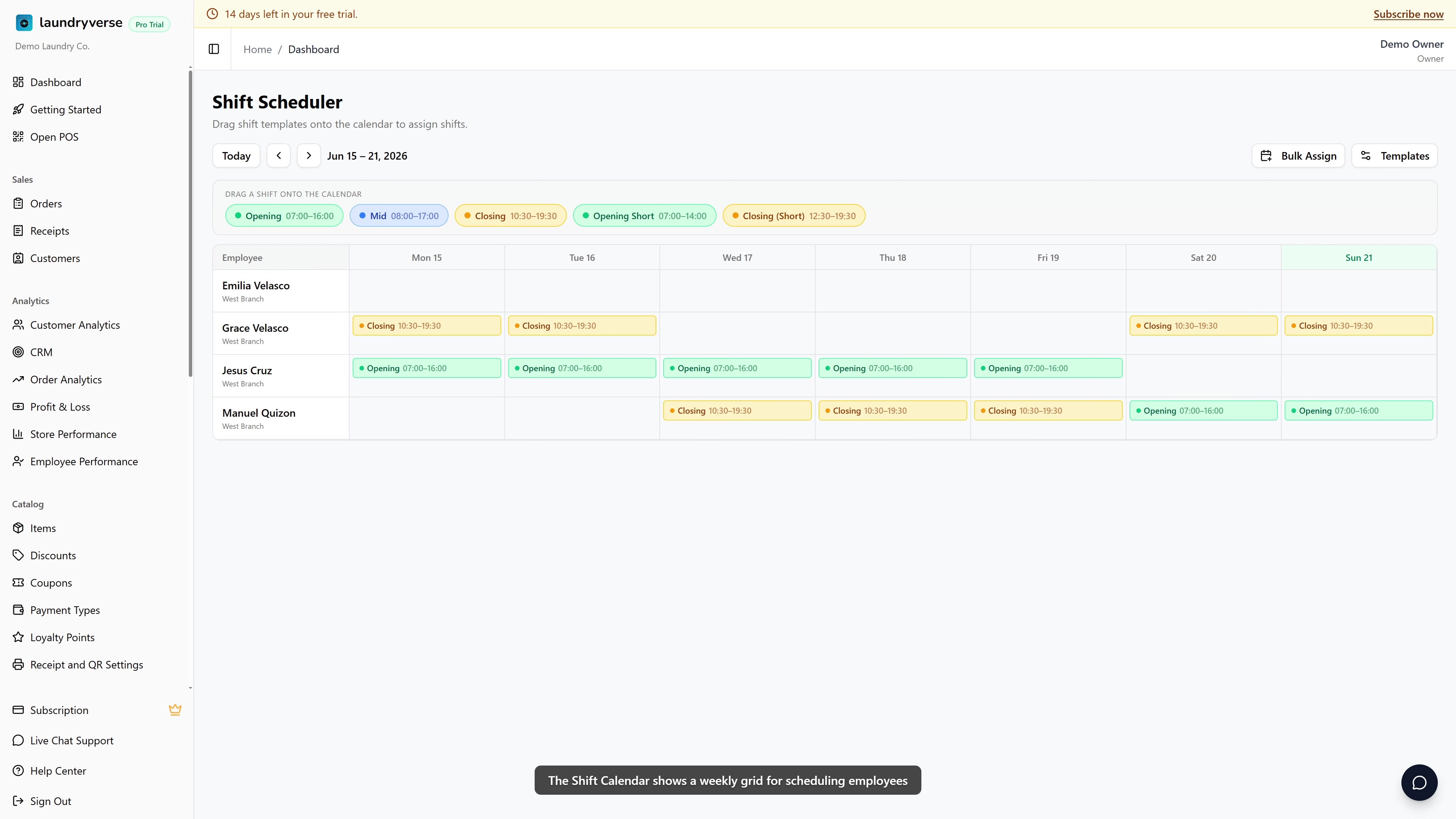
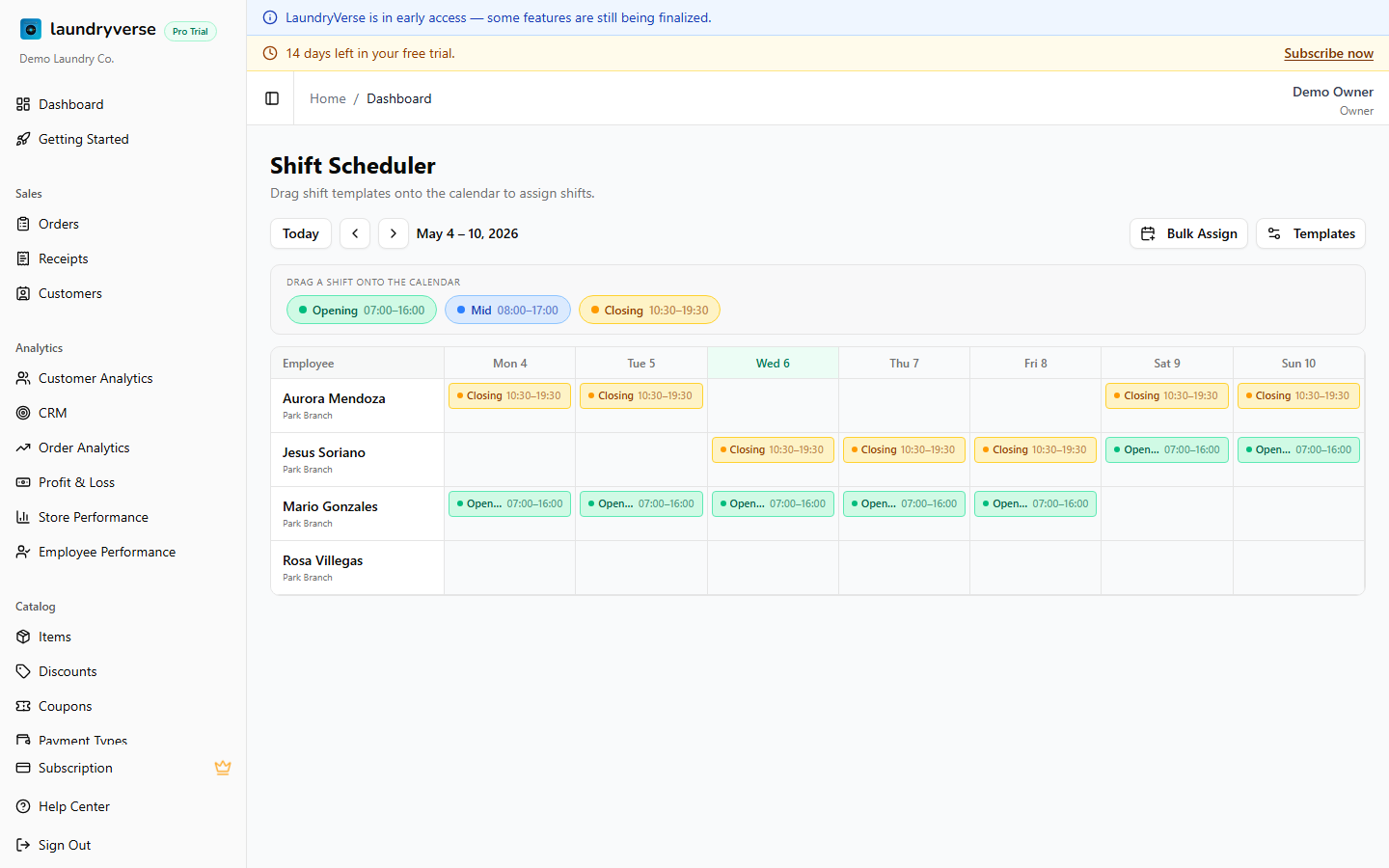
The shift calendar shows a weekly grid with employees as rows and days as columns.
Creating Shifts
There are two ways to create shifts:
Drag and drop: Drag a shift template from the palette on the left onto any cell in the calendar. The shift is created immediately.
Bulk assign: Click Bulk Assign to create shifts for multiple employees at once:
- Select a date range
- Select the employees
- Pick a shift template
- Click Assign. Shifts are created for each employee on each day in the range.
Managing Shift Templates
Shift templates define reusable time blocks. Click Manage Templates to:
- Create a template with a name, start time, end time, and color
- Edit an existing template
- Delete a template (existing shifts using it are not affected)
Navigating Weeks
Use the Previous and Next buttons to move between weeks, or click Today to jump to the current week.
Removing Shifts
Click the X button on any shift badge in the calendar to remove it.
2. Timecards
Navigate to People > Timecards to view clock-in and clock-out records. These are created automatically when employees clock in at a Station device or POS.
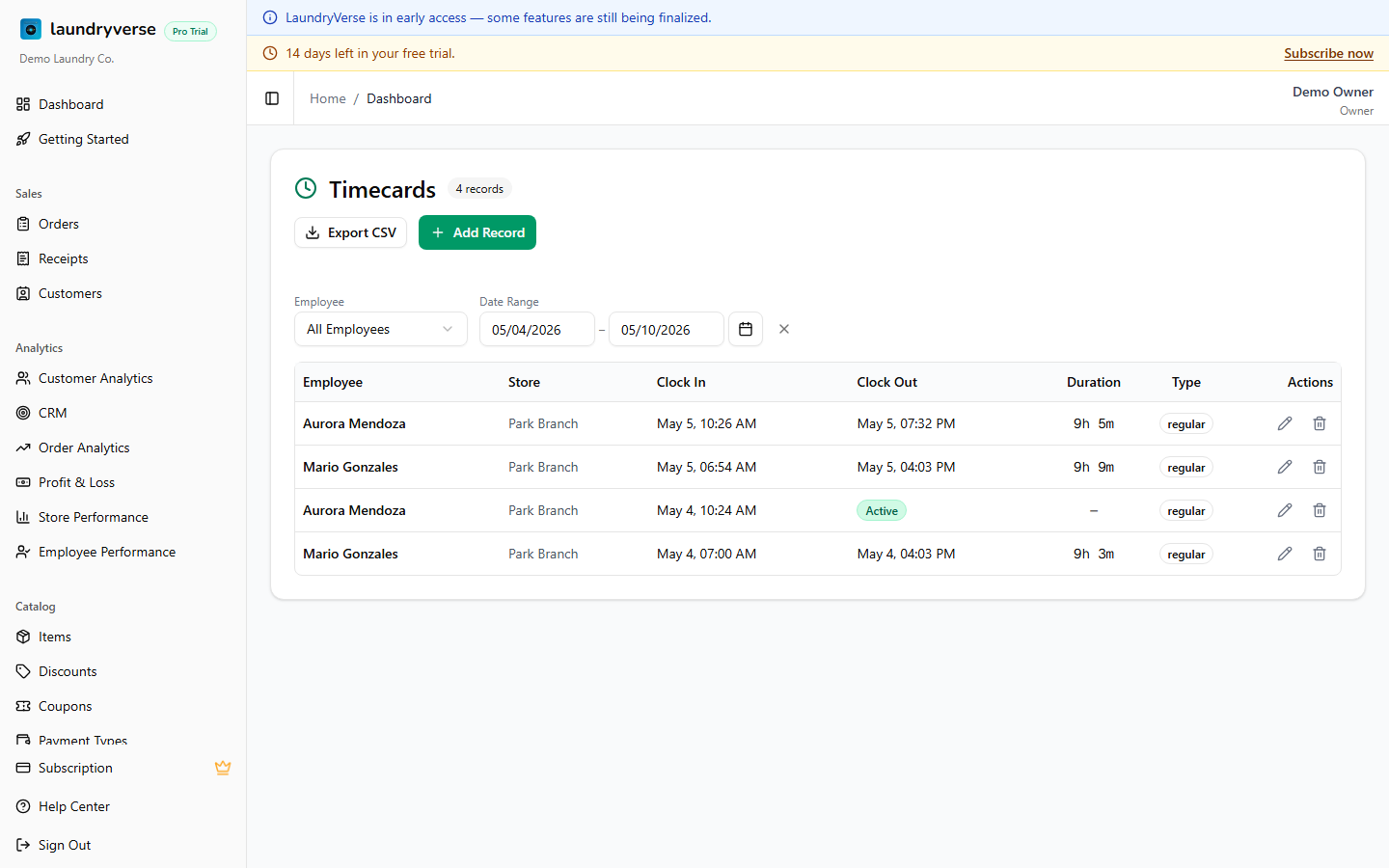
Table Columns
| Column | Description |
|---|---|
| Employee | The employee's name |
| Store | Which store the employee clocked in at |
| Clock In | Date and time of clock-in |
| Clock Out | Date and time of clock-out, or "Active" if still clocked in |
| Duration | Total time worked (HH:MM) |
| Type | Manual (admin-created) or Auto (device clock-in) |
Filtering Timecards
| Filter | Description |
|---|---|
| Employee | Select a specific employee or view all |
| Date Range | Filter by clock-in date range |
Adding a Manual Record
Click Add Record to create a timecard entry manually:
- Select the employee
- Enter the clock-in date and time
- Enter the clock-out date and time
- Add optional notes
- Click Create
Manual records are useful for correcting missed clock-ins or recording time for employees who forgot to use the Station device.
Editing and Deleting Records
Click the three-dot menu on any row to edit or delete a timecard record.
Exporting Timecards
On Business plans and above, click Export to download timecards as a CSV file. The export respects whichever employee, store, and date filters you currently have applied.
Common issues
"I don't see the Shifts page"
The shift scheduler is a Business plan feature. If your shop is on a lower plan, the page is gated and you'll be prompted to upgrade. Timecards stay available on every plan, so check People → Timecards for clock records in the meantime.
"There are no employees to schedule"
The calendar lists active employees as rows, and the bulk-assign and manual timecard forms pull from the same list. Add your staff in People → Employees first, then return to the calendar.
"This shift is already assigned for this date"
A shift can't be duplicated for the same employee, the same day, and the same template. If you need a second block that day, use a different template (for example, an opening shift and a closing shift), or edit the existing shift's times.
"Manual timecard says the employee has no assigned store"
A timecard record must be tied to a store. If the employee isn't assigned to one, open People → Employees, assign a store to that employee, then create the record again.
"Clock out must be after clock in"
The manual entry and edit forms reject any record where the clock-out time is the same as or earlier than the clock-in time. Double-check the date as well as the time, an overnight shift needs the clock-out on the following day.
"The Export button does nothing or is unavailable"
CSV export requires a Business plan or higher. On lower plans the option is unavailable. If you're on Business and above and the download still doesn't start, clear any filter that returns zero rows, then try again.
What's next?
- Payroll & Compliance: turn timecard data into payroll with Philippine compliance deductions.
- Stations Setup: set up Station devices so staff can clock in and out.
- Employees: add staff and assign their stores before you schedule them.
- POS Shifts: how counter shifts and end-of-shift reports work at the register.
Stuck? Email [email protected]. The founder reads every message.