Discounts
Pre-approved price reductions your cashiers can apply at checkout: Senior Citizen, Employee Discount, PWD, and the like. Unlike coupons, which need a code, discounts show up as a list inside the POS for the cashier to pick. About 3 minutes.
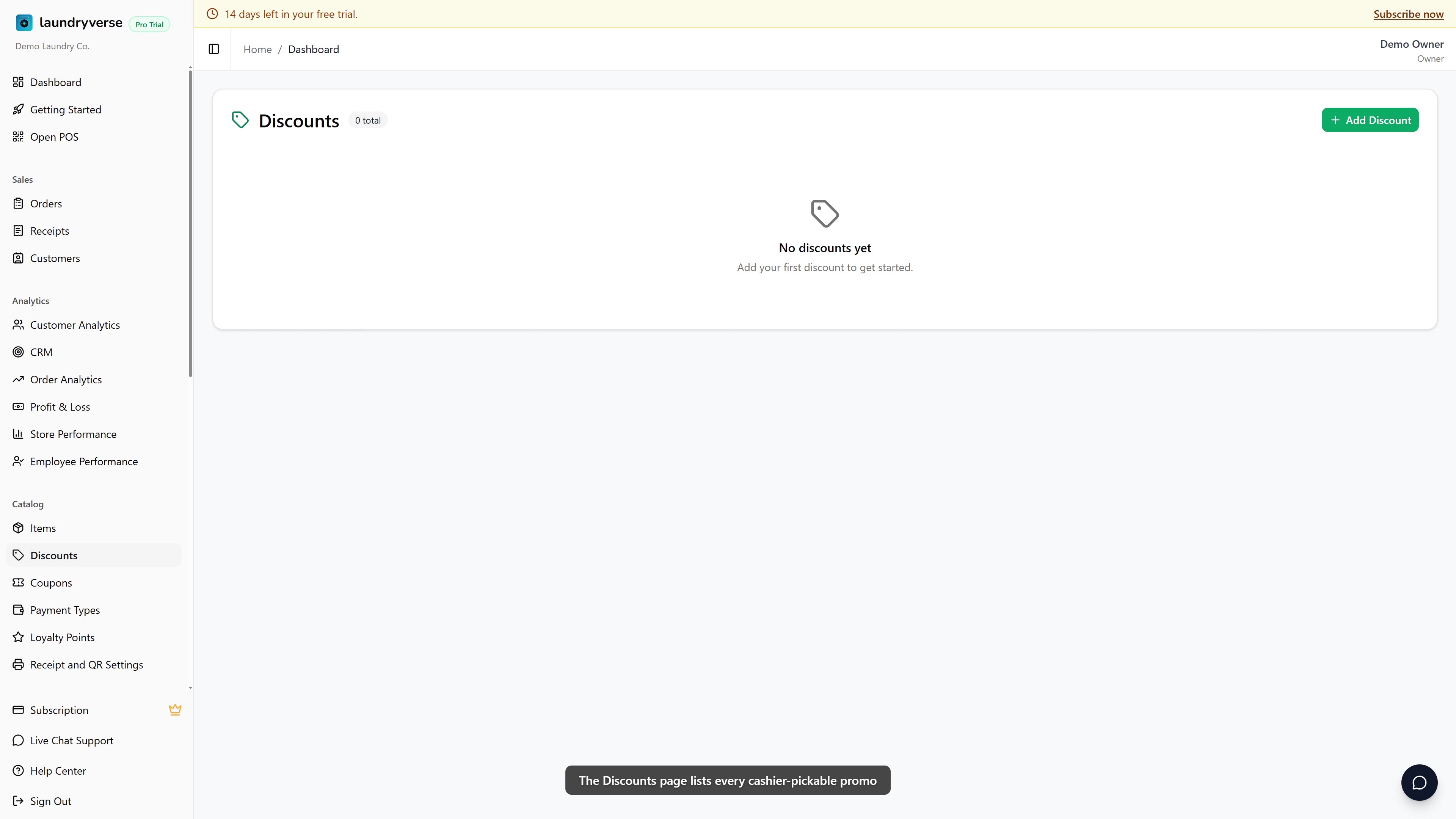
Creating, editing, or deleting discounts requires the Manage items permission (dashboard:items:manage). Owner, Admin, and Manager roles have it by default. Grant it to other roles in Dashboard → Roles & Permissions. Without this permission, the Discounts page is blocked at the server. Applying a discount at the POS is a separate Apply discounts permission, covered in section 4.
Before you start
You don't need anything else configured first to create a discount. If you plan to limit a discount to certain branches, set up those stores in Dashboard → Stores beforehand so they appear in the Applicable Stores picker. If you plan to restrict a discount to specific staff, make sure those employees exist so you can pick them in the access list.
A cashier scans the discount list under pressure at the counter. Short, literal names like Senior Citizen 20%, PWD, or Employee are faster to find than clever campaign names. Save the campaign branding for coupons.
1. Discounts vs Coupons
| Discounts | Coupons | |
|---|---|---|
| Triggered by | Cashier picks from a list | Customer presents a code |
| Needs customer attached | No (unless you set a per-customer limit) | Often, required for personal codes |
| Configure | Dashboard → POS → Discounts | Dashboard → POS → Coupons |
| Use case | Senior Citizen, PWD, Employee, "Manager override" | Promo campaigns, welcome offers, retention |
Both stack with each other and with loyalty-point redemption. See Order of operations below.
2. Discounts Table
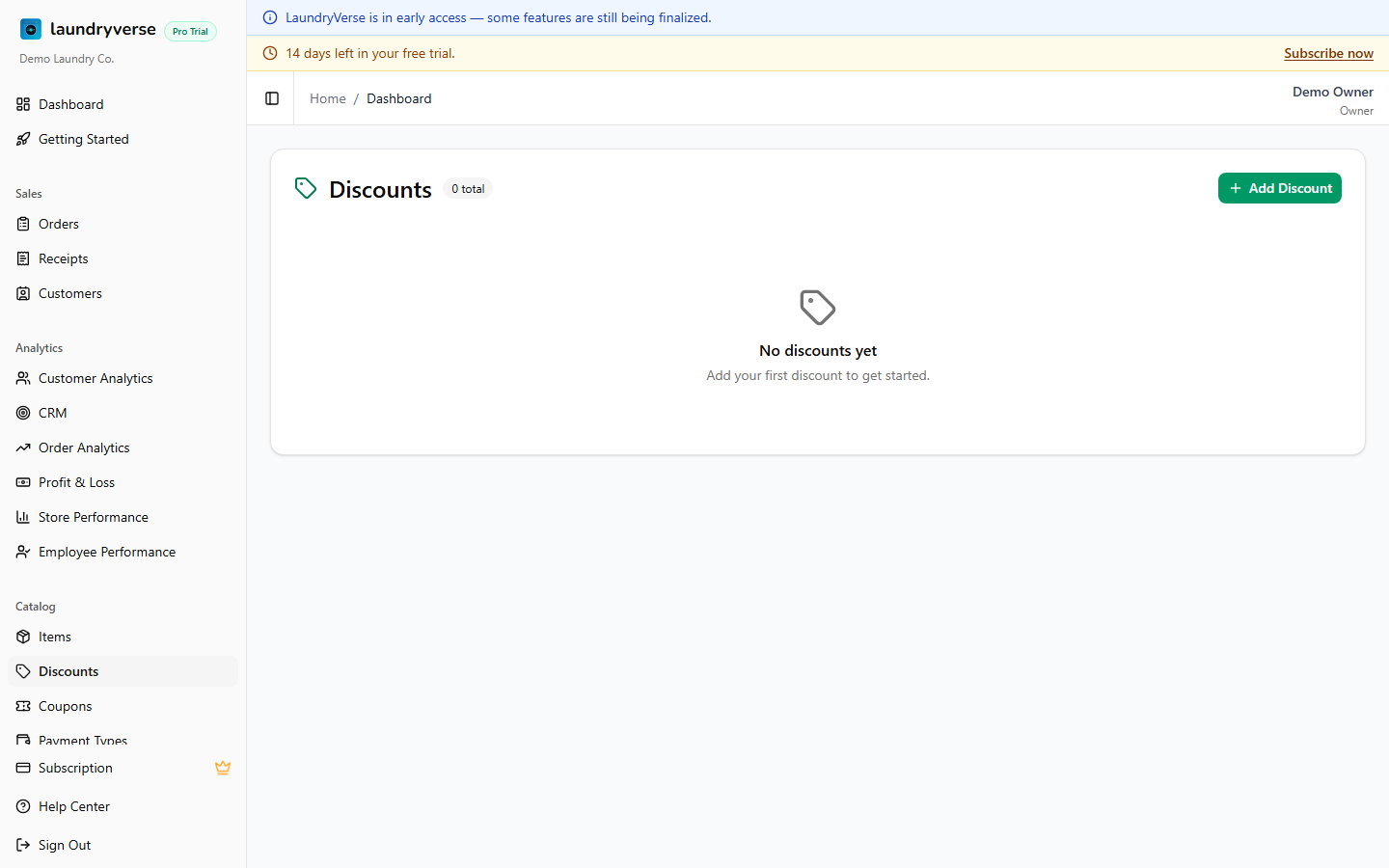
Each row shows:
| Column | What it means |
|---|---|
| Name | What the cashier sees in the picker (e.g. Senior Citizen 20%) |
| Value | Either a percentage (10%) or a peso amount (₱50) |
| Stores | "All Stores" or the count of stores where it can be used |
| Access | "All employees" or the count of employees allowed |
Click the discount's name to open the details page: redemption history (which receipt, which customer, which employee) plus KPI cards for total redemptions, total amount given, and unique customers reached.
3. Adding a Discount
Tap Add Discount to open the form.
Required
| Field | Description |
|---|---|
| Name | Shown to the cashier in the discount picker. Keep it short, like Senior Citizen, Employee, PWD |
| Type | Percentage (%) applies a percent reduction; Fixed Amount (₱) subtracts a peso amount |
| Value | Number that pairs with Type, so 20 for 20%, or 50 for ₱50 |
Optional caps and rules
| Field | Description |
|---|---|
| Max Discount Amount (₱) | Only for percentage types. Caps the absolute discount, e.g. 20% off, max ₱100 |
| Minimum Spend (₱) | Subtotal must be at least this much before the discount can be applied |
| Redeemable Days | Tap days of the week to restrict, e.g. Mon, Wed only. Leave all unselected for any day |
| Total Usage Limit | Total times this discount can ever be redeemed across all customers. Leave blank for unlimited |
| Per Customer Limit | Times each customer can use this discount (defaults to 1) |
| Applicable Stores | Multi-select. Leave empty to apply at all stores |
Access control
| Toggle | Effect |
|---|---|
| Restricted Access OFF | Any cashier with the apply-discounts permission can use this discount at checkout |
| Restricted Access ON | Only the employees you select see it in the picker, useful for "Manager override" or "Owner only" discounts |
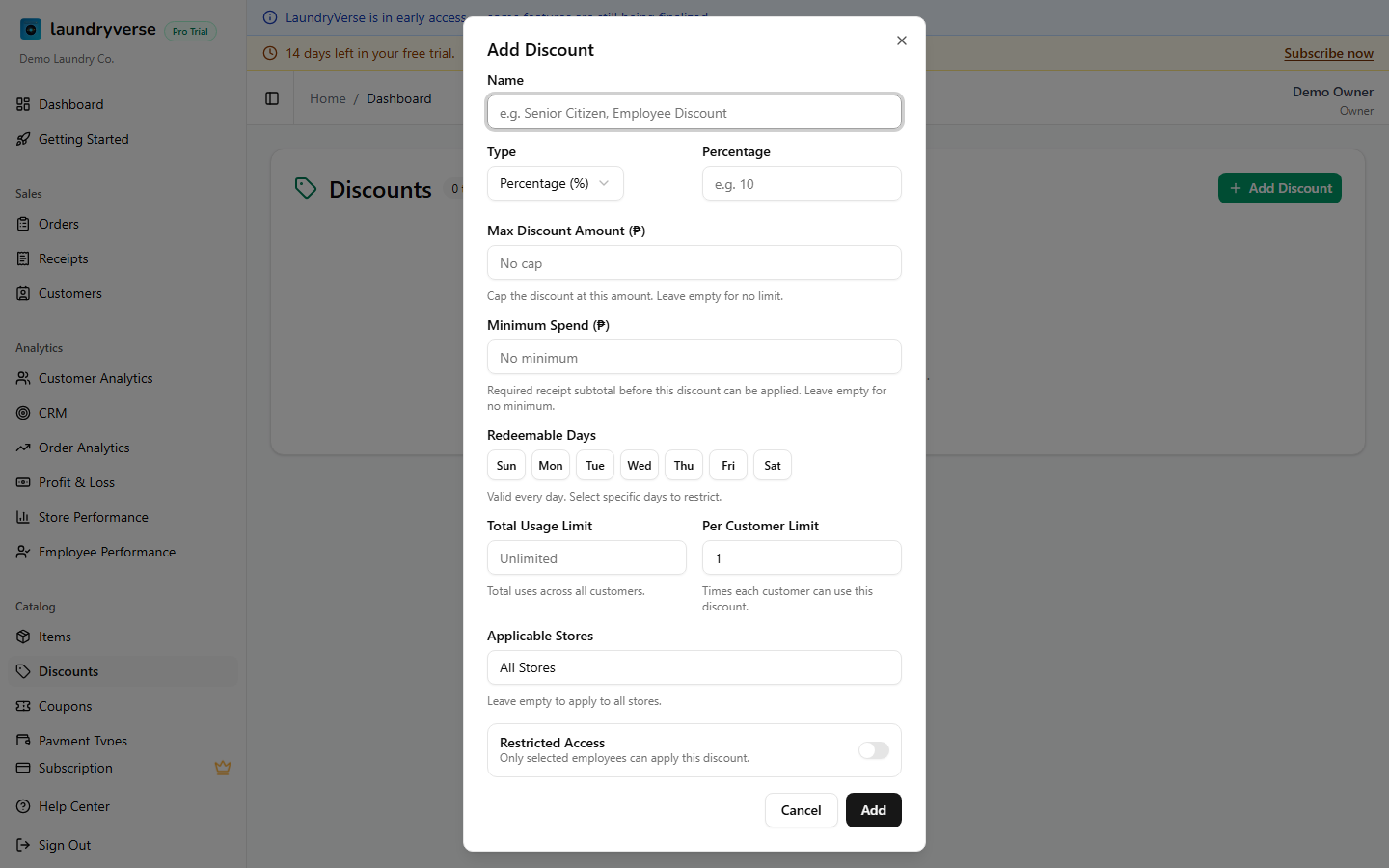
Click Add and the discount is available in the POS picker right away. Percentages cannot exceed 100, and the value must be greater than zero.
4. Applying a Discount at Checkout
Applying a discount at the POS is gated by the Apply discounts permission on the cashier's role, which is separate from the Manage items permission that lets you create discounts here. If the cashier's role doesn't have Apply discounts, the Add Discount button is hidden in the checkout sheet.
- Ring up the order normally
- Tap Charge to open the checkout sheet
- Tap Add Discount (in the totals section)
- The picker shows every discount the cashier has access to, filtered to the current store and the day's day of week
- Tap a discount to apply it. It appears as a line in the order summary with a trash icon to remove
Multiple discounts can stack on the same order. Tap Add Discount again to add another.
What blocks a discount from being applied
| Reason | What the cashier sees |
|---|---|
| Cashier role lacks Apply discounts permission | Button is hidden |
| Discount is restricted and the cashier isn't on the allow-list | Discount doesn't appear in the picker |
| Today is not a redeemable day | Discount doesn't appear in the picker |
| Subtotal is below the minimum spend | Error toast on tap |
| Total usage limit reached | Error toast on tap |
| Customer's per-customer limit reached | Error toast on tap (only enforced if a customer is attached) |
5. Editing & Deleting
In the actions column on each row:
- Edit (pencil): opens the form pre-filled with current values. Most fields can be changed. Existing redemptions on past receipts keep their original amount.
- Delete (trash): removes the discount from the picker. Past redemptions stay on receipts and on the discount's details page so your records stay accurate.
6. Order of operations
When discounts, coupons, and loyalty points all apply to one order, LaundryVerse calculates them in this order:
Subtotal → Discounts → Coupons → Loyalty Points → Final Total
Each step uses the running total from the previous step, so a percentage coupon is applied to the post-discount amount, not the original subtotal. This is what shows on the customer's printed receipt.
Common issues
"The Discounts page won't load"
Loading the page requires the Manage items permission. If you're signed in as an invited employee whose role doesn't have it, the server blocks the page. Ask the owner to grant Manage items in Dashboard → Roles & Permissions, or have them make the change for you.
"A cashier can't apply a discount at checkout"
Applying discounts uses the separate Apply discounts permission, not the one that lets you create discounts here. If the Add Discount button is missing in the checkout sheet, the cashier's role is missing Apply discounts. Grant it in Dashboard → Roles & Permissions.
"A discount with this name already exists"
Names are case-insensitive and unique per shop. Senior Citizen and senior citizen count as the same name. Either edit the existing entry or pick a more specific name like Senior Citizen 20%.
"A discount doesn't show up in the POS picker"
Check three things: the discount's redeemable days (if today isn't selected, it's hidden), its applicable stores (if the cashier is at a store that isn't on the list, it's hidden), and Restricted Access (if it's on and the cashier isn't on the allow-list, it's hidden).
"The discount won't apply even though it's in the picker"
A discount can be visible but still blocked at the moment of applying. The order subtotal may be below the discount's minimum spend, the total usage limit may be reached, or, when a customer is attached, that customer's per-customer limit may be reached. The cashier sees an error toast on tap that names the reason.
"I deleted a discount but it still shows on old receipts"
That's intended. Deleting a discount removes it from the picker for future sales, but historical receipts and the discount's details page keep the original redemptions so your bookkeeping stays accurate.
What's next?
- Coupons: code-based promos, including bulk-generated unique codes.
- Loyalty Program: points earning and redemption settings.
- Roles & Permissions: who can create discounts and who can apply them at the POS.
- POS Payments: how cashiers charge an order at checkout.
Stuck? Email [email protected]. The founder reads every message.