Billing & Payment History
Billing is the read-only ledger for everything you pay LaundryVerse. It gathers your subscription charges, SMS credit top-ups, and custom sender name fees into one history, shows your plan, sender name, and SMS balance at a glance, and lets you open the full breakdown of any transaction. It does not take payments itself. The actual paying happens on the Subscription and SMS pages; Billing is where you go afterward to check what cleared. About 2 minutes.
Billing is Owner-only, the same rule as Subscription. Invited team members (Admin, Manager, Cashier, or any custom role) don't see Billing in the sidebar at all, and opening the link directly lands them on a "no access" page. There is no role permission that unlocks it, sign in as the Owner who created the account to view billing.
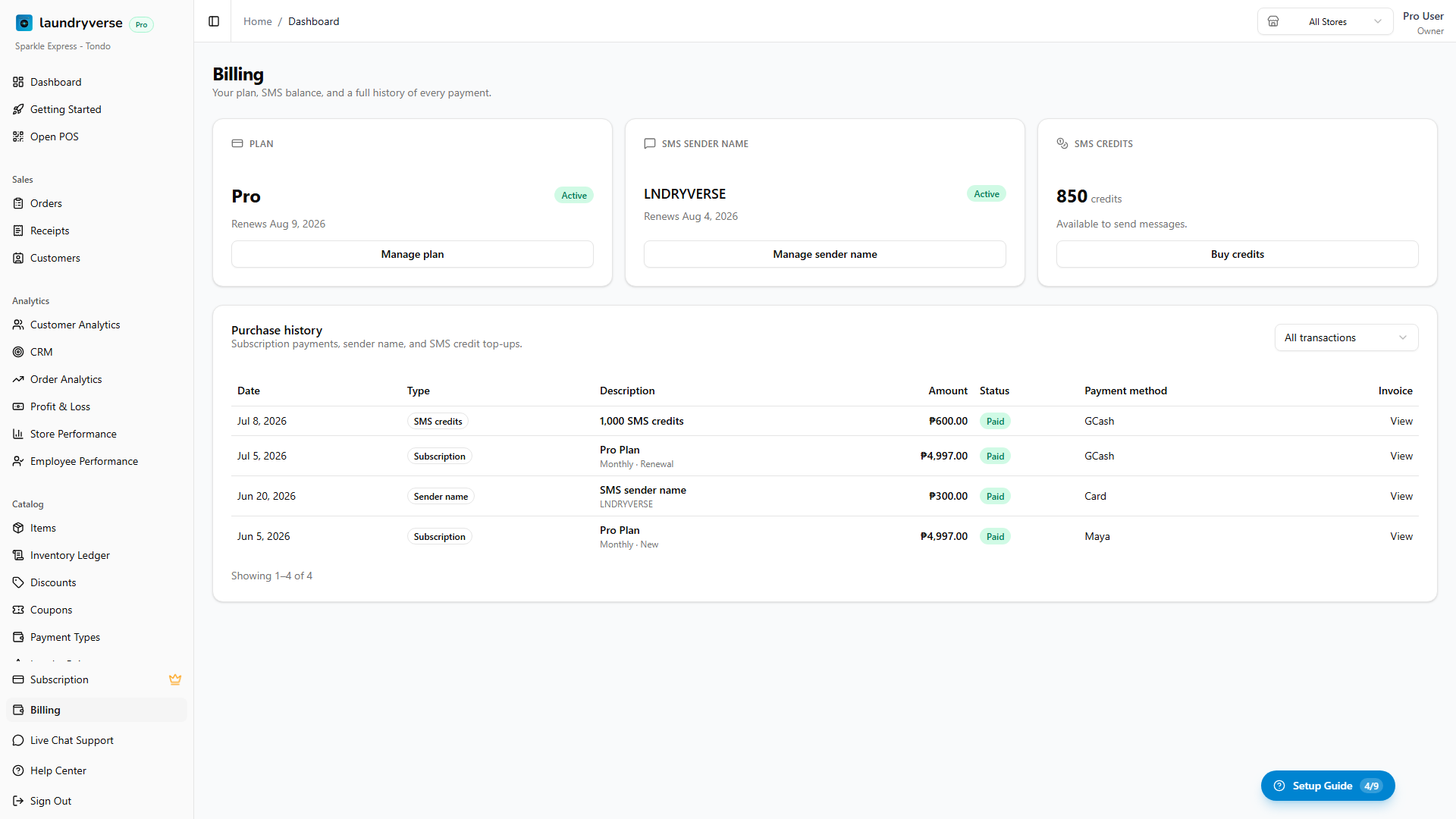
1. Read the overview cards
The top of the page has three summary cards so you can see where you stand without scrolling the history.
| Card | What it shows | Button |
|---|---|---|
| Plan | Your plan name (Starter, Business, Pro, Enterprise), a status badge (Active, Trial, Past due, Cancelled, Expired), and the billing period line, Renews [date], Access until [date], or Free trial ends [date]. | Manage plan opens Subscription. If your plan has expired, it reads Choose a plan instead. |
| SMS sender name | Your active sender, either the free Default sender or your approved Custom name with its renewal date. A custom name still under telco review shows an Under review badge; a rejected one shows Rejected. | Manage sender name opens SMS. If a custom name has expired, it reads Renew sender name. |
| SMS credits | Your current credit balance. | Buy credits opens SMS. |
2. Read the purchase history
The Purchase history table below the cards is one chronological ledger, newest first, of every payment you've made to LaundryVerse across all three billing types.
| Column | What it shows |
|---|---|
| Date | When the transaction was created. |
| Type | Which kind of purchase it is: Subscription, SMS credits, or Sender name. |
| Description | The specific item, e.g. Business Plan, 1,000 SMS credits, or SMS sender name. Subscription and sender name rows show a second line with the interval and change type (e.g. Yearly · Renewal) or the sender name. |
| Amount | What you paid, already prorated for mid-cycle upgrades. |
| Status | Paid or Pending. That's it, this is a payment-centric view. Abandoned or superseded checkouts are filtered out, so every row is either a cleared payment or one you can still finish. |
| Payment method | The channel PayMongo used (GCash, Maya, card, QR Ph). A dash for a row that hasn't been paid yet. |
| Invoice | A View button that opens the transaction details. |
Use the filter dropdown in the top-right of the card to narrow the list to Subscription, SMS credits, or Sender name only. The list pages 20 rows at a time, with page controls at the bottom.
3. Open a transaction's details
Tapping View on any row opens a details dialog with the full breakdown:
- The item and its billing interval (for a subscription, the plan and store count; for a top-up, the credits or sender name).
- Status, Paid or Pending.
- Amount paid (or Amount due if it's still pending).
- Payment method and payment date.
- Billing period covered, for subscription and sender name rows.
- A reference number, the provider's invoice ID. Keep this handy, it's what support uses to reconcile a payment.
If the transaction is still Pending, the dialog has a Complete payment button that takes you back to the right page to finish, Subscription for a plan charge, or SMS for a credit or sender name purchase.
Common issues
"A payment shows Pending but I already paid"
Most of the time this is bank rail timing. GCash, Maya, and card payments confirm in seconds; bank QR Ph confirms during banking hours only (Monday to Friday), so a payment made in the evening or on a weekend clears the next banking day. The row flips to Paid on its own when the payment settles. If 24 hours pass and it's still Pending, open the row, copy the reference number, and email [email protected] with the amount so it can be reconciled with PayMongo. Don't pay again.
"I need a downloadable receipt or invoice for my records"
The details dialog shows the amount, date, payment method, and the provider reference number, which together serve as your record of the payment. A downloadable invoice document isn't available from this page yet. If you need a formal copy for bookkeeping, email [email protected] with the reference number.
"An invited team member needs to see billing"
They can't. Billing is Owner-only, no role permission unlocks it, and the page isn't in the sidebar for invited employees. The Owner who created the account is the only one who can view payment history. For long-term delegation, the only path is to transfer ownership, which is a manual support request to [email protected].
"The history is empty"
A brand-new tenant on the free trial hasn't paid anything yet, so there's nothing to list. The first row appears once your first subscription charge or SMS purchase clears.
What's next?
- Subscription & Billing: subscribe, upgrade, downgrade, or cancel your plan. This is where subscription payments actually happen.
- SMS Notifications: buy SMS credits and set up a custom sender name. Those purchases show up here in your history.
Stuck? Email [email protected]. The founder reads every message.