Subscription & Billing
Subscription is where you turn a free trial into a paying account, pick the plan that matches the size of your shop, and keep your dashboard from locking the day the period rolls over. It is also the only page in the whole app that handles money, so the rules around who can open it are stricter than anywhere else. About 3 minutes.
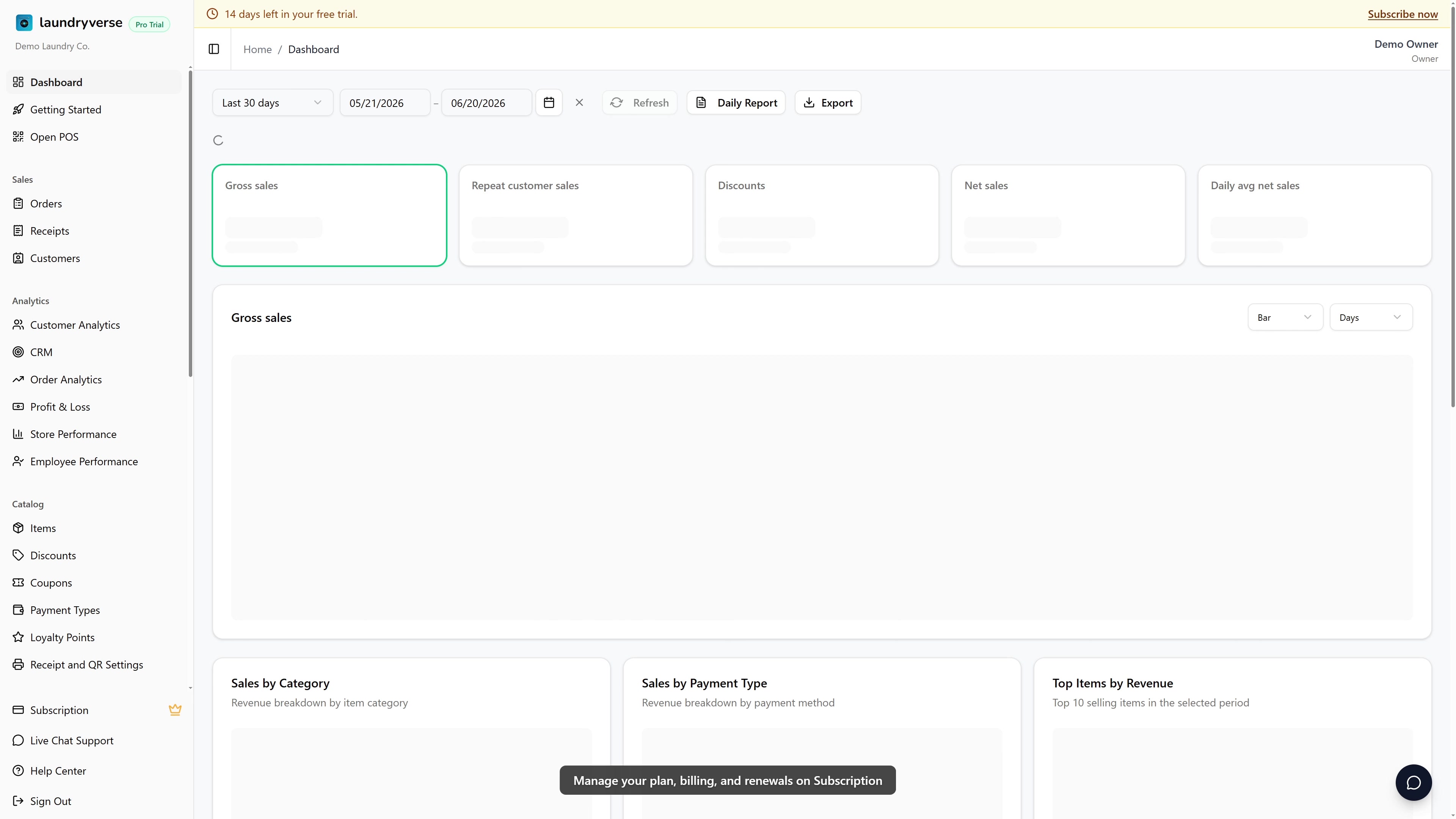
Only the Owner account can open the Subscription page. The middleware blocks every invited team member (Admin, Manager, Cashier, or any custom role) at the URL level and redirects them back to the dashboard home, regardless of which permissions their role holds. There is a subscription:manage permission in the role editor, but it is not a backdoor: invited employees can never reach the page, and the only way to manage billing is to sign in as the Owner who originally created the account. Plan ahead if you need to hand off operations, the cashier list and store administration can be delegated, but billing cannot.
Before you start
You'll need:
- An active LaundryVerse account. Brand-new tenants get a 14-day free trial with Pro-tier access automatically.
- A payment method ready, GCash, Maya, a Visa or Mastercard credit/debit card, or a bank QR Ph app like BPI, BDO, or UnionBank. Bank QR Ph is the slow rail, see section 3 below.
- A sense of how many stores and devices you're running. The page enforces the plan's caps when you try to subscribe, so a trial tenant who set up 6 stores cannot land on Starter (1-store cap).
The 14-day trial gives you every Pro-tier feature so you can build the real shape of your business (multiple stores, full device fleet, Pro-only reports) before committing. Subscribe close to day 14 once you know how many stores and devices you actually run, instead of guessing on day 1 and paying for capacity you don't use.
1. Read your current plan card
The top of the page is a status banner with everything you care about at a glance: plan name, status badge (Trial, Active, Cancelled, Past Due, Expired), billing mode (Auto-renew or Manual), and either the trial countdown or the next renewal date.
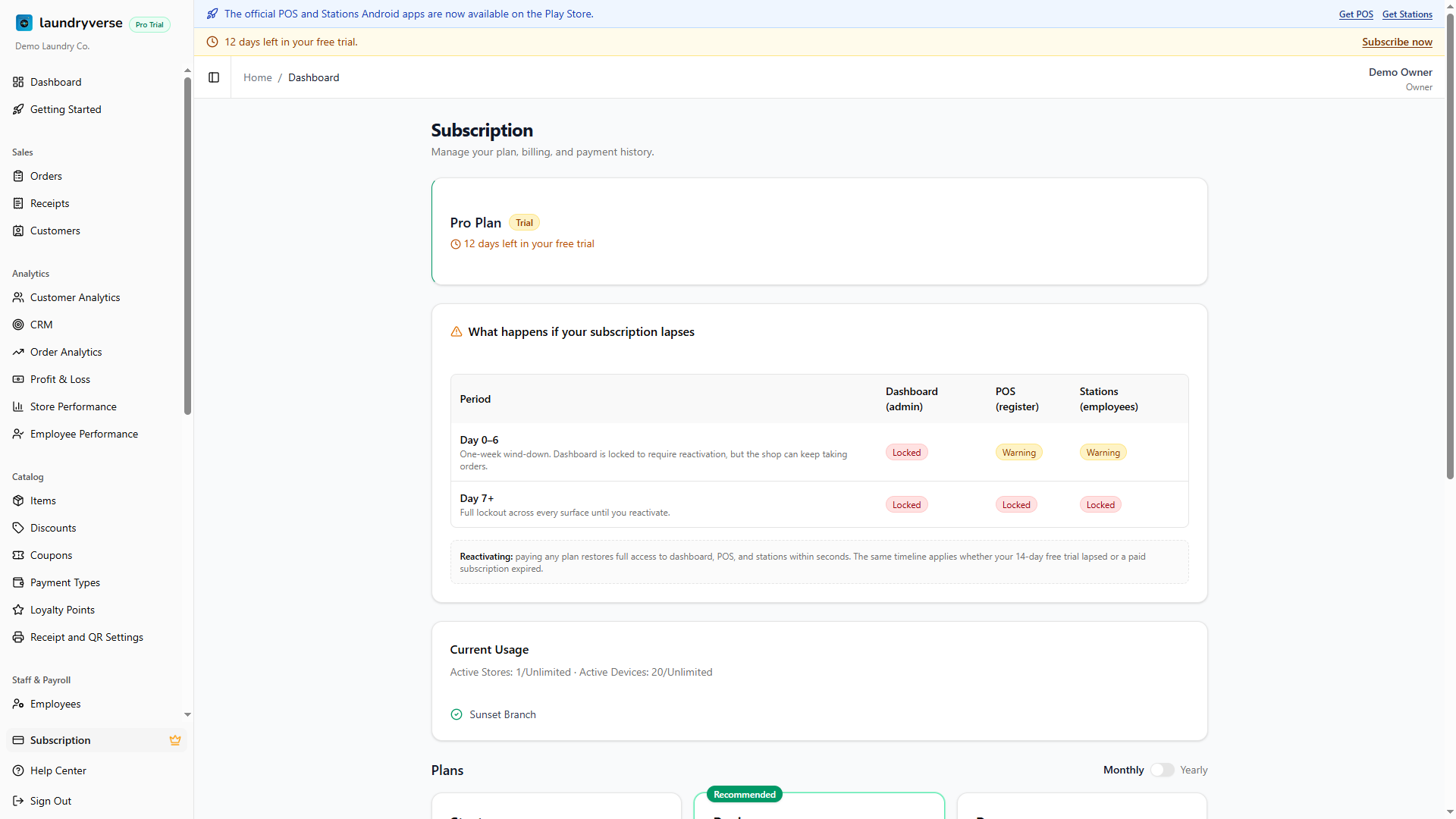
The banner adapts to the state:
- Trial: shows N days left in your free trial in amber. The phase timeline below explains exactly what happens when the trial ends.
- Active: shows Auto-renews on [date] (recurring) or Renews by [date] (manual). A Cancel Plan button appears in the corner.
- Cancelled: shows Access until [date], so you can finish the period you already paid for.
- Expired: shows in red and prompts you to subscribe to regain dashboard access.
A few situational alerts can appear above the banner:
- Payment pending (amber) when you started a checkout but did not finish paying. Includes a Complete Payment link to resume.
- Bank QR Ph timing notice (sky blue) pairs with pending payments, see section 3.
- Trial ending soon / Subscription expiring soon (red or amber) with a CTA to choose a plan.
- Plan change scheduled (blue) when a downgrade is queued for the next billing date, with a Cancel Change button.
2. Compare and pick a plan
Below the current plan card you'll find the Current Usage breakdown (stores and devices used vs the plan limits) and the plan comparison grid. Three tiers are shown: Starter, Business, and Pro. Enterprise is a separate, support-managed plan and does not appear here.
| Tier | Monthly | Yearly | Stores | Devices | Highlights |
|---|---|---|---|---|---|
| Starter | P999 | P9,990 | 1 | 5 | POS register, order board, timecards, expenses, vault, reports (last 30 days), CSV export of receipts, orders, customers, and LPG logs (last 30 days), email and push notifications |
| Business | P1,999 + P799 per extra store | P19,990 + P7,990 per extra store yearly | Up to 5 | Up to 25 | Everything in Starter, full reports history, full-history CSV and PDF export plus report and analytics exports, CRM, shifts scheduler, payroll, API access (2 keys) |
| Pro | P2,999 + P999 per extra store | P29,990 + P9,990 per extra store yearly | Up to 10 | Unlimited | Everything in Business, bulk SMS retention campaigns, store performance dashboard, extended API (5 keys), priority support |
A Monthly / Yearly toggle sits next to the grid header. Switching to yearly drops the Save 17% badge and recomputes every card to pay for 10 months, get 12 free. Per-store add-ons follow the same yearly math.
Each card's button depends on your current state:
- Trial / Expired / Cancelled: shows Subscribe to [Plan].
- Active and a lower tier: shows Upgrade (immediate, prorated charge for the difference).
- Active and a higher tier: shows Downgrade (scheduled for the end of the current period).
- Current plan: button is disabled and labeled Current Plan.
- Over the plan's caps: button reads Not Available with a note like You have 7 stores, this plan supports up to 5.
The Business tier carries a Recommended badge. It is the default for shops that have moved past one store or want to give the front-office accountant CSV reports.
3. Pay through PayMongo Hosted Checkout
Tapping Subscribe to [Plan] generates a one-time invoice and redirects you to PayMongo Hosted Checkout in the same tab. Checkout is hosted by PayMongo, not by LaundryVerse, so you'll see their branding once you land. From there, pick a payment method, GCash, Maya, credit or debit card, or QR Ph (the bank rail used by BPI, BDO, UnionBank, and others).
What happens next depends on the method:
- GCash, Maya, card: instant. The payment confirms, you bounce back to Subscription and Billing with
?payment=success, and your plan flips to Active within a few seconds. - Bank QR Ph: usually instant during banking hours (Monday to Friday, 9 AM to 5 PM). Payments made after 5 PM, on weekends, or on holidays clear on the next banking day. The page shows an amber Payment pending alert plus the sky-blue Bank QR Ph timing notice in the meantime. There is nothing to do, the webhook fires automatically when the payment clears.
If the checkout window closes before you finish, return to this page. The Payment pending banner near the top has a Resume payment button that reopens the same hosted checkout, and Check again confirms the status with PayMongo. Every invoice, paid or pending, is also listed on the separate Billing page.
Tapping Subscribe again with a pending invoice still open expires the old one and opens a new checkout, so you don't end up with two invoices charging the same plan. Use Resume Payment if you just want to finish the existing one.
4. After you subscribe
Once payment confirms:
- Plan badge flips to Active.
- Subscription Expires At is set to one month or one year out, depending on the interval.
- Auto-renew is on by default for new subscriptions, the page shows Auto-renews on [date] on the banner.
- Feature gates unlock immediately. Pro reports, full-history and report exports, bulk SMS, and the rest become available without a sign-out cycle.
- A new row lands on the Billing page with status Paid and the payment method used.
- To review a past payment, open the Billing page and tap View on any row for the full breakdown, amount, billing period, payment method, and the provider reference number.
The dashboard layout drops the trial countdown banner, the sidebar Pro/Business badge updates, and tier-gated sidebar items (Bulk SMS, Store Performance, etc.) stop showing the lock icon.
5. Upgrade or downgrade an active plan
Tapping Upgrade on a higher-tier card opens a preview dialog with the math:
- Credit from current plan, what's left on the current period, prorated by day.
- Amount to pay now, the new plan's price minus the credit.
- Effective date: Now for upgrades.
Confirming runs PayMongo Hosted Checkout for just the prorated delta, not the full new-plan price. If your remaining credit covers the new plan, the dialog says Confirm Upgrade (no payment) and the change applies immediately.
Downgrades go the other way. The dialog shows:
- The current plan and the new lower-tier plan.
- Effective date: the end of your current billing period.
Confirming schedules the downgrade. A blue Plan change scheduled banner appears at the top of the page so the change is obvious every time you open Subscription. Cancel Change on the banner removes the schedule and keeps the current plan.
The system blocks a downgrade if your current usage exceeds the lower plan's caps. For example, on Pro with 7 stores, the Subscribe to Starter and Subscribe to Business buttons read Not Available until you delete stores down to the lower cap.
6. Cancel the subscription
The Cancel Plan button on the status banner stops auto-renewal. A confirmation dialog explains what happens:
- Your plan stays Active until the current billing period ends. The banner switches to Cancelled immediately but you keep working until the expiry date.
- After expiry, the Cancelled with access phase ends and the regular expiry ladder takes over (see section 7).
- Any scheduled tier change is also cancelled.
You can resubscribe any time before or after expiry by picking a plan in the grid.
7. What happens when a subscription expires
LaundryVerse uses a graceful enforcement ladder, not an all-or-nothing cutoff. The phase timeline at the bottom of the page (visible when you're on Trial, Past Due, Cancelled, or Expired) lays this out:
| Phase | What still works | What's blocked |
|---|---|---|
| Trial in progress | Everything, Pro-tier features included | Nothing |
| Trial ended | POS and Stations stay live for 7 more days | Dashboard redirects to Subscription page |
| Active, past due (payment failed) | Everything during 7-day grace | Nothing yet |
| Cancelled with access | Everything until billing period ends | Nothing |
| Expired, day 0 to 6 | POS register and Stations apps keep running so shifts don't break | Dashboard is blocked |
| Expired, day 7 onward | Nothing | Dashboard, POS, and Stations all locked |
The 7-day post-expiry window is intentional. Counters need to ring up sales today even if billing missed yesterday, so we keep POS alive long enough to subscribe without dropping a transaction. The dashboard locks first because owners are the only ones who can pay, and we need to push them to the Subscription page hard enough that they notice.
The phase ladder applies the same way to a trial that runs out and a paid plan that expires, the only difference is the reference date (trial end vs subscription end).
8. Where billing history lives now
Your full payment history moved to its own page. The bottom of the Subscription page now shows a Billing history & invoices card with a View billing & invoices button, or open Billing from the sidebar directly.
The Billing page is a single ledger for everything you pay LaundryVerse: subscription charges, SMS credit top-ups, and custom sender name fees, each row with its amount, status, payment method, and a View button for the full breakdown. See the Billing guide for the column-by-column walkthrough.
Common issues
"I paid but the page still says Pending"
Most of the time this is bank rail timing, not a failed payment. GCash, Maya, and cards confirm in seconds. Bank QR Ph confirms during banking hours only (Monday to Friday). A payment at 8 PM Friday clears Monday morning. Open your bank app, find the QR Ph reference number on the receipt, and the payment will activate automatically once it settles. If 24 hours pass and the row is still Pending, email [email protected] with the QR Ph reference and the amount and we'll reconcile with PayMongo.
"An invited team member needs to handle billing"
They can't. The Subscription page is owner-only at the middleware level, no role permission unlocks it for invited employees. The workaround is to have the Owner do the upgrade or cancellation directly. For long-term delegation, the only path is to transfer ownership of the LaundryVerse account, which is a manual support request, email [email protected].
"I'm on Pro with 7 stores but Starter shows Not Available"
The plan caps are hard. Starter is 1 store, Business is 5, Pro is 10. Downgrading from Pro to Starter requires deleting stores down to 1 first. Delete from Stores, then come back, and the Subscribe to Starter button will be enabled. The same rule applies to device caps.
"The dashboard locked but my POS is still working"
That's the 7-day grace ladder doing its job. After a trial ends or a paid subscription expires, the dashboard locks immediately so the Owner can't ignore the renewal, but POS and Stations keep accepting orders for 7 more days. Subscribe inside that window and everything unlocks without losing a single sale. Past day 7, every surface (dashboard, POS, Stations) locks together and counters can't ring up sales until you subscribe.
"I cancelled by accident, how do I bring it back"
A cancelled subscription stays Active until the period you paid for ends, so there's no urgency. Open Subscription, pick the same plan card (it now reads Subscribe to [Plan]), and confirm. PayMongo issues a fresh invoice for the next period and auto-renew turns back on.
"Why is the Subscribe button disabled and the card says Not Available"
The page checks your current store and device count against the target plan's caps before letting you subscribe, even from Trial. If a trial tenant set up 6 stores and tries to land on Starter (1-store cap), the button blocks. Pick a plan that fits your real footprint, or reduce stores/devices first.
What's next?
- Billing: your full payment history, SMS credit top-ups, and per-transaction details.
- Stores: add or remove stores. Plan caps are enforced here, lower the count before downgrading.
- Devices: active devices count toward the plan's device cap. Deactivate retired tablets before downgrading.
- Employees: invite a dashboard team member. Note that no invited role can open Subscription, billing is owner-only.
- Roles & Permissions: delegate operations to managers and accountants. The
subscription:managepermission shows up in the role editor for completeness, but the middleware gate makes it inert for non-owners. - Reports & Analytics: upgrade to lift the Starter 30-day reports cap or unlock Store Performance.
Stuck? Email [email protected]. The founder reads every message.