Clock In
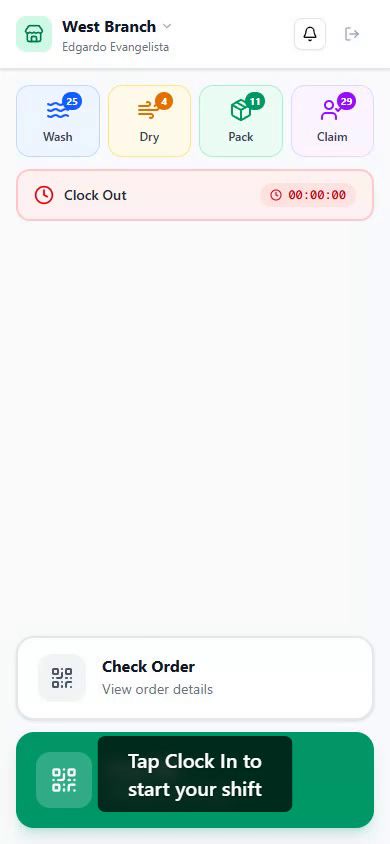
By default, before anyone can scan a bag or advance a load, they clock in. The Stations app opens to a single Clock In button; tapping it captures the device location for the timecard and unlocks the station screens. If you'd rather let staff in with just their PIN, you can make clock-in optional on a device, covered in Making clock-in optional. This guide covers clocking in, what the clocked-in home shows, and clocking out at the end of a shift. About 2 minutes.
Before you start
You'll need:
- A station device already bound to a store, with an employee PIN to sign in. If the device isn't set up yet, see Setting Up Stations.
- Location enabled on the device. Clock-in records the device's coordinates for the timecard audit. If location is off or denied, section 1 covers what happens.
Stations sign-in is PIN-only. There's no separate permission to clock in, so any employee who exists in Employees with a valid 4-digit PIN can sign in and start a shift. The station screens stay hidden until clock-in succeeds, so unclocked staff can't accidentally advance loads, unless you've made clock-in optional for that device.
1. Clocking in
On a fresh sign-in, the screen shows a single large Clock In button. The four station cards and the QR scanner don't appear until you clock in.
- Tap Clock In. The button changes to Getting location, then Clocking in while it works.
- If the browser asks for location, tap Allow.
- Once the clock-in is recorded, you land on the clocked-in home.
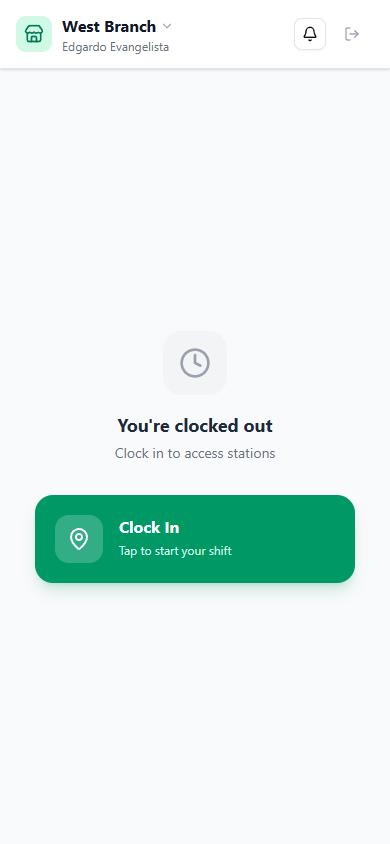
If the device has no GPS or the location lookup times out, the app clocks you in anyway, just without coordinates, so a deskless tablet is never stuck. A hard permission block is different: if you tap Block on the prompt, the button shows Location access is blocked. Enable it in your browser settings to clock in, and you'll need to allow location before clock-in works. See Common issues for the fix.
2. The clocked-in home
After clocking in, the home screen shows four station cards, the two scanner buttons, and a clock-out bar:
| Element | What it does |
|---|---|
| Wash, Dry, Pack, Claim cards | Four mini-cards across the top. Each shows a badge with the number of loads currently waiting at that station. Tap one to open its queue. |
| Clock Out bar | A red bar showing the elapsed time since you clocked in, updating every second. Tap to clock out. |
| Check Order | The secondary button. Scan a bag's QR to view an order without advancing the load. |
| Scan QR | The green primary button at the bottom. Scan a bag's QR to advance its load to the next stage. |
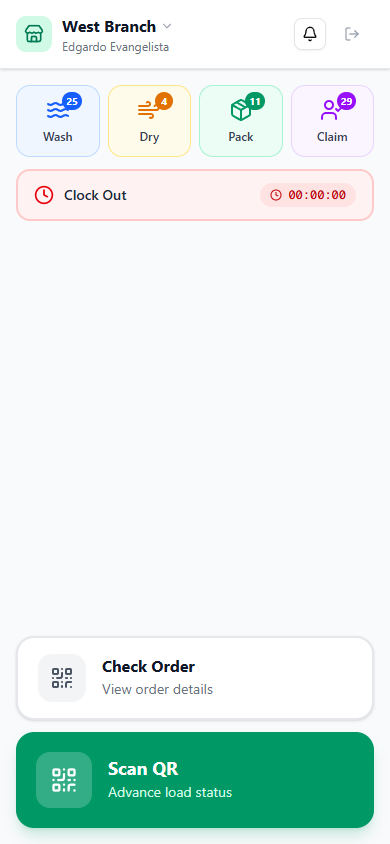
The header bar shows the store name (tap it to switch stores), the employee name of whoever is signed in, a notification bell, and a logout button.
3. Station cards
Each of the four cards represents a processing stage:
| Station | Color | What it shows |
|---|---|---|
| Wash | Blue | Loads waiting to be washed |
| Dry | Amber | Loads waiting to be dried |
| Pack | Green | Loads waiting to be packed |
| Claim | Purple | Orders ready for customer pickup |
The badge count on a card is how many loads need attention at that station. A card with nothing waiting shows no badge. Tap a card to open that station's queue, where you can batch-advance loads with checkboxes.
4. Scanning and checking orders
The two buttons at the bottom of the home screen are the day-to-day workflow:
- Scan QR (green) opens the scanner and advances a load to its next stage on each scan. See QR Scanning to Advance Load.
- Check Order opens the scanner in read-only mode and looks up an order without changing anything. See QR Scanning to View Order.
Day-to-day, the loop is Scan QR, confirm the next status, Scan QR again, repeated through the shift.
5. Clocking out
When the shift is done:
- Tap the Clock Out bar (it shows your elapsed time).
- A Clock Out? dialog appears with how long you've been clocked in.
- Tap Clock Out to confirm, or Cancel to keep working.
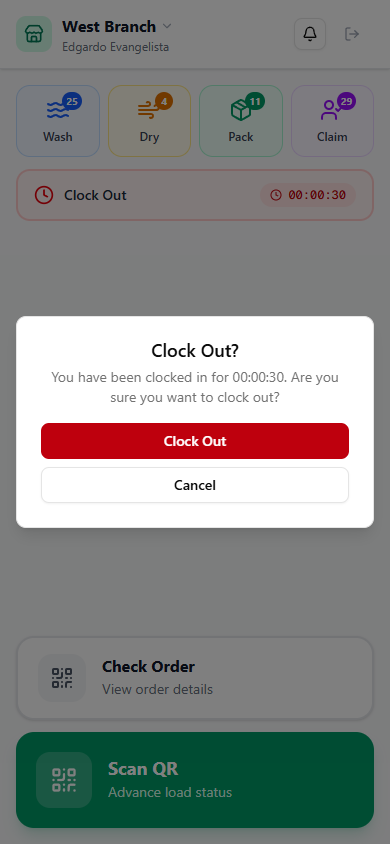
After clocking out, the screen returns to the clock-in state and the time record is saved for payroll and timecard tracking.
6. Clock out vs log out
These are not the same action:
- Clocking out ends your shift and stops the timecard clock, but keeps you signed in. The next time you clock in, no PIN is needed.
- Logging out (the button in the header) ends the session entirely. The next person has to re-enter their PIN to use Stations.
When you hand the device to a different employee, have them log out and sign in with their own PIN, so the timecard records the right person. Clocking out alone leaves the previous employee signed in.
Making clock-in optional
Clock-in is required by default: the station screens stay locked behind the Clock In button until someone starts a shift. If your shop doesn't track station hours, or you run a shared tablet where staff move through fast, you can switch this off for a device so a PIN is all it takes to get in.
To change it, open Dashboard, Devices on a dashboard browser, find the station device under Station Devices, and tap its settings gear. On the Clock-in tab, turn off Require clock-in. The setting is per device, so you can leave it on for some stations and off for others.
With clock-in optional, signing in with a PIN lands the employee straight on the station home, with the cards and scanner ready. The clock-in bar is still there, now marked Optional, so anyone who wants their hours tracked can still tap it. A small amber dot on the device's settings gear in the dashboard reminds you that clock-in isn't required on that device.
This only changes whether clock-in is required up front. It doesn't affect timecards for staff who do clock in, and it doesn't change how loads are scanned or advanced.
Common issues
"Clock In is stuck on Getting location"
The device is waiting on a slow GPS fix. Give it a few seconds; if location never resolves, the app clocks you in without coordinates on its own. If it's truly hung, close and reopen the app, then tap Clock In again.
"Location access is blocked"
Someone tapped Block on the location prompt. On the Android app, open the phone's Settings, Apps, LaundryVerse Stations, Permissions, Location and set it to Allow only while using the app. On the browser fallback, open the browser's site settings for laundryverse.app and allow location, then reload and tap Clock In again.
"I clocked in on the wrong store"
Tap the store name in the header, or log out and tap Switch store on the PIN screen, then sign in against the correct store code. Loads only show for the store the device is bound to, so a wrong store shows an empty board.
"The next employee's hours are landing on someone else's name"
The previous employee clocked out but never logged out, so the new person is scanning under the old session. Always log out between staff, not just clock out, then sign in with the new PIN.
"The station cards and Scan QR button never appear"
You're signed in but not clocked in. The cards and scanner stay hidden until clock-in succeeds; that's intentional, so unclocked staff can't advance loads. Tap Clock In first. If you'd rather skip clock-in on a device, see Making clock-in optional.
"The app shows a Subscription expired screen instead of Clock In"
The tenant's subscription is past its grace period. Open Dashboard, Subscription on a dashboard browser session to restore billing, then the app unlocks on the next launch. See Subscription.
What's next?
- QR Scanning to Advance Load, scan a bag's QR to move it Wash, Dry, Pack, Claim.
- QR Scanning to View Order, look up an order's full status without changing anything.
- Setting Up Stations, bind a device to a store and install the app.
Stuck? Email [email protected]. The founder reads every message.