Cash Advance
Record cash advances ("vale," "loan-against-payroll") given to employees, and have them deducted automatically from the next payroll. Navigate to Staff & Payroll > Cash Advance in the dashboard. About 2 minutes.
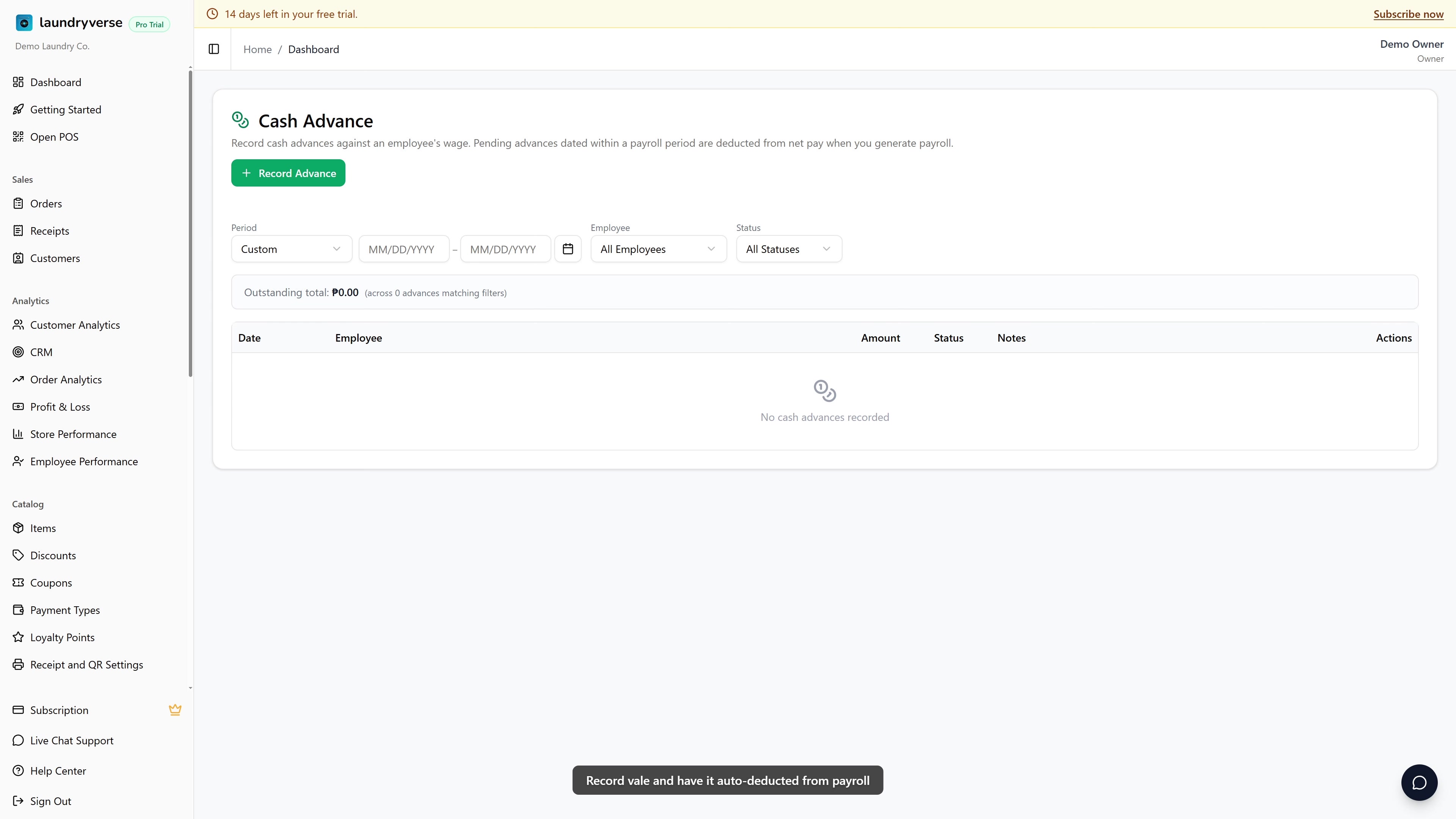
Cash Advance is part of Payroll, available on Business plans and above. If the page is locked, upgrade from Dashboard > Subscription.
Recording, editing, cancelling, or deleting a cash advance requires the Manage vault permission (vault:manage). Owners, Admins, and Managers have it by default. Cashiers do not. Grant it to other roles in Dashboard > Roles & Permissions. Without this permission, the Cash Advance page stays hidden in the sidebar and any direct visit is blocked at the server.
Before you start
You need at least one active employee before you can record an advance. Employees are created in Employees, and the picker on the record form only lists active staff.
Cash advances feed straight into payroll. A pending advance dated inside a payroll period is subtracted from that employee's net pay the next time you generate a Payroll report. Nothing is deducted until you run payroll, so recording an advance is safe and reversible while it stays pending.
Set the Date field to the day the employee actually received the money, not the day you got around to logging it. Payroll matches advances by date, so a backdated entry still lands in the correct pay period.
1. Why Track It Here
Most laundry shops give vale on the spot when staff ask. The risk: nobody remembers it on payday, so either it doesn't get deducted (your money), or it gets deducted twice (their pay). LaundryVerse fixes both:
- Recorded immediately. Date, amount, employee, optional note.
- Deducted on the next payroll generate. Pending advances within the payroll period auto-subtract from net pay.
- Audit trail. Even cancelled advances stay in the list for review.
This page is the dedicated workflow. The data flows directly into Payroll.
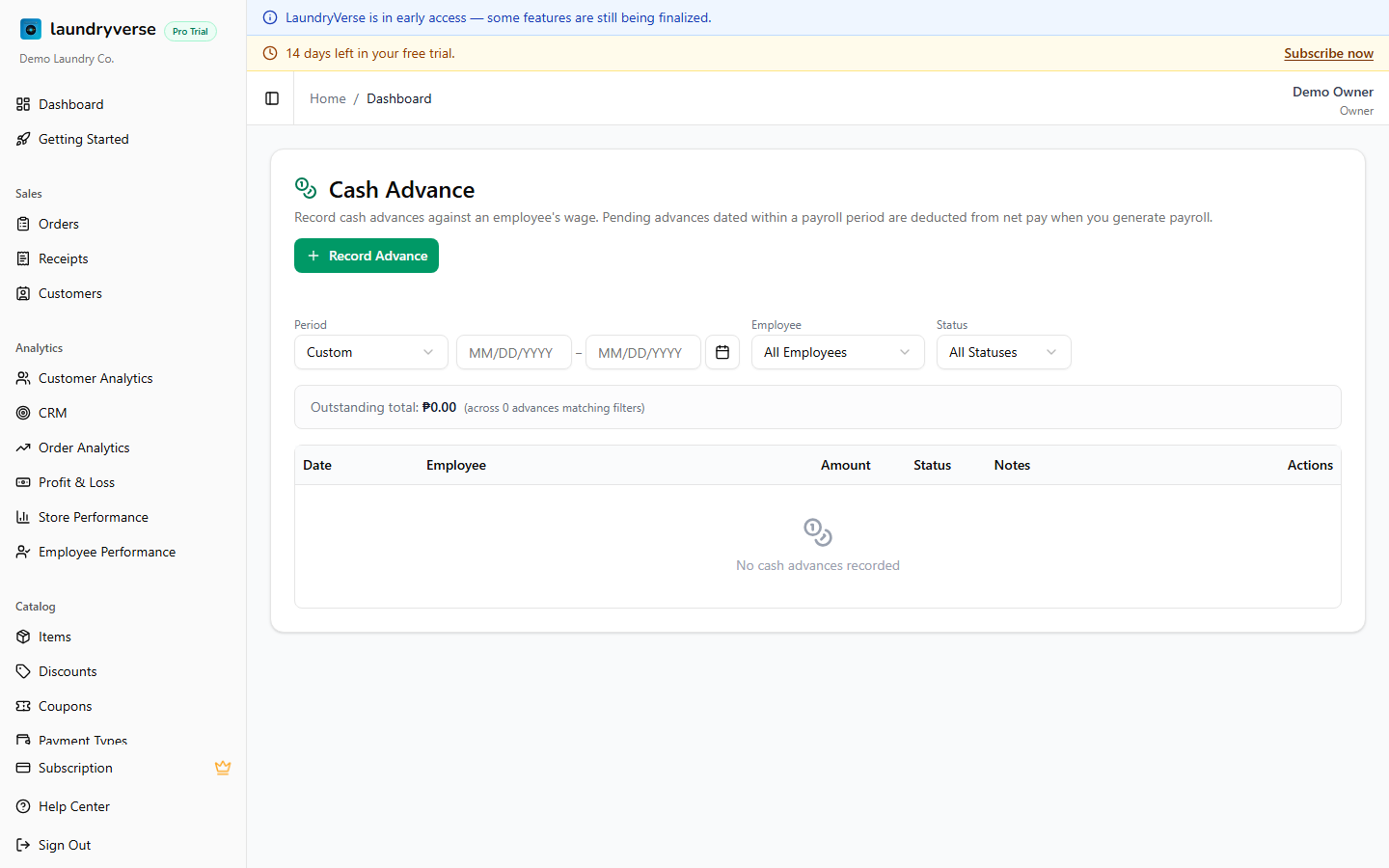
2. Recording an Advance
Tap Record Advance in the top-right.
| Field | Description |
|---|---|
| Employee | Who's receiving the advance |
| Amount (₱) | The peso amount given out |
| Date | Defaults to today. Backdate when recording past advances you forgot to enter |
| Notes (optional) | Reason, for example Emergency medical, House repair, Fuel for travel |
Save and the advance lands at the top of the list with status Pending.
3. Status Lifecycle
Each advance moves through these states:
| Status | Means | Effect on payroll |
|---|---|---|
| Pending | Recorded, waiting for the next payroll run | Will be deducted from net pay on the next payroll within the date range |
| Deducted | Locked in by a generated payroll report | The payroll subtracted this amount from net pay; cannot be edited or deleted |
| Cancelled | Manually cancelled before deduction | Stays in the list for audit; not deducted |
Once an advance moves to Deducted, the row is read-only. The only audit-trail-safe way to "undo" it is to issue a separate adjustment (for example a positive expense or a payroll correction).
4. Filtering
| Filter | What it does |
|---|---|
| Period | Limits to advances dated within a date range, useful for "show me Jan advances only" |
| Employee | One specific employee, or "All Employees" |
| Status | Pending / Deducted / Cancelled / All |
The Outstanding total above the table sums every advance matching the filters, regardless of status.
5. Editing & Cancelling
Pending advances:
- Edit (pencil). Change date, amount, or notes if you logged it wrong.
- Cancel (X icon). Moves to Cancelled status; the record stays for audit, but the next payroll run skips it.
- Delete (trash). Removes the row entirely. Use this only for genuine duplicates or test entries. For "this advance was actually wrong" prefer Cancel so the audit trail survives.
Deducted advances:
- All actions are disabled. The advance is locked into a generated payroll report.
Cancelled advances:
- Delete (trash) only. Past tense, can be cleaned up.
6. How Payroll Picks Them Up
When you generate a Payroll report:
- Payroll picks the date range you specify (for example Aug 1 to 15)
- For each employee, it queries all Pending cash advances dated within that range
- Sums them as "Cash Advance Deductions" on the payroll
- On payroll save, those advances flip from Pending to Deducted
So the practical rule: record advances on the date they were given. If a cashier got vale on Aug 3 but you only remembered to log it on Aug 20, set the Date field to Aug 3 so the Aug 1 to 15 payroll picks it up correctly.
7. Multiple Advances per Period
There's no cap. An employee can have 3 advances in a payroll period (₱500 + ₱1,000 + ₱500 = ₱2,000 deduction), or none at all. They all roll up under "Cash Advance Deductions" on the payroll line.
If the total of pending advances exceeds gross pay for the period, payroll caps net pay at ₱0. The employee's payroll line shows zero net for that period. The advances are still recorded as Deducted (not split, not partially recovered, not auto-rolled). If you need the unrecovered amount to roll forward, record a new advance manually for the next period.
Common issues
"The employee I want isn't in the dropdown"
The picker only lists active employees. If someone is missing, check that their profile exists and is still active in Employees. Reactivate them, then reopen the record form.
"My advance wasn't deducted on payroll"
Payroll only picks up advances that are Pending and dated inside the payroll period. Open the advance and confirm its Date falls within the range you ran, and that its status is still Pending rather than Cancelled. Backdate the entry to the day the cash was given if needed, then regenerate payroll.
"I can't edit or delete an advance"
Once an advance is Deducted, it's locked to a generated payroll report and all actions are disabled. To change it, delete the payroll report that pulled it in first. The advance returns to Pending and becomes editable again.
"I cancelled an advance by mistake"
A cancelled advance can't be flipped back to Pending. Record a fresh advance with the same employee, amount, and date, then delete the cancelled row if it's just clutter.
"The Cash Advance page is locked or missing"
Cash Advance needs a Business plan or higher and the Manage vault permission. If the whole page is locked, check your plan under Dashboard > Subscription. If only some staff can't see it, grant them Manage vault in Dashboard > Roles & Permissions.
"The outstanding total looks too high"
The Outstanding total sums every advance that matches your current filters. Set the Status filter to Pending to see only what's still owed, or narrow the Period to the pay cycle you care about.
What's next?
- Payroll & Compliance: where cash advances get deducted automatically.
- Holidays: holiday premium calculations on the same payroll.
- Employees: add or reactivate the staff who appear in the advance picker.
- Activity Log: cross-reference admin-side advance records.
Stuck? Email [email protected]. The founder reads every message.