Customer Order Tracking
Customer Order Tracking gives every customer a private web page that shows the live status of their laundry: received, washing, drying, ready for pickup, and claimed. A QR code prints on their receipt, they scan it with any phone camera, and the page opens in the browser. No app to install, no account to log in to, and no more phone calls asking "is it ready yet?" About 3 minutes to set up.
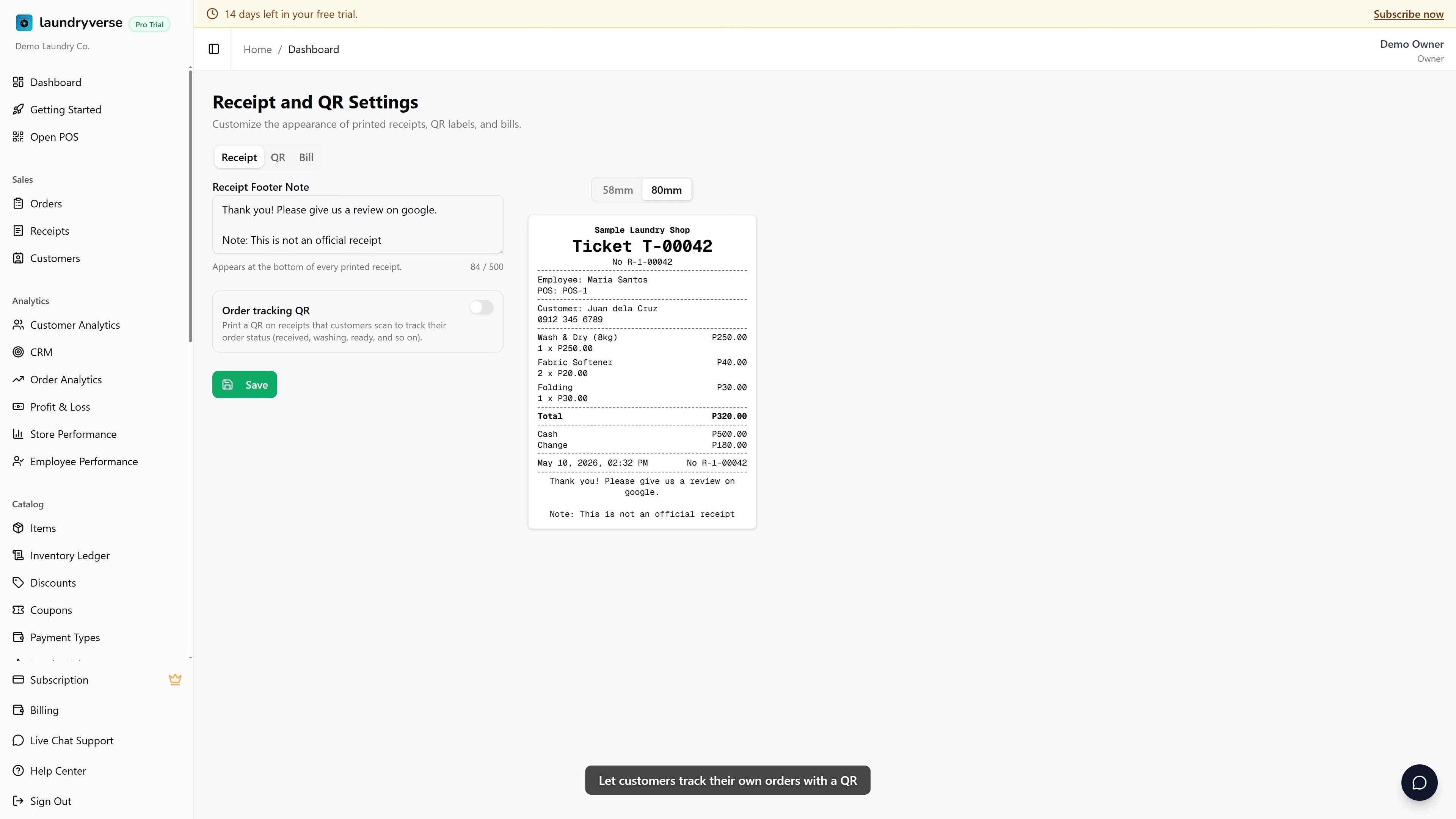
Turning the tracking QR on or off uses the Manage items permission (dashboard:items:manage), the same permission that gates the rest of Receipt and QR Settings. The default Owner, Admin, and Manager roles all hold it; Cashier does not.
Copying an order's tracking link from the dashboard needs View orders (orders:view), held by Owner, Admin, Manager, and Cashier.
The tracking page itself needs no permission and no login. The customer just opens the link, and because the link is long and random, only someone holding that receipt (or a link you share) can reach it.
Before you start
The tracking QR is on by default, so new shops already have it. It applies tenant-wide, every branch prints the same tracking QR once it is on, and it is available on every plan, including Trial.
You'll need:
- An active LaundryVerse account.
- A paired thermal printer if you want the QR on printed receipts. See Printer Setup.
- Attached customers on your orders if you want loyalty points and the masked phone number to appear on the tracking page. See Attaching Customers.
1. What the customer sees
When a customer scans the QR, or opens the link, a status page loads in their phone browser, branded with your shop name and the order number.

The top shows the current headline, "Order in progress", "Ready for pickup!", or "Order claimed", and a progress tracker steps through five stages:
| Stage | Meaning |
|---|---|
| Received | The order is logged, loads not started yet |
| Washing | At least one load is in the wash, none earlier than that |
| Drying | Every load is washed, the slowest is drying |
| Ready for pickup | Every load is packed and waiting for the customer |
| Claimed | The customer has collected the order |
The stage is worked out from the loads on the order, and the tracker always reflects the slowest load, so a customer never sees "ready" while one load is still in the dryer.
Below the tracker, the page shows the order details:
- Total, and the payment status: Paid, Partially paid, or Unpaid.
- Balance, if any is still owed, plus how much has been paid so far.
- Loyalty points, if a customer is attached.
- Phone, masked to the last four digits.
- Scheduled pickup, if a pickup date was set on the order.
- Picked up, the date and time, once the order is claimed.
- A Last updated time at the very bottom.
For orders with more than one load, an Items list shows each load and its own status, so a customer with a mixed order can see the comforter still drying while the rest is ready.
If an order is cancelled, the page says so and asks the customer to contact the shop.
The tracking page never shows the customer's name, full phone number, address, or any staff names. It shows the shop name, the order number, the status, and the order totals only. See Privacy.
2. Turn the tracking QR on or off
- From the dashboard, go to Catalog -> Receipt and QR Settings.
- On the Receipt tab, find Order tracking QR just below the footer note.
- Toggle it on to print the QR, or off to hide it. The preview on the right updates immediately, with the "Scan to track your order" QR at the bottom of the receipt.
- Tap Save.

The change applies from the next receipt printed. Receipts already printed keep whatever they had.
The Order tracking QR on the Receipt tab faces your customer, it opens the status page. That is different from the QR label on the QR tab, which is the sticker your staff scan to advance loads at each station. One faces the customer, the other faces your team. See Receipt and QR Settings for the staff label fields.
3. Where the QR prints
Once it is on, the tracking QR prints on every customer-facing slip that has an order behind it:
| Printout | When it prints |
|---|---|
| Sales receipt | When you charge and print a paid receipt |
| Bill | The draft pickup slip for an unpaid or partially paid order |
| Deposit receipt | When a customer pays a partial deposit |
It prints on both thermal printers and the browser print fallback. The QR always points to the same page for that order, so a customer who kept their bill can scan it days later and still see the up-to-date status.
4. Share the link from the dashboard
Sometimes a thermal print smudges, or a customer messages you asking where their order is. You can pull up the link without reprinting.
- Open the order from Dashboard -> Orders, or from the Order Board.
- On the order detail page, find the Customer tracking panel.
- Scan the on-screen QR, or tap Copy link and paste it into a chat, SMS, or email.

The on-screen QR always scans cleanly, so this is the reliable fallback when a printed QR will not read.
The link is safe to send over Messenger or SMS. It does not expose customer details, so there is nothing sensitive in the message.
5. Privacy
The tracking link is a capability: holding the link is what grants access, so treat it like the receipt itself. There is no login because the customer already has the receipt in hand.
What the page protects:
- No name. The customer's name never appears.
- No full phone number. Only the last four digits show, and only so the customer can confirm the order is theirs.
- No staff names, addresses, or notes. Internal order notes and the staff who processed each load stay in the dashboard.
- Not searchable. The page tells search engines not to index it, so it will not turn up in Google.
- Unguessable link. Each order gets a long random link. There is no way to change a digit and land on someone else's order.
6. Older orders
Orders created before this feature launched did not have a tracking link at first. The link is created automatically the moment you open that order in the dashboard, so any past order becomes trackable as soon as you view it. Reprint the receipt or use Copy link to share it.
Common issues
"I turned it on but the QR is not on the receipt"
The setting applies from the next print onward, and each POS device caches receipt settings for the open shift. Close and reopen the shift at the register, or restart the POS app, then print again. Confirm the toggle is on and saved on the Receipt tab of Receipt and QR Settings.
"The printed QR will not scan"
Thermal print can smudge, or the paper can be too light. Open the order in the dashboard and use the Customer tracking panel, the on-screen QR always scans, or tap Copy link and send it to the customer directly.
"The customer says the page shows the wrong status"
The page reflects the loads on the order. If the loads have not been advanced at the stations yet, the page still shows the earlier stage. Advance the loads from the Order Detail page, and the tracking page updates on the customer's next refresh.
"Loyalty points or the phone number are missing on the page"
Those only appear when a customer is attached to the order. Attach the customer at the register, see Attaching Customers, and they will show on the tracking page.
"Can I stop printing the QR for now?"
Yes. Toggle Order tracking QR off on the Receipt tab and save. Existing links keep working, you just stop printing new ones.
What's next?
- Receipt and QR Settings: customize the footer note and the staff QR label.
- Attaching Customers: link a customer so loyalty points and the masked phone show on the tracking page.
- SMS Notifications: send an automatic "ready for pickup" text on top of the tracking QR.
- Order Detail (POS): advance loads so the tracking page moves through each stage.
Stuck? Email [email protected]. The founder reads every message.