Coupons
Code-based promos a customer presents at checkout — typed manually, scanned from a flyer, or pulled from their personal SMS. Two flavours: a shared code anyone can use (e.g. WELCOME10) or a unique-codes campaign that bulk-generates one code per customer. Navigate to POS > Coupons in the dashboard.
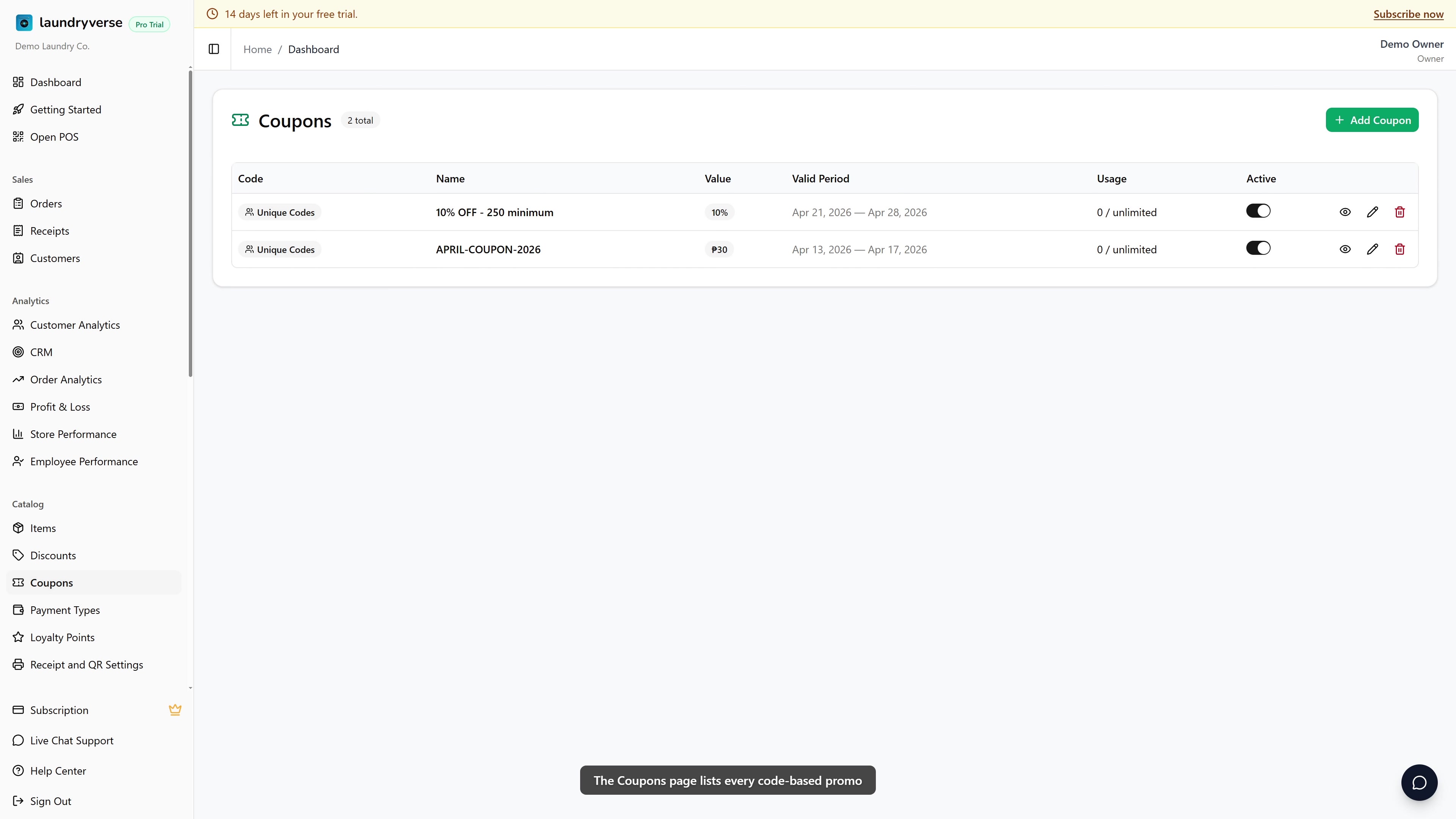
1. Coupons Table
| Column | What it means |
|---|---|
| Code | The shared code (e.g. WELCOME10) or "Unique Codes" badge for campaigns |
| Name | Display label shown in reports and pickers |
| Value | Percentage or fixed peso amount |
| Valid Period | "From — Until" dates, or "No expiry" |
| Usage | Count vs. total limit (e.g. 42 / 100) |
| Active | Toggle to disable without deleting |
Click the eye icon on any row to open the coupon details page (redemption history + stats).
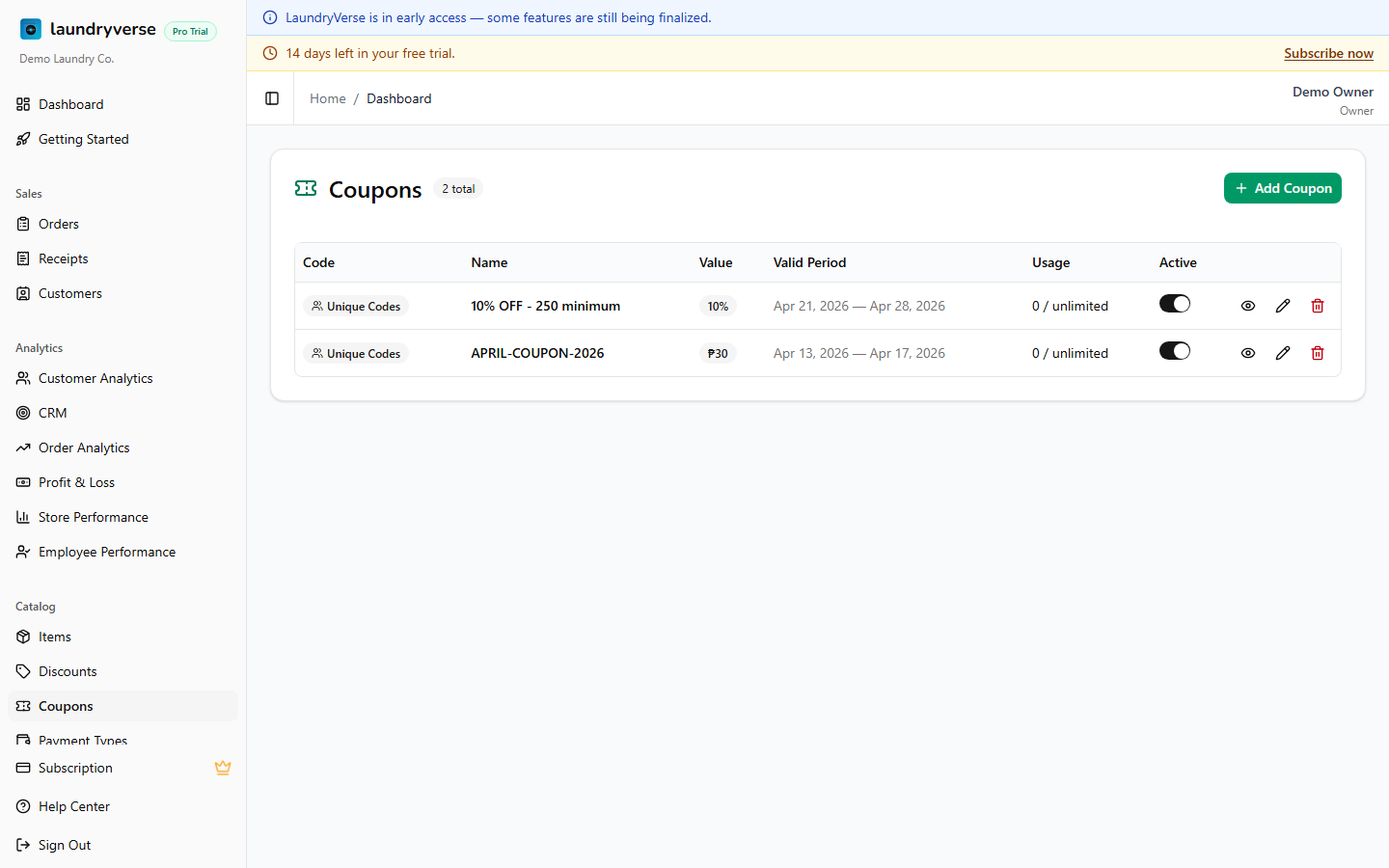
2. Shared Code vs Unique Codes
When you tap Add Coupon, the Unique codes per customer switch chooses between two modes:
Shared code (switch OFF — the default)
- One code that any customer can type at checkout — e.g.
WELCOME10 - Configure a total usage limit and per-customer limit
- Best for ads, flyers, social posts, in-store signage
Unique codes per customer (switch ON)
- LaundryVerse generates a separate code for each customer through a CRM campaign
- Each code is single-use by that customer only — no total limit field, per-customer is locked at 1
- Best for personalised win-backs, anniversary offers, "we miss you" campaigns
- Codes are sent via the CRM Campaigns flow
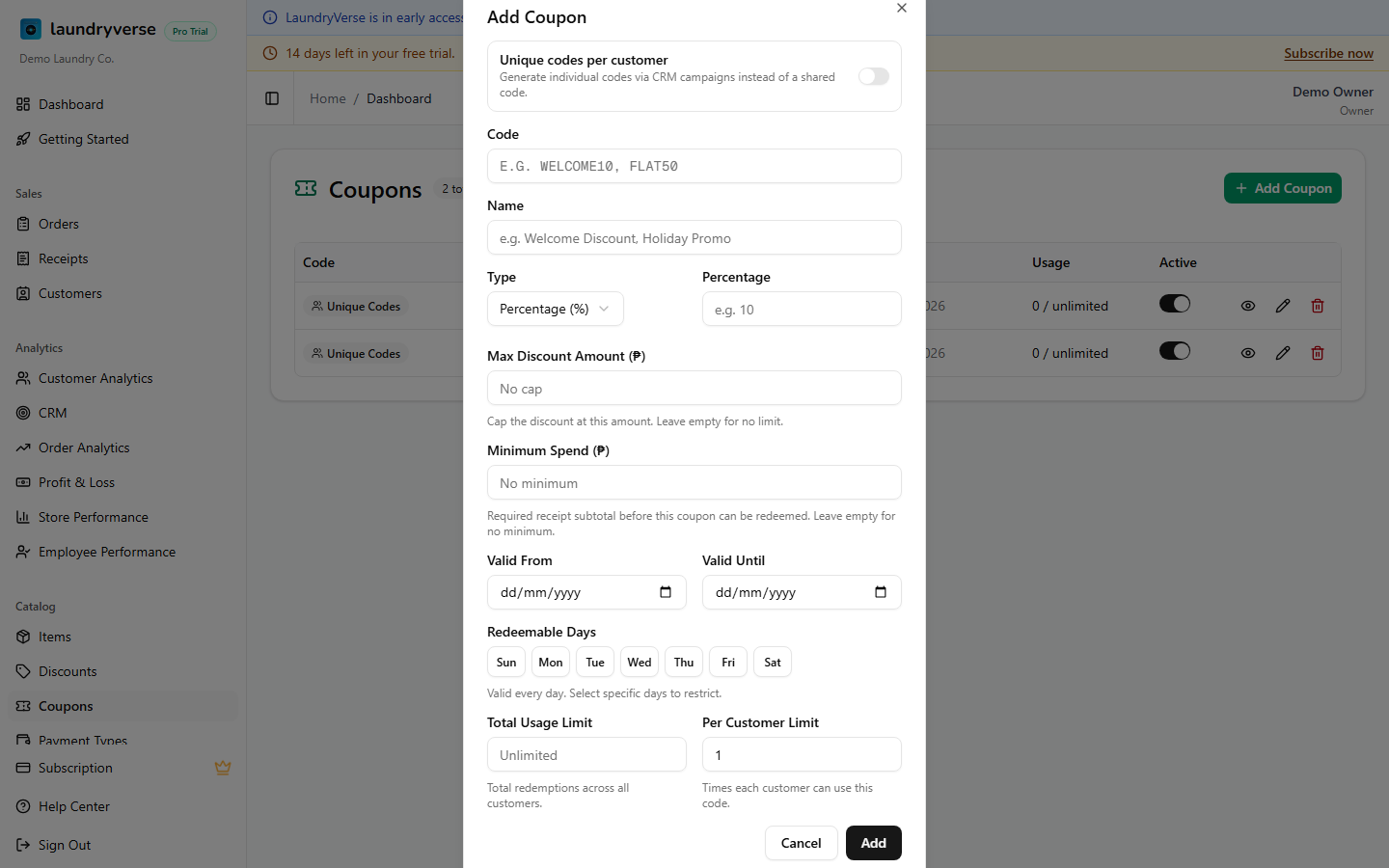
3. Adding a Coupon
Required
| Field | Description |
|---|---|
| Code | (Shared mode only) The string the customer types. Auto-uppercased — WELCOME10, FLAT50 |
| Name | Display label — e.g. Welcome Discount, Holiday Promo |
| Type | Percentage (%) or Fixed Amount (₱) |
| Value | Number that pairs with Type |
Optional caps and rules
| Field | Description |
|---|---|
| Max Discount Amount (₱) | Only for percentage types. Caps the absolute discount |
| Minimum Spend (₱) | Required subtotal before the coupon can be redeemed |
| Valid From / Valid Until | Date range. Leave blank for no expiry |
| Redeemable Days | Tap days to restrict — e.g. Tuesdays only |
| Total Usage Limit | (Shared mode only) Total redemptions across all customers |
| Per Customer Limit | (Shared mode only) Times each customer can use this code |
The code is locked after creation — you can't edit it later. If you typo'd, delete the coupon and add a new one. Past redemptions on receipts remain regardless.
4. Bulk-Generating Unique Codes via CRM
For a unique-codes coupon, codes are generated in batches from the CRM module:
- Go to CRM > Campaigns
- Create a campaign and pick the unique-codes coupon as the offer
- Select the segment of customers (all, regulars, lapsed, etc.)
- Send via SMS — each customer gets their own one-time code
When the customer comes in, the cashier opens the coupon picker on the POS — the customer's personal codes show up in their own section if a customer is attached to the order.
5. Redeeming a Coupon at Checkout
- (Recommended) Attach the customer to the order — required for personal codes from a unique-codes campaign
- Tap Charge to open the checkout sheet
- Tap Apply Coupon in the totals section
- The picker shows:
- Available shared coupons — every active shared code this store accepts today
- Customer's personal codes — only if a customer is attached and has unredeemed unique codes
- Tap a coupon to apply, or tap Enter code manually to type a code directly
Only one coupon can be applied per order.
What blocks a coupon from being applied
| Reason | What the cashier sees |
|---|---|
| Coupon is inactive (toggle OFF) | Doesn't appear in the picker, manual entry rejects |
| Today is outside the valid date range | Doesn't appear, manual entry rejects |
| Today is not a redeemable day | Doesn't appear, manual entry rejects |
| Subtotal is below the minimum spend | Error toast on tap |
| Total usage limit reached (shared) | Error toast on tap |
| Customer's per-customer limit reached | Error toast on tap |
| Personal code was already redeemed | Error toast on tap |
6. Pause vs Delete
| Action | Effect |
|---|---|
| Active toggle OFF (pause) | Coupon stops appearing in the picker and stops accepting manual entry. Past redemptions stay. Flip it back ON anytime to reactivate |
| Trash icon (delete) | Removes the coupon entirely. Use this for typos or test entries. Past redemptions stay on receipts |
Pause is reversible — prefer it over delete for any coupon that has redemptions on real receipts.
7. Order of operations
Subtotal → Discounts → Coupons → Loyalty Points → Final Total
A percentage coupon is applied to the post-discount amount. See Discounts for the full calculation order.
What's Next?
- Discounts — Cashier-picked promos that don't need a code
- CRM Campaigns — Bulk-send personal codes to customer segments
- Attaching Customers — Required for personal-code redemption at the POS