Open Tickets or Unpaid Orders
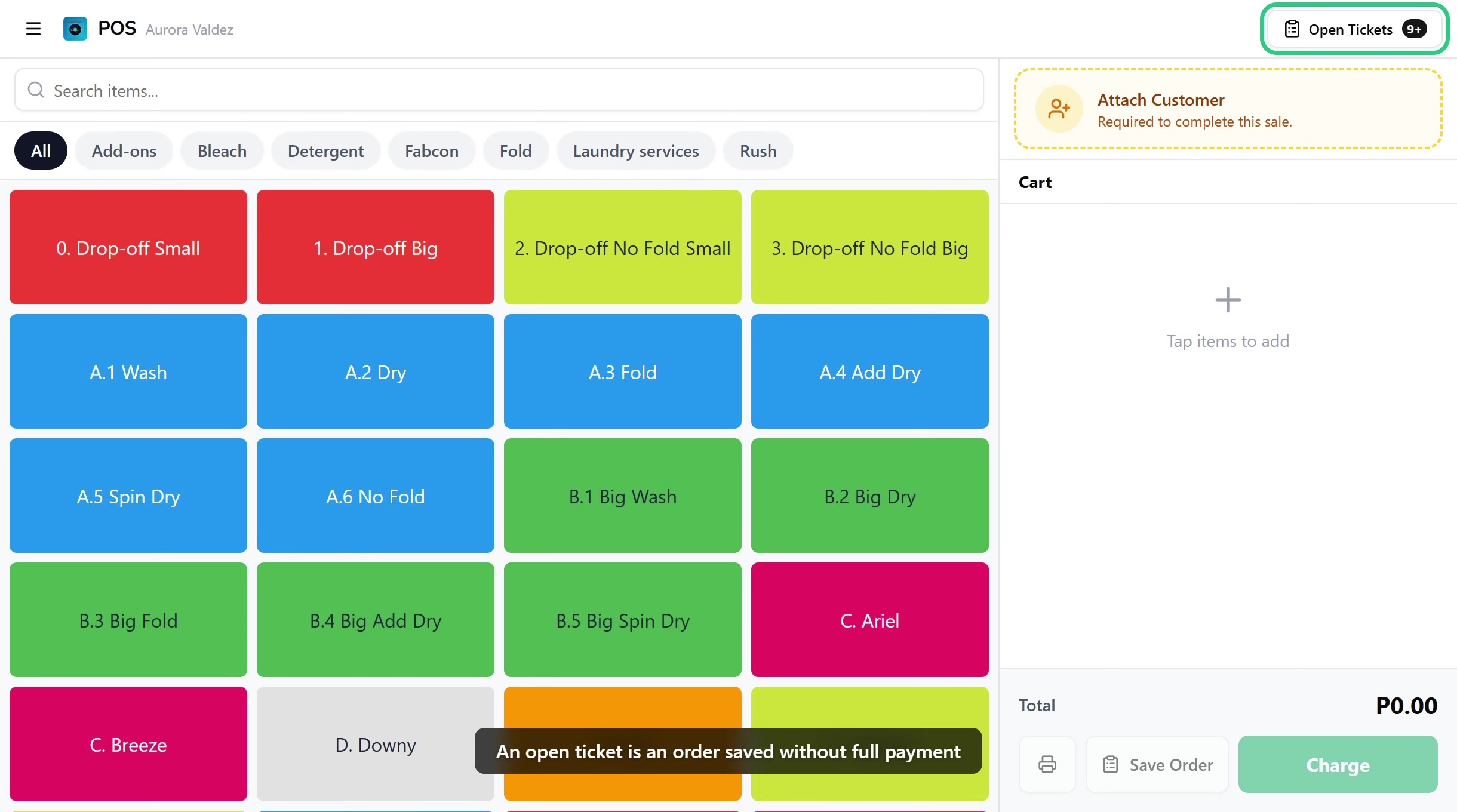
An open ticket is an order you saved without taking full payment, the normal flow for drop-off laundry that's paid on collection. The ticket waits in the register until the customer comes back, then you load it and charge. This guide covers finding open tickets, reading the list, charging one, and how they show up on the board. About 2 to 3 minutes.
Opening the Open Tickets list and charging a ticket both need the Use POS register permission (pos:register). The default Owner, Admin, Manager, and Cashier roles all hold it, because finding and settling a drop-off ticket is part of the everyday counter flow.
Charging an open ticket loads it back into the register, so the same register rules apply. If you edit the ticket's saved items before charging, the add and remove permissions kick in: Add items to open tickets (orders:items_add) is held by all four roles, while Remove items from open tickets (orders:items_remove) is held only by Owner and Admin by default. See Register for the full edit split.
To change any of this, edit the role in Roles & Permissions.
Before you start
Open Tickets reads the unpaid and partially paid orders for the current store and loads the one you pick back into the register. You'll need:
- A device activated and an employee logged in. See POS Setup.
- An active shift open for the current employee. See Shifts.
- At least one saved open ticket. You create one with Save Order or Print Bill in the register. See Register.
Open Tickets works on every plan, including Trial. No subscription gate.
1. What creates an open ticket
An open ticket is any order that hasn't been fully paid. Three register actions create one:
| Action | Result |
|---|---|
| Save Order in the cart footer | Saves the cart as an unpaid open ticket. No payment is taken. |
| Print Bill in the cart footer | Prints a pre-payment slip for the customer and saves the cart as an unpaid open ticket. |
| Pay Partial in the checkout | Records a deposit and leaves the rest as a balance. Creates a partially paid open ticket. |
They all land in the Open Tickets list and on the Order Board right away. A ticket number is assigned automatically.
Print a bill for the customer
Tapping Print Bill, the printer icon in the register's cart footer, hands the customer a draft slip showing what they owe before they pay, and saves the cart as an open ticket so the slip carries a ticket number. The slip doubles as the customer's claim stub, a stand-in for the receipt: no payment is recorded, and the order stays unpaid until they come back to settle it.

The slip lists the store name, the ticket number, the customer when one is attached, each line item with its quantity and price, and the total. A partially paid ticket also prints the amount paid and the remaining balance due. You can customize the footer note and switch between 58mm and 80mm paper on the Bill tab in Receipt & QR Settings. Reprint it any time from the order's detail page.
Print Bill needs a paired thermal printer. See Printer Setup if you haven't connected one, or Register for the full cart walkthrough.
2. Finding open tickets
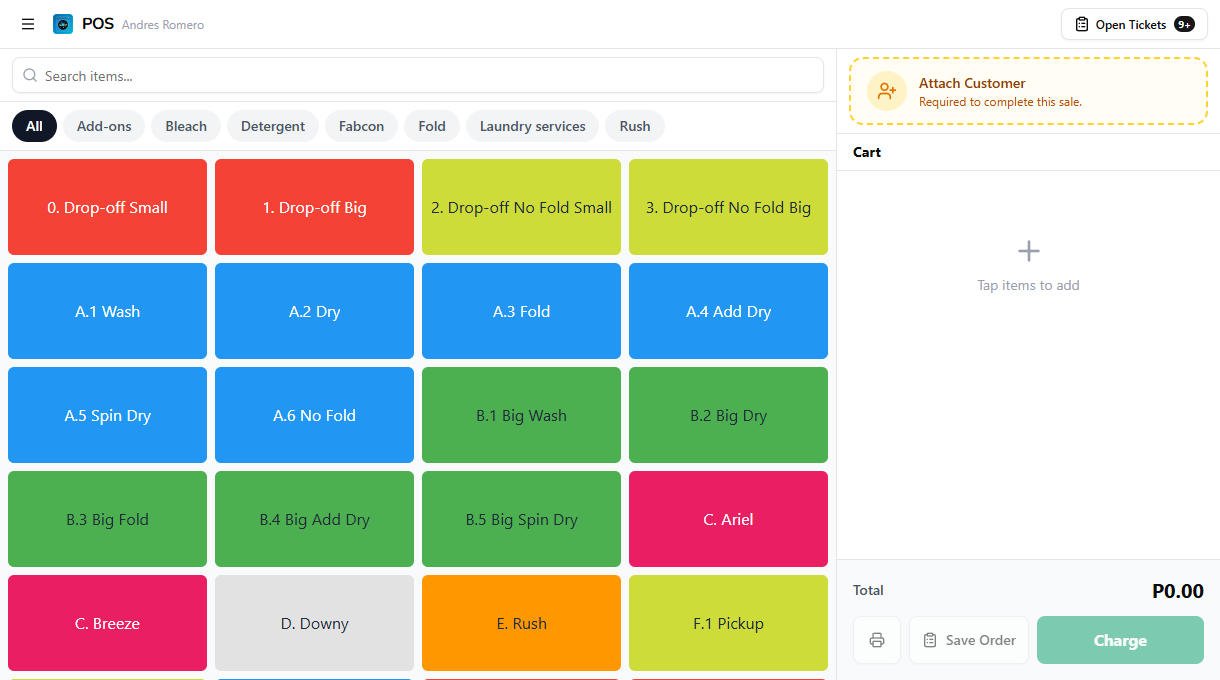
Tap the Open Tickets button in the register's top bar, next to the employee name. A dialog opens listing every unpaid and partially paid order for this store, most recent first.
3. Reading the list
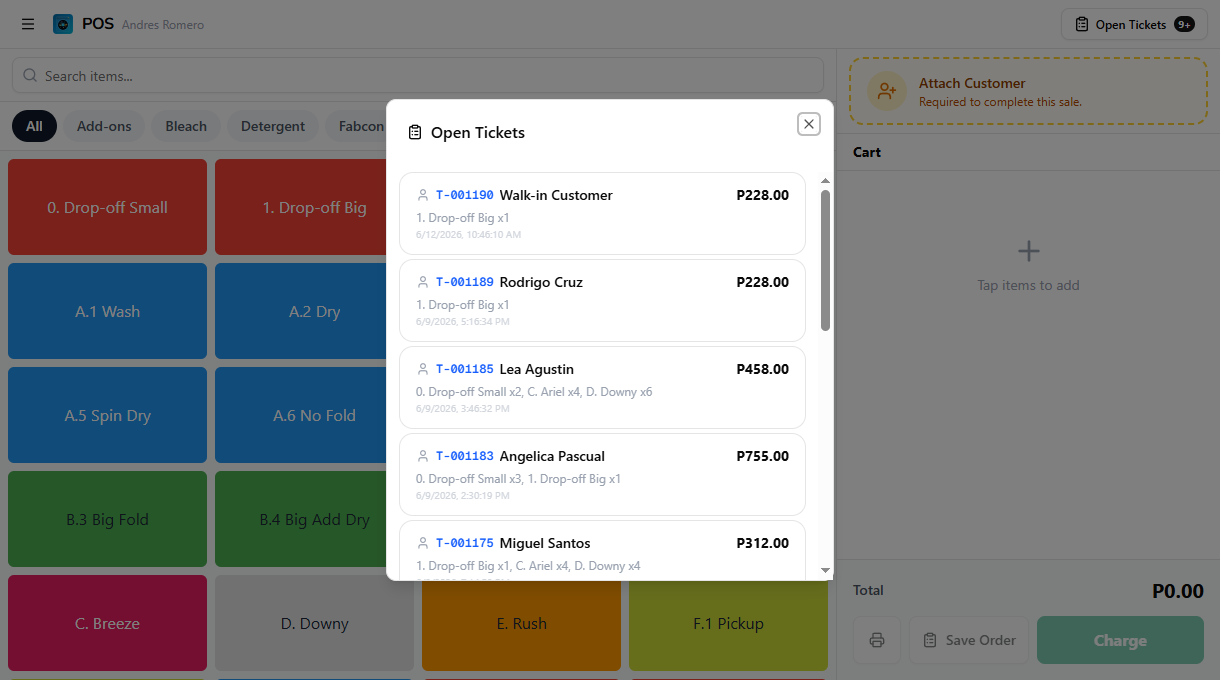
Each row in the dialog gives you enough to find the right ticket at a glance.
| Field | What it shows |
|---|---|
| Ticket number | Blue monospace reference (e.g. T-0001), shown when one is assigned |
| Customer name | The attached customer, or "Walk-in Customer" if none |
| Total amount | The full order total, bold on the right |
| Partial badge | An amber Partial badge with the paid amount and remaining balance, on partially paid tickets only |
| Items summary | A short list of what's in the order |
| Timestamp | When the ticket was saved |
If the dialog reads "No unpaid orders", every ticket has been settled. Nothing is waiting to be charged.
4. Charging an open ticket
When the customer comes back to collect and pay:
- Tap Open Tickets in the register's top bar.
- Tap the ticket you want to charge. The dialog closes and the register reloads with that order's items already in the cart.
- Check the cart, then tap the green Charge button.
- The checkout takes over. Pick the payment type, enter the amount, and finish. See Processing Payments for the full checkout.
For a partially paid ticket, the checkout already accounts for the deposit, so Charge shows only the remaining balance.
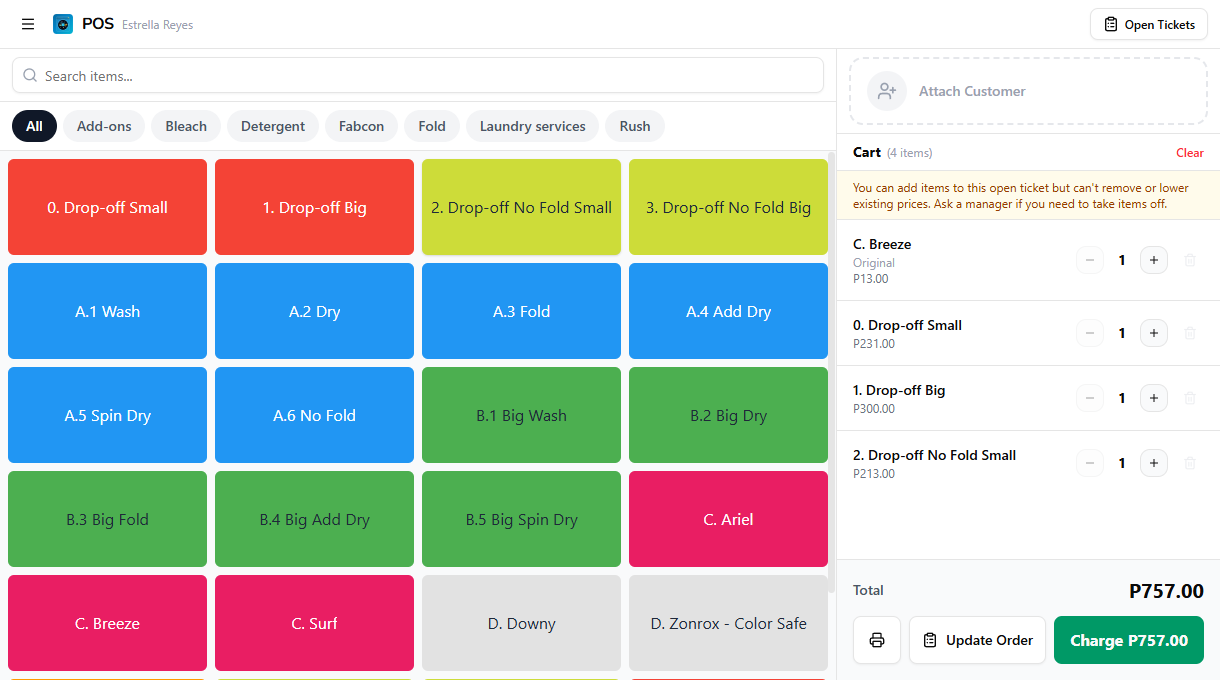
Selecting a ticket loads its original items into the cart. You can still adjust the order before charging, add another wash, fix a quantity, and the total updates. Whether you can remove a saved line depends on your role. See Register for the add and remove split.
5. Open tickets on the Order Board
A saved ticket also appears on the Order Board alongside paid orders, so a drop-off can move through wash, dry, and fold while it waits for payment. Unpaid orders are easy to spot:
| Indicator | Meaning |
|---|---|
| Red dot | Unpaid, no payment taken yet |
| Amber dot | Partially paid, a deposit is on file |
| Unpaid badge | Shown on a fully unpaid card |
| Partial badge | Shown on a partially paid card |
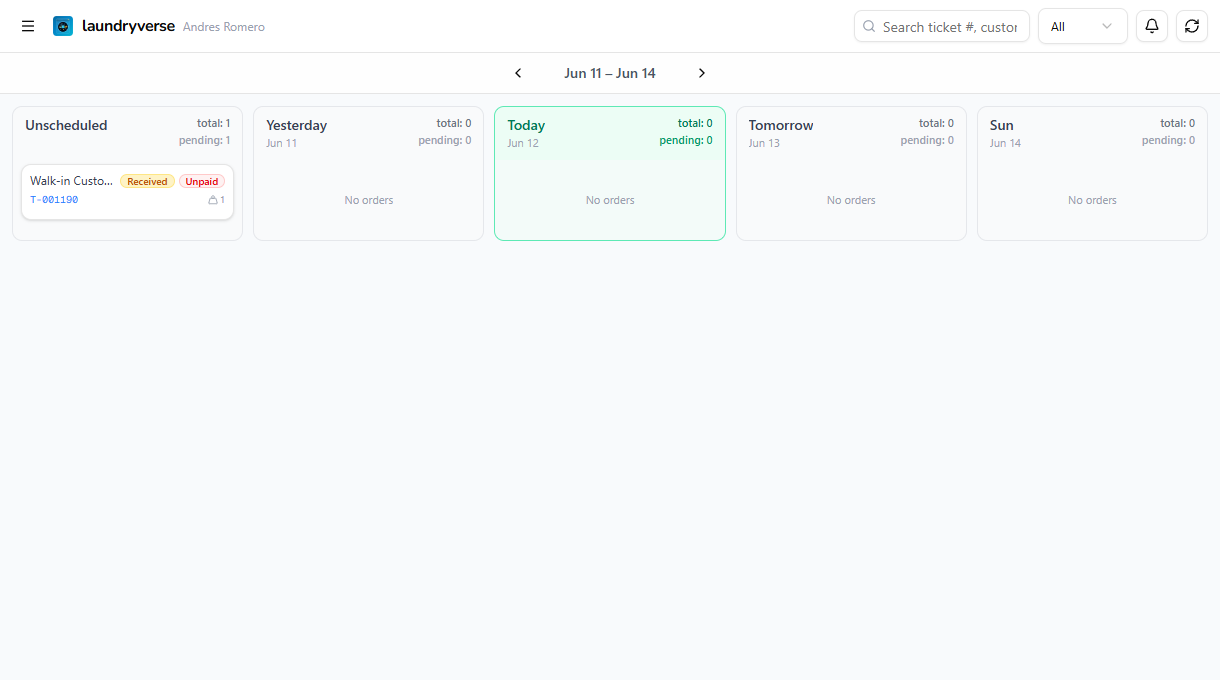
You can also charge from the board. Open the card, then tap Charge on the Order Detail page. It opens the same checkout as charging from the register.
Common issues
"I don't see the ticket I saved"
The list shows unpaid and partially paid orders for the current store only. If you saved the ticket on a different store's device, switch to that device. If you already charged it, it's paid now and drops off the list, find it on the Order Board or in the dashboard.
"The dialog says No unpaid orders"
Every ticket has been settled, so there's nothing to charge. Saving a new order with Save Order or Print Bill in the register adds the next one.
"I can't remove a line from a ticket I opened"
If the minus and trash buttons on the existing rows are greyed out, your role can add items but not remove them. That's the default for Cashier and Manager. Ask an Owner or Admin to take the item off, or to grant Remove items from open tickets in Roles & Permissions. Rows you added this session are always removable. See Register for the full split.
"Charging asks for less than the total"
That ticket is partially paid. The deposit is already recorded, so the checkout only collects the remaining balance. The amber Partial badge in the list shows the paid amount and what's left.
What's next?
- Register: build a cart and save it as an open ticket.
- Processing Payments: open the checkout from Charge and take payment.
- Partial Payments: accept a deposit and collect the balance later.
- Order Board: track drop-off loads through wash, dry, and fold while they wait to be paid.
- Unpaid Orders: settle an order from the dashboard when it was paid off the counter, and see every way to clear an unpaid ticket.
Stuck? Email [email protected]. The founder reads every message.