Order Board
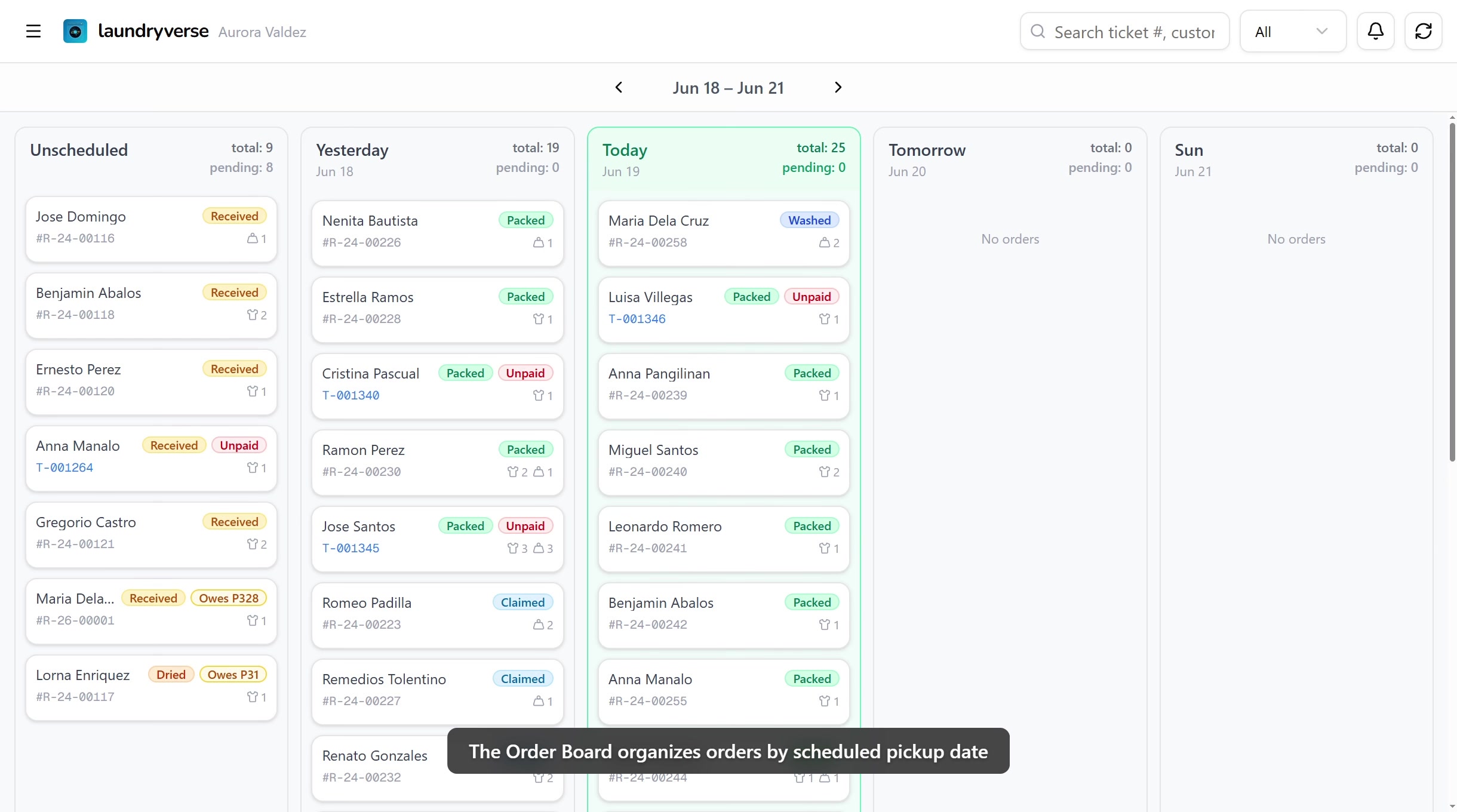
The Order Board is the main screen your employees see after logging in. It organizes all active orders into columns by scheduled pickup date, so your team always knows what needs attention next.
Opening the board and reading order cards requires the View orders permission (orders:view). All four default roles, Owner, Admin, Manager, and Cashier, hold it, because every employee on the floor needs to see what's queued.
Rescheduling an order by dragging its card to another date column needs the Edit orders permission (orders:edit), also held by all four default roles. The same permission lets staff advance loads on the order detail page.
Manually forcing a load to any stage, skipping or reverting steps, is the separate Override load status permission (orders:override_status). Owner, Admin, and Manager hold it by default. Cashier does not, so a cashier can only move loads forward in order.
To change any of this, edit the role in Roles & Permissions.
Before you start
Before using the Order Board, make sure you have:
- A device activated and an employee logged in. See POS Setup.
- An active shift open for the current employee. See Shifts.
1. Board Layout
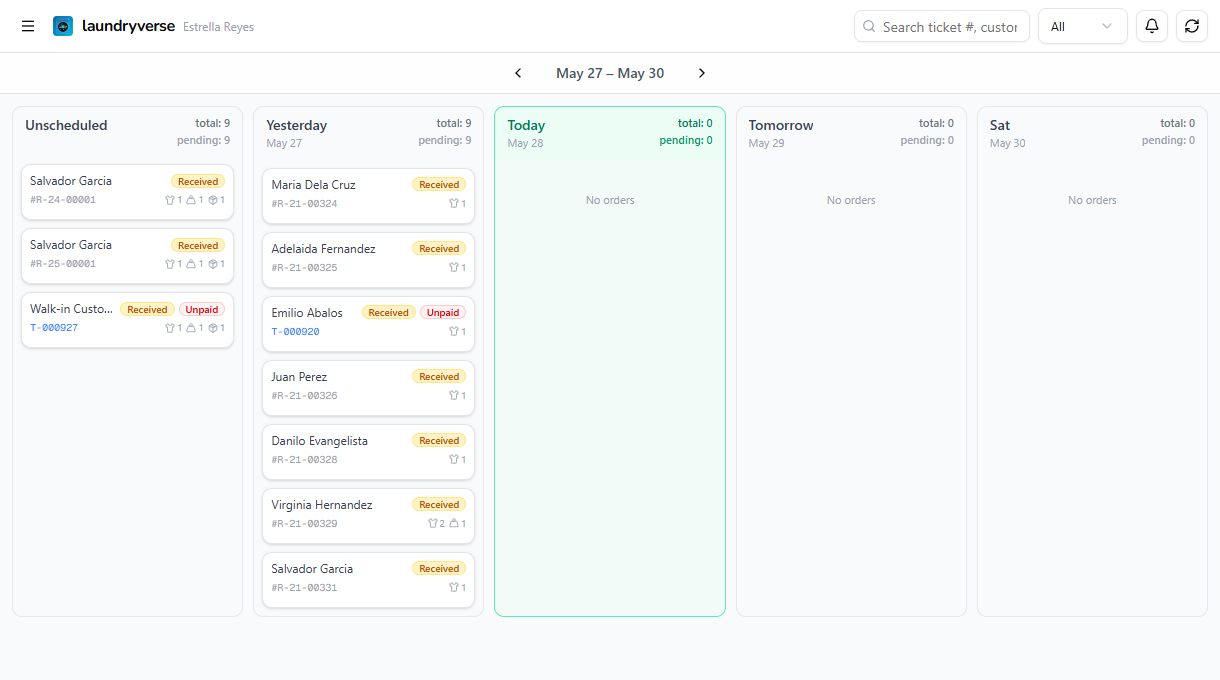
The board displays orders across date-based columns:
| Column | Description |
|---|---|
| Unscheduled | Orders without a scheduled pickup date (always first) |
| Yesterday | Orders scheduled for yesterday |
| Today | Today's orders, highlighted in green for quick identification |
| Tomorrow | Orders scheduled for tomorrow |
| Future dates | Additional columns for upcoming days (shown as weekday abbreviations like Mon, Tue) |
Each column header shows two load counts:
- total: total loads across all orders in that column
- pending: loads still being processed (not yet packed)
Use the left/right arrows below the toolbar to scroll through date ranges. If you navigate away from the current date, a Today button appears to jump back.
2. Understanding Order Cards
Each order appears as a card showing key information at a glance:
- Customer name: the customer attached to the order
- Status badge: current processing stage (Received, Washed, Dried, Packed, or Claimed)
- Payment badge: Paid (green), Unpaid (red), or Partial (amber)
- Receipt/ticket number: the order reference
- Item icons: visual indicators of the services ordered, with counts
Cards are automatically sorted within each column: orders that need action appear first (Received at the top, Claimed at the bottom), and within the same status, the oldest orders come first.
3. Order Statuses
Orders progress through these statuses as your staff processes the laundry:
Received → Washed → Dried → Packed → Claimed
| Status | Meaning | Badge color |
|---|---|---|
| Received | Order placed, waiting to be processed | Amber |
| Washed | All loads have been washed | Blue |
| Dried | All loads have been dried | Orange |
| Packed | All loads packed and ready for pickup | Green |
| Claimed | Customer has picked up the order | Sky blue |
The status is determined automatically based on the progress of individual loads within the order. You advance loads from the order detail page.
4. Search & Filter
Searching
Use the search bar in the toolbar to find orders by:
- Customer name
- Phone number
- Ticket number
- Receipt number
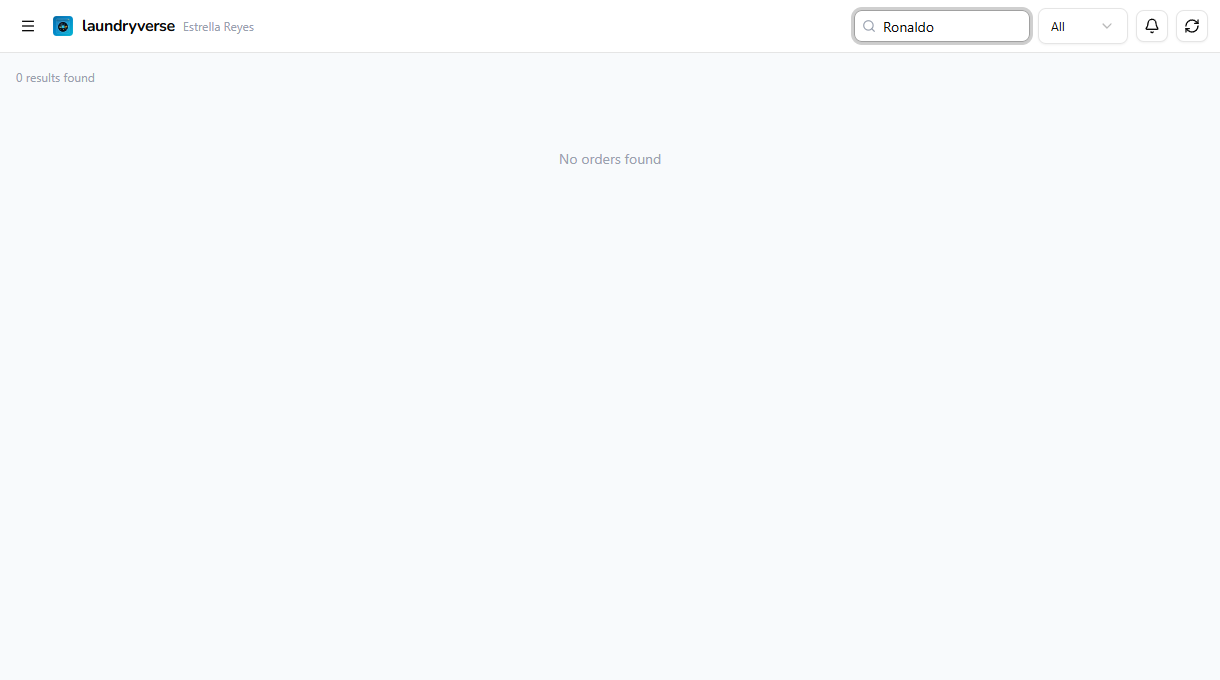
When searching, the board switches to a grouped list view showing matching results organized by date.
Filtering
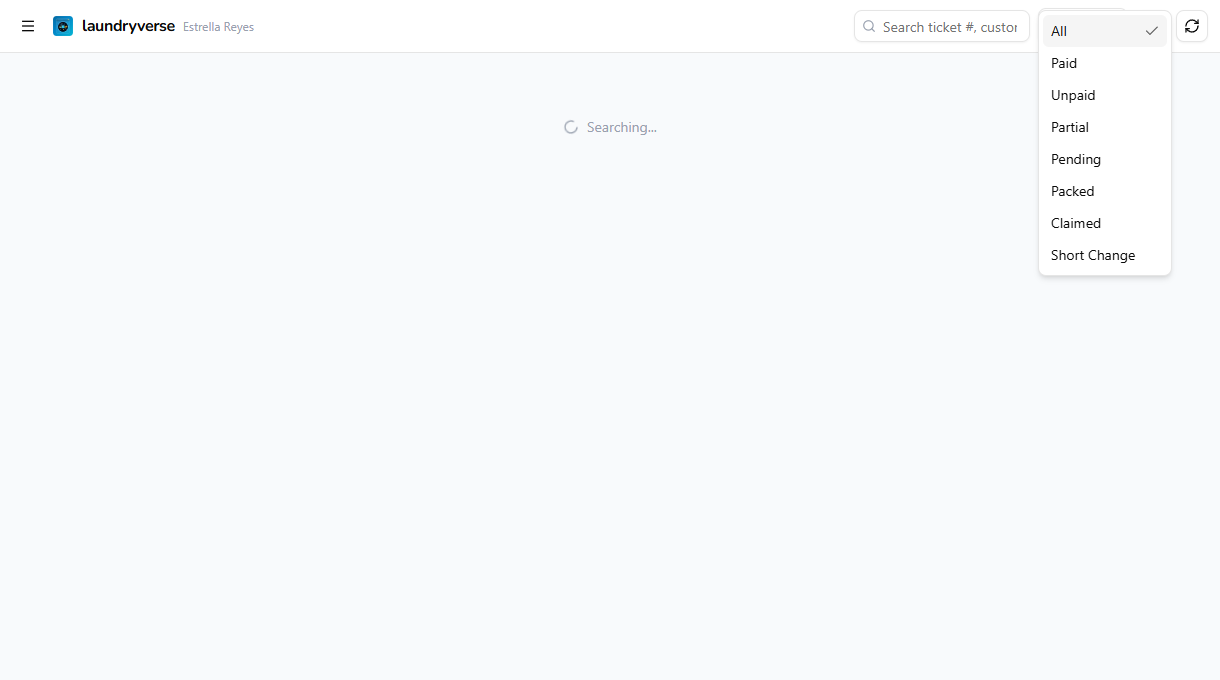
Tap the filter dropdown next to the search bar to narrow the board by:
| Filter | Shows |
|---|---|
| All | Every order (default) |
| Paid | Fully paid orders only |
| Unpaid | Unpaid orders |
| Partial | Partially paid orders |
| Pending | Orders still being processed (Received status) |
| Packed | Orders ready for pickup |
| Claimed | Picked-up orders |
| Short Change | Orders with unresolved short change |
5. Viewing Order Details
Tap any order card to open its detail page. From here you can:
- Advance loads: mark individual loads as washed, dried, or packed
- Claim / unclaim: mark the order as picked up, or reverse it
- Edit notes: add or update order notes
- Flag short change: record if the customer owes change
- View payment details: see the full payment breakdown
- Print receipt or QR label: reprint a receipt or bag label
- View activity timeline: see the full history of load progress
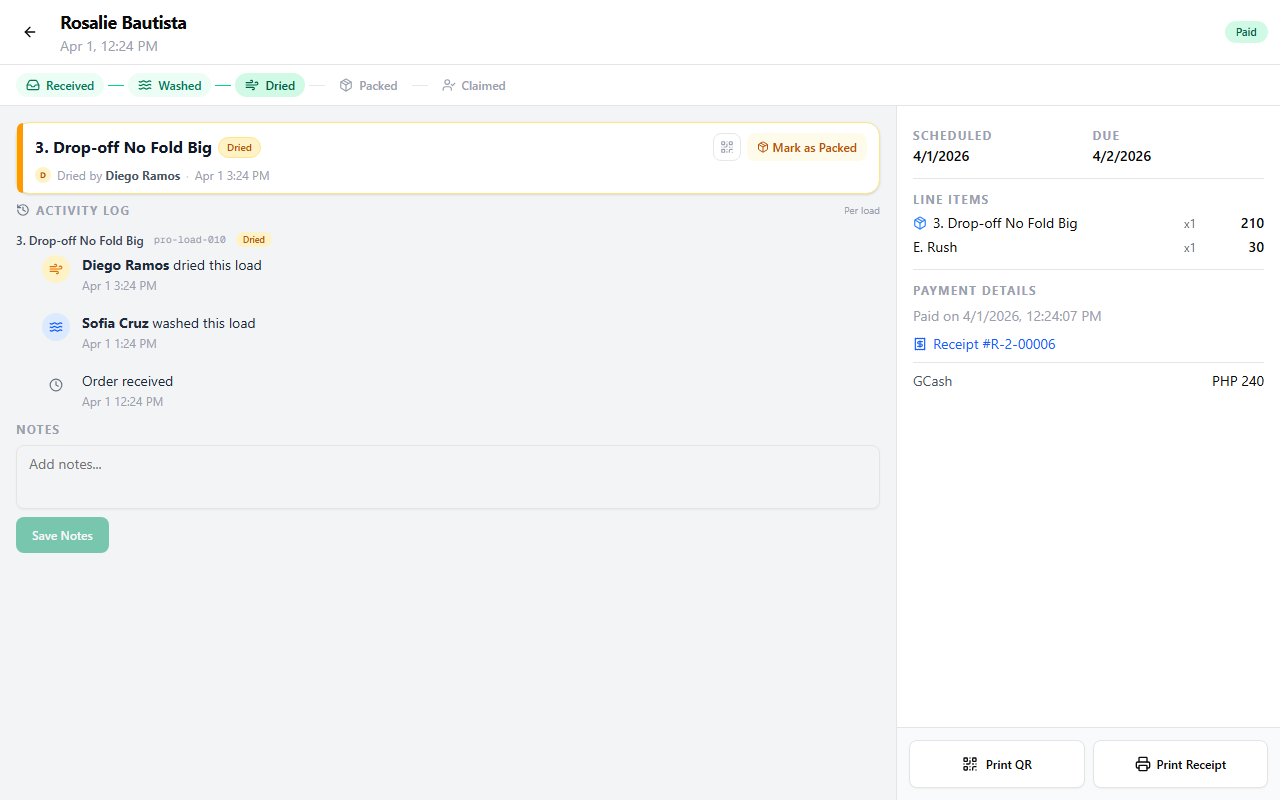
For the full walkthrough, see Order Detail.
Tap the back arrow at the top to return to the board.
6. Rescheduling Orders
To change an order's scheduled pickup date, drag the order card and drop it into a different date column:
- Drop on a date column: sets that date as the scheduled pickup
- Drop on Unscheduled: clears the scheduled date
The change is saved immediately and confirmed with a brief vibration on supported devices. Rescheduling needs the Edit orders permission, see the Who can do this note above.
7. Notifications & Auto-Refresh
The notification bell in the toolbar shows a red badge when there are unread notifications. Tap it to see recent activity:
- New orders created
- Orders escalated
- Payment proofs submitted
- New customers added
The board automatically refreshes when certain events happen (new orders, payments, escalations), so you're always looking at the latest data. You can also tap the refresh button (circular arrows icon) to manually reload.
Mobile View
On phones in portrait orientation, the board switches to an accordion view. Each date becomes a collapsible section instead of a horizontal column. Today and Unscheduled (if it has orders) are expanded by default; tap any other section to expand it.
All the same features work in accordion view: tap to view details, search, and filter.
Common issues
"The board is empty"
First check the filter and search bar. A leftover search term or a filter other than All can hide every card. Clear the search and set the filter back to All. If it's still empty, your role may not include View orders, in which case the board shows a friendly empty state instead of a hard error. Clock in/out still works from the nav menu (hamburger icon, top-left), so you can clock in even without board access. Ask an Owner or Admin to check your role permissions.
"I can't drag a card to another date"
Rescheduling needs the Edit orders permission. The default Cashier, Manager, Admin, and Owner roles all have it, but a custom role might not. Ask an Owner or Admin to grant Edit orders in Roles & Permissions.
"An order I just created isn't on the board"
The board only shows orders with at least one drop-off load. A pure retail sale (detergent only, no laundry to process) carries no loads and is left off the workflow board on purpose. Check the filter too, then tap the refresh button if the board hasn't auto-refreshed yet.
"A load is stuck in the wrong stage"
Open the order and advance or correct the load from the order detail page. Moving a load backward, or skipping straight to a later stage, needs the Override load status permission, which Cashier does not have by default. Ask a Manager, Admin, or Owner to make the correction.
What's next?
- Order Detail: open a card to advance loads, claim orders, and reprint receipts.
- Use the Register: create orders, manage the cart, and check out.
- Create your first order: step-by-step walkthrough for new users.
Stuck? Email [email protected]. The founder reads every message.