Loyalty Program
Loyalty Points is where you turn repeat customers into your most reliable revenue. Set how fast points are earned, who's eligible to earn them, what each one is worth at the register, whether they expire after a stretch of silence, and whether walk-in sales are even allowed. One page, five cards, no per-store config. About 3 minutes.
Changing loyalty settings requires the Manage items permission (dashboard:items:manage), the same permission that gates discounts, coupons, payment types, and receipt settings. The default Owner, Admin, and Manager roles all hold it. Cashier does not, so day-to-day register staff can earn and redeem points but can't shift the earn rate, change what points are worth, or turn off expiry. To let another role configure loyalty, grant Manage items to that role from Roles & Permissions. Without this permission, the Save Changes button returns an error from the server.
Before you start
Loyalty is available on every plan, including Trial, and is on by default with earning paused. The page works the same on a single-branch shop and a multi-branch one. Points are tracked on the customer record, not per store, so a customer who buys at one branch can redeem at any other.
You'll need:
- A rough idea of the effective return you want to offer customers. 3 to 5 percent is the common range for laundry, see section 1 for the math.
- (Optional) SMS configured if you want expiry warnings to actually send. See SMS Notifications. You can still set expiry without SMS, the only difference is customers won't get a heads-up.
A single setting controls the earn rate, a second controls which tags are eligible to earn, a third controls redemption value, a fourth controls expiry, and a fifth controls whether walk-in sales are allowed. That's the whole page.
1. Pick an effective return
Two numbers decide how generous the program feels:
- Pesos per point: how many pesos a customer spends to earn 1 point.
- Peso value per point: how many pesos of discount each point is worth when redeemed.
Multiply the redemption value by 1 divided by the earn rate and you get the effective return, the percentage of every sale you're handing back as future credit.
| Pesos per point | Peso value per point | Effective return | Example |
|---|---|---|---|
| 20 | 1.00 | 5.0% | Spend P200, earn 10 points, worth P10 off |
| 30 | 1.00 | 3.3% | Spend P300, earn 10 points, worth P10 off |
| 50 | 1.00 | 2.0% | Spend P500, earn 10 points, worth P10 off |
| 25 | 0.50 | 2.0% | Spend P250, earn 10 points, worth P5 off |
Generous enough that customers feel the reward, low enough that it doesn't eat into margin once redemption rates climb. P30 per point and P1 per point is the most common LaundryVerse configuration, and a fine default if you're starting from scratch.
2. Open the Loyalty Points page
From the dashboard, navigate to Catalog -> Loyalty Points in the sidebar.
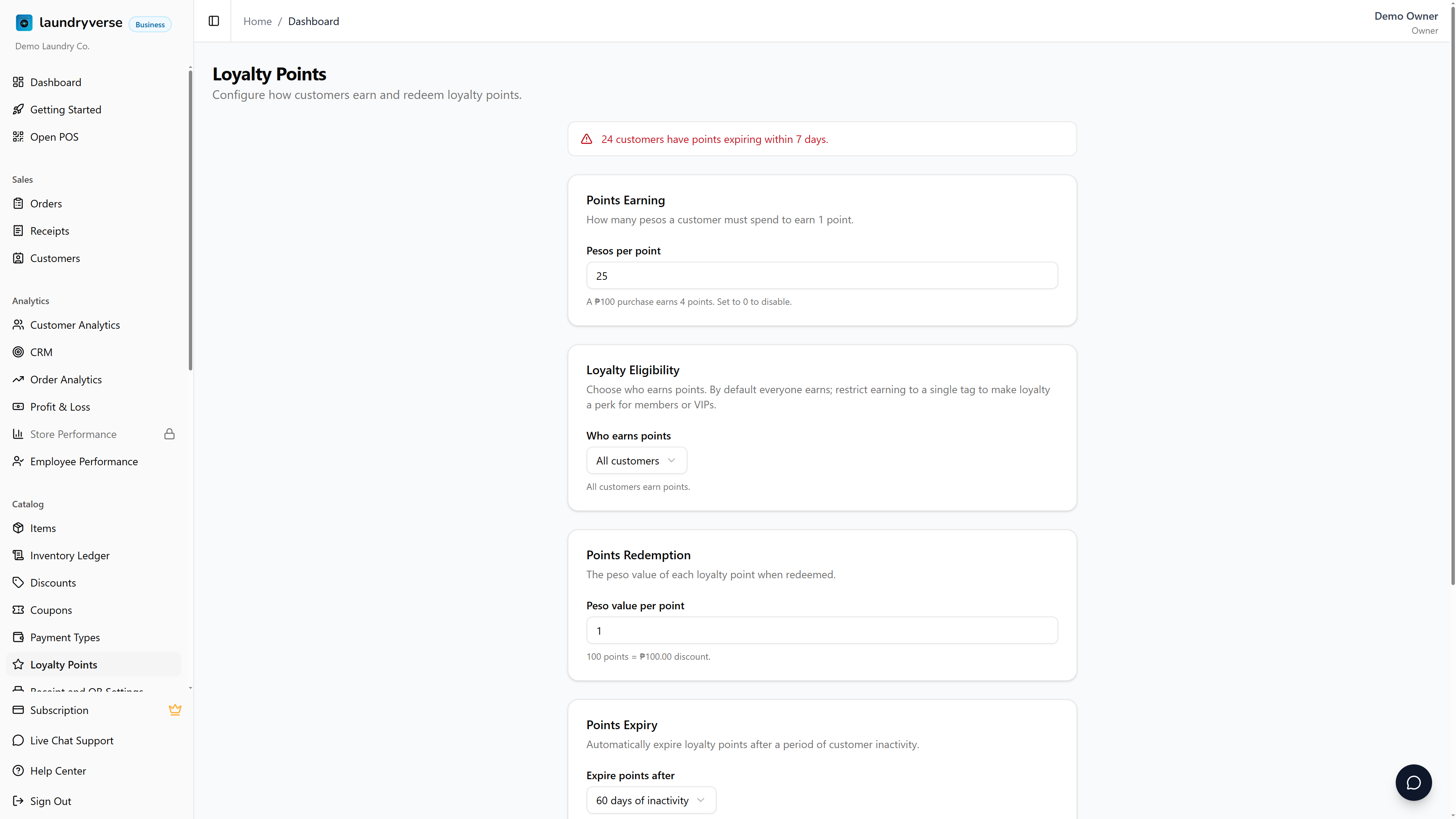
The page shows five stacked cards: Points Earning, Loyalty Eligibility, Points Redemption, Points Expiry, and Customer Attribution. A Save Changes button at the bottom commits every change at once, it stays disabled until you've actually changed something and every value is valid. An amber banner appears above the cards when expiry is on and one or more customers are inside the warning window.
3. Set the earn rate
In the Points Earning card, set Pesos per point to the spend required to earn 1 point. The card shows live math, for example A P100 purchase earns 3.33 points when the field is set to 30. Fractional points are normal and tracked to two decimals on the customer record.
| Value | What happens |
|---|---|
| 0 | Earning is paused. No new points are added to any customer. Existing balances stay intact and remain redeemable. |
| Any positive number | Each completed sale credits points based on the post-discount, post-coupon total. The field accepts whole pesos. |
Points are awarded automatically when:
- The order has a customer attached.
- The receipt is fully paid (any payment type counts).
- The order amount after discounts and coupons is greater than zero.
Refunds and voids reverse the points originally earned on that receipt. A partial refund pulls back the proportional share.
4. Choose who earns points
The Loyalty Eligibility card decides which customers earn points. By default the answer is everyone, but you can narrow it to one or more tags so loyalty becomes a members-only or VIP-only perk.
The Who earns points list shows every tag you've created, each with a checkbox:
| Choice | What happens |
|---|---|
| No tags ticked (default) | Every sale with a customer attached earns points at the rate above. |
| One or more tags ticked | Only customers carrying at least one of the ticked tags earn points. Everyone else earns zero, even on a fully paid sale. |
Ticking several tags widens the circle rather than narrowing it. A customer qualifies as soon as they carry any one of them, so ticking Suki - Households and Suki - DRMC Staffs means both groups earn. A customer never has to carry all of them. Use Clear restriction to untick everything and reopen earning to all customers.
Restricting earning to tags changes earning only. A customer who doesn't qualify can still redeem the balance they already have, so switching this on never strands anyone's existing points.
The list shows the tags you've already created on the Customers page. If you haven't made any tags yet, the card says so and links you there. The order of operations is: create a tag, apply it to the customers you want in the program, then come back and tick it here. See Tag your customers for how tagging works.
Once you tick your tags and Save, the restriction takes effect from the next sale. At the register, cashiers see a small "Won't earn points" note on any attached customer who carries none of them, so the rule is visible at the counter, not just here. See Attaching Customers.
Create a tag like Member or VIP, apply it to the customers who joined your loyalty program, then tick it under Who earns points. Walk-ins and one-off customers stop accruing points while your members keep earning, so you reward the people who opted in without giving points away to everyone. Running two programs at once? Tick both tags and both groups earn.
5. Set what each point is worth
In the Points Redemption card, set Peso value per point to the discount each point delivers when redeemed. The card shows live math, for example 100 points = P100.00 discount when the field is set to 1.00. The field accepts two decimals, useful if you want a non-round redemption value like P0.50 per point.
This value is read at checkout, so changing it adjusts the redemption math from the next sale onward without touching existing customer balances. A customer with 200 points becomes worth P200 of credit at P1.00 per point, or P100 of credit at P0.50 per point.
6. Set when points expire
In the Points Expiry card, pick how long a customer can go without a visit before their balance resets. The dropdown offers presets and a custom option.
| Option | What happens |
|---|---|
| No expiry | Points never expire. Balances stay forever. |
| 60 / 90 / 120 / 180 days of inactivity | Points reset to zero if the customer hasn't placed an order in that many days. |
| Custom | Any value of 30 days or more. |
Expiry is measured from the customer's last visit date, and every new order pushes that clock back to today. A customer who comes in monthly never trips a 90-day expiry, even if their balance is large.
When expiry is set, the card shows a link to the SMS notification settings. Configure the Points Expiry notification on the SMS Notifications page to send customers a "Your points are about to expire" warning while they're still inside the warning window (defaults to 7 days before expiry). Without SMS, expiry still runs silently, the warning just doesn't fire.
The expiring soon banner at the top of the page counts how many customers fall inside today's warning window. Tap into the Customers page to see who, and consider sending a quick personal nudge if SMS isn't configured yet.
7. Require a customer on every sale
The Customer Attribution card has one switch, Require customer on every sale, and it's on by default.
| Setting | What it does |
|---|---|
| On (default) | The POS register cannot complete a charge without an attached customer. Walk-in / no-customer sales are blocked at the Charge button. |
| Off | Cashiers can ring up a sale without a customer. Those sales don't earn points and don't appear in any customer's history. |
The trade-off is friction at the counter versus completeness of the loyalty database. Shops that take phone orders, do delivery, or run a membership-style operation should keep this on. Shops with high walk-in volume (impulse drop-offs, tourist areas) usually turn it off and accept that some sales sit outside the loyalty program.
Switching this off doesn't disable loyalty itself. Sales with a customer attached still earn and can still redeem points, only sales without one fall out.
8. Save changes
The Save Changes button stays disabled until at least one value differs from what's saved, and every value is valid. Invalid combinations the button blocks include:
- A negative earn rate.
- A redemption value of zero or below.
- A custom expiry under 30 days.
When the save succeeds, Loyalty settings saved appears beside the button and the new values take effect from the next sale. There's no per-store override and no scheduled effective date, the values apply tenant-wide immediately.
9. How redemption works at the POS
Points always redeem last in the cashier's checkout math. The order LaundryVerse runs is:
Subtotal -> Discounts -> Coupons -> Loyalty Points -> Final Total
That ordering caps redemption at the post-discount, post-coupon balance, so a customer can never redeem more than the order is actually worth after other promos. For the full cashier-side how-to (where the Redeem Points button lives, the Use All shortcut, what blocks a redemption), see the POS Register guide.
Each peso redeemed deducts one point worth of value from the customer's balance, computed at the current Peso value per point. A balance of 100 points at P1.00 per point covers P100 of an order; at P0.50 per point it covers P50.
10. Adjust a customer's points manually
For one-off corrections, compensation, data migration, or a promotional bonus, use Adjust Points on the customer's profile. The full how-to is in Customers > Adjust loyalty points. Manual adjustments are logged in the customer's points history, so an unexpected change can always be traced.
Common issues
"Points aren't being added when I complete a sale"
Four things to check. First, Pesos per point is not zero, the Points Earning card shows Points earning is disabled when it is. Second, the sale has a customer attached, walk-in sales never earn points regardless of the Require customer switch. Third, the receipt is fully paid and the post-discount, post-coupon total is greater than zero, partial payments don't credit points until the balance closes. Fourth, if you've restricted earning to one or more tags on the Loyalty Eligibility card (see section 4), the attached customer must carry at least one of them, everyone else earns zero even on a paid sale.
"The Save Changes button is greyed out"
Either no field has changed from the saved values, or one of them is invalid. The most common cause is a custom expiry under 30 days, the field accepts the input but the button blocks the save. Set the field to 30 or higher and the button enables.
"I changed the redemption value and customer balances look different"
The balance number is the same, only the peso value displayed at checkout shifts. A customer who had 200 points before is still a customer with 200 points after, but at P0.50 per point those 200 points cover P100 of an order instead of P200. No retroactive recalculation runs.
"Customers are complaining their points disappeared"
If expiry is set, points reset to zero after the configured days of inactivity from the customer's last visit. Open the customer's profile from Customers to see the last visit date. A common fix is to switch expiry to No expiry going forward, manually re-credit the affected customers with Adjust Points, and configure the SMS warning so it doesn't happen quietly again.
"Cashiers can't complete walk-in sales after I turned this on"
The Require customer on every sale switch blocks the Charge button without an attached customer. Either attach a customer at the register (the cashier can create a new one inline from the search), or turn the switch off on the Customer Attribution card.
"The expiring soon banner says zero but I know I have lapsed customers"
The banner only counts customers inside the warning window, by default the 7 days before their points are due to expire. Customers whose points have already expired aren't counted (their balance is now zero), and customers more than 7 days out aren't counted yet. Drop the warning window earlier on the SMS Notifications page if you want the count to fire sooner.
What's next?
- Customers: check a customer's points balance, history, and adjust manually.
- SMS Notifications: set up the Points Expiry warning so customers come back before their balance resets.
- Discounts: cashier-picked discounts that stack before loyalty redemption.
- Coupons: code-based promos that also stack before loyalty redemption.
- POS Register: the cashier-side redemption flow, end to end.
Stuck? Email [email protected]. The founder reads every message.