QR Ph Payments
Let customers pay at the counter by scanning a QR code with GCash, Maya or any bank app. The POS makes a QR for the exact amount, PayMongo confirms the payment, and the sale finishes by itself. No screenshots to check, no typing reference numbers. About 5 minutes to set up.
Connecting PayMongo is owner only and needs the Business plan or higher. Once it's connected, any cashier who can use the register can take QR Ph payments. Removing an unfinished QR payment from the list needs the Void short change permission, which Owners, Admins and Managers have by default (see section 6).
How it works
- The money goes straight to your own PayMongo account. LaundryVerse never holds it.
- Each QR is made for one exact amount and can be paid once. It expires after 30 minutes.
- PayMongo charges its fee on each QR Ph payment and takes it from your payout. LaundryVerse doesn't add a fee.
- QR Ph is the national QR standard, so the customer can pay with GCash, Maya, or almost any Philippine bank app.
Before you start
- A PayMongo account with QR Ph active. QR Ph is usually the first payment method PayMongo turns on for a new account. Check that it shows as active in your PayMongo dashboard.
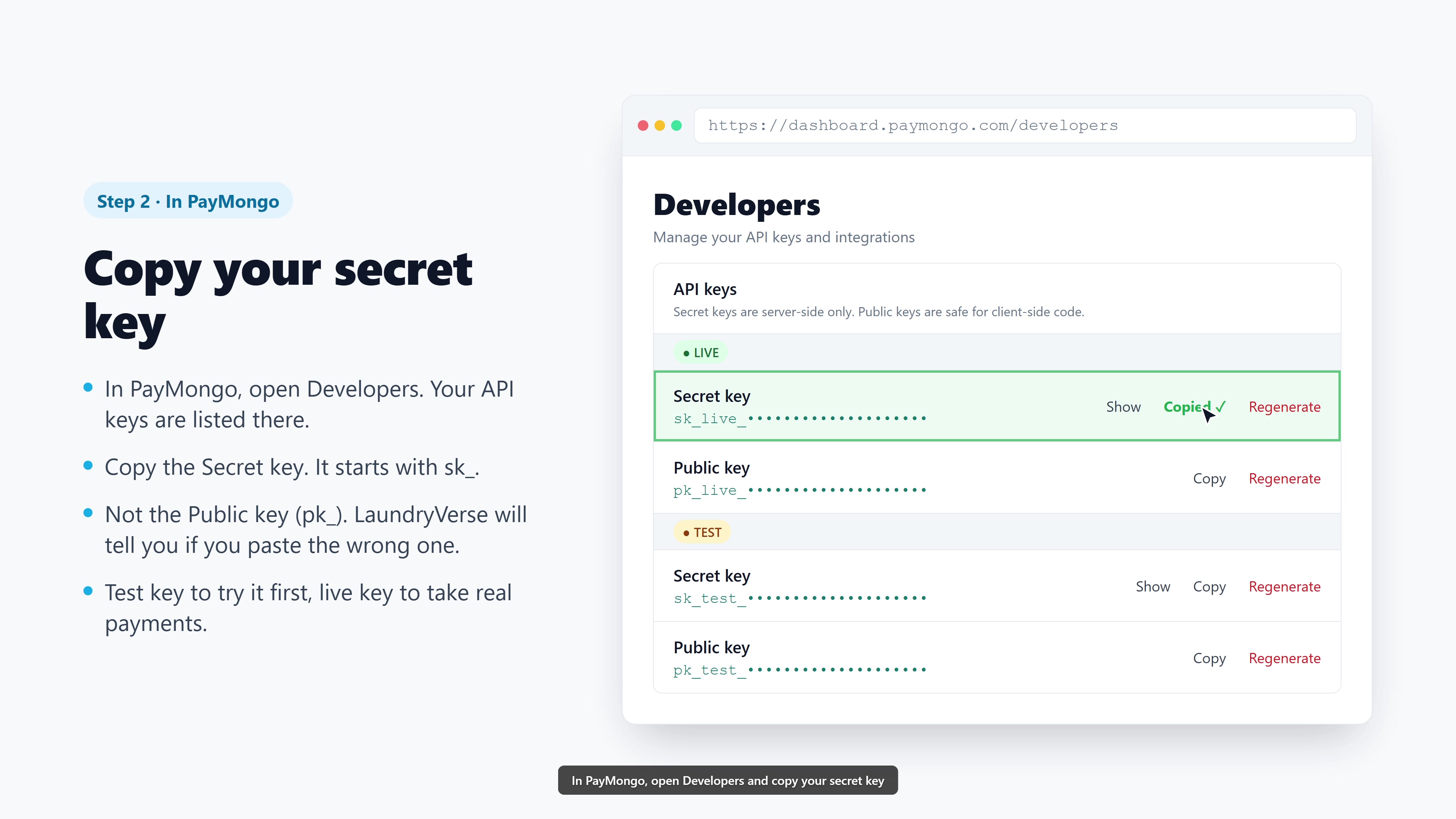
- Your PayMongo secret key. In PayMongo, open Developers → API keys and copy the key that starts with
sk_live_. A test key (sk_test_) works too if you want to try it first. Test QRs don't take real money.
Paste it only into LaundryVerse. Don't send it in chat or email. LaundryVerse stores it encrypted and never shows it again after you save it.
1. Connect PayMongo
- From the dashboard, open Catalog → Payment Types.
- Below the payment types table, find the Accept QR Ph with PayMongo card.
- Paste your secret key and click Connect.
When it works, the card shows Connected with Live or Test mode, and a QR Ph row appears in your payment types table marked Managed by PayMongo.
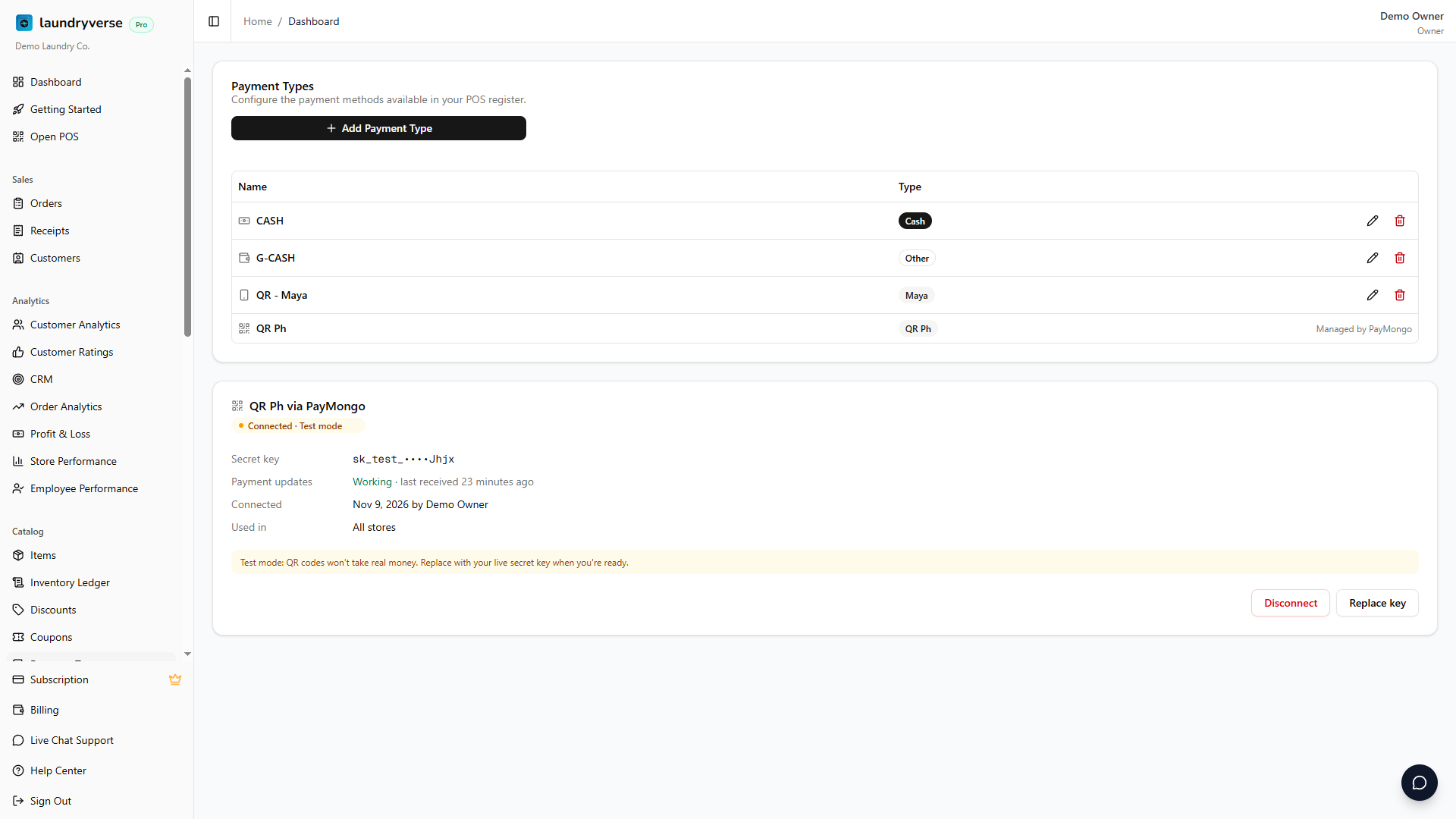
LaundryVerse also registers itself with PayMongo so it hears about payments the moment they happen. There's nothing to copy into PayMongo by hand.
The card's Payment updates line changes from Waiting for the first payment to Working after the first QR payment comes in.
2. Take a QR Ph payment at the counter
- Ring up the order and tap Charge as usual.
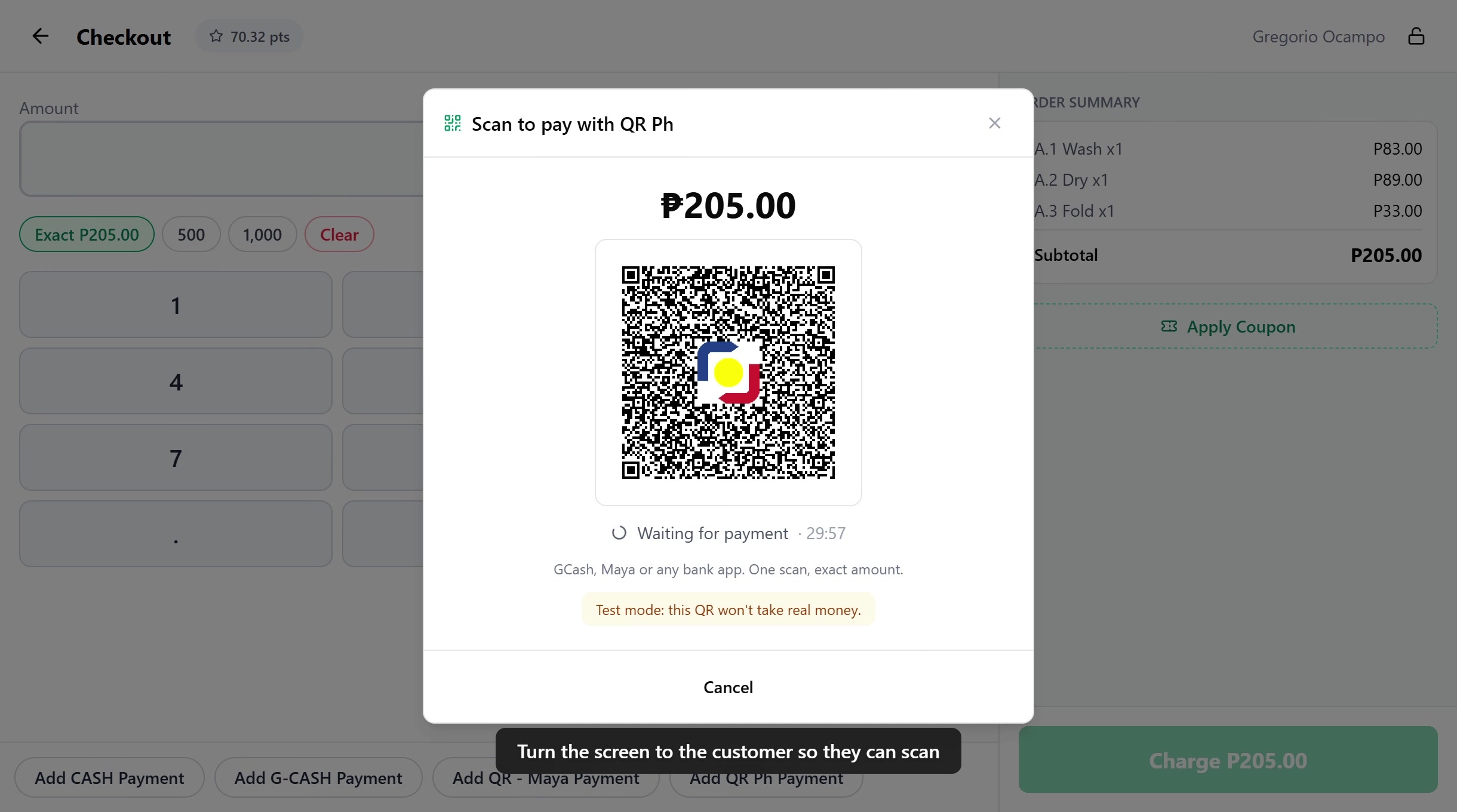
- Enter the amount (or tap Exact) and tap Add QR Ph Payment.
- The QR shows on the POS screen with the amount and a countdown. Turn the screen to the customer.
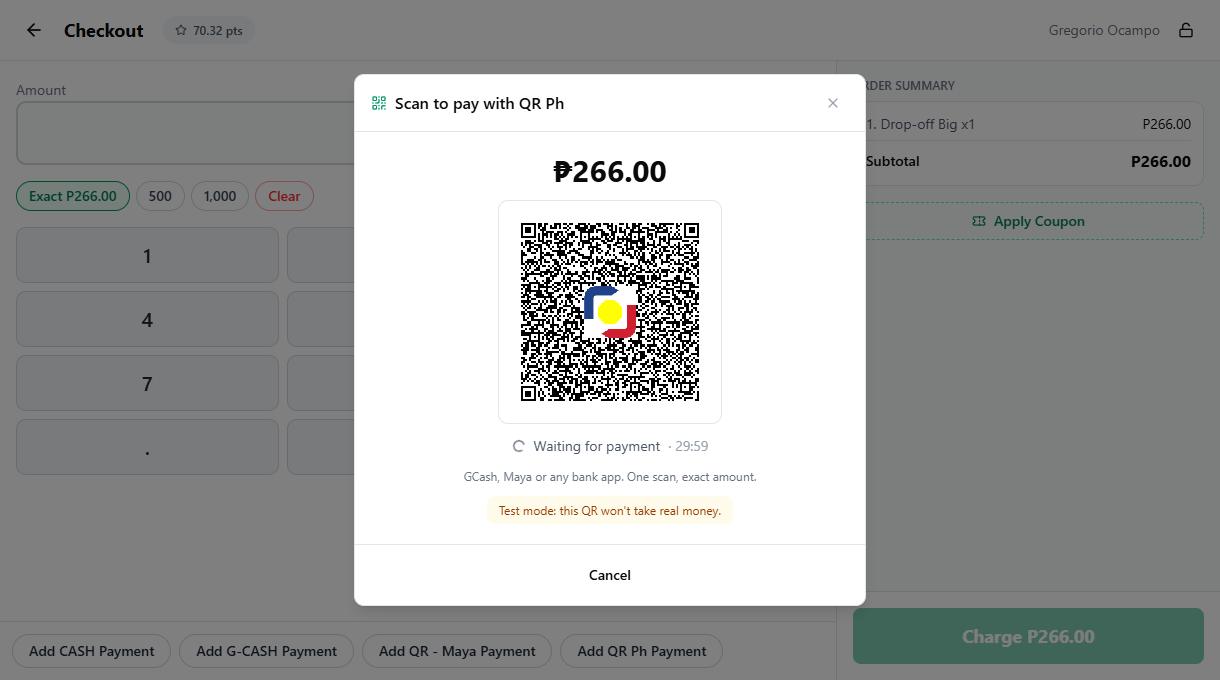
- The customer scans it with their app and pays.
As soon as PayMongo confirms, the payment is added. If the QR covers the whole bill, the sale finishes by itself and the receipt prints like any other sale. You don't need a customer display for any of this.
You can mix QR Ph with other payments. For example, ₱100 by QR and the rest in cash: make a QR for ₱100, and once it's paid, add the cash and tap Charge.
A QR Ph payment can't be used for a deposit. Once one is added, the rest of the bill has to be paid before the sale finishes. The smallest QR you can make is ₱1.
QR Ph works the same way when a customer pays the rest of an open ticket. Open the order, tap Charge, and add a QR Ph payment for the balance.
3. With a customer display
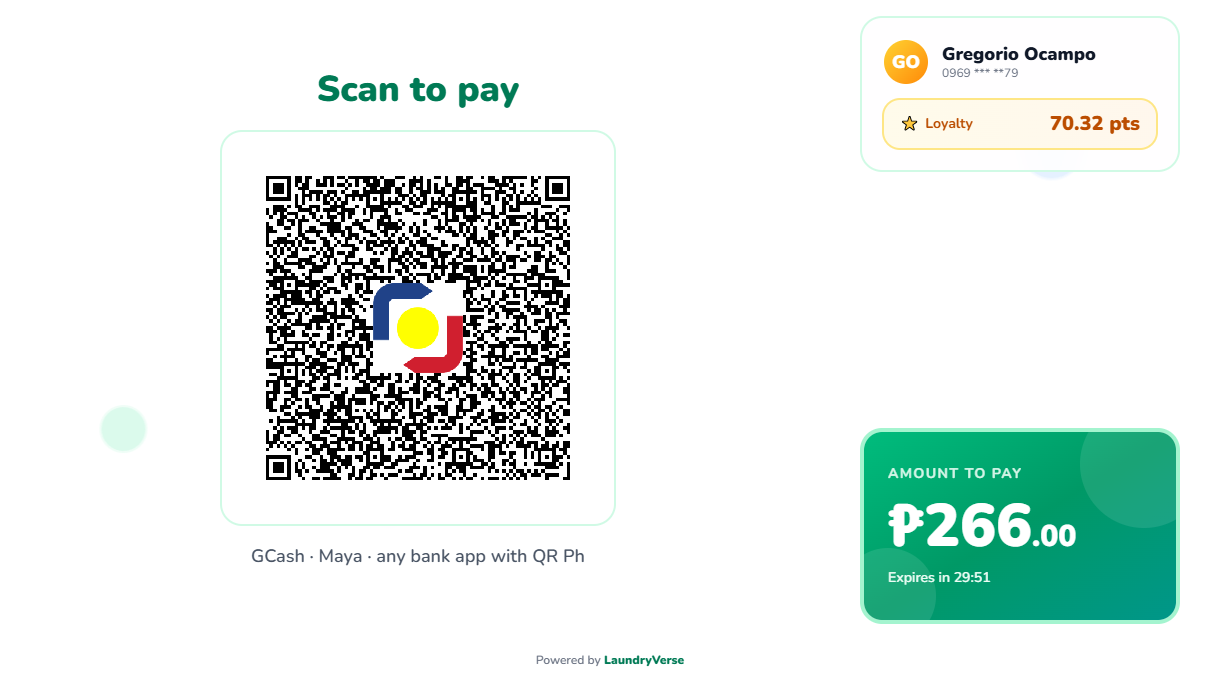
If the counter has a customer display, you don't need to tap anything else. When the cashier opens Charge, the display shows Scan to pay with a QR for the amount due, next to the total and a countdown.
The cashier sees a note that the QR is on the display:
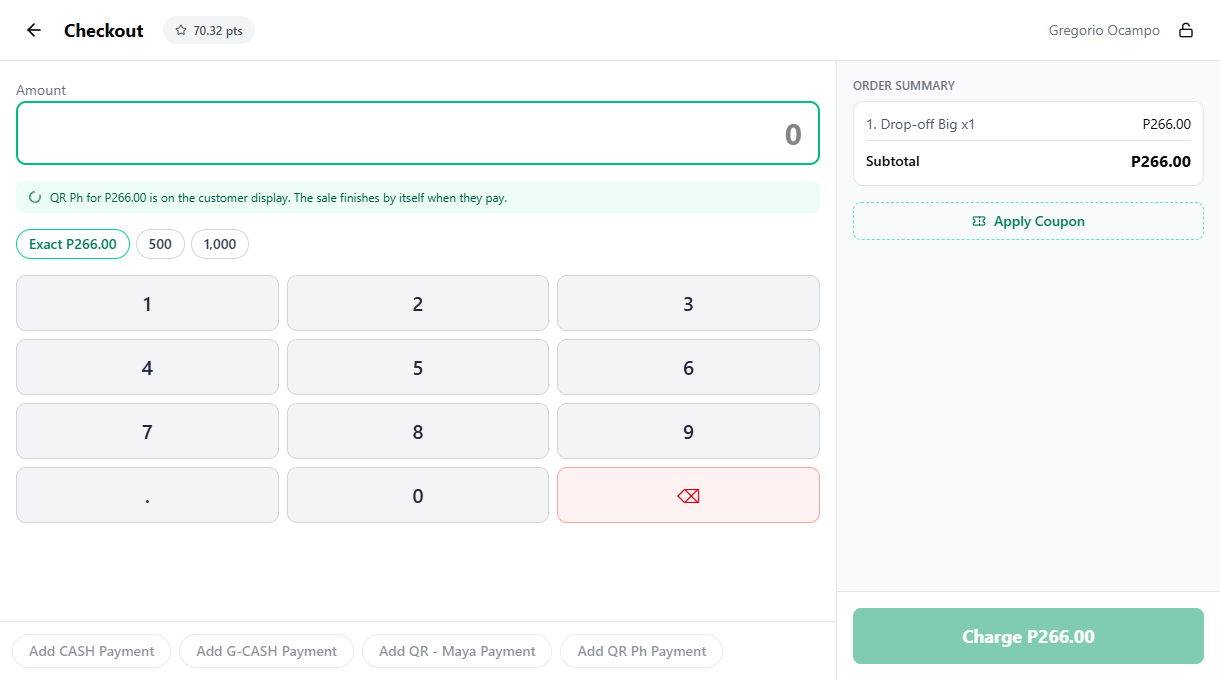
- The customer can scan and pay, and the sale finishes by itself. The display then shows its usual thank-you screen.
- If the customer pays cash or another way instead, just add that payment. The QR on the display is cancelled.
- If the total changes (a discount, a coupon, points), a new QR for the new total replaces the old one.
4. Where QR Ph payments show up
- Receipts and orders: the payment shows as QR Ph. On the order page and the dashboard receipt, the PayMongo reference (starts with
pay_) is shown under it, so you can find the same payment in PayMongo. The printed claim stub just says QR Ph. - Shift close: QR Ph has its own line in the payment breakdown and is not counted in expected drawer cash. The money is paid out to your PayMongo account, minus PayMongo's fee.
5. If a QR expires or fails
- Expired: after 30 minutes the QR stops working. Tap New QR to make a fresh one.
- Payment didn't go through: the customer's app shows an error and the POS says so. Tap New QR and let them try again.
- Cancel: closes the QR. If the customer paid just before you tapped Cancel, the POS still applies the payment. It's never lost.
6. Unfinished QR payments
Sometimes money arrives but no sale gets recorded: the app was closed in the middle, the device died, or the cashier cancelled just as the customer paid. When that happens, the register shows a yellow banner: 1 QR payment has no sale. Tap Review.
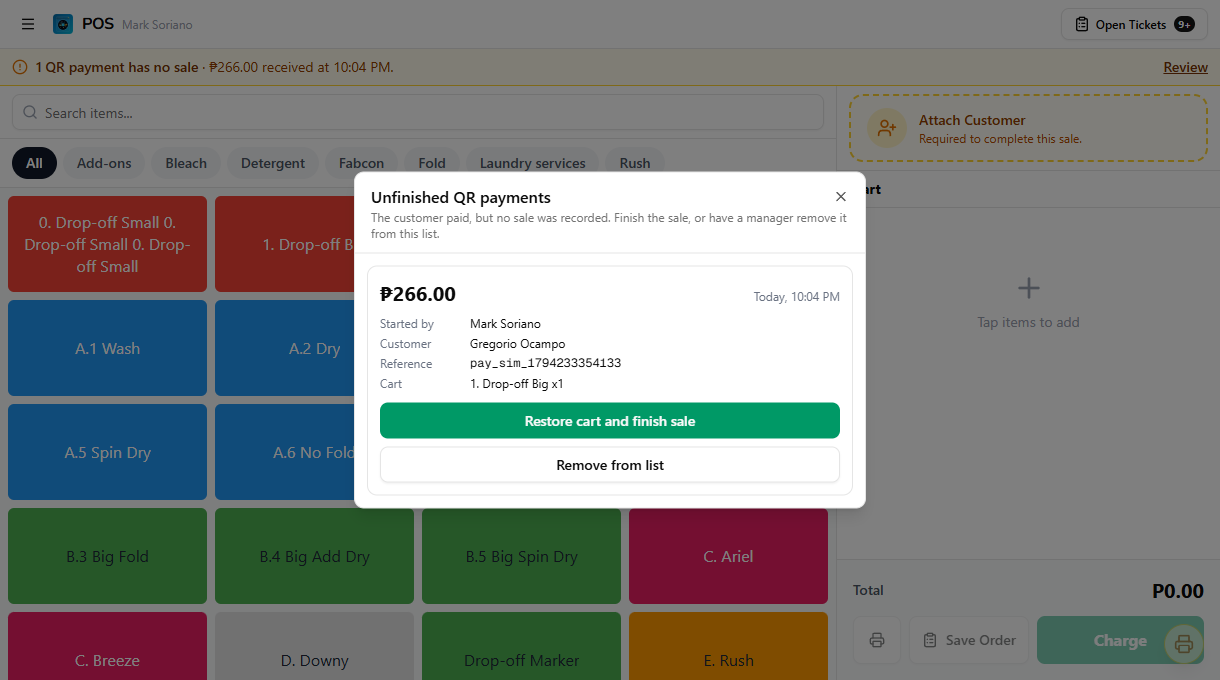
Each payment shows the amount, the time, who started it, the customer, the PayMongo reference and what was in the cart. Pick one:
- Restore cart and finish sale: brings the cart, customer and discounts back with the QR payment already applied, and finishes the sale. For an order's balance, the button says Open order and finish payment and reopens that order.
- Remove from list: closes it out without recording a sale, for example a test payment, a sale you recorded another way, or one you refunded. The money stays in your PayMongo account, so refund the customer there if needed. A manager has to do this (anyone with the Void short change permission), and it's noted in the dashboard Activity Log.
7. Replace your key or disconnect
On the QR Ph via PayMongo card in Payment Types (the card's title once PayMongo is connected):
- Replace key: paste a new secret key, for example to switch from test to live. QR Ph keeps working.
- Disconnect: QR Ph disappears from checkout in every store. Past QR Ph sales stay in your reports, and money already paid stays in your PayMongo account.
Common issues
"I don't see the QR Ph card"
The card is only shown to the owner. If you are the owner and the card says Available on the Business plan and up, QR Ph isn't included in your current plan. Tap See plans to upgrade.
"PayMongo didn't accept this key"
The key is wrong or revoked. Make sure you copied the secret key (starts with sk_live_ or sk_test_), not the public key (starts with pk_); pasting the public key shows That is the public key instead. Copy it again from Developers → API keys in PayMongo.
"Your PayMongo account already has a LaundryVerse webhook we can't read"
In PayMongo, open Developers → Webhooks, delete the LaundryVerse webhook, then click Connect again.
"Couldn't create the QR code"
QR Ph probably isn't activated on your PayMongo account yet. Ask PayMongo to activate QR Ph, then try again.
"The customer paid but the POS is still waiting"
Give it a few seconds; the POS checks PayMongo every few seconds even if the payment notice is late. If the POS shows Can't confirm the payment right now, check the connection on the POS device. Don't make a new QR if the customer already paid. The payment will be picked up, and if the POS was closed it shows under Unfinished QR payments.
"QR Ph doesn't show at checkout"
Check that PayMongo is still connected in Payment Types, and that your plan includes QR Ph. Then reload the register.
What's next?
- Payment Types: the other payment methods your cashiers can accept.
- POS Payments: how checkout works at the counter.
- Customer Display: set up the screen that faces the customer.
- Shift Reports: the per-payment breakdown at end of shift.
Stuck? Email [email protected]. The founder reads every message.