Customer Ratings
Customer Ratings lets your customers score their order out of five stars, and leave a short comment, on the same tracking page they already open to check their laundry. You read the results in your dashboard: an overall average, how many people gave each star, a branch by branch comparison, and every comment in full. Nothing to set up, it is already on.
Leaving a rating needs no permission and no login. Your customer just opens their own tracking link.
Reading the ratings report needs the View reports permission (reports:view), the same one that gates the rest of Analytics. The default Owner, Admin, and Manager roles all hold it. Cashier does not.
Before you start
Ratings ride on Customer Order Tracking, so anything that gets the tracking link in front of a customer also gets them the rating prompt. That means the QR on their receipt, or the link in your ready for pickup message.
There is nothing to switch on and nothing to configure. It is available on every plan, including Starter and the free trial.
1. What the customer sees
When your customer opens their tracking link, a green Rate us? button floats at the bottom of the screen. The rating itself sits below the order details, which is off the bottom of a phone screen, so the button is there to take them straight to it in one tap.
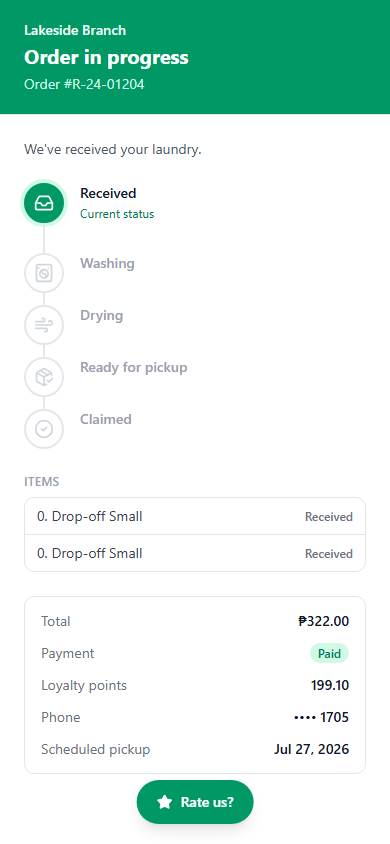
Tapping it scrolls down to the rating card, where they:
- Tap a star from 1 to 5. A word appears under their choice, from Poor through to Excellent, so the scale is never ambiguous.
- Optionally type a comment. This is never required, so a customer in a hurry can rate you with a single tap and close the page.
- Tap Submit rating.
They then see a thank you message with the stars they gave, and the Rate us? button disappears.
Each order can be rated once. If your customer opens the link again later, they see their original rating rather than a fresh form, so nobody can pad your score by voting repeatedly, and a bad day cannot be buried under duplicates.
2. When the rating appears
The prompt shows up as soon as the customer opens the link, at any stage of the order. They do not have to wait until pickup.
That is a deliberate trade. Asking early means some ratings arrive before the customer has seen their finished laundry, so treat a rating on an in progress order as feedback about your service so far rather than about the wash. Asking only at the end would mean far fewer answers, because most customers never open the link again after they collect.
The one case where the prompt never appears is a cancelled order. There was no service to rate, so the page just explains the cancellation.
3. Read your ratings
From the dashboard, go to Analytics -> Customer Ratings.
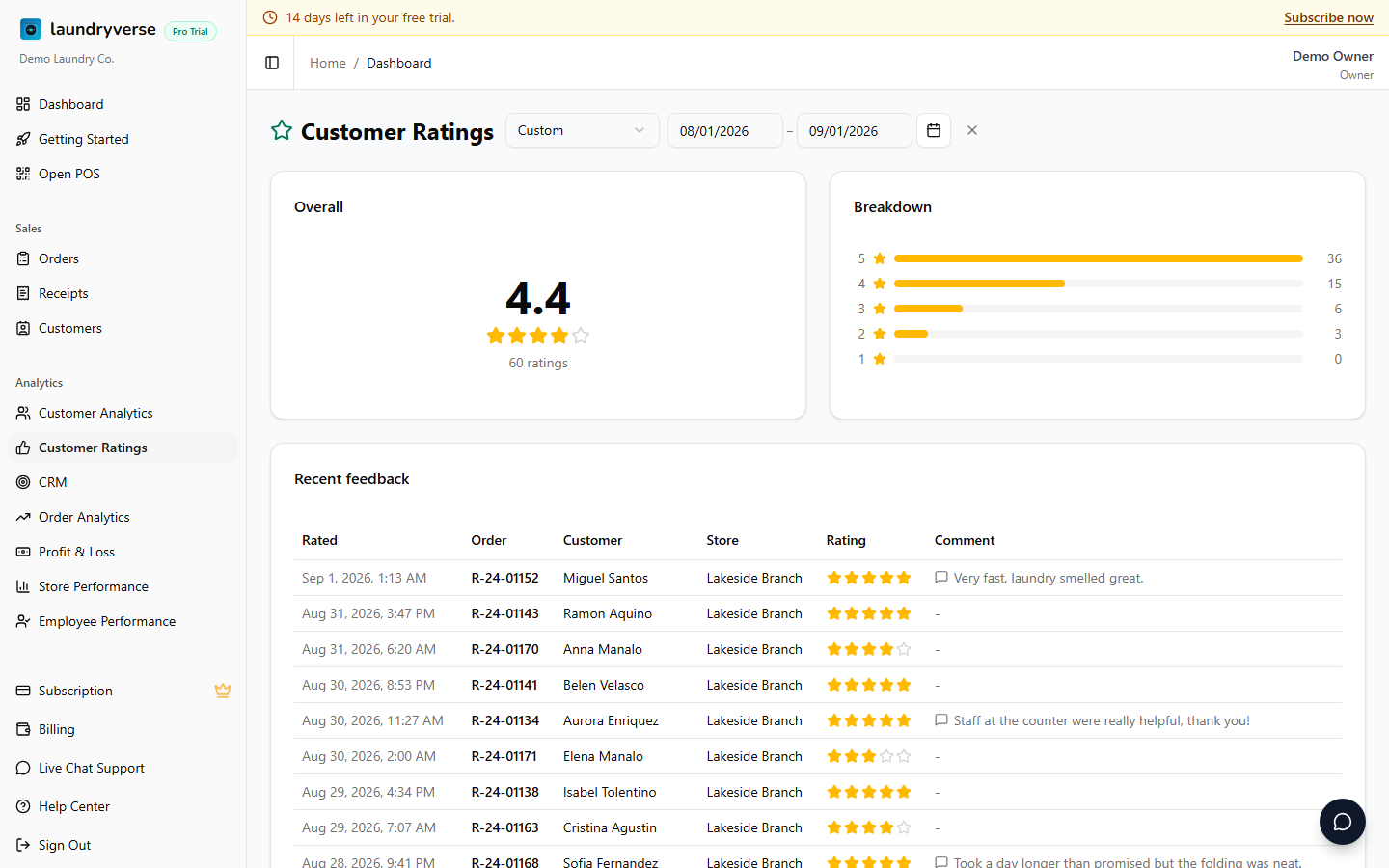
The page has four parts:
| Section | What it tells you |
|---|---|
| Overall | Your average score for the period, and how many ratings it is based on |
| Breakdown | How many customers gave each star, from 5 down to 1 |
| By store | Each branch side by side, with its own count and average |
| Recent feedback | The 50 most recent ratings in full, with the comment, the order number, the customer, the branch, and when they rated |
Use the date picker at the top to change the period. Ratings are grouped by when the customer answered, not when the order was picked up, so a rating left in April counts towards April even if the order was collected in March.
By store only appears once more than one branch has ratings. With a single branch, or with ratings from only one of several, it would just repeat the Overall card, so it stays hidden.
An average built on three ratings is not a measurement, it is three opinions. Check the count before you act on a number, and give a new branch time to collect a reasonable sample before you compare it to an established one.
4. Why ratings are per order, not per staff member
A common request is to score each attendant. LaundryVerse deliberately does not do this, and it is worth explaining why.
One order passes through several pairs of hands. One person receives it at the counter, others wash, dry, and fold it, and someone else hands it back. What your customer is actually judging is the service they experienced and whether the clothes came back clean, which is the result of all of that together.
Pinning a one star rating on whichever name happened to be attached to the order would blame a person for something they may have had nothing to do with, on a sample far too small to be fair. The By store view gives you the comparison that a rating can honestly support: which branch is doing well, and which needs attention.
If a specific comment names a problem at the counter, you have the order number and the date in the Recent feedback list, which is enough to look into what happened.
5. Troubleshooting
"My customers are not leaving ratings"
They need to open the tracking link first. Check that the tracking QR is still printing on your receipts under Receipt and QR Settings, and consider turning on SMS Notifications, since the ready for pickup message is what drives most people to the page.
"A customer says they rated but I cannot see it"
Check the date range at the top of the report. It defaults to the last month, and a rating left outside that window will not show. Clear the dates to see everything.
"A rating looks wrong and I want it removed"
Ratings cannot be edited or deleted today. If a rating is clearly a mistake, email support and we can look at it with you.
"Can I stop asking for ratings?"
Not on its own right now. Turning off the tracking QR under Receipt and QR Settings stops new customers reaching the page at all, but that also removes order tracking, which most shops want to keep. If you need the rating prompt off by itself, reply and tell us, it helps us decide whether to build the switch.
What's next?
- Customer Order Tracking: the page the rating lives on, and how the QR gets to your customer.
- SMS Notifications: the ready for pickup message that sends most customers to the tracking page.
- Reports & Analytics: the rest of the numbers behind your shop.
- Roles & Permissions: control who on your team can read the ratings report.
Stuck? Email [email protected]. The founder reads every message.