Shifts
A shift tracks every peso through the cash drawer from the moment a cashier logs in until they close out. Opening cash, every sale, every pay-in, every pay-out, and the final count at close all live on one shift document, so the cash drawer reconciles in one screen at the end of the day. About 4 minutes.
Opening and closing shifts and recording pay-ins or pay-outs requires the Open/close shifts permission (pos:open_close_shift). All four default roles, Owner, Admin, Manager, and Cashier, hold it, since a cashier needs to open a shift before they can ring up a single sale. The full close-shift report, with expected cash and variance, is gated behind a second permission, View shift report (pos:view_shift_report), which Owner, Admin, and Manager hold by default. Cashier does not, so they close shifts and reprint slips with a limited view that hides expected cash and variance numbers. Adjust either permission from Roles & Permissions.
Before you start
A shift is bound to one device, one cashier, and one store, all set by the POS PIN login. Open a shift on Tablet A and you can only close it from Tablet A, by anyone with the Open/close shifts permission on the same store.
You'll need:
- A device activated and an employee logged in. See POS Setup.
- A rough opening cash count, the physical pesos in the drawer at the start of the shift. Zero is a valid count if the drawer is genuinely empty.
- (Optional) A thermal printer paired if you want the closing slip to print automatically. See Printer Setup. Without a printer the close still works, you just reprint manually once the printer is back.
Shifts work the same on every tier, including Trial. No subscription gate.
1. Opening a shift
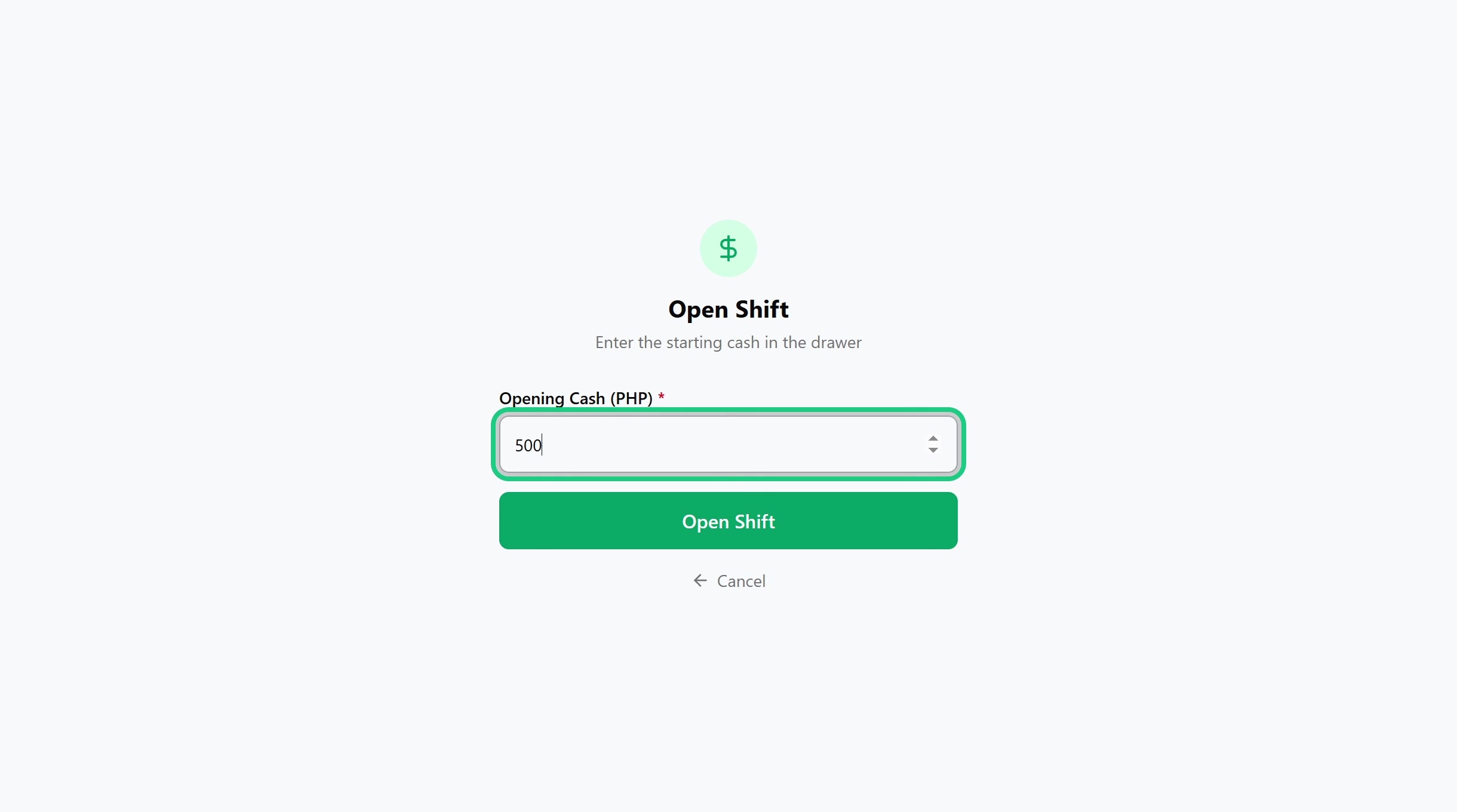
When an employee logs into a device with no active shift, the Order Board shows an Open Shift call-to-action. Tap it to land on the open-shift form.
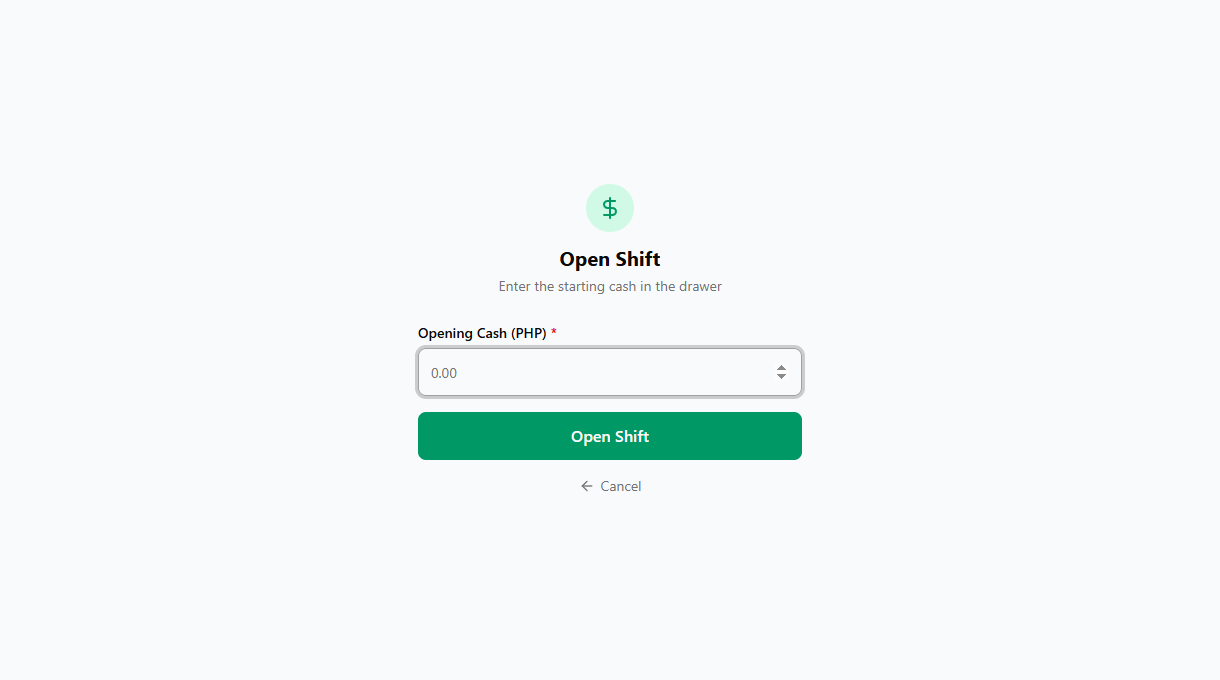
Enter the opening cash in pesos, the physical bills and coins currently in the drawer, and tap Open Shift. The form accepts zero if the drawer is genuinely empty.
If your printer is configured to Open drawer on cash events, the drawer pops automatically when this page loads so you can count without juggling the tablet. Configure that from the Printer Setup page.
Once submitted, the system records the opening cash and the timestamp, then redirects to the Order Board ready for sales. Only one shift can be open per device at a time. Trying to open a second one returns A shift is already open on this device.
2. The Cash Drawer screen
Mid-shift, cash often moves in and out of the drawer for reasons that aren't sales, like making change, buying supplies, an overpayment a customer leaves behind, or topping up starting cash. Open the Cash Drawer screen from the POS menu at any point during an active shift to see what the drawer should hold and to record every off-sale movement.
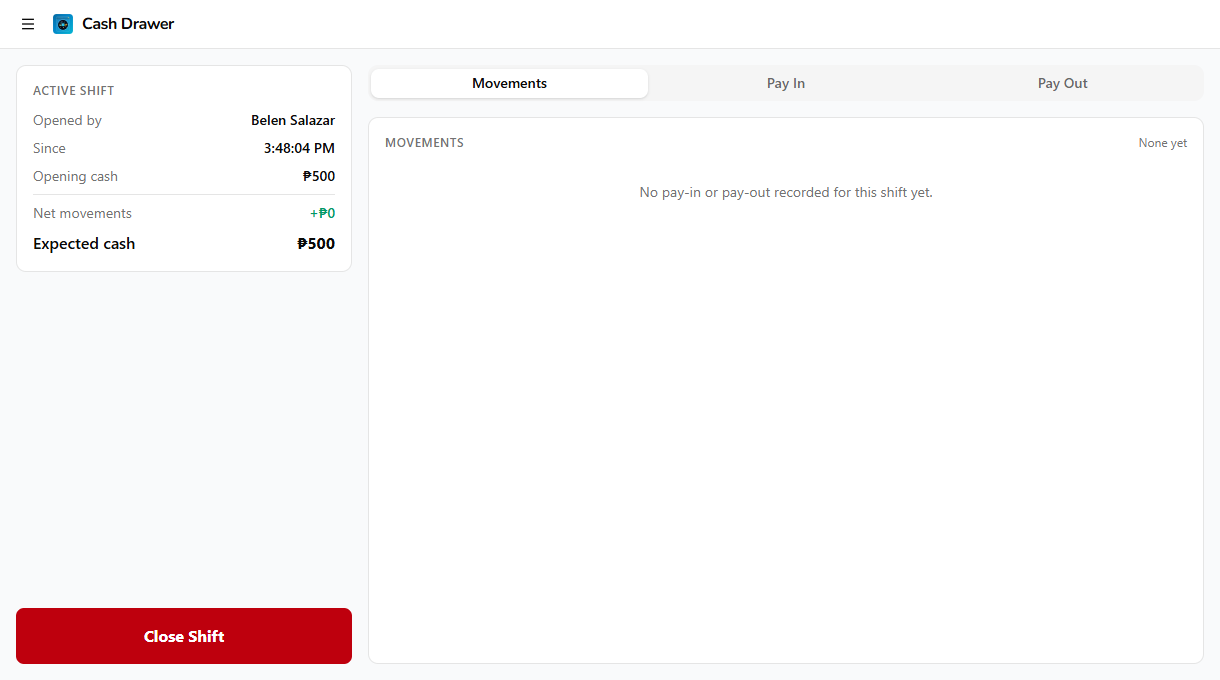
The screen shows three things:
- The active shift summary on the left in landscape, or a compact strip on top in portrait. Lists who opened the shift, when it opened, the opening cash, and the live Expected cash total (for cashiers with View shift report) or Net movements (for everyone else).
- A Close Shift button, sticky on the left sidebar in landscape, fixed in the footer on phones. Tap it to start the closing flow described in section 4.
- Three tabs on the right: Movements, Pay In, and Pay Out.
| Tab | What it does |
|---|---|
| Movements | Lists every pay-in and pay-out recorded so far this shift, newest at the top. Empty by default. |
| Pay In | Form to record cash entering the drawer outside of a sale. |
| Pay Out | Form to record cash leaving the drawer for anything other than a refund. |
Recording a pay-in
A pay-in is any cash that enters the drawer outside of a sale. Common reasons: a customer leaves extra money, no-change top-up, or replenishing the starting cash float.
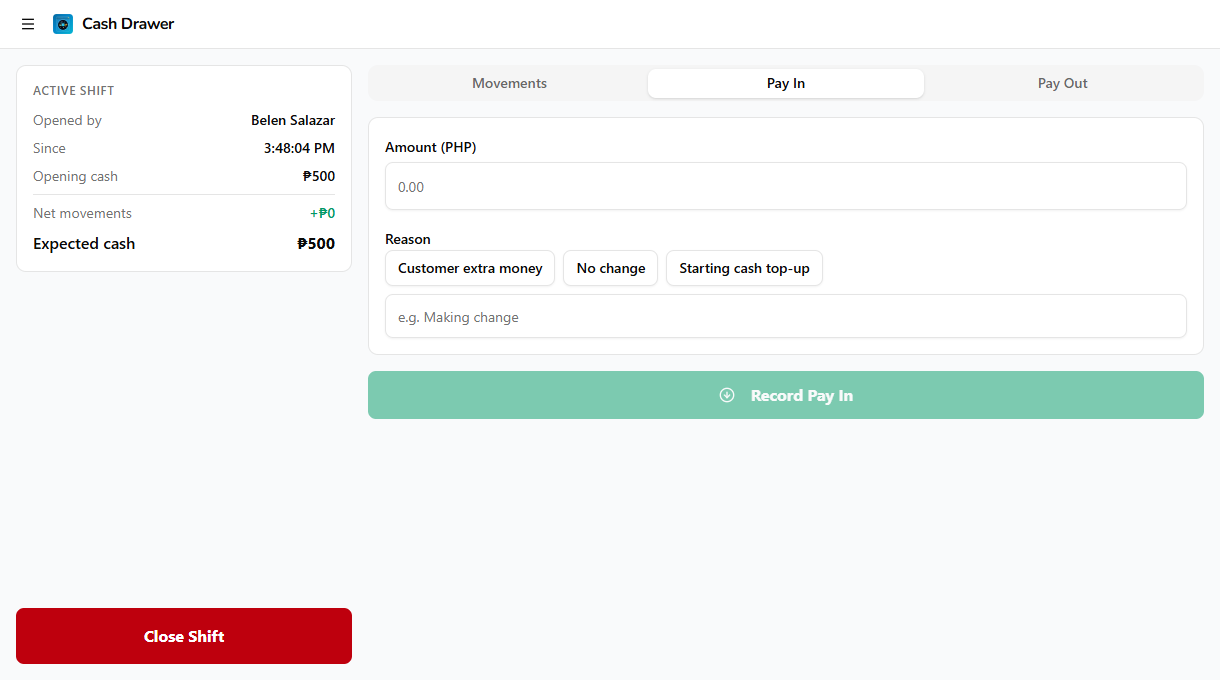
- Tap the Pay In tab.
- Enter the amount in pesos.
- Tap a preset reason, or type a custom one. Presets: Customer extra money, No change, Starting cash top-up.
- Tap Record Pay In.
The amount appears in the Movements tab with a green down-arrow and is added to the live expected cash.
Recording a pay-out
A pay-out is any cash that leaves the drawer for something other than a customer refund. Common reasons: buying supplies, petty cash for a courier, change handed to a customer who paid before items were rung up.
- Tap the Pay Out tab.
- Enter the amount.
- Tap a preset reason, or type a custom one. Presets: Buy supplies, Petty cash, Change for customer.
- Tap Record Pay Out.
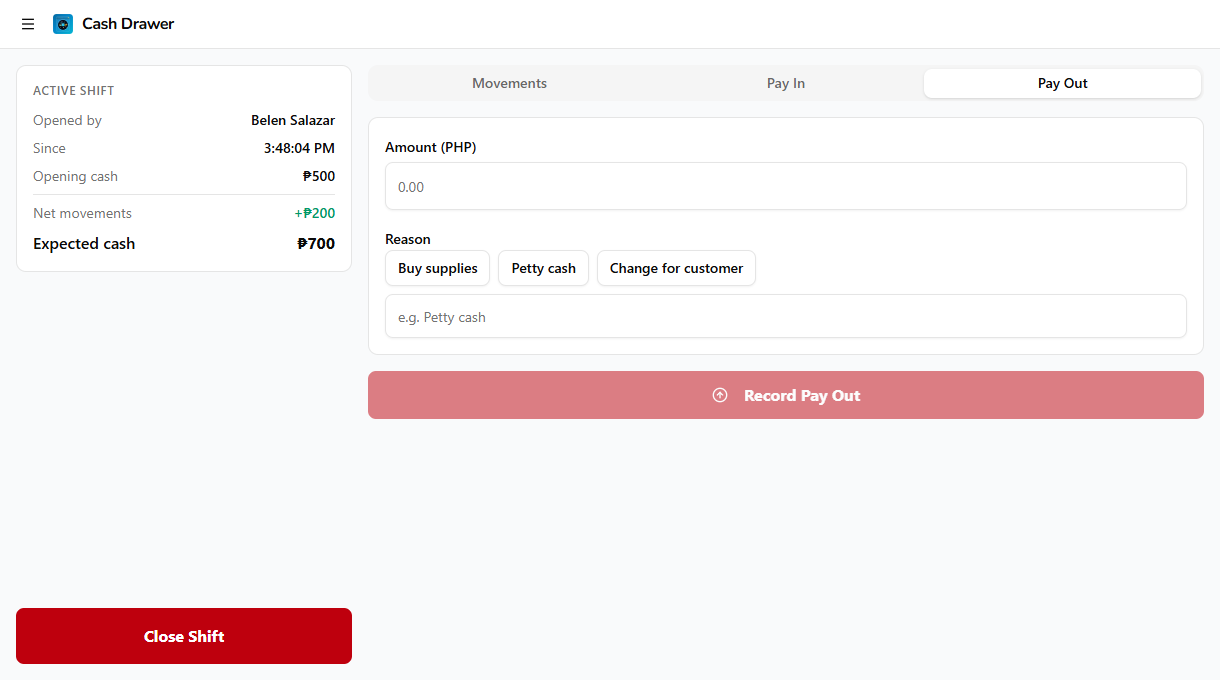
The amount appears in the Movements tab with a red up-arrow and is subtracted from the live expected cash.
Pick a preset reason whenever one fits. Consistent reasons make the shift report and the Vault audit so much easier to read at the end of the day.
If the printer is configured with Open drawer on cash events, switching to the Pay In or Pay Out tab automatically pops the cash drawer so you don't have to count or grab cash with one hand on the tablet. The kick fires once per tab visit. Switch away and back, and it kicks again.
3. How expected cash is computed
The system runs this math live as you record movements:
Expected cash = Opening cash
              + Cash payments
              - Cash refunds
              + Pay-ins
              - Pay-outs
This is the cash that should be physically in the drawer right now. Card, e-wallet, and bank-transfer payments don't affect expected cash, only cash hits the drawer.
The number is visible mid-shift only to cashiers with the View shift report permission. Cashiers without it see Net movements instead, the pay-in / pay-out total, with no expected-total reveal. The full breakdown still gets computed on close and the manager-level slip still prints, the cashier just can't see the running balance in real time.
4. Closing a shift
When the shift is done, navigate to the Cash Drawer screen and tap Close Shift, in the sidebar (landscape) or footer (portrait). The close flow is two steps.
Step 1: Count the cash
Count every bill and coin physically in the drawer and enter the total. The page shows the opening info at the top so you don't lose your bearings mid-count.
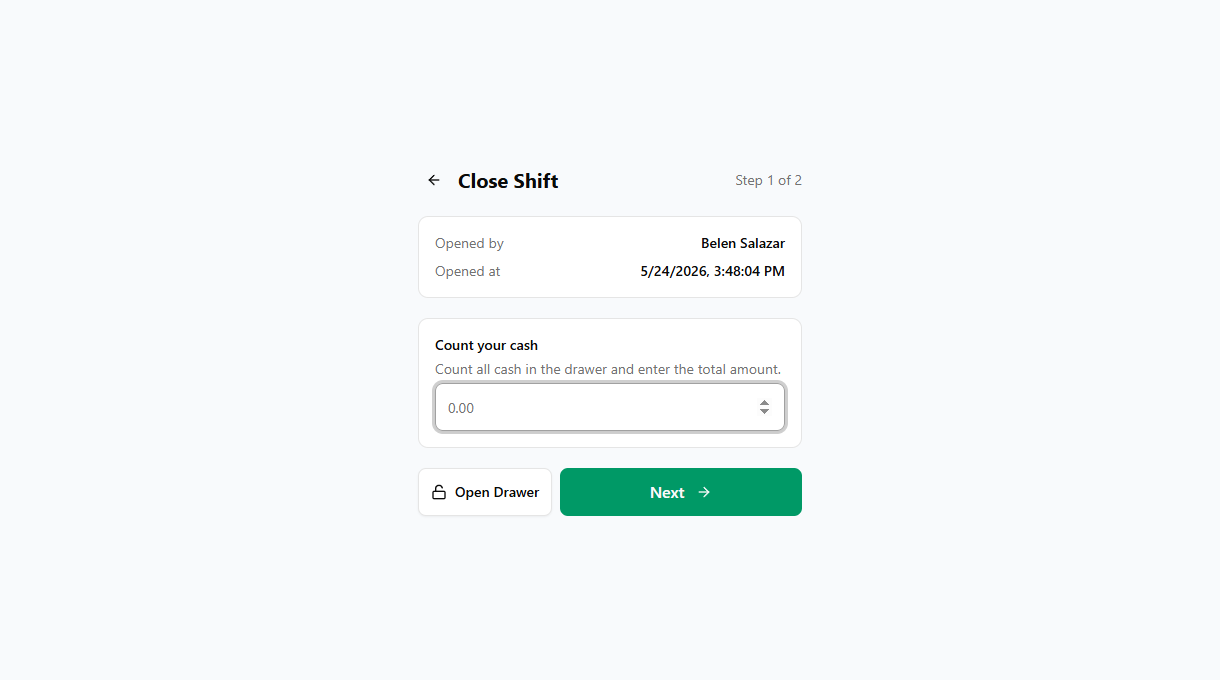
If the printer supports it, tap Open Drawer to pop the cash drawer for counting. The drawer also kicks automatically when the page loads if Open drawer on cash events is on.
Tap Next to advance to step 2. The button stays disabled until you've entered a non-negative total.
Step 2: Cash withdrawal
Specify how much cash you're withdrawing from the drawer to put in the vault. Whatever isn't withdrawn stays in the drawer as the next shift's starting cash.
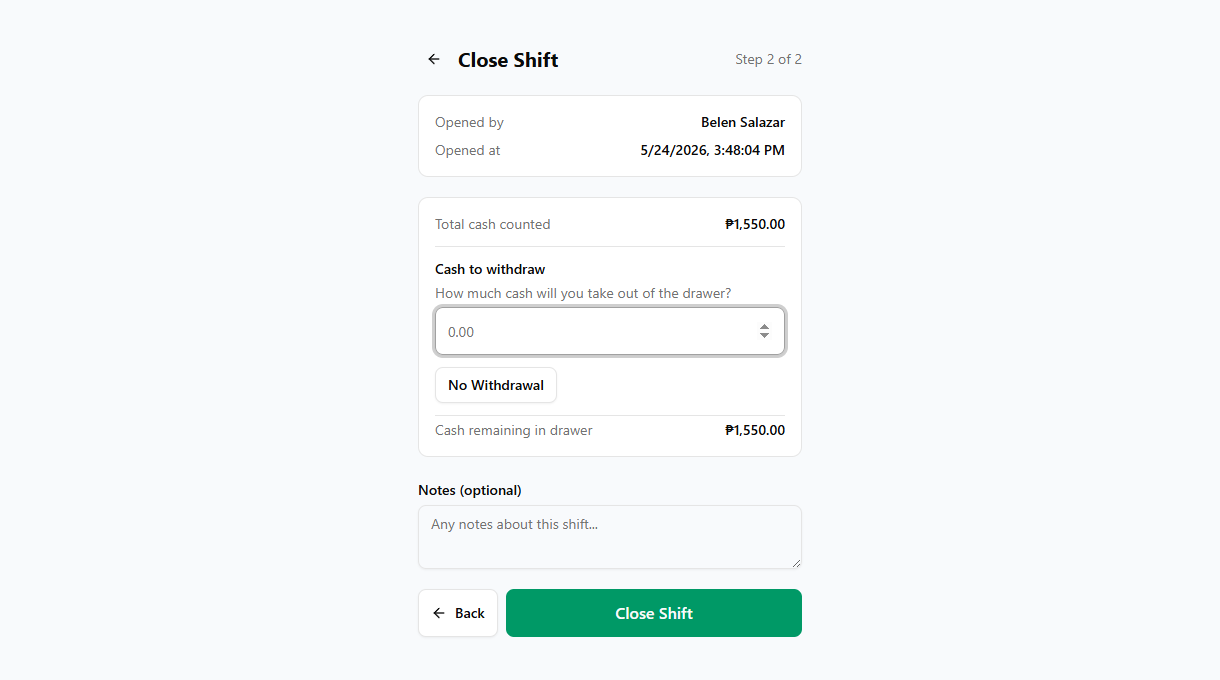
- Enter the withdrawal amount, or tap No Withdrawal to leave everything in the drawer.
- Add notes about the shift (optional). Notes print on the manager-level slip and live on the shift record forever.
- Tap Close Shift to commit.
The withdrawal cannot exceed the total you counted in step 1. The form blocks the close with Withdrawal cannot exceed total cash counted if it does.
Behind the scenes, the close commits a Pay Out for the withdrawal, then computes the final variance (actual cash minus expected cash) and snapshots the whole shift, sales summary, cash movements, payment breakdown, and notes onto the shift record so it survives any later edits to items or payment types.
5. The shift report
After a successful close, the Shift Report appears on screen and the slip auto-prints if a printer is paired. The report has two versions and which one you see depends on your permissions.
Full report (Owner, Admin, Manager)
Cashiers with the View shift report permission see the complete breakdown.
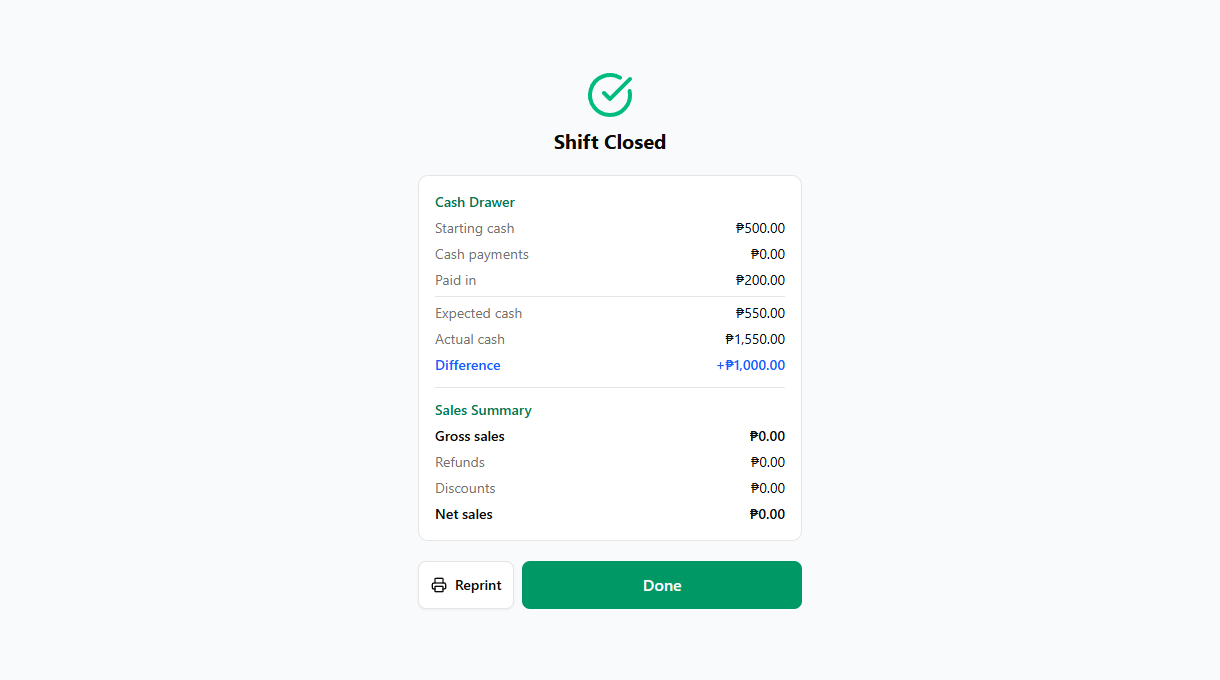
| Section | What it shows |
|---|---|
| Cash Drawer | Starting cash, cash payments, cash refunds, pay-ins, pay-outs, expected cash, total counted, withdrawn (if any), actual cash, and the Difference line at the bottom. |
| Sales Summary | Gross sales, refunds, discounts, and net sales for the shift. |
| Difference | The variance, formatted as +P or -P. Color-coded: green when the drawer balances, blue for an overage (more cash than expected), red for a shortage (less than expected). |
A non-zero variance is logged on the shift record and prints on the slip. The system doesn't auto-flag, freeze, or escalate, that's a manager judgment call from the dashboard's POS Shifts page.
Limited view (Cashier)
Cashiers without View shift report see only the Actual cash entered, no expected-cash reveal and no sales summary. The auto-printed slip is also the cashier minimal version.
After close
Tap Reprint to print the slip again if the printer wasn't paired or the slip got lost. Tap Done to return to the Order Board. Once you tap Done, the close is final, the shift record sits in history.
If the printer wasn't paired when you tapped Close Shift, an Auto-print failed, tap Reprint when ready toast appears so you know the slip didn't come out. Pair the printer from the Printer page and tap Reprint on the result screen.
6. Reprinting a closed shift's report
If you missed the on-screen Reprint button, the slip got lost, or a manager wants a duplicate copy, you can reprint from the Previous Shift Reports page on the same device that recorded the shift.
There are two ways to open it:
- From the Cash Drawer screen with no active shift, tap View previous shift reports on the No Active Shift panel.
- From the Order Board's POS menu, tap Previous shift reports.
The page lists up to the last 20 closed shifts from the past 14 days for the current device. Each row shows when it closed, who opened and closed it, and (for managers) the expected, actual, and variance numbers. Tap Reprint on any row.
What gets printed depends on the cashier's permission:
- Owner, Admin, Manager reprint the full report, cash drawer, sales summary, pay-ins / pay-outs, and notes.
- Cashier reprints the minimal slip, store and device name, who opened and closed, the actual cash counted.
Previous Shift Reports is scoped to the current device. To see shifts across every device and store, open POS Shifts on the dashboard.
Common issues
"Open Shift isn't on the Order Board"
A shift is already open on this device. Either tap into the Cash Drawer screen to manage it, or close it from there before opening a new one. Remember each device can only hold one open shift.
"Cashier rang up sales without opening a shift first"
The register blocks new sales when no shift is open, the cashier sees the No Active Shift panel instead of the item grid. If they somehow got past it (multi-tab race, very old session), the sale still completes and the cash hits the drawer, but no shift document picks it up. Open a shift, record an equal Pay-In with reason Starting cash top-up for the missing total, and call out the gap in the close-shift notes so the dashboard reconciliation matches.
"Expected cash keeps coming out wrong"
Three things to check. First, every cash payment counted, did the cashier select Cash on the payment type and not, say, Card by accident? Open Receipts and confirm the payment types. Second, the pay-ins and pay-outs, every off-sale movement has to be logged. A P200 detergent run that wasn't recorded as a pay-out shows up as a P200 shortage. Third, the opening cash, if the cashier typed 500 but the drawer actually had 480, the close looks short by 20. Mid-shift, you can't edit opening cash. The fix is to log a Pay-In for the missing 20 with a clear reason.
"I can't close the shift, button doesn't react"
Step 1's cash count is blank or below zero. The Next button stays disabled until you've entered a non-negative number, even zero. If the printer's drawer kicked but you haven't started counting, just type the total once you have it.
"Withdrawal field rejects the amount"
The withdrawal cannot be more than the total cash you counted in step 1, the form blocks the close with Withdrawal cannot exceed total cash counted. Either drop the withdrawal below the counted total, or tap Back, fix the count, and try again.
"Auto-print failed toast keeps appearing"
The printer isn't paired with this device. Open the Printer page from the POS menu, connect over USB or Bluetooth, then go back to the close result screen and tap Reprint. The reprint button stays available until you tap Done, and the slip is also reprintable from Previous Shift Reports afterward.
"Cashier closed the shift on the wrong device"
Each shift is bound to the device it opened on, the close-shift action only finds the shift that matches both tenantId and deviceId. If a cashier signed into a different tablet, the second tablet shows the No Active Shift panel because the open shift lives on tablet A. Walk back to the original tablet, close from there.
What's next?
- Order Board: the daily ticket workflow that runs on top of an open shift.
- Register: ring up sales once the shift is open.
- POS Shifts (Dashboard): cross-device, cross-store shift history, variance auditing, and the deeper drill-down view.
- Vault: where the cash withdrawn at close lands for daily reconciliation.
- Printer Setup: pair a printer and configure the cash-drawer kick timing.
Stuck? Email [email protected]. The founder reads every message.