LPG Switching
LPG Switching is the POS screen for shops that run gas-powered dryers. It tracks which tank is currently feeding the dryers, counts the dry cycles you've put through it, and gives you a one-tap way to switch to the next tank when one runs out. Each switch is logged with who did it and how many dry cycles the old tank lasted, so over time you can see which tank brand or supplier gives you the most cycles per refill.
Viewing the LPG Tanks page and switching tanks both run under the Manage LPG tanks permission (lpg:manage). The default Owner, Admin, and Manager roles hold it. The default Cashier role does not, on purpose, because switching the active tank affects every dry cycle that follows and most shops want a manager or the owner present for it.
If your cashier needs to switch tanks during a solo shift, grant lpg:manage to the Cashier role, or to a single employee, in Roles & Permissions. Without the permission, the LPG Tanks entry in the POS menu is hidden.
Before you start
LPG Switching is for shops that use LPG (gas) tanks on the dryers. If your dryers are electric, you can skip this page entirely.
You'll need:
- A device activated and an employee logged in. See POS Setup.
- At least two LPG tanks added by the admin from the dashboard's LPG page, one currently marked Active. With only one tank, there's nothing to switch to.
- Dryer items with a per-cycle dry count configured (set on the item in the dashboard). The dry counter on this page sums those values across the cycles you've completed since the last switch.
LPG Switching works on every plan, including Trial. No subscription gate.
1. Opening the LPG Tanks page
From any POS screen:
- Tap the menu icon (top-left) to open the side menu.
- Tap LPG Tanks.
The LPG Tanks page opens, scoped to the current store. Each store keeps its own tank list, so a multi-branch shop sees only the tanks at the branch the device is signed in to.
2. Reading the page
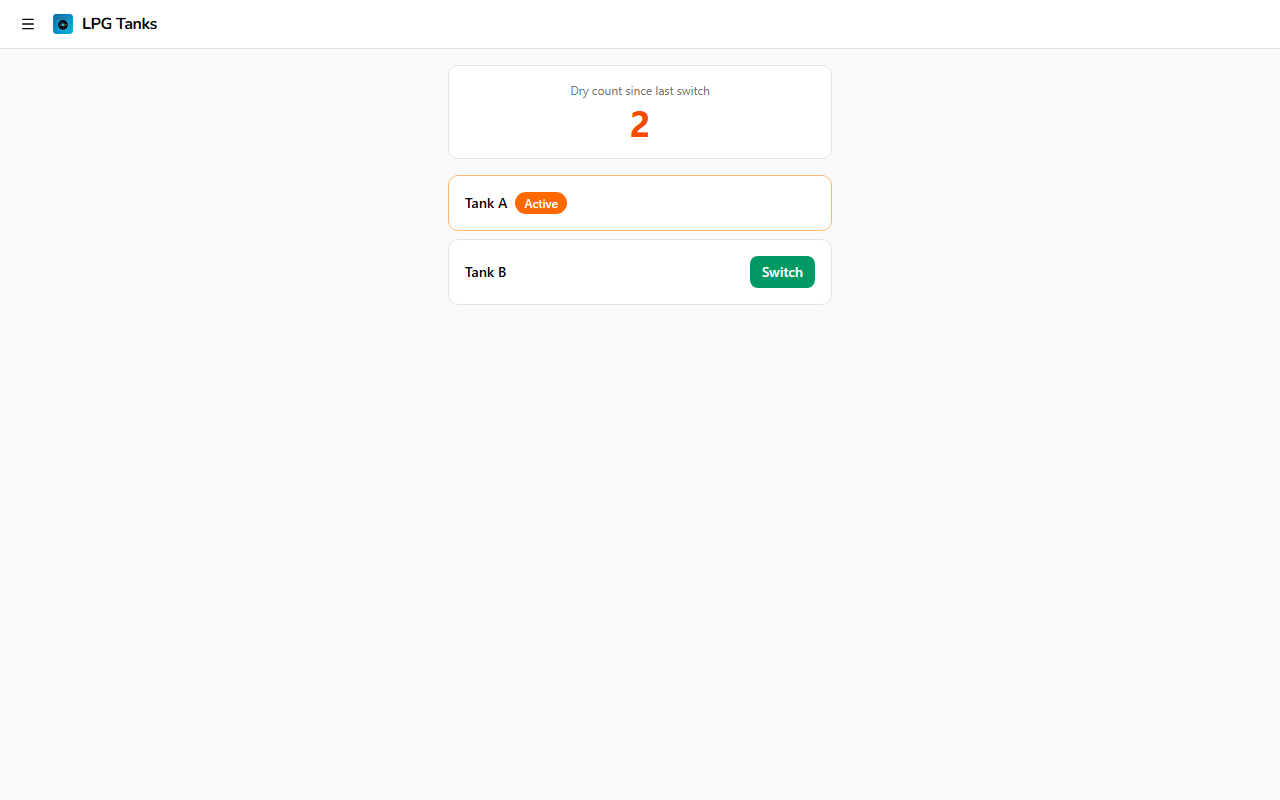
The page has two parts.
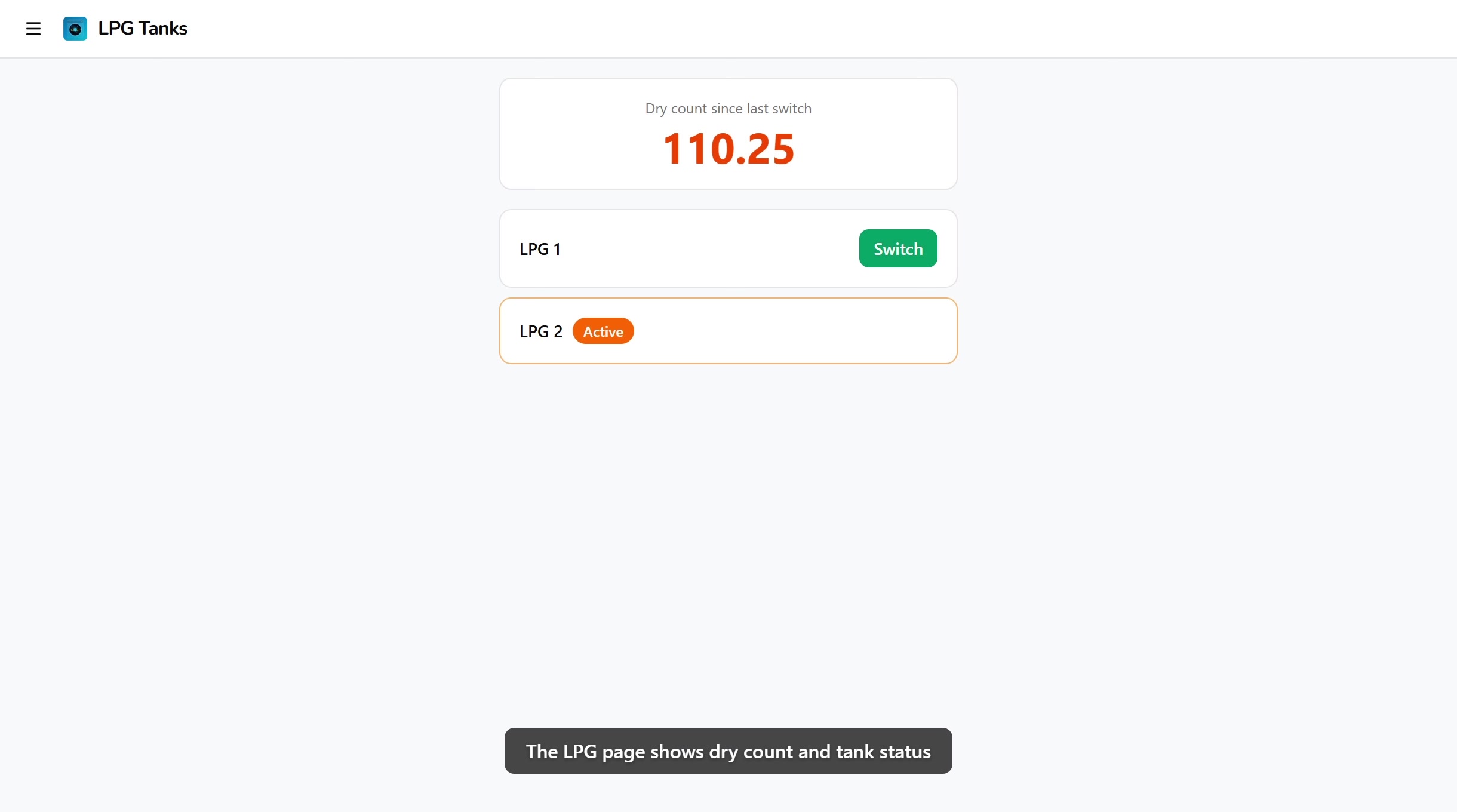
Dry count card
The big number at the top is the dry count since the last switch, that is, how many dry cycles you've completed on the currently active tank. It's not a raw load count, it's the sum of the per-cycle dry count value on every dryer item you've sold since the last switch. So a 20-minute dry that counts as 1 cycle and a 40-minute dry that counts as 2 cycles add up to 3, not 2.
The counter resets to 0 the moment you switch tanks, and starts climbing again from the next dryer sale.
Tank cards
Below the dry count, every tank configured for this store appears as its own card.
| State | Appearance | Action |
|---|---|---|
| Active | Orange border, orange background, Active badge | None, this is the tank currently feeding the dryers |
| Available | White background, normal border | Green Switch button |
Only one tank is Active at a time. The rest are available targets for the next switch.
3. Switching tanks
When the active tank runs out and you've just hooked up the next one:
- Open LPG Tanks from the menu.
- Find the card for the tank you just hooked up.
- Tap the green Switch button on that card.
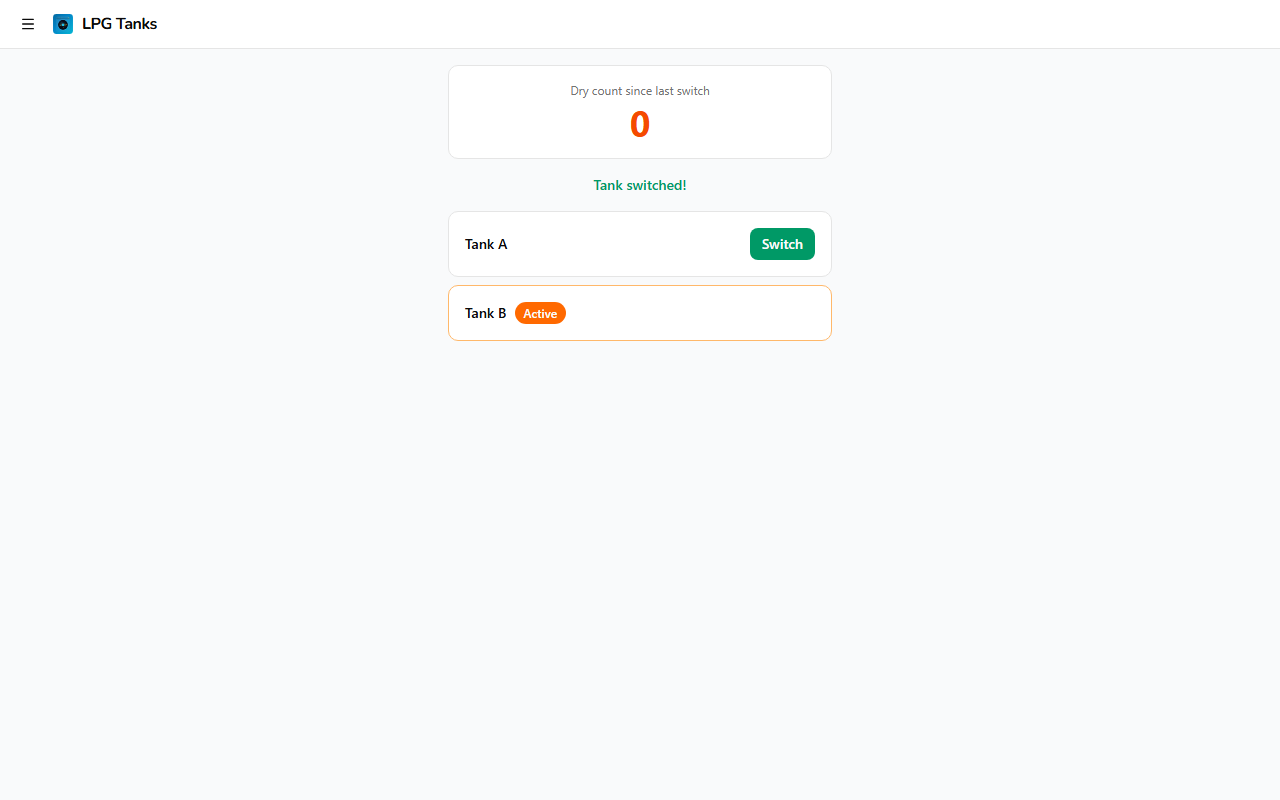
The page updates immediately:
- The new tank takes the orange Active badge.
- The old tank drops back to available.
- A green Tank switched! message appears above the cards.
- The dry count card resets to 0.
4. What gets recorded
Every tap of Switch writes one row to the LPG log so you have a clean audit trail. Each row stores:
- Switch date and time, the moment you tapped Switch.
- Outgoing tank, the tank that was Active before the switch.
- Incoming tank, the tank that became Active.
- Dry count, the total dry cycles the outgoing tank lasted, copied from the counter at the moment of the switch.
- Who switched, the employee logged into the POS device at the time.
The admin also gets a notification ("Tank A switched to Tank B, 142 cycles, by Maria") so an owner who isn't on-site still sees the change as it happens. Notification delivery follows the channels configured in the dashboard's notification preferences.
The full history is visible from the dashboard's LPG page, including a chart that compares cycles-per-tank over time. Use it to spot a tank or supplier that consistently gives fewer cycles than the others. You can also export the switch log to CSV from that page for your own records. On the Starter plan the export covers the last 30 days of switches, by switch date; the Business plan and above export the full history. See Subscription & Billing.
5. When to switch
The page doesn't auto-switch. It's up to the person at the counter to tap Switch the moment they swap the physical tank. The usual triggers:
- The dryer stops heating mid-cycle and the customer flags it.
- A routine pre-shift check shows the regulator is low.
- The dry count card crosses a threshold you've learned for your supplier (for example, "Solane usually lasts about 180 cycles, so at 170 we line up the next tank").
Switching before the tank is fully empty is fine. The log still records how many cycles you got out of it, so the dashboard chart over time will surface whether you're switching too early or too late.
Common issues
"I don't see LPG Tanks in the menu"
The entry is gated by the Manage LPG tanks permission. If you don't see it, the role you're signed in under doesn't have lpg:manage. Either sign in under a role that does (Owner, Admin, or Manager by default), or have the owner grant the permission to your role in Roles & Permissions.
"The page says No LPG tanks configured"
Tanks are created from the dashboard, not the POS. Open the dashboard's LPG page on a desktop browser, add at least two tanks for this store, mark one as Active, and the POS page populates the next time you open it.
"The dry count isn't going up after a sale"
The counter only moves when the items sold have a per-cycle dry count configured on the item. If a dryer item was added before LPG tracking was set up, edit it in Items, set its dry count value, and save. Future sales of that item will add to the counter. Past sales are not back-filled.
"I switched to the wrong tank"
Just tap Switch on the correct one. The system logs both switches, so the audit trail records what actually happened and the dashboard chart still adds up. The misfired entry doesn't need to be voided, the second switch overrides it.
What's next?
- Order Board: where the dry cycles you complete come from, every dryer line on a paid order counts toward the dry count.
- Register: how a dry cycle gets rung up in the first place.
- Roles & Permissions: how to grant
lpg:manageto a cashier who needs to switch tanks on a solo shift.
Stuck? Email [email protected]. The founder reads every message.