Short Change
Short change is the flow for when a cash sale leaves change owed to the customer and the drawer is too light to give it. You flag the owed amount on the success screen at checkout, the order carries a tracking badge on the Order Board, and the next time the customer is at the counter you tap Change Given to settle it. About 3 to 4 minutes.
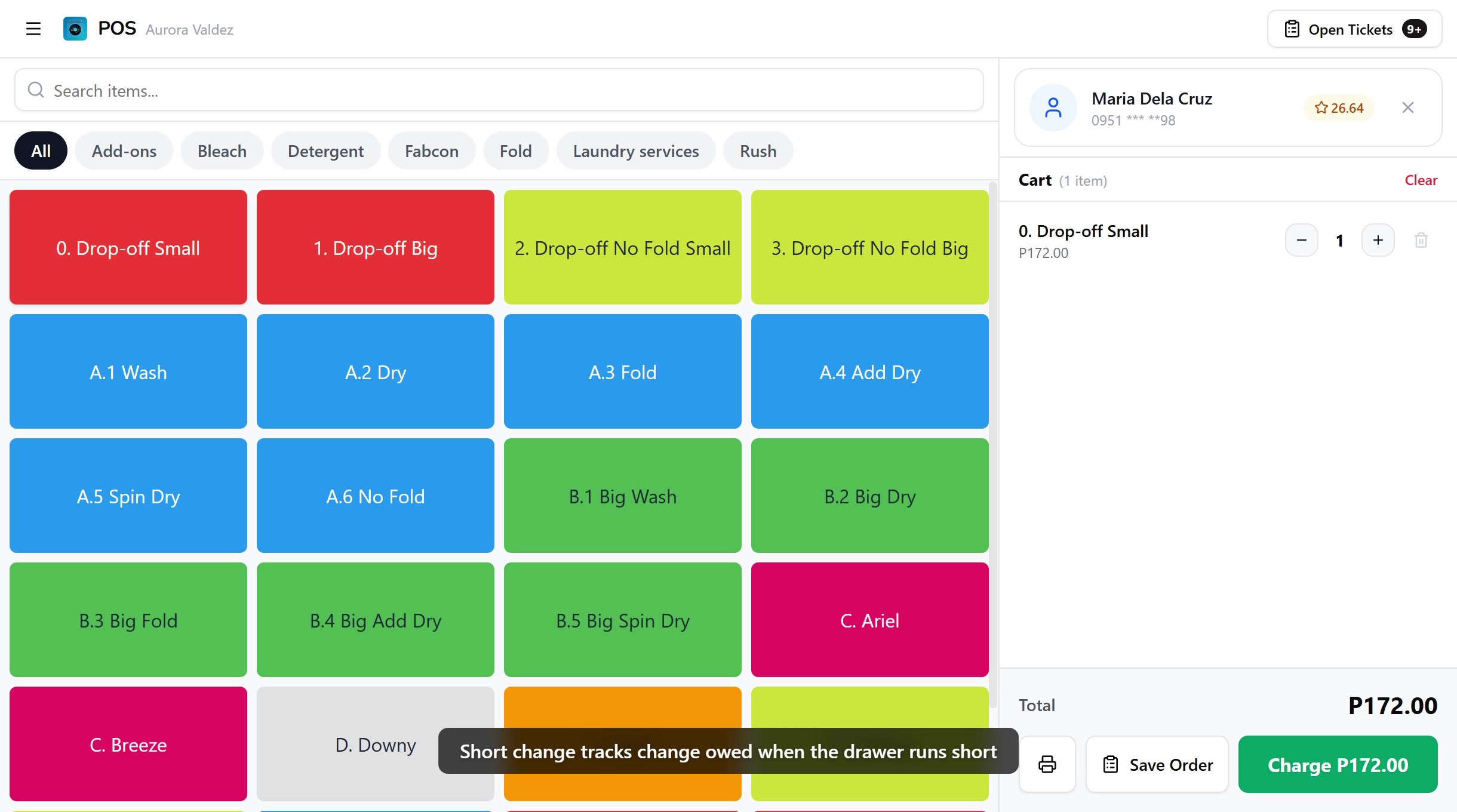
Flagging short change at checkout and marking change as given on the order both run under the Edit orders permission (orders:edit). The default Owner, Admin, Manager, and Cashier roles all hold it, because the cashier at the counter is the person doing this work.
Void short change (orders:void_short_change) cancels a flagged entry, used to correct a typo-ed amount. This one sits with Owner, Admin, and Manager only. A cashier can flag short change and mark it given, but cannot void the entry. To change any of this, edit the role in Roles & Permissions.
Before you start
Short change only applies to cash payments where the entered amount is larger than the order total. The flag and the resolve action both write to the active shift, the flag stores the owed amount on the order, and the resolve records a cash pay-out on the shift.
You'll need:
- A device activated and an employee logged in. See POS Setup.
- An active shift open for the current employee. See Shifts.
- A paid order with change owed, that is, at least one cash payment on the order where the entered amount exceeded the line total.
Short change works on every plan, including Trial. No subscription gate.
1. When short change happens
Short change is for the case where the customer overpays in cash but the drawer is short on the change you need to hand back. A typical example:
- Order total: P215
- Customer pays: P500 cash
- Change due: P285
- Drawer has: P200 in change
You hand over P200 in change, then flag the remaining P85 as short change so the order tracks it and the customer can collect it next time.
If the customer can wait while you break a bigger bill from another till or a neighbouring shop, do that instead, no flag needed. Short change is for the case where the customer is leaving and you want a clean record of what's still owed.
2. Flagging at checkout
After a cash sale with change due, the Payment Complete success screen shows a No Change button in amber, alongside the print and navigation buttons.
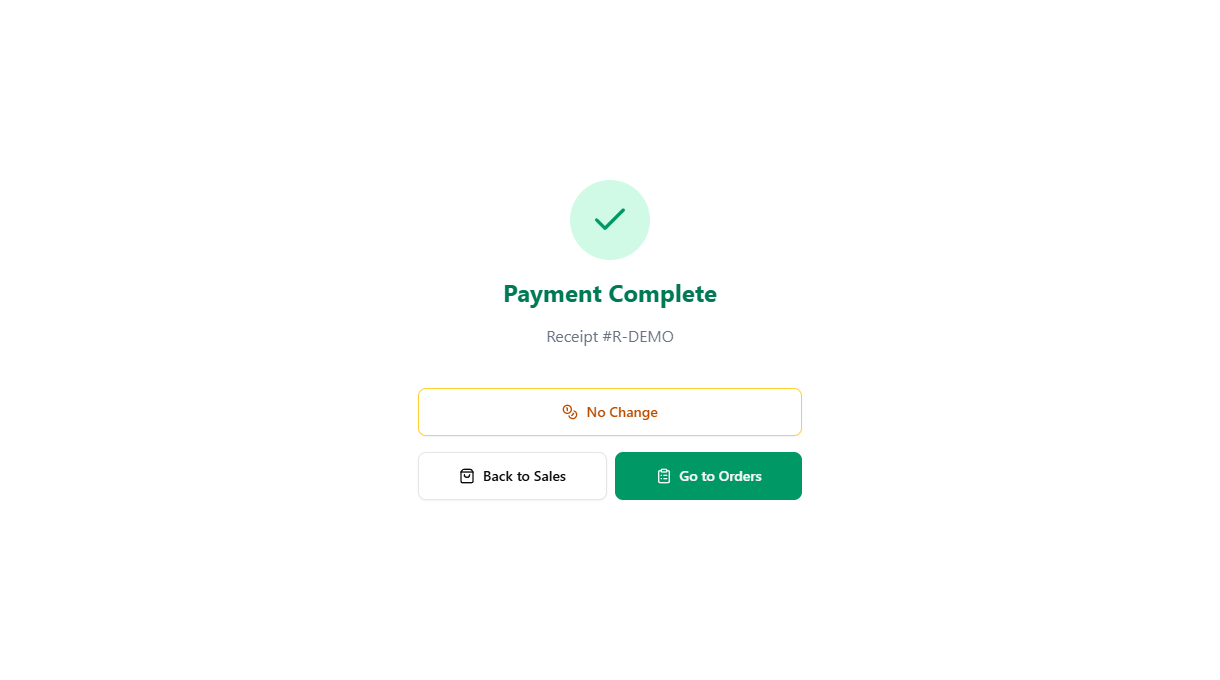
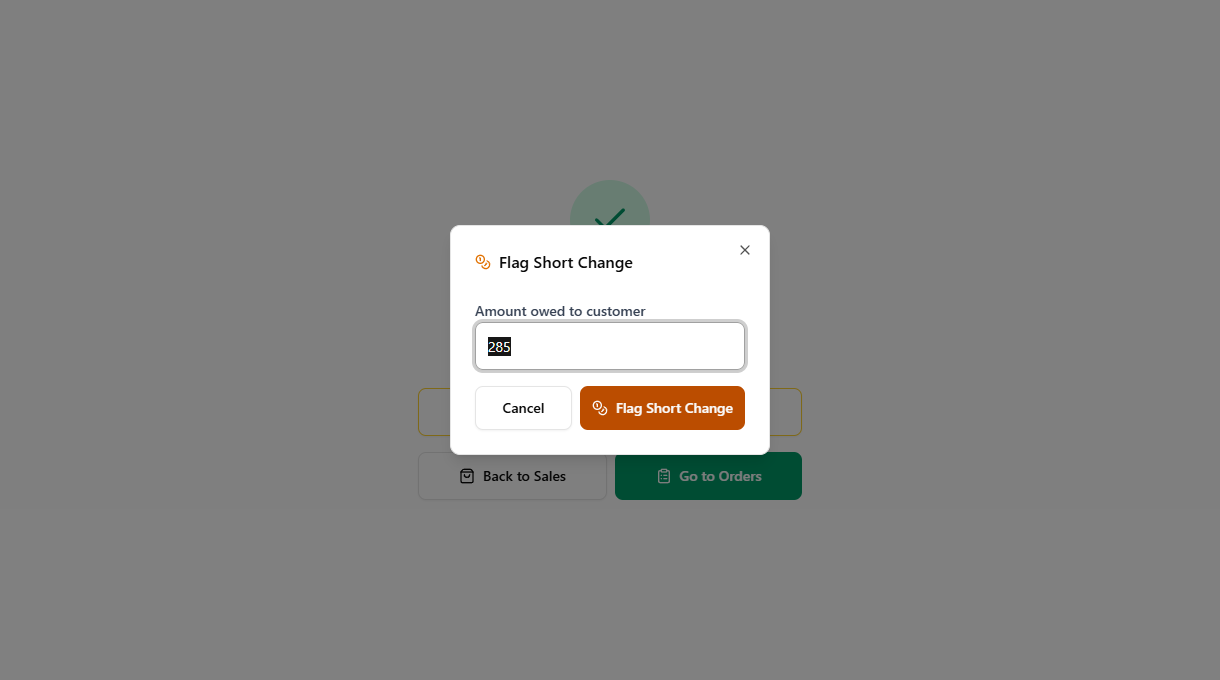
Tap No Change to open the inline flag form. The total change owed is pre-filled, and you can adjust the amount if you only ended up short on part of it:
- The change amount is pre-filled with the total change from the sale.
- Adjust the amount if you handed over some change and only the remainder is owed.
- Tap Flag Short Change to confirm.
Once flagged, the No Change button is replaced with an amber confirmation row, Short change flagged, so the next cashier looking at the screen can tell the entry was recorded.
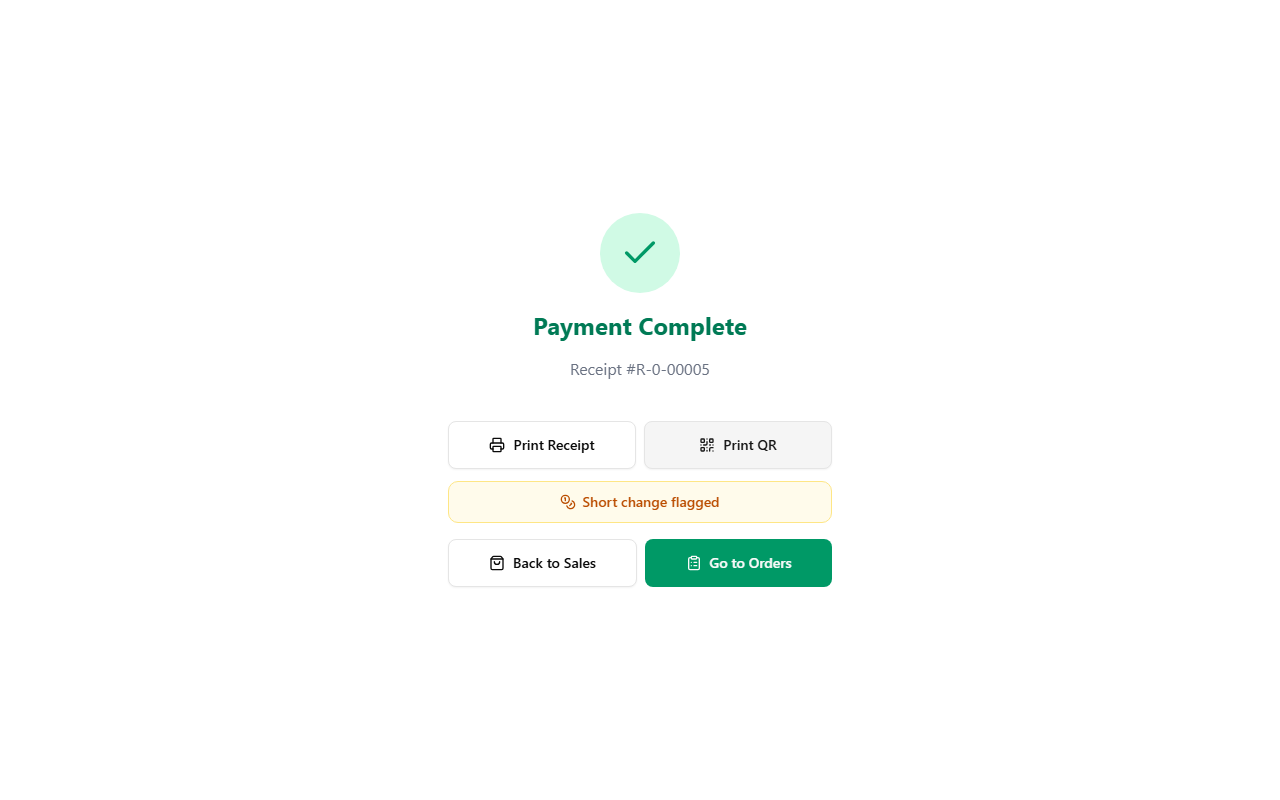
The flag is stored on the order itself, not on the receipt. The receipt records the cash that was actually received and the change that should have been handed back, the flag is a separate marker that says "the customer is still owed this amount".
3. Flagging from the order detail
If the cashier missed the No Change button at checkout, or someone notices later that change wasn't given, the same flag can be added from the order detail page.
- Open the order from the Order Board or the order list. The order must be fully paid.
- In the right panel, look for the small Flag Short Change link below the payment breakdown. It only appears when the order has at least one cash payment that recorded a change amount.
- Tap it. An inline form opens with the change amount pre-filled.
- Adjust if needed, then tap Flag.
The order now carries the same short change flag as if it had been flagged at checkout. See Order Detail for the panel layout.
4. How flagged orders surface
Once an order is flagged, the owed amount is visible in two places so any cashier on shift can spot it:
On the Order Board
Flagged orders carry an amber Owes P amount badge on the order card. The badge sits next to the payment-status pill, so a single glance at the board separates "fully settled" from "still owed change".
On the order detail
When the order is opened, an amber banner in the right panel reads Owes P amount change, with a Change Given button next to it. If you also have the Void short change permission, a Void button sits beside it for typo corrections, see Voiding a typo.
5. Giving the change
When the customer is at the counter and you have the right change in the drawer:
- Find the order on the Order Board, look for the amber Owes badge on the card.
- Tap the card to open the order detail.
- Tap Change Given on the amber banner in the right panel.
The system then:
- Marks the short change as resolved, the amber banner switches to a gray Short change P amount resolved confirmation.
- Records a Pay Out entry on the active shift for the amount, so the close-shift report reflects the cash that left the drawer.
- Opens the cash drawer if a thermal printer is paired and the cash-drawer-on-cash setting is on.
The Owes badge drops off the order card on the next board refresh, and the order detail keeps the resolved confirmation so there's a record that the change was handed over.
Change Given needs an active shift open on the device, because the cash pay-out has to land on a shift. If no shift is open, the action returns an error. Open a shift first from the no-active-shift panel, then come back to the order.
6. Voiding a typo
If the wrong amount was entered when the flag was created, for example P850 typed instead of P85, the flag can be voided so the order goes back to a clean state. Voiding needs the Void short change permission, held by Owner, Admin, and Manager but not Cashier.
- Open the order, the amber banner shows the wrong amount.
- Tap Void next to Change Given.
- A dialog opens asking for a reason, the reason is required and stored on the activity log.
- Type the reason, then tap Void Short Change to confirm.
Voiding clears the short change amount from the order and reverses the cash movement on the current shift. The activity log records who voided the flag, when, and the reason given.
If the actual amount is right but the cashier marked it given too early, that's not a void, that's a different problem, work with the customer to settle the owed change and tap Change Given normally.
Example scenario
A customer brings P215 of laundry to the counter and pays with a single P500 bill. The drawer has only P200 left in small change:
- The cashier rings up the order, taps Charge, types 500 as Cash, taps Add CASH Payment, then Charge.
- The success screen shows Payment Complete with Receipt #R-1234 and Change: P285.
- The cashier hands over the P200 from the drawer and taps No Change.
- The flag form opens pre-filled with 285. The cashier types 85 instead, the amount still owed after handing over the P200, then taps Flag Short Change.
- The success screen now shows Short change flagged. The cashier taps Back to Sales to clear the cart.
- The order card on the board now carries an amber Owes P85 badge.
- Later, when the customer returns or the drawer has the right coins:
- The cashier finds the order on the board, opens it, taps Change Given, hands over the P85, and the order drops the badge.
Common issues
"I tapped No Change but I actually did give the full change"
If the customer ended up taking the full change after all, void the flag from the order detail. Void sits next to Change Given on the amber banner, see Voiding a typo. A cashier without the Void permission needs to ask an Owner, Admin, or Manager to do it.
"Change Given returns an error"
The most common cause is no active shift. The pay-out has to land on a shift, so the action checks for one open on the device before it runs. Open a shift from the no-active-shift panel and try again. See Shifts for the open-shift flow.
"The Owes badge is still on the card after I tapped Change Given"
The Order Board updates the card on the next refresh, which happens automatically every few seconds. If the badge stays on the card longer than that, pull the board down to refresh or tap the order to confirm it shows Short change P amount resolved on the detail page.
"I don't see the No Change button on the success screen"
The button only renders when the sale included at least one cash payment with a change amount greater than zero. If the customer paid the exact total in cash, paid through GCash or Bank Transfer, or split into multiple non-cash methods, there's no short change to flag, the button stays hidden. To flag short change later from the order detail, see Flagging from the order detail.
"I don't see the Flag Short Change link on the order detail"
The link only renders when the order is fully paid and has at least one cash payment with a recorded change amount. If the order was paid entirely through non-cash methods, or the cash payment was for the exact amount, there's no change to flag, see the previous answer.
What's next?
- Processing Payments: the full checkout flow that the success screen sits at the end of.
- Order Detail: the order page that hosts the resolved-and-voided side of short change.
- Order Board: where the amber Owes badge shows up so any cashier can pick it up.
- Shifts: how the Change Given pay-out rolls into the close-shift report.
Stuck? Email [email protected]. The founder reads every message.