Re-syncing Loyverse Data
This page lets the account owner pull a fresh copy of Loyverse data into LaundryVerse anytime, on your own and without waiting on support. You pick what to sync, log in to Loyverse once, and the data updates in the background while you keep working. Most syncs finish in a couple of minutes.
It is most often used to re-sync after your first import, for example after you have edited items or prices in Loyverse and want LaundryVerse to match. You can also use it to connect Loyverse for the first time, even if you signed up on the Use LaundryVerse POS path and are linking a Loyverse account only now. The first import during signup is covered in Importing from Loyverse.
Re-syncing is limited to the account owner. Invited staff (admins, managers, cashiers) cannot open this page even with broad dashboard permissions, because it reconnects the account's Loyverse login. If you are on the team and need a re-sync, ask the owner.
Before you start
- A Loyverse account. Any plan works, though how far back your receipt history reaches depends on your Loyverse plan, the same as the first import.
- You will log in to Loyverse as part of the sync, so have your Loyverse credentials handy.
- If you have edited items or prices inside LaundryVerse, read the caution below first. A sync overwrites your LaundryVerse copy of items, customers, and employee contact details with whatever is in Loyverse right now. (On a first connection there is nothing to overwrite.)
How to get there
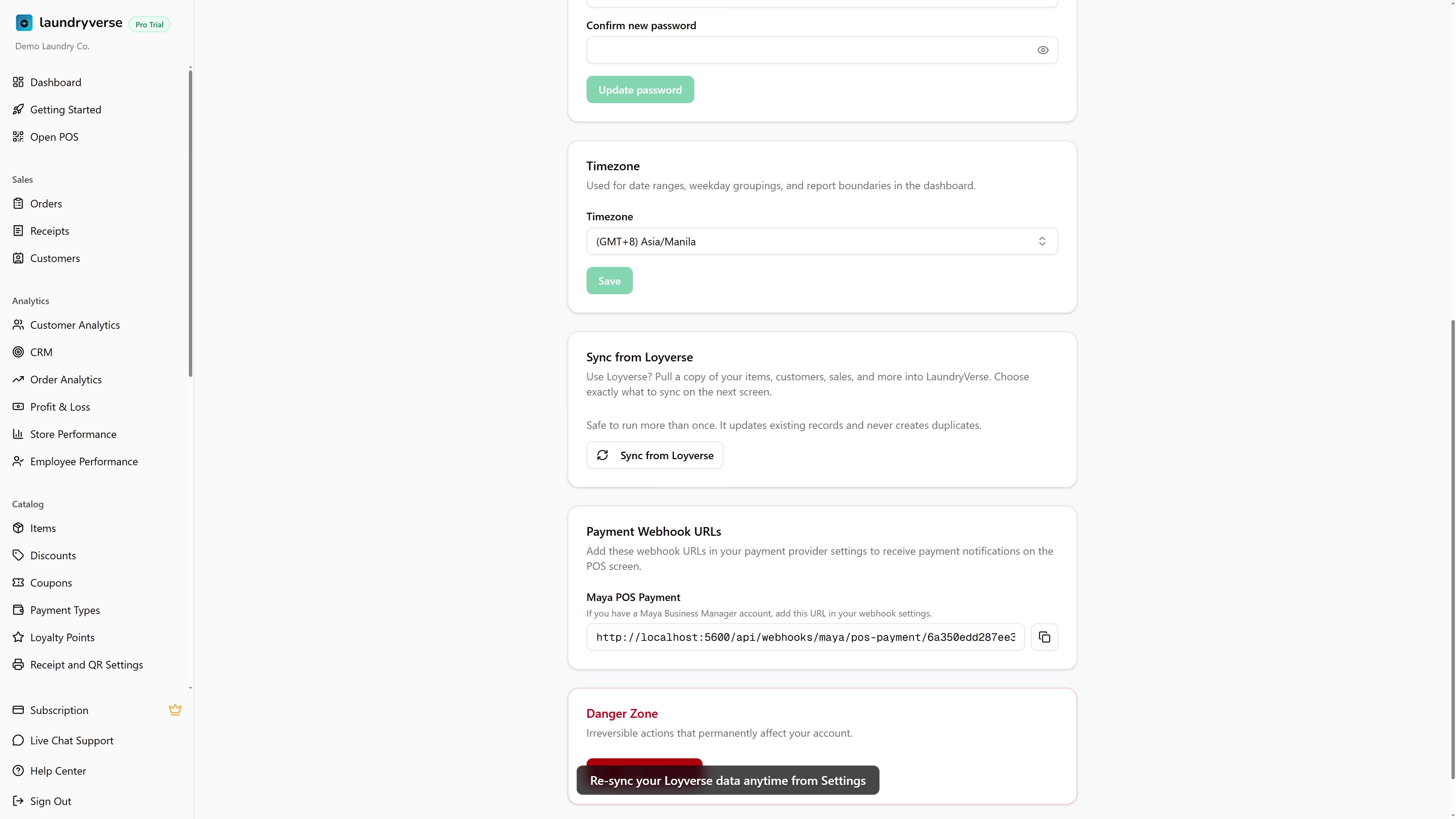
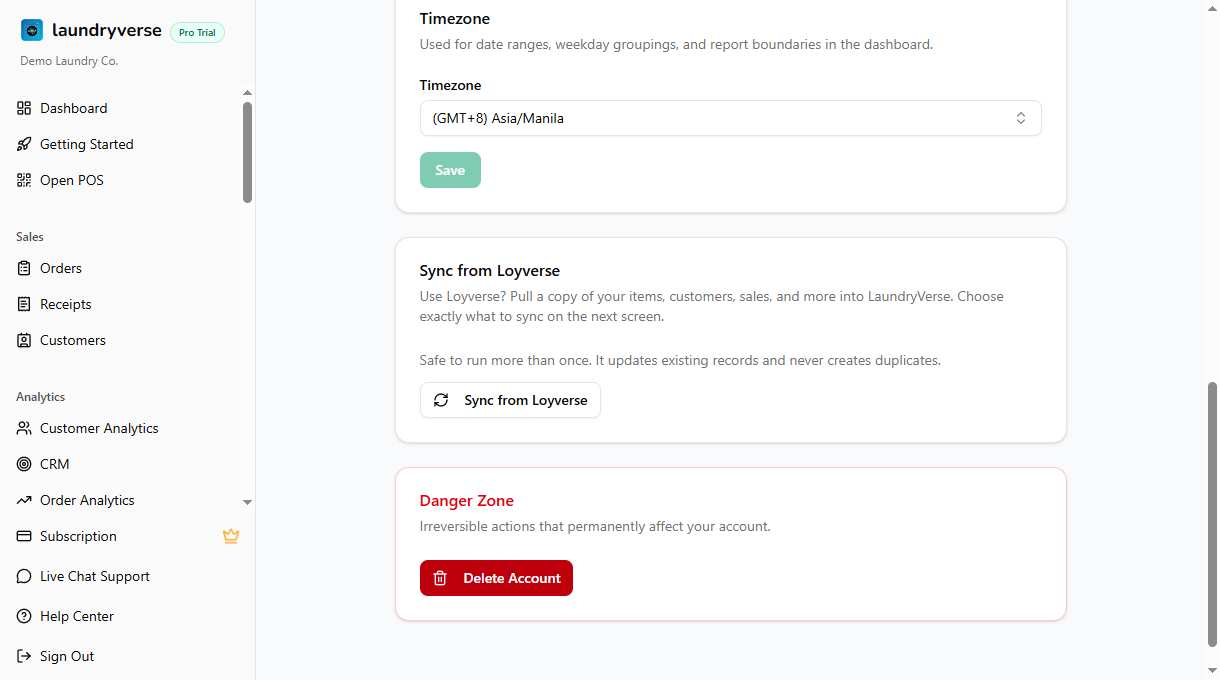
From the dashboard, open Settings and find the Sync from Loyverse card. Click Sync from Loyverse to open the reconnect page. The page also lives at laundryverse.app/reconnect-loyverse, so support can send you the direct link if you ever need it.
Choose what to sync
Six types of data are listed, all ticked by default, so one tap is a full refresh. Untick anything you do not want pulled. You must keep at least one ticked.
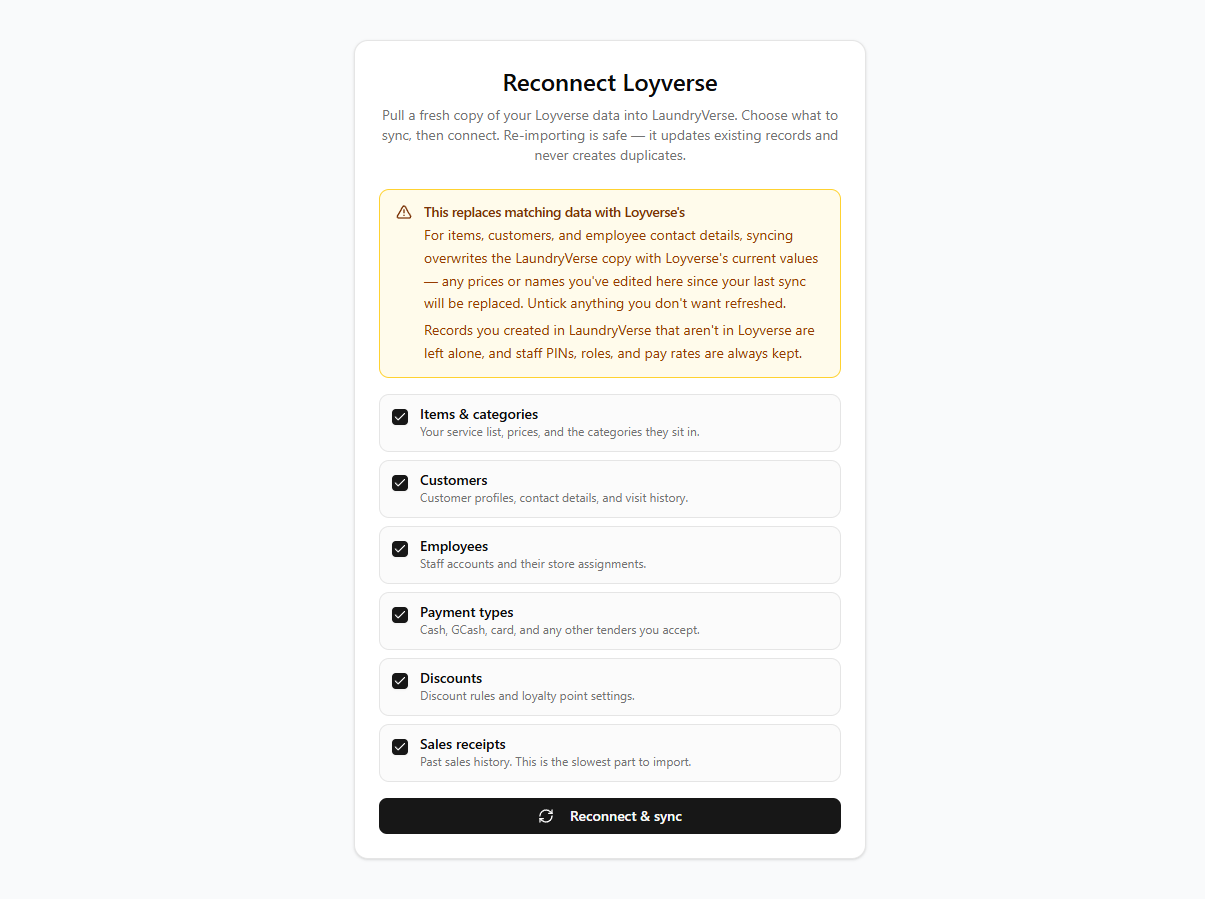
| Data | What it refreshes |
|---|---|
| Items & categories | Your service list, prices, and the categories they sit in. |
| Customers | Customer profiles and contact details. |
| Employees | Staff accounts and their store assignments. |
| Payment types | Cash, GCash, card, and any other tenders you accept. |
| Discounts | Discount rules and loyalty point settings. |
| Sales receipts | Your past sales history. This is the slowest part to pull. |
For items, customers, and employee contact details, the sync replaces the LaundryVerse copy with Loyverse's current values. Any prices or names you changed inside LaundryVerse since your last sync will be replaced by what Loyverse has now. If you have been editing prices here and not in Loyverse, untick Items & categories so those edits survive.
What is always safe:
- Records you created in LaundryVerse that do not exist in Loyverse are left alone.
- Staff PINs, roles, and pay rates are kept. Only the contact details come from Loyverse.
- Nothing is deleted. A re-sync only updates and adds.
Re-importing is safe to run more than once. It updates the records you already have and never creates duplicates, so you can re-sync as often as you need without ending up with two of everything.
Run the sync
- Tick the data you want, or leave all six for a full refresh.
- Click Reconnect & sync.
- Log in to Loyverse and approve access when prompted.
- You land back on a Loyverse reconnected confirmation.
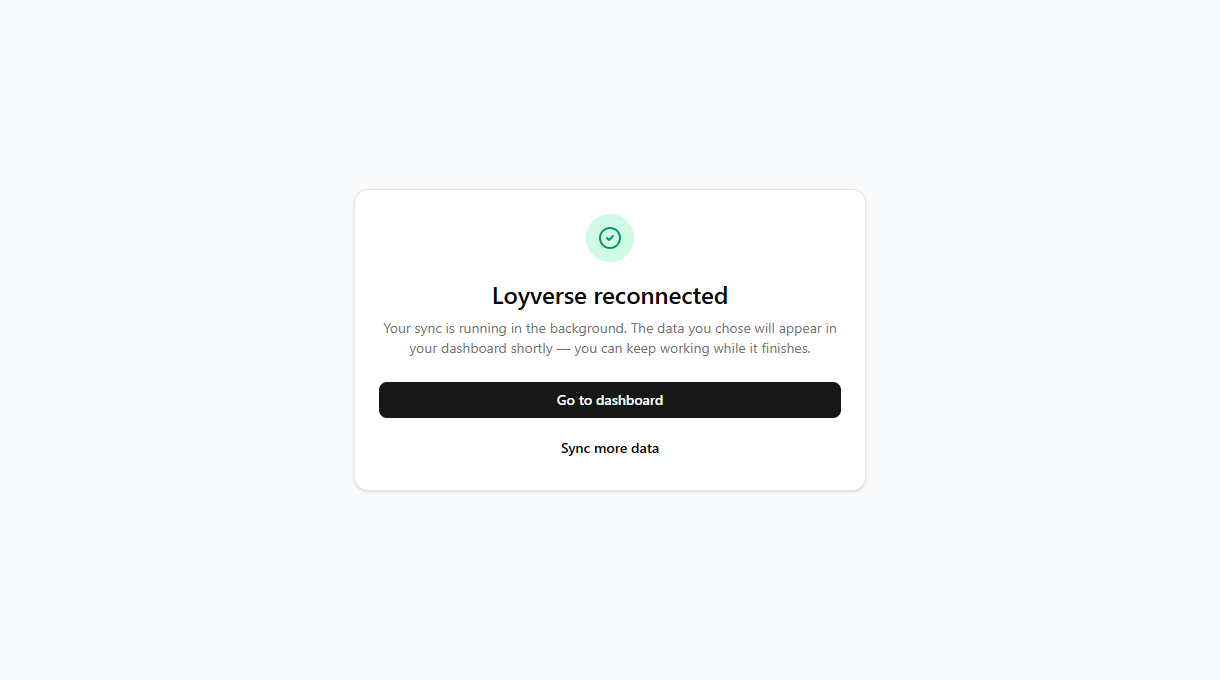
The sync then runs in the background. The data you chose appears in your dashboard shortly, and you can carry on working while it finishes. Sales receipts take the longest, so if you pulled those, give them a few extra minutes to show up.
Why the button is sometimes disabled
A couple of guards can grey out Reconnect & sync, each with a short note on the page explaining why:
- A sync is already running. Only one sync runs at a time. Wait for the current one to finish, then the button comes back.
- You re-imported Sales receipts recently. Pulling your full receipt history is heavy, so it is limited to once an hour. The other data has no such limit. If you need to refresh something else in the meantime, untick Sales receipts and the button unlocks right away.
- Nothing is ticked. Pick at least one type of data.
Common issues
"The Reconnect & sync button is greyed out"
Check the note on the page. Either nothing is ticked (pick at least one), a sync is still running (wait for it), or you pulled Sales receipts within the last hour. In that last case, untick Sales receipts to sync the rest now, or come back later for the receipts.
"My price or name edits in LaundryVerse disappeared"
A re-sync with Items & categories ticked replaces those fields with Loyverse's values. Going forward, either make the edit in Loyverse so it survives a sync, or untick Items & categories when you re-sync. The price you set in Loyverse is the one that will stick.
"I can't open the reconnect page"
It is owner only. If you are an invited admin or manager, the account owner needs to run the re-sync.
"The new data hasn't shown up yet"
The sync runs in the background, so give it a few minutes. Sales receipts are the slowest part, especially for a long history. If items or customers still look stale after a while, try the re-sync again; it is safe to repeat.
"I signed up with the LaundryVerse POS, can I still use this?"
Yes. If you have a Loyverse account, you can connect it here and pull your data in, even if you did not import from Loyverse when you signed up. If you do not use Loyverse at all and only want to bring in past sales from a spreadsheet, see Importing Past Sales instead.
What's next?
- Importing from Loyverse: what the first sync brings over and how items are classified.
- Managing Items: edit services, prices, and categories, and set which items belong to Loyverse.
- Customers: where your synced customer list lives.
Stuck? Email [email protected]. The founder reads every message.