Cash Drawer
Record every peso going into and out of the drawer mid-shift — change top-ups, supply runs, petty cash — and see the expected cash balance update in real time. Open from the POS menu at any point during an active shift.
- An active shift must be open — see Shifts
- Recording movements requires the Open/close shifts permission
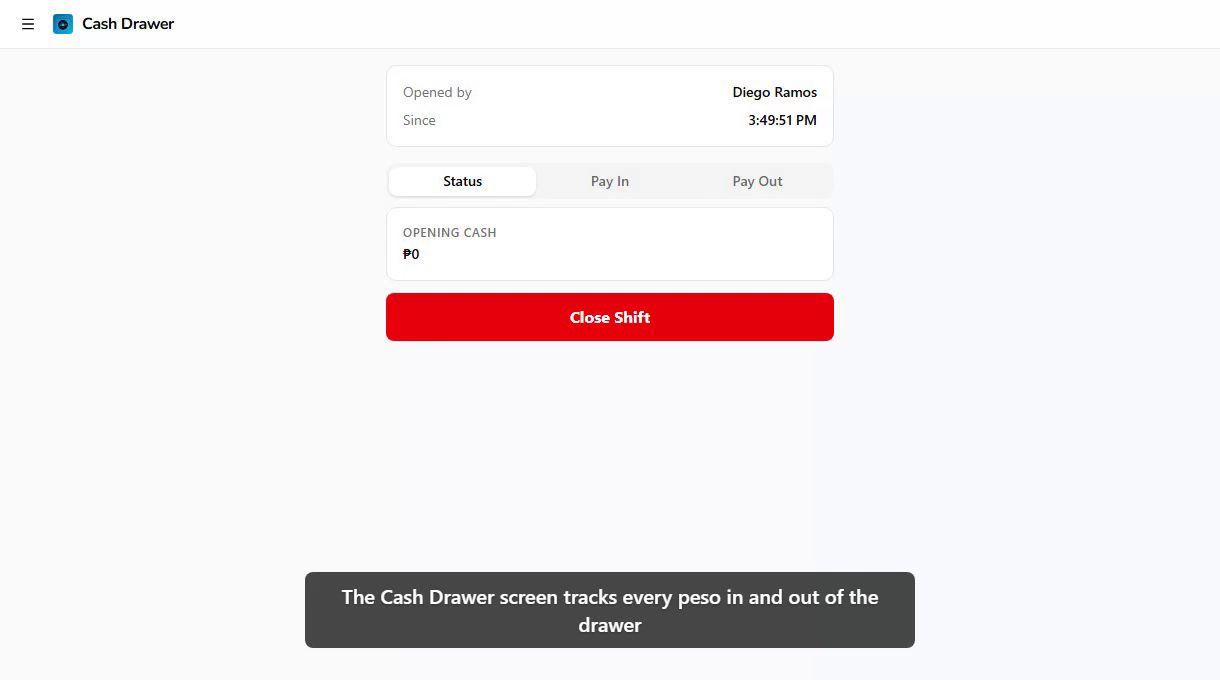
1. The Three Tabs
The Cash Drawer screen has three tabs at the top:
| Tab | Purpose |
|---|---|
| Status | Opening cash, expected cash, and a list of every pay-in and pay-out so far this shift |
| Pay In | Add cash to the drawer |
| Pay Out | Remove cash from the drawer |
The header above the tabs shows who opened the shift, the open time, and the live Expected Cash total.
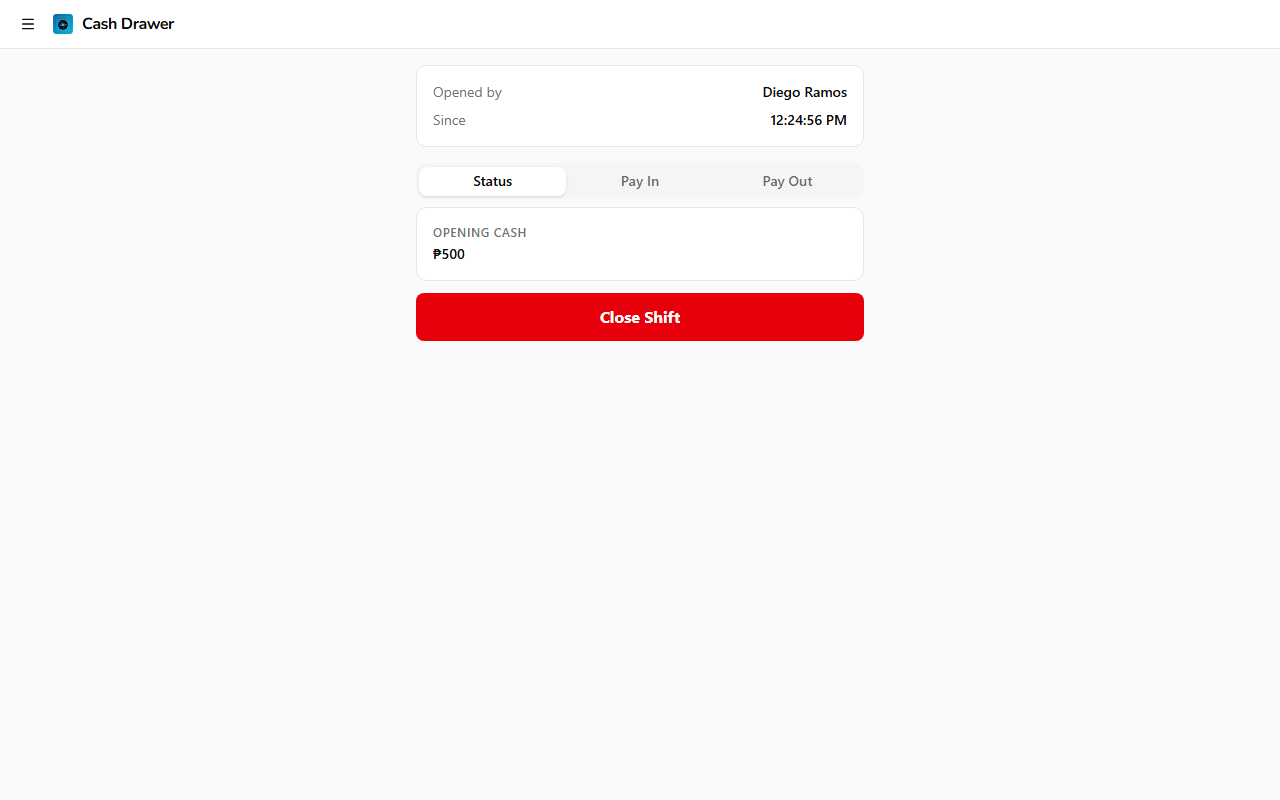
2. Recording a Pay-In
A pay-in is any cash that enters the drawer outside of a sale — making change, topping up starting cash, an overpayment a customer leaves behind.
- Tap the Pay In tab
- Enter the amount in pesos
- Tap a preset reason or type a custom one. Presets: Customer extra money, No change, Starting cash top-up
- Tap Record Pay In
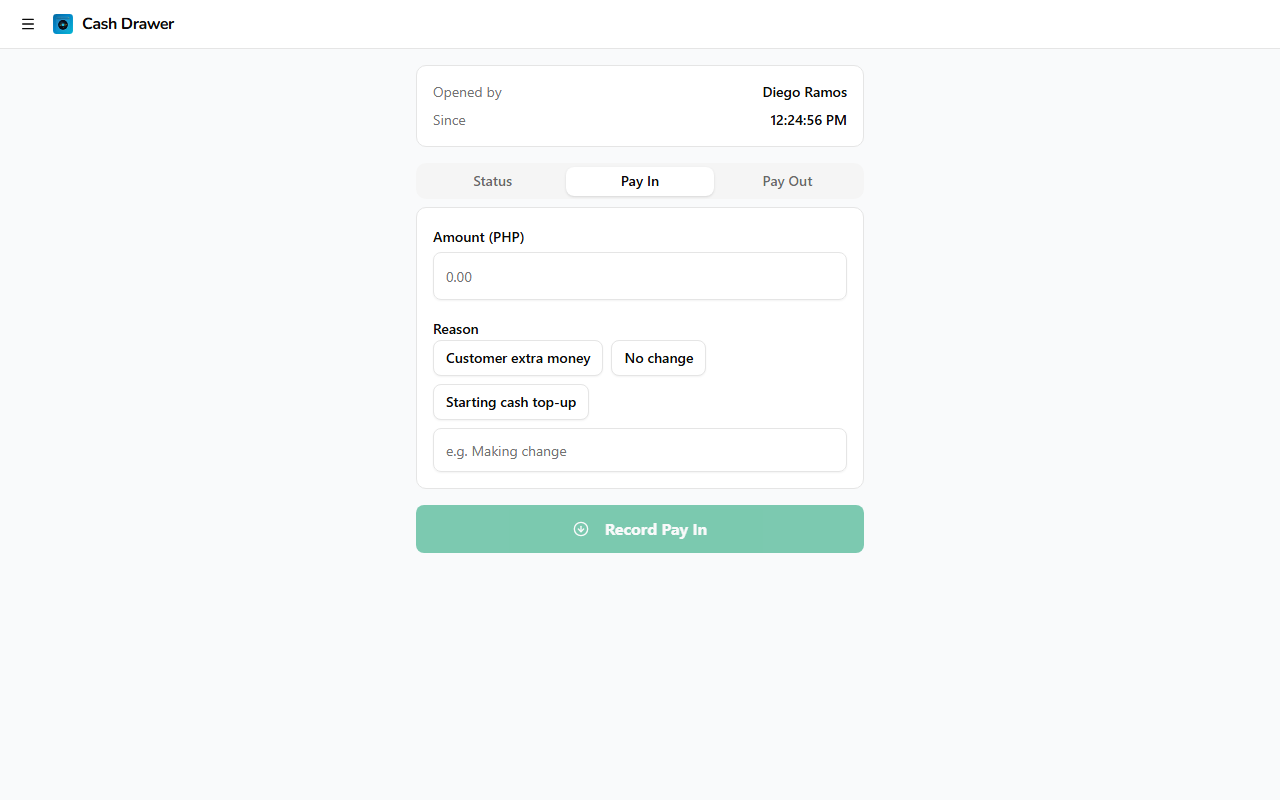
The amount appears in the Status tab with a green down-arrow and is added to expected cash.
3. Recording a Pay-Out
A pay-out is any cash that leaves the drawer for something other than a refund — buying detergent, petty cash, giving change to a customer.
- Tap the Pay Out tab
- Enter the amount
- Tap a preset reason or type a custom one. Presets: Buy supplies, Petty cash, Change for customer
- Tap Record Pay Out
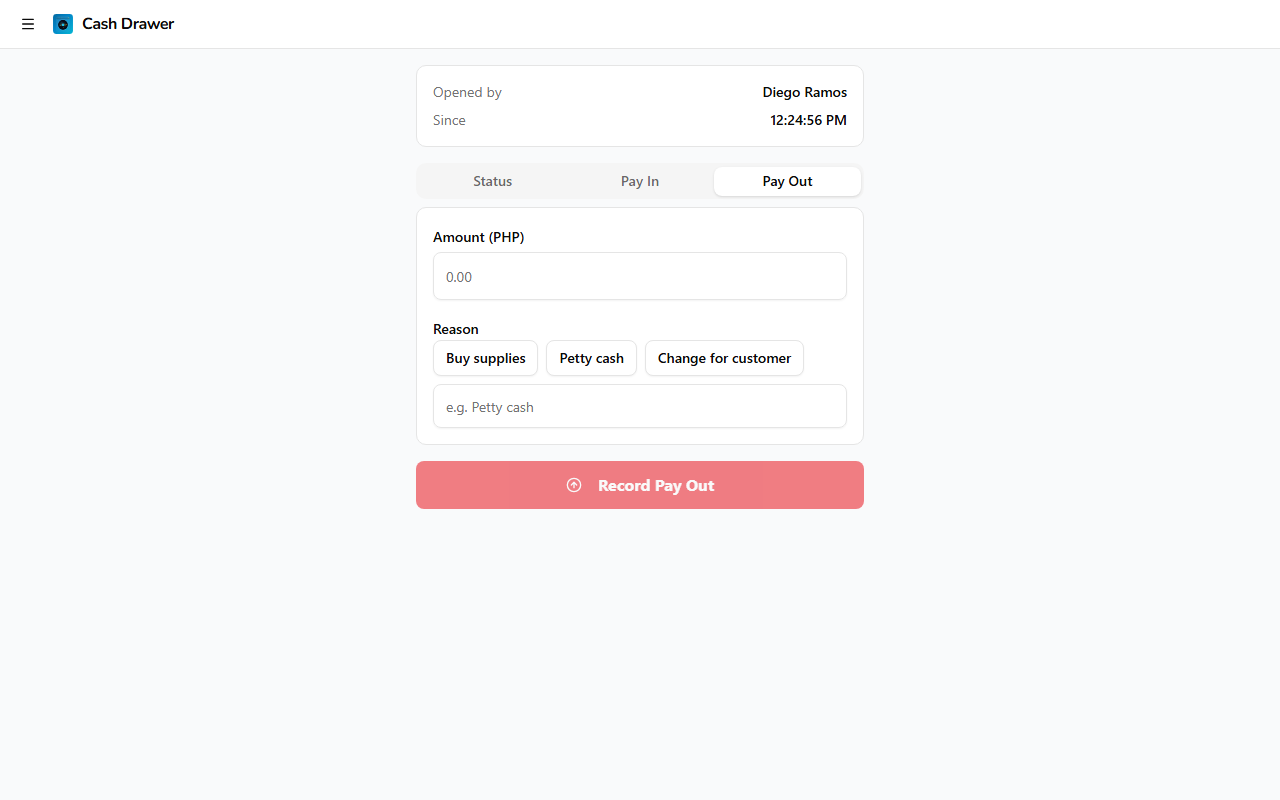
The amount appears in the Status tab with a red up-arrow and is subtracted from expected cash.
Always pick a preset reason if one fits — clean, consistent reasons make the shift report much easier to audit.
4. The Expected Cash Formula
Expected Cash = Opening Cash
              + Cash Payments
              − Cash Refunds
              + Pay-Ins
              − Pay-Outs
This is the cash that should be physically in the drawer right now. When you close the shift, the system asks you to count the actual cash and shows the variance (actual − expected). A non-zero variance is logged on the shift report.
Card, e-wallet, and bank-transfer payments don't affect expected cash — only cash hits the drawer.
5. Cash Drawer Auto-Kick
If your printer is configured with Open drawer on cash events enabled, switching to the Pay In or Pay Out tab automatically pops the cash drawer so you don't have to count or grab cash with one hand on the tablet.
The kick fires once per tab visit. Switch away and come back, and it kicks again.
Configure this from the Printer Setup page.
6. Permissions
| Action | Required Permission |
|---|---|
| Open Cash Drawer screen | None — visible to all signed-in employees |
| Record a pay-in or pay-out | Open/close shifts |
| See Expected Cash total | View shift report |
Employees without View shift report still see the Status tab but the Expected Cash line is hidden — useful when staff should be able to record movements without seeing running totals.
What's Next
- Shifts — Open and close shifts, count cash on close
- Printer Setup — Enable auto-kick on cash events
- Roles & Permissions — Control who can record movements