Exporting Your Data
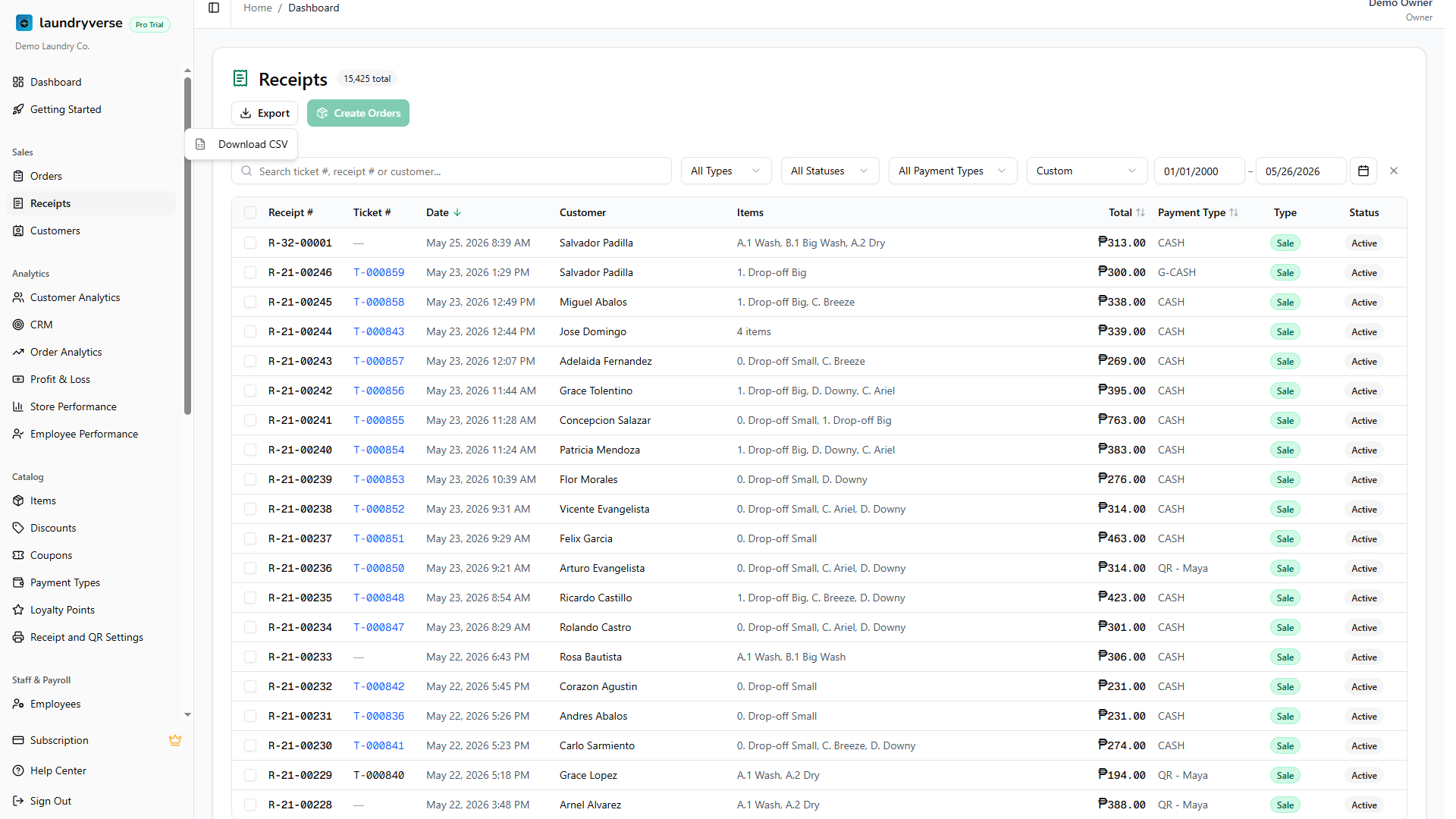
Your records in LaundryVerse are yours to take with you. Most list pages in the dashboard have an Export button in their top-right header that downloads what you are looking at as a CSV file, ready to open in Excel or Google Sheets and hand to your accountant, bank, or franchise partner. This page is the one-stop reference for what you can export, how much history each plan includes, and how the files come out. About 3 minutes.
Exporting a page's data requires permission to open that page. Anyone who can view Receipts, Orders, Customers, the Inventory Ledger, or the LPG page can export it, using the same view permission that page already needs. See each page's own guide for the exact permission, and Roles & Permissions to grant it.
Before you start
A few things worth knowing up front:
- An export copies the current view, not the whole database. The search box, filters, and the store selector all apply, so the file matches the rows you can see on screen.
- Exporting your own records is data portability, not a premium feature. The operational lists (receipts, orders, customers, and LPG switch logs) export on every plan, including Starter.
- On Starter, operational exports cover the last 30 days. The Business plan and above export the full history you have filtered to.
- Report and analytics exports are a Business feature. Profit and loss, sales, customer analytics, payroll, and store performance export to CSV and print-friendly PDF on Business and above.
What you can export
| Page | Format | Starter window | Guide |
|---|---|---|---|
| Receipts | CSV | Last 30 days, by receipt date | Receipts |
| Orders | CSV | Last 30 days, by creation date | Orders |
| Customers | CSV | Last 30 days, by the date a customer was added | Customers |
| LPG switch logs | CSV | Last 30 days, by switch date | LPG Switching |
| Inventory Ledger | CSV | Full selected range, not date-capped | Inventory Ledger |
| Reports & Analytics | CSV, PDF | Business plan and above | Reports & Analytics |
How much history each plan includes
The operational lists export on every plan. On Starter the file is floored to the last 30 days: even if you set a date filter that reaches further back, rows older than 30 days are left out. The Business plan and above export the full history you have filtered to.
Report and analytics exports stay on the Business plan and above, in both CSV and print-friendly PDF.
| Plan | Operational CSV (receipts, orders, customers, LPG) | Full history | Report and analytics export |
|---|---|---|---|
| Starter | Last 30 days | No | No |
| Business | Yes | Yes | Yes |
| Pro | Yes | Yes | Yes |
Trial accounts get the full-history experience during the 14-day trial, so you can evaluate exports against your real data. After a subscription lapses, exports fall back to the Starter 30-day window until you renew. See Subscription & Billing.
How to export
- Open the page you want to export, for example Sales > Receipts.
- Narrow the view with the search box, filters, and the store selector until the table shows the rows you want.
- Click Export in the top-right header.
- Choose Download CSV, or Print / Save as PDF where that option is offered.
- The file downloads to your browser's downloads folder, named after the page and the date.
Large tables are capped per download (receipts and orders, for example, export up to 10,000 rows). A tighter date range or filter pulls a smaller, more focused file.
Common issues
"My export is empty"
Either the current filter has no matching rows, so clear the filters and try again, or you are on the Starter plan and every matching row falls outside the last 30 days. Starter exports are floored to that window, so a filter set entirely to older dates comes back empty. Widen the range to include recent rows, or upgrade for full-history exports.
"Older records are missing from the file"
On Starter, operational exports only reach back 30 days, by receipt date, order creation date, the date a customer was added, or LPG switch date. Rows older than that still show in the table but are left out of the file. Upgrade to Business or above on Subscription & Billing to export your full history.
"The report export asks me to upgrade"
Report and analytics exports (profit and loss, sales, customer analytics, payroll, store performance) are a Business feature. The operational list exports (receipts, orders, customers, LPG) are what Starter can export, capped to the last 30 days. See Reports & Analytics.
"Excel shows strange characters in the file"
Open the CSV through Excel's Data > From Text/CSV import and pick UTF-8 encoding, rather than double-clicking the file. That keeps peso signs and names with accents intact.
What's next?
- Receipts: export every sale, refund, and deposit, filtered any way you like.
- Orders: export the drop-off ticket list with payment and workflow status.
- Customers: export your customer list with contact details, visits, spend, and points.
- Reports & Analytics: the Business-tier report and analytics exports in CSV and PDF.
- Subscription & Billing: compare what each plan includes and upgrade for full-history and report exports.
Stuck? Email [email protected]. The founder reads every message.