Per-Branch Item Availability
If you run more than one branch, you can control exactly which items show up at each branch's POS register. Hide a service at one branch, sell it at another, and set a different price per branch, all from the same catalog. About 3 minutes.
Changing item availability in the dashboard requires the Manage items permission (dashboard:items:manage). Owners, Admins, and Managers have it by default. Counter staff can change availability from the POS only if their role has the POS Manage items permission (pos:items:manage), a sensitive permission you grant per role in Dashboard > Roles & Permissions.
A single-branch shop can leave every item available and never think about this. Availability only becomes interesting once you add a second branch. See Multi-Store Management.
How it works
Every item, and every variant inside it, can be available or hidden at each branch, with its own price per branch:
- When an item is available at a branch, it appears as a sellable tile on that branch's POS register.
- When an item is hidden at a branch, it does not appear on that branch's register at all. Cashiers there cannot ring it up.
- A hidden item is not deleted. It stays in your catalog, keeps its price, and remains available at every other branch where you left it on.
This works per item and per variant. You can sell a "Comforter Wash" at your flagship branch only, or offer the "Large" size of a service at one branch while the rest carry just "Small" and "Medium".
See and change availability from the items list
Open Catalog > Items. The Availability column shows whether each item is sellable at each branch. What you see depends on the branch selector in the dashboard header:
- A single branch selected: each row shows a switch reading Available or Hidden. Flip it to turn the whole item on or off for that branch. The change saves right away.
- All Stores selected: each row shows a count like 2/3, meaning the item is available at 2 of your 3 branches. This view is read-only, it is there so you can spot coverage gaps at a glance. To change availability, pick a single branch from the header selector first.
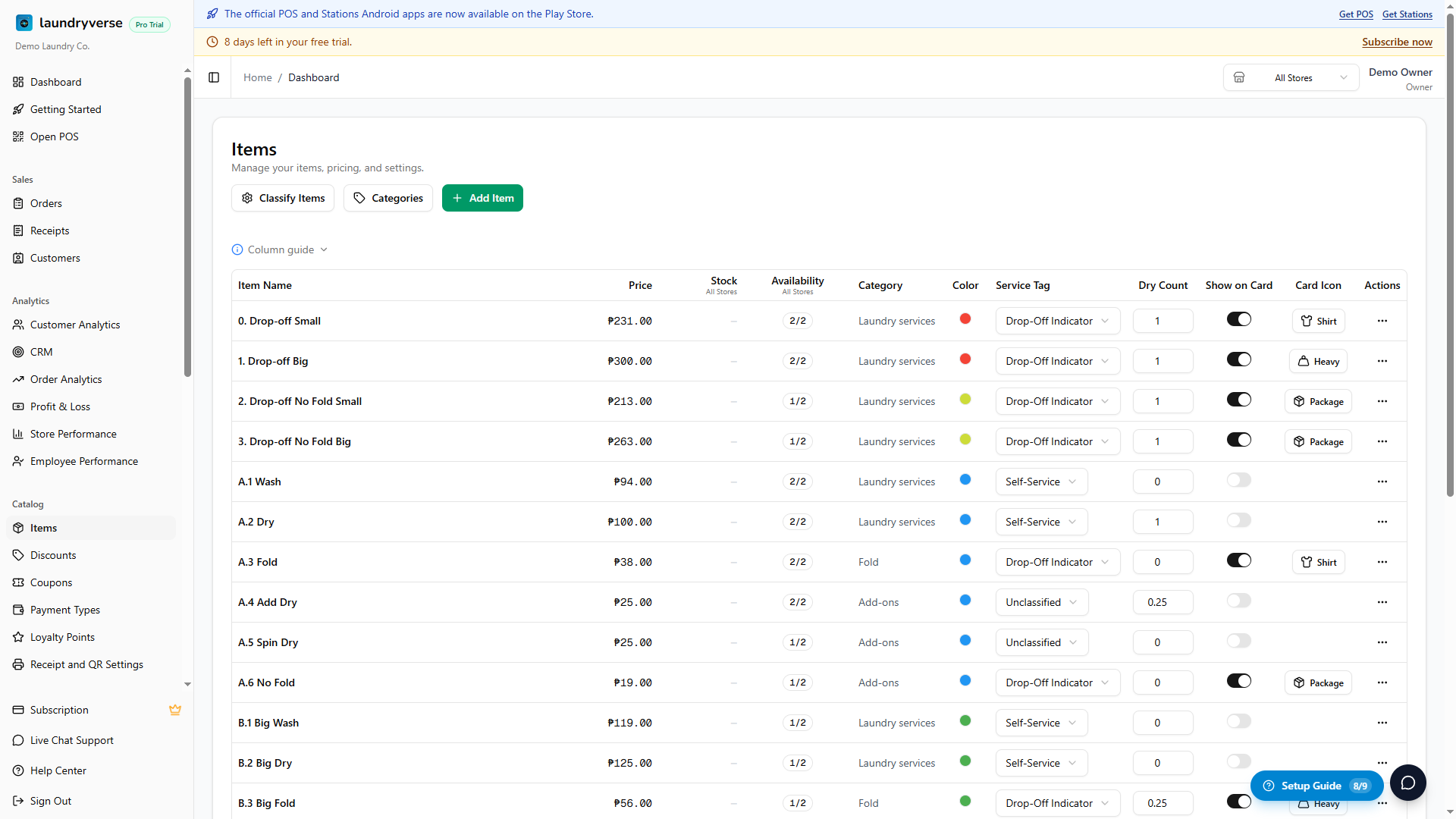
The list switch turns the whole item on or off for the branch (all of its variants at once). For variant-by-variant control, use the item editor described next.
Variant-by-variant control in the item editor
Open an item (three-dot menu > Edit) and scroll to the Stores section. Here you get one row per branch, for each variant, with:
- An Available toggle, so you can hide a single variant at a single branch.
- A price field, so each branch can charge its own price for that variant.
Two shortcuts sit at the top of the section:
- Enable all turns every variant on at every branch.
- Disable all turns everything off, a quick starting point when a new branch should carry only a handful of items.
Branches whose price differs from the variant's default are highlighted, with a reset control to snap them back to the default.
Adding a new branch
This is the one place per-branch availability can catch you out.
When you add a new branch, your existing items start hidden there, so a brand-new branch opens with an empty register until you choose what it sells. This is on purpose, a new branch rarely offers your full catalog from day one.
To stock the new branch's register:
- Open Catalog > Items.
- In the dashboard header, switch the branch selector to the new branch. Every item shows as Hidden.
- Flip on the items that branch sells. They appear on its register straight away.
For finer control (only some variants, or a different price), open each item and use the Stores section instead.
Prices are remembered
If you set a special price for a branch and then hide the item there, the price is not lost. Turn the item back on later and the branch's price returns exactly as you left it. So you can pause a seasonal service over the slow months and re-enable it without re-entering anything.
Changing availability from the POS
Counter staff whose role has the POS Manage items permission can toggle availability for their own branch straight from the POS items screen. Each item has an availability switch, and a hidden item is labelled Hidden in the list. This is handy when a branch runs out of a consumable or pauses a service mid-day, with no need to open the dashboard.
Common issues
"My new branch's POS register is empty"
Expected. New branches start with every item hidden. Open Catalog > Items, switch the header selector to the new branch, and turn on the items it sells. See Adding a new branch above.
"An item shows at one branch but not another"
That item is hidden at the branch where it is missing. Switch the header selector to that branch and check the Availability column, or open the item's Stores section to see every branch at once. Turn it on where you want it.
"I can't toggle availability, the column just shows a number"
You have All Stores selected. The count (such as 2/3) is read-only. Pick a single branch from the header selector and the switch appears.
"The switch is greyed out for a moment"
The change is saving. The switch re-enables as soon as the branch's register is updated.
What's next?
- Multi-Store Management: add branches, set hours, and switch between locations.
- Managing Items: add items, set prices and categories, and control how items appear on the register.
- The POS Register: what cashiers see when they ring up a sale.
Stuck? Email [email protected]. The founder reads every message.