Bundle Items
A bundle is one item that is made of other items. Sell a wash-dry-fold, a supply kit, or any set package as a single line, and the supplies it uses come out of stock automatically. You can mix services (like wash and dry) with tracked supplies (like detergent and fabric conditioner) in the same bundle. About 4 minutes.
Creating or editing a bundle uses the same permission as any other item: Manage items (dashboard:items:manage on the dashboard, pos:items:manage on the POS). Owners have it by default; grant it to staff roles in Dashboard → Roles & Permissions. Bundles are available on every plan, including Starter and the free trial.
Before you start
A bundle is built from items you already have, so create those first:
- The supplies you want to deduct (for example detergent, fabric conditioner) as items with Track Stock turned on. See Managing Items.
- The services the package includes (for example wash, dry, fold), if you sell them on their own.
You don't have to track stock on every part. A component that doesn't track stock just adds its price and its dry count to the bundle.
1. Turn an item into a bundle
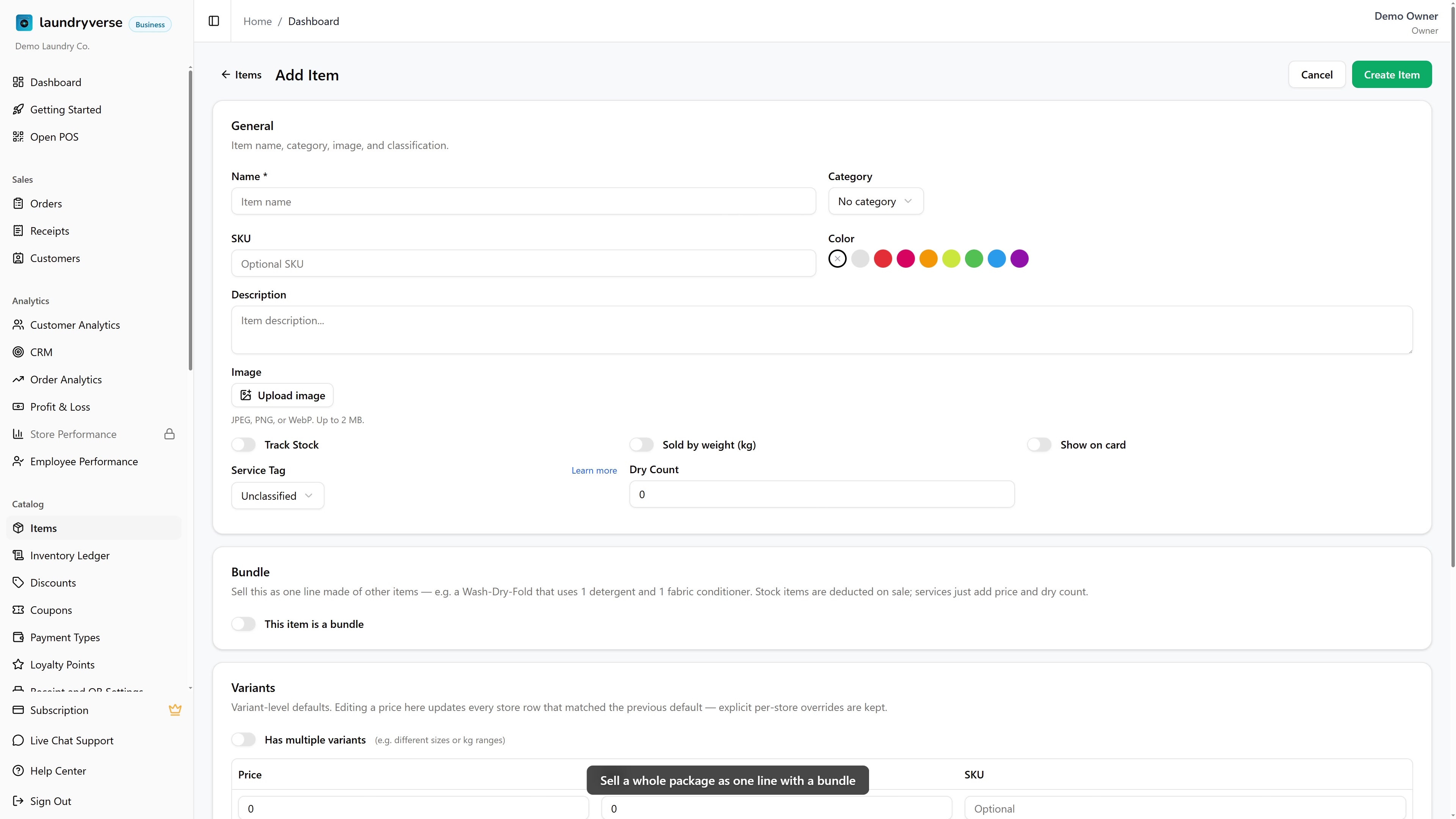
- Go to Catalog → Items and add a new item (or open an existing one).
- Give it a name, for example "Wash-Dry-Fold".
- In the Bundle section, turn on This item is a bundle.
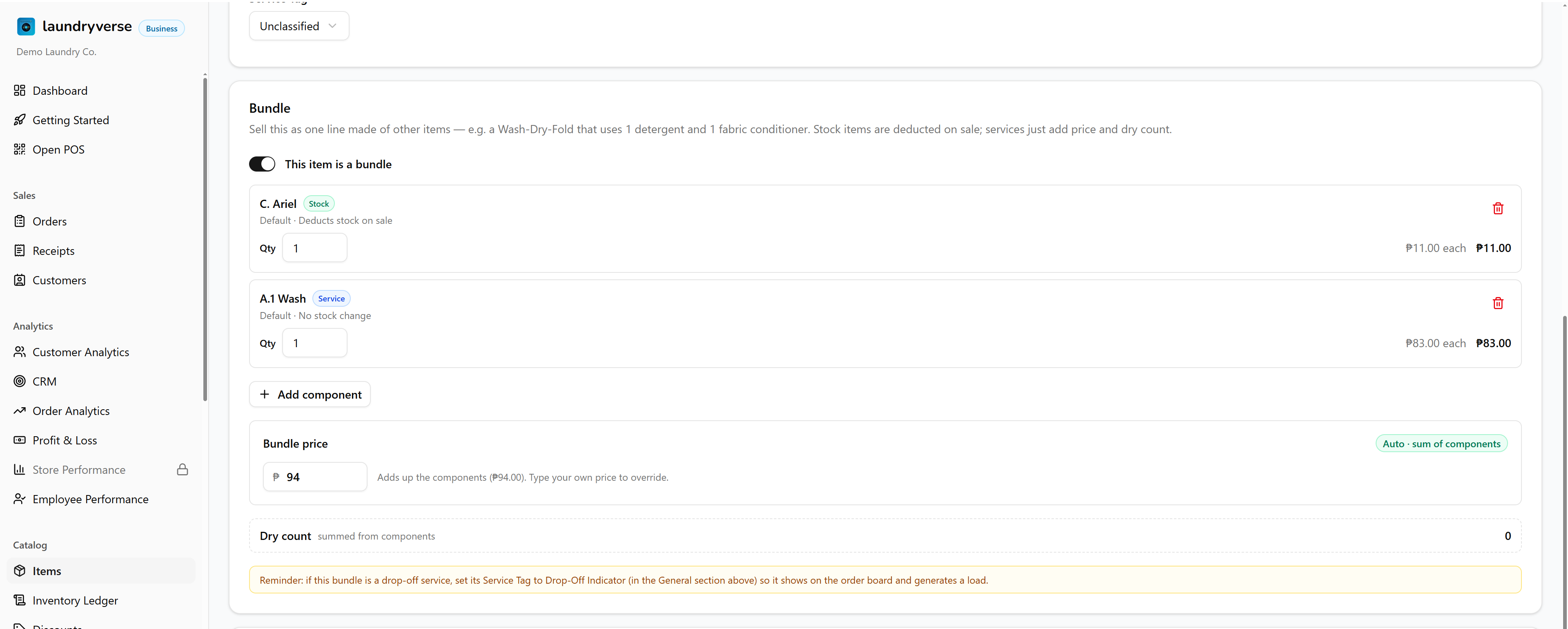
The editor changes to show the bundle's parts, its price, and its dry count. The separate Variants and per-store price fields are hidden, because a bundle is priced as a whole from its parts.
2. Add the components
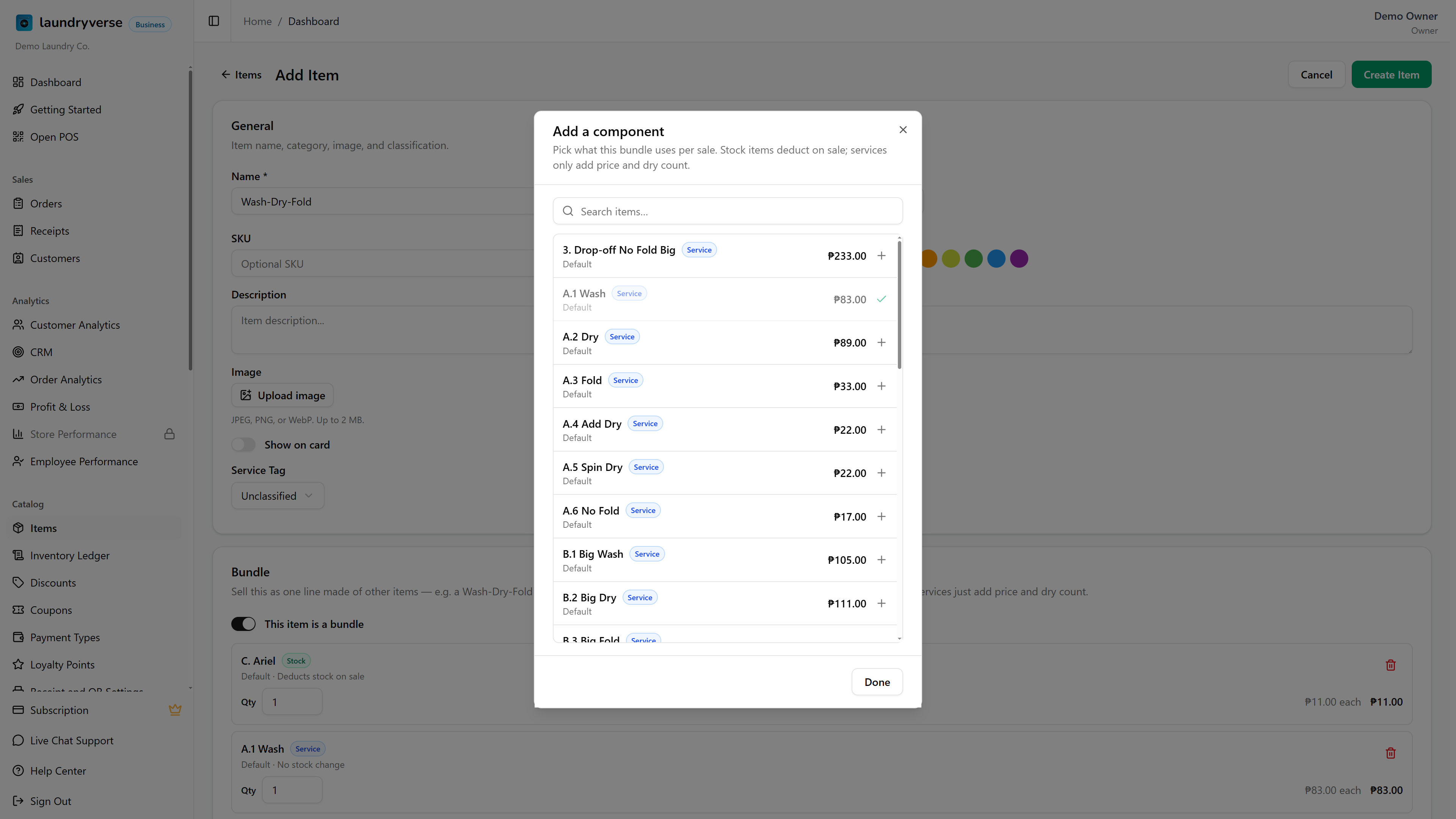
Tap Add component to open the picker. It lists every item you have, each with a badge:
- Stock items come out of inventory when the bundle sells.
- Service items only add their price and dry count; they don't touch stock.
Search by name, tap an item to add it, and set the quantity each sale uses (for example 1 detergent and 1 fabric conditioner per wash-dry-fold). To remove a part, tap the trash icon on its row.
3. Set the price
By default the bundle price adds up its parts for you, shown as "Auto, sum of components". To charge a different amount (a package discount, a round number), type your own price. The bundle then shows Custom price, and it stays at your number even if you change the parts later. Tap Reset to auto to go back to the sum.
4. Check the dry count
The Dry count shown in the Bundle section is added up from the parts. If a wash-dry-fold includes one dry cycle, the bundle carries that dry count, so your LPG tracking counts it the same as selling the dry on its own. There is nothing extra to set.
5. Save and sell it
Save the item. At the POS it behaves like any other item: tap it once to add it to the cart as a single line at the bundle price. When the sale completes, each tracked supply is deducted from stock, and every deduction is recorded in your Inventory Ledger as a stock-out. Cancelling the sale restores the supplies.
6. Put a bundle on the order board
This is the one thing to get right. Whether a bundle appears on the Order Board and starts the wash, dry, fold, pack workflow is decided by the bundle's own Service Tag, not by its parts.
So for a wash-dry-fold that should create a load on the board, set the bundle item's Service Tag to Drop-Off Indicator (and pick a card icon if you want one on the board card). See Understanding Service Tags. A component being a drop-off item does nothing on its own; the bundle is what the board reads.
When a bundle sells, only the bundle is on the receipt; its parts are recorded as stock movements, not as separate lines. So the order board, the card icon, and your service-mix reports all read the bundle's own tag and icon. Set them on the bundle itself.
Common issues
"My bundle sold but nothing showed on the Order Board"
The board reads the bundle's own Service Tag. Open the bundle in Catalog → Items and set its Service Tag to Drop-Off Indicator. Tagging a component instead has no effect on the board.
"The supplies didn't come out of stock"
Only Track Stock components are deducted, and only for the store where the sale happened. Open each supply item and confirm Track Stock is on and the item is stocked at that store. Service components never move stock, by design.
"The price isn't adding up from the parts"
The bundle is on a Custom price. Open it, and in the Bundle section tap Reset to auto to switch back to the sum of the components.
"I can't turn on This item is a bundle, or there are no items to add"
Turning an item into a bundle needs the Manage items permission (owners have it). The picker also needs other items to exist first, so create your supplies and services before building the bundle.
What's next?
- Managing Items: turn on stock tracking and set up the supplies your bundles use.
- Inventory Ledger: see every supply a bundle consumed, in and out, over time.
- Understanding Service Tags: tag a bundle as Drop-Off to put it on the Order Board.
Stuck? Email [email protected]. The founder reads every message.