Understanding Service Tags
Every item in your catalog carries a Service Tag. It is a small setting with a big job: it decides how a sale is counted in your reports and, more importantly, whether that sale creates a trackable order on the POS order board. This guide explains what the tags do, then walks through a practice that solves a common problem for per-kilo shops: tracking how many loads are in an order. About 4 minutes.
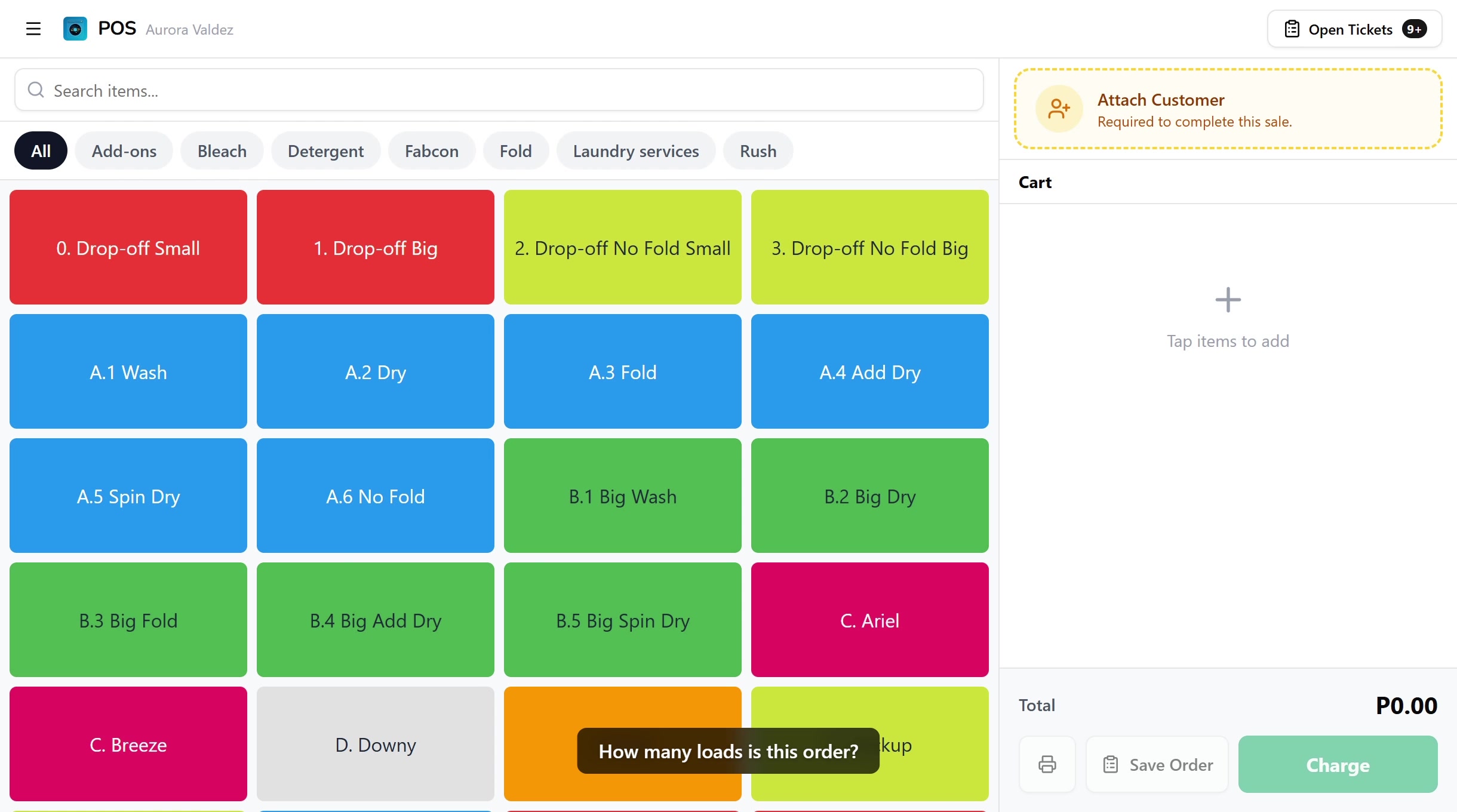
Creating or editing items requires the Manage items permission (dashboard:items:manage). Owners have it by default; grant it to staff in Dashboard → Roles & Permissions. The same permission gates editing items from the POS.
Before you start
You'll need:
- At least one item in your catalog. See Managing Items for how to add and edit items.
- A store with an active POS device, if you want to follow the load-tracking example end to end. See Setting Up the POS.
What service tags do
Open any item (Dashboard → Items, then edit an item, or POS → Items) and you'll find the Service Tag dropdown with three choices:
| Tag | Counts in Service Breakdown as | Creates an order on the board? |
|---|---|---|
| Unclassified | Nothing | No |
| Self-Service | Self-service | No |
| Drop-Off Indicator | Drop-off | Yes |
Drop-Off Indicator is the important one. When a receipt includes a Drop-Off Indicator item, two things happen: the receipt counts toward your drop-off total in Dashboard → Reports → Service Breakdown, and an order automatically appears on the POS order board so your crew can run it through wash, dry, fold, and pack. Self-Service and Unclassified items still ring up on the receipt, but they never create a board order.
For the full tour of the items table, the classification wizard, and the Service Breakdown report, see Managing Items. The rest of this guide focuses on one thing the tag controls that is easy to miss: how many loads land on the board.
One load card per drop-off unit
Here is the rule that matters for load tracking:
- Each unit of a Drop-Off Indicator item becomes its own load card on the order board. Sell three of a drop-off item and the board shows three loads, each moving through wash, dry, fold, and pack on its own.
- Sold-by-weight items are the exception. A weight-priced item (for example "Per Kilo" at 8.5 kg) always creates exactly one load, no matter the weight, because the kilo figure is a price, not a count of loads.
That exception is the whole problem for per-kilo pricing, and the next section is the fix.
The per-kilo load problem
Say a regular load is 8 kg and you price by the kilo. A customer drops off 24 kg. You ring it up as one line, "Per Kilo" at 24 kg, and charge for the 24 kg. That is correct for the bill, but on the order board it shows as one load card, even though it is really three machine loads. Your washer has no way to see, at a glance, that this ticket needs three runs, not one.
You can't put a load count on the weight line itself, because its quantity is the kilos, not the loads.
The fix: a dedicated Load Counter item
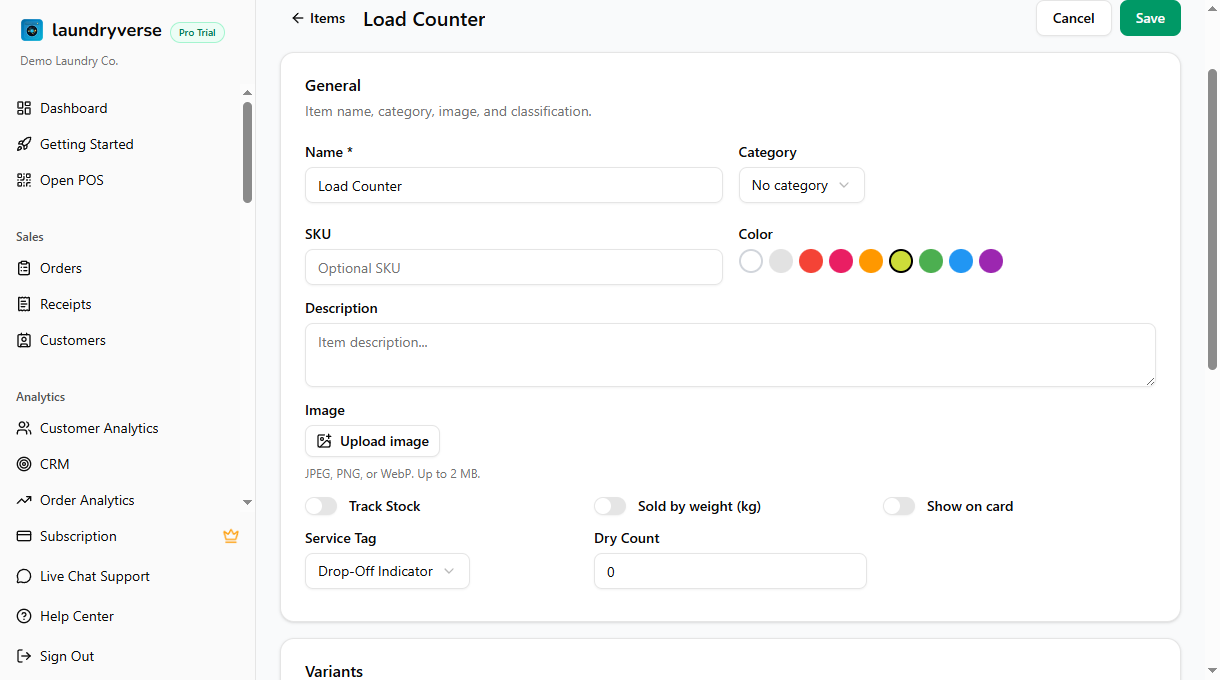
The recommended practice is to keep a small, dedicated item whose only job is to count loads. Create it once:
- Go to Dashboard → Items → Add Item (or POS → Items → Add).
- Name it something clear like Load Counter.
- Set the Price to 0, so it never changes the bill. The per-kilo line still carries the full amount.
- Leave Sold by weight off, so each unit counts as one load.
- Set the Service Tag to Drop-Off Indicator, so the units create load cards on the board.
Leave your per-kilo price item as Unclassified or Self-Service, not Drop-Off Indicator. If both items are tagged Drop-Off, the weight line adds its own extra load card and your count is off by one. Let the Load Counter be the single source of load cards, and the number of loads on the board will always match the quantity you entered.
Ringing it up at the register
At the POS, build the cart the normal way, then add the Load Counter for the number of loads:
- Add your per-kilo service and set its quantity to the kilos. This is what the customer pays for.
- Add Load Counter and set its quantity to the number of physical loads, for example 4 for a 30 kg drop-off.
The total stays driven by the per-kilo line. Load Counter adds ₱0.
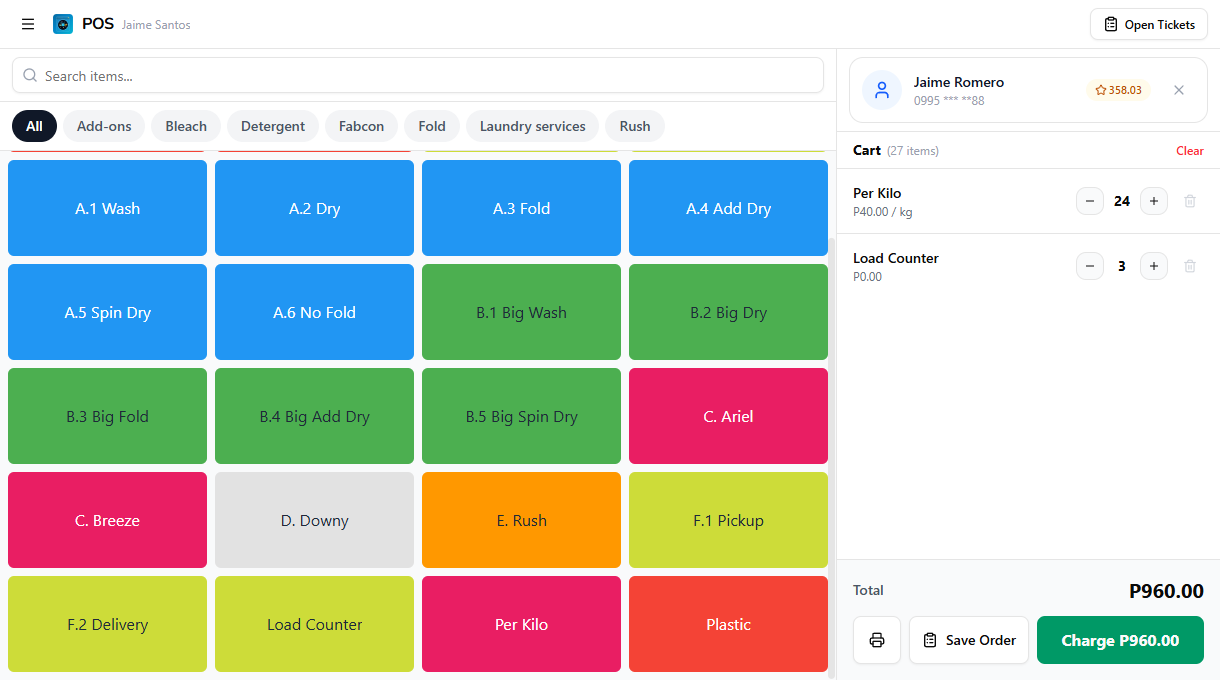
Charge or save the order as usual. Because the receipt now has a Drop-Off Indicator item, it also counts toward your drop-off total in the Service Breakdown report.
Tracking the loads on the order board
Open the order (from Open Tickets, or Go to Orders right after charging) and you'll see one load card per Load Counter unit. Each card runs through Received → Washed → Dried → Packed → Claimed independently, so your crew can advance them one at a time as the machines free up.
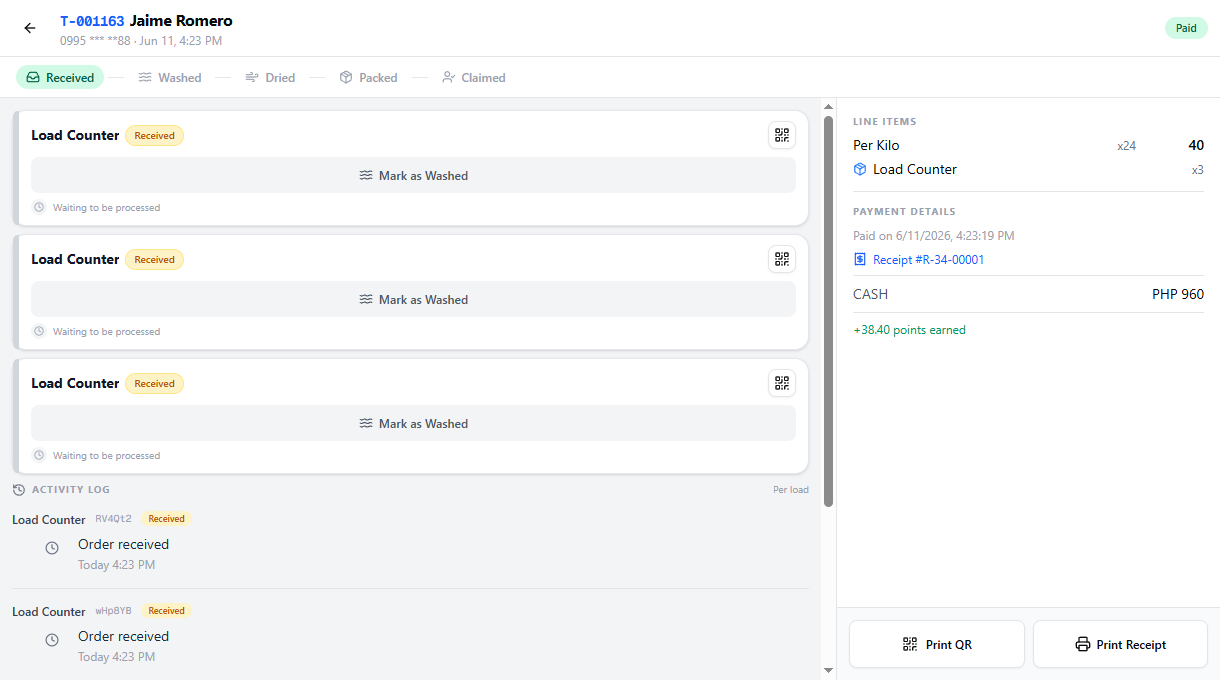
This is exactly the per-load visibility a single weight line can't give you.
Common issues
"My per-kilo order only shows one load on the board"
A sold-by-weight item always creates one load, regardless of the kilos. Add a Load Counter item (Drop-Off Indicator, price 0, not sold by weight) and set its quantity to the number of loads when you ring up. See the fix above.
"I see one extra load card I didn't expect"
Your per-kilo price item is probably also tagged Drop-Off Indicator, so it adds its own load on top of the Load Counter units. Open that item and change its Service Tag to Unclassified or Self-Service. Only the Load Counter should be Drop-Off Indicator.
"The Load Counter is changing my total"
Its price isn't 0. Open the item, set the price to 0, and clear any per-store price overrides. The per-kilo line is what should carry the amount.
"The drop-off sale isn't on the order board at all"
Nothing on the receipt is tagged Drop-Off Indicator. Tag the Load Counter (or your drop-off package items) as Drop-Off Indicator and ring the order up again. Past receipts won't backfill, but new ones will create board orders.
"I don't want the Load Counter to look like a sellable service"
It has to be visible on the register so a cashier can add it, but you can give it a neutral name and a quiet color in Dashboard → Items so it reads as an internal load control rather than a service customers would ask for.
What's next?
- Managing Items: the full items reference, including categories, variants, the classification wizard, and the Service Breakdown report.
- The POS Register: how cashiers add items, adjust quantities, and charge.
- The Order Board: how loads move through wash, dry, fold, and pack.
- Creating Your First Order: the full ring-up loop end to end.
Stuck? Email [email protected]. The founder reads every message.