Scan to Advance a Load
The fastest way to move laundry through your shop is to scan the QR label on each bag. One scan advances that load to its next stage, Received to Washed to Dried to Packed, with no menus to tap through. This guide covers the scan flow, the result toast, batch-advancing from a station page, and how an order auto-claims. About 3 minutes.
Before you start
You'll need:
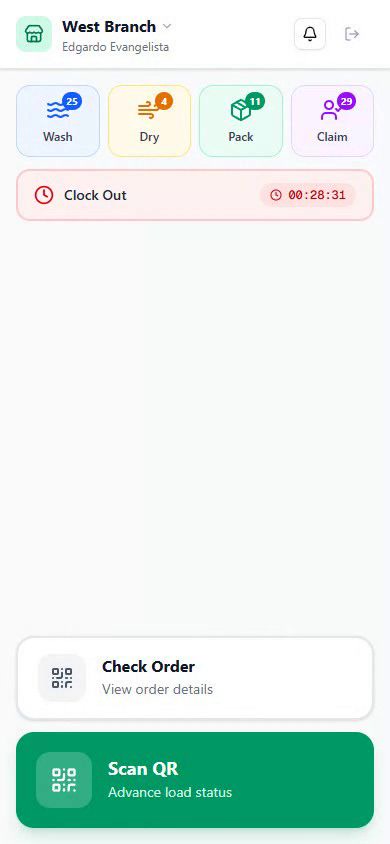
- To be clocked in to Stations. The Scan QR button only appears after clock-in. See Clock In.
- Camera access allowed on the device. The scanner uses the camera to read QR codes.
- QR labels printed on the bags. Labels print from the POS when the order is created. See Setting Up the POS and Printer Setup.
Stations sign-in is PIN-only. Any employee with a valid 4-digit PIN can scan and advance loads; there's no separate permission to set up. Who scans at which station is a floor decision, not a system gate.
1. Opening the scanner
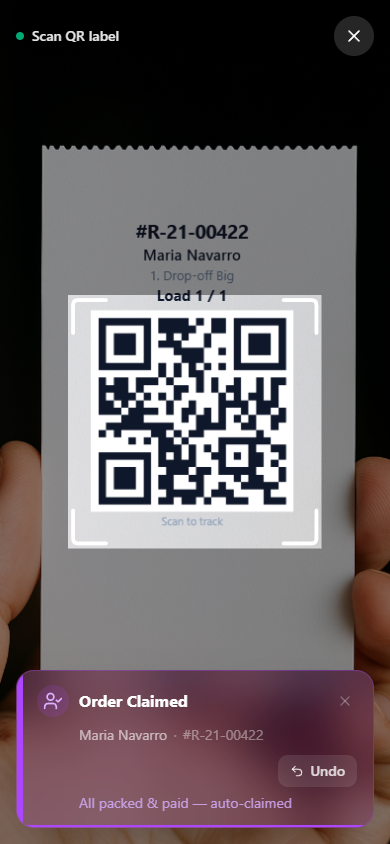
From the clocked-in home, tap the green Scan QR button at the bottom. A full-screen camera view opens with a square scan frame in the center and a green "Scan QR label" indicator at the top.
Hold the device about 15 to 20 cm from the QR label. The scanner reads codes automatically, so there's no capture button to press.
2. How a scan advances a load
Point the camera at the QR label on the bag. The moment the scanner reads it, the load advances to its next status:
| Current status | After the scan | Station |
|---|---|---|
| Received | Washed | Washing |
| Washed | Dried | Drying |
| Dried | Packed | Packing |
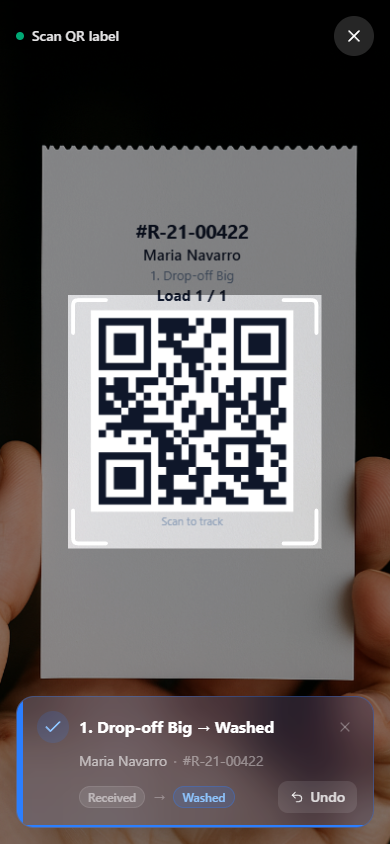
Each QR label is tied to a specific load within an order. If the label is an order-level QR rather than a per-load label, the scan advances the first eligible load in that order.
You can keep scanning without closing the scanner. Scan the next bag right after the last, the result toasts stack up to three at a time and older ones clear on their own.
3. Reading the scan result
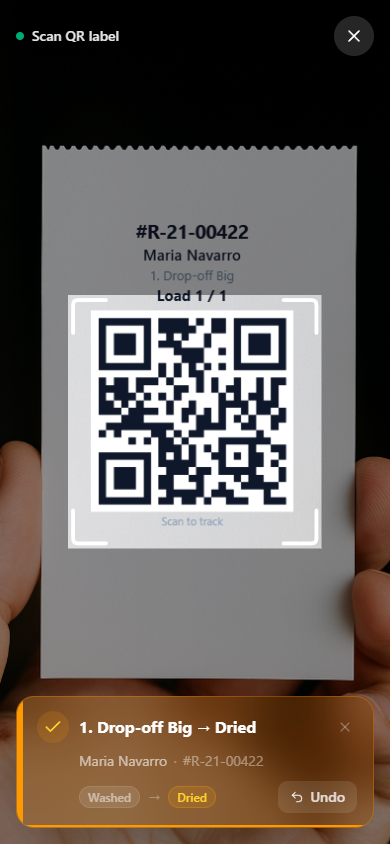
After each scan, a toast slides up from the bottom showing:
- The customer name and receipt number
- The load type, for example Regular Wash or Comforter Wash
- The status transition badges, for example Received to Washed
- An Undo button, tap it to revert the advance if you scanned the wrong bag
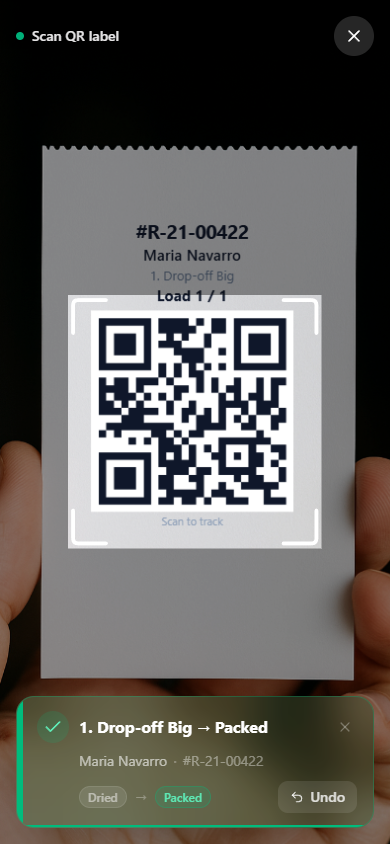
The toast colour tells you what happened at a glance:
| Toast | Colour | When it appears |
|---|---|---|
| Advanced | Green | The load moved to its next status |
| Order ready for pickup | Green | That scan packed the last load in the order |
| Auto-claimed | Purple | The last load packed and the order is already paid, so it claimed itself |
| Awaiting payment | Amber | All loads packed, but the order is unpaid, so it can't be claimed yet |
| Already packed / Already claimed | Amber | The load or order was processed already |
| Not found | Red | The QR doesn't match any open order |
4. Batch-advancing from a station page
If a label won't scan, or you'd rather move a whole stack at once, advance loads straight from a station page instead:
- From the clocked-in home, tap a station card (Wash, Dry, Pack, or Claim).
- The station page lists every load waiting at that stage, grouped by order.
- Tick the checkboxes for the loads you want to move, or tap Select all.
- Tap the action button at the bottom, for example Mark as Dried (3), to advance them all in one go.
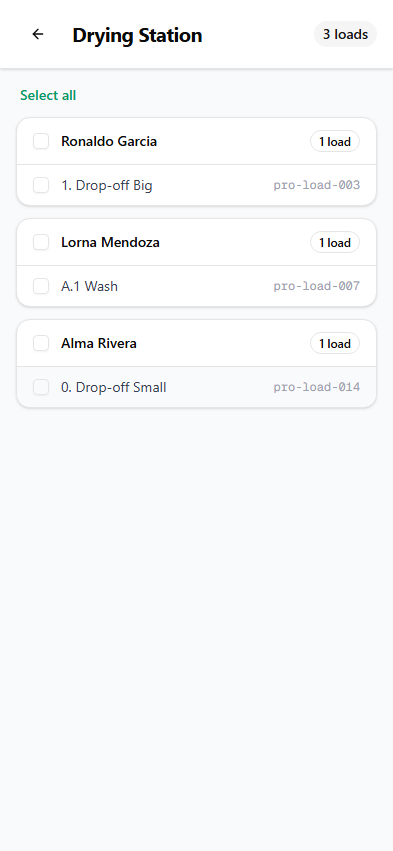
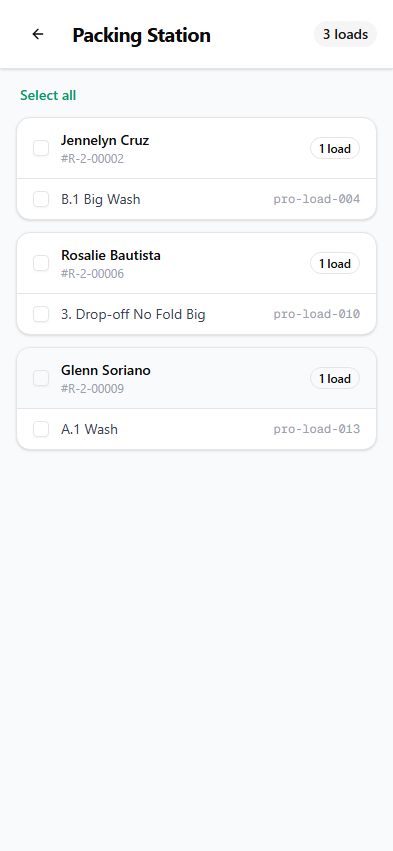
The Claim card works the same way, with two groups: Ready to Claim for paid orders, and Awaiting Payment for unpaid ones, which stay greyed out until the customer pays.
5. Auto-claim
When a scan packs the last remaining load in an order:
- If the order is fully paid, it claims itself automatically and you see a purple "Auto-claimed" toast. The order is ready for the customer to collect.
- If the order is unpaid, you see an amber "Awaiting payment" warning instead. The customer has to settle the balance before the order can be released.
Common issues
"The scanner won't read the label"
Clean the camera lens and make sure the label is flat and well lit, glare and creased thermal paper are the usual culprits. Hold the device 15 to 20 cm away. If a single label is damaged, use the station page to advance that load by hand instead.
"I scanned the wrong bag"
Tap Undo on the result toast to revert the advance. If the toast already cleared, open the order with Check Order and step the load back from the order detail page.
"The toast says Awaiting payment and I can't claim"
All loads are packed but the order still has a balance. Stations never releases an unpaid order. Take payment at the POS, then the order claims on the next scan, or claim it from the Check Order detail page once it reads as Paid.
"The toast says Not found"
The QR doesn't match any open order at this store. Check the device is signed in to the right store (a wrong store shows an empty board), and that the order wasn't already claimed or voided. A claimed order's label no longer advances.
"Nothing happens when I tap Scan QR"
You're signed in but not clocked in, the scanner stays hidden until clock-in succeeds. Tap Clock In first. See Clock In.
What's next?
- QR Scanning to View Order, look up an order's full status without changing anything.
- Clock In, start a shift and reach the scanner.
- Setting Up Stations, bind a device to a store and install the app.
Stuck? Email [email protected]. The founder reads every message.