Check an Order by QR Scan
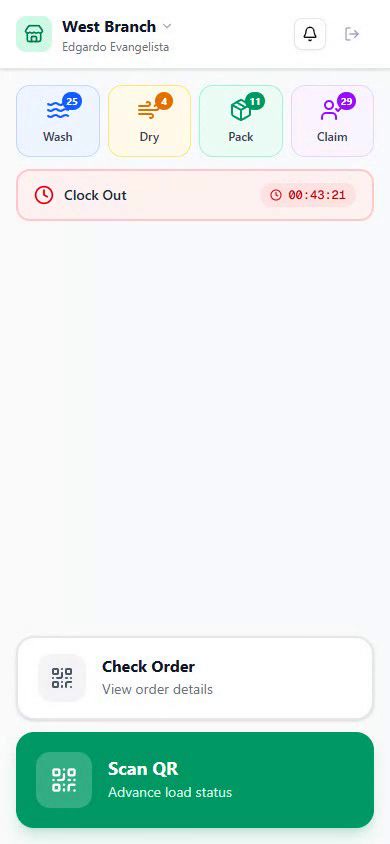
Use Check Order to look up any order by scanning its QR label. Unlike Scan QR, it doesn't advance anything, it opens the full order detail so you can see every load's status, the line items, and the payment state, and claim the order if it's ready. About 2 minutes.
Before you start
You'll need:
- To be clocked in to Stations. The Check Order button only appears after clock-in. See Clock In.
- Camera access allowed on the device, the same as the Scan QR scanner.
Stations sign-in is PIN-only. Any employee with a valid 4-digit PIN can check an order; there's no separate permission to set up.
1. Opening the Check scanner
From the clocked-in home, tap Check Order. A camera view opens with a blue "Scan to check order" indicator at the top, the blue accent is how you tell it apart from the green Scan QR scanner.
Scan the QR label on a bag. Checking an order does not advance any load. It simply opens that order's detail page so you can review its current state.
2. The order detail page
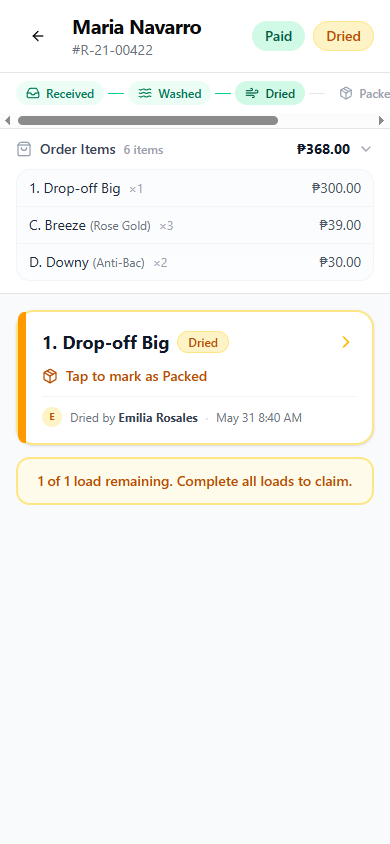
After the scan, the full order detail opens:
| Section | What it shows |
|---|---|
| Header | Customer name, receipt number, a payment badge (Paid, Partial, or Unpaid), and the overall status badge |
| Progress bar | A stepper showing how far the order has moved through wash, dry, pack, claim |
| Order Items | A collapsible list of line items with quantities and the total amount |
| Load cards | One card per load, showing its type, current status, and who last processed it |
3. Load cards
Each load is a card showing:
- Load type, for example Regular Wash, Heavy Wash, or Comforter Wash
- Status badge, Received, Washed, Dried, or Packed
- The next action, for example "Tap to mark as Packed"
- Processing history, who last worked on the load and when
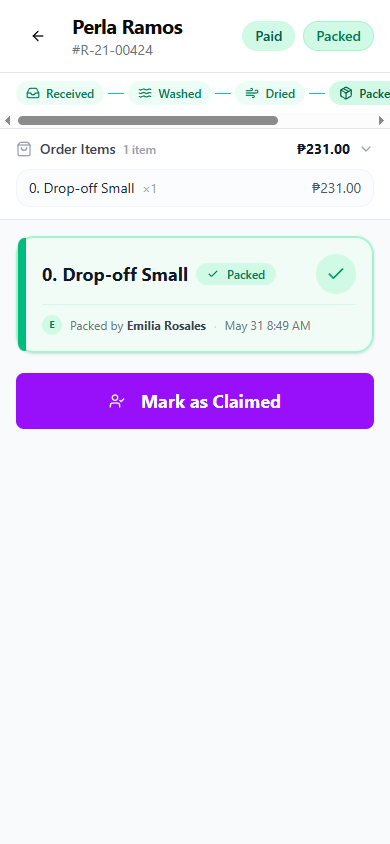
Packed loads show a green check and can't be tapped, they're done. Active loads are tappable: tap a card to advance it to the next status, exactly as scanning its QR would. This is handy when a single label won't scan but you still need to move that one load.
4. Claiming an order
What shows at the bottom of the page depends on the order's state:
- Loads still in progress: a note like "Complete all loads to claim", you can't claim until every load is packed.
- All packed, fully paid: a purple Mark as Claimed button. Tap it to release the order to the customer.
- All packed, but unpaid: an amber "Awaiting payment before claiming" message. The customer has to settle the balance first.
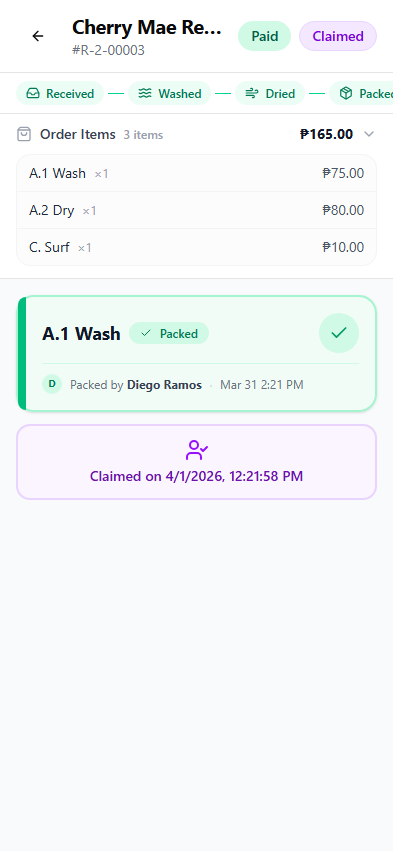
After claiming, the page shows a confirmation with who claimed it and when.
5. Undo
After you advance a load or claim an order from the detail page, an undo toast appears at the bottom of the screen. Tap Undo to revert the action if you tapped the wrong card. The toast stays up long enough to catch a mistake, then clears on its own.
Common issues
"Check Order opened but I meant to advance the load"
Check Order is read-only by design, it never advances a load on the scan. To advance, either tap the load's card on the detail page, or go back and use the green Scan QR scanner instead. See Scan to Advance a Load.
"The Mark as Claimed button isn't showing"
The order isn't ready to claim. Either not every load is packed yet (the page says how many remain), or the order still has a balance (you'll see "Awaiting payment"). Pack the remaining loads and take payment at the POS, then the button appears.
"The order opened to the wrong customer"
The scanned label belongs to a different order, or labels got swapped between bags. Re-scan the correct bag. If two bags share a printed label, reprint from the POS so each bag carries its own QR.
"I claimed or advanced the wrong order"
Tap Undo on the toast right after the action. If the toast already cleared, scan the order again, the load cards let you step a load back, and a manager can review changes in the dashboard Activity Log.
"The scanner won't read the label"
Clean the lens, flatten the label, and avoid glare on the thermal paper. If one label is damaged, open any other order and navigate from there, or advance the load from its station page.
What's next?
- Scan to Advance a Load, move loads through wash, dry, pack with a single scan.
- Clock In, start a shift and reach the scanner.
- Setting Up Stations, bind a device to a store and install the app.
Stuck? Email [email protected]. The founder reads every message.